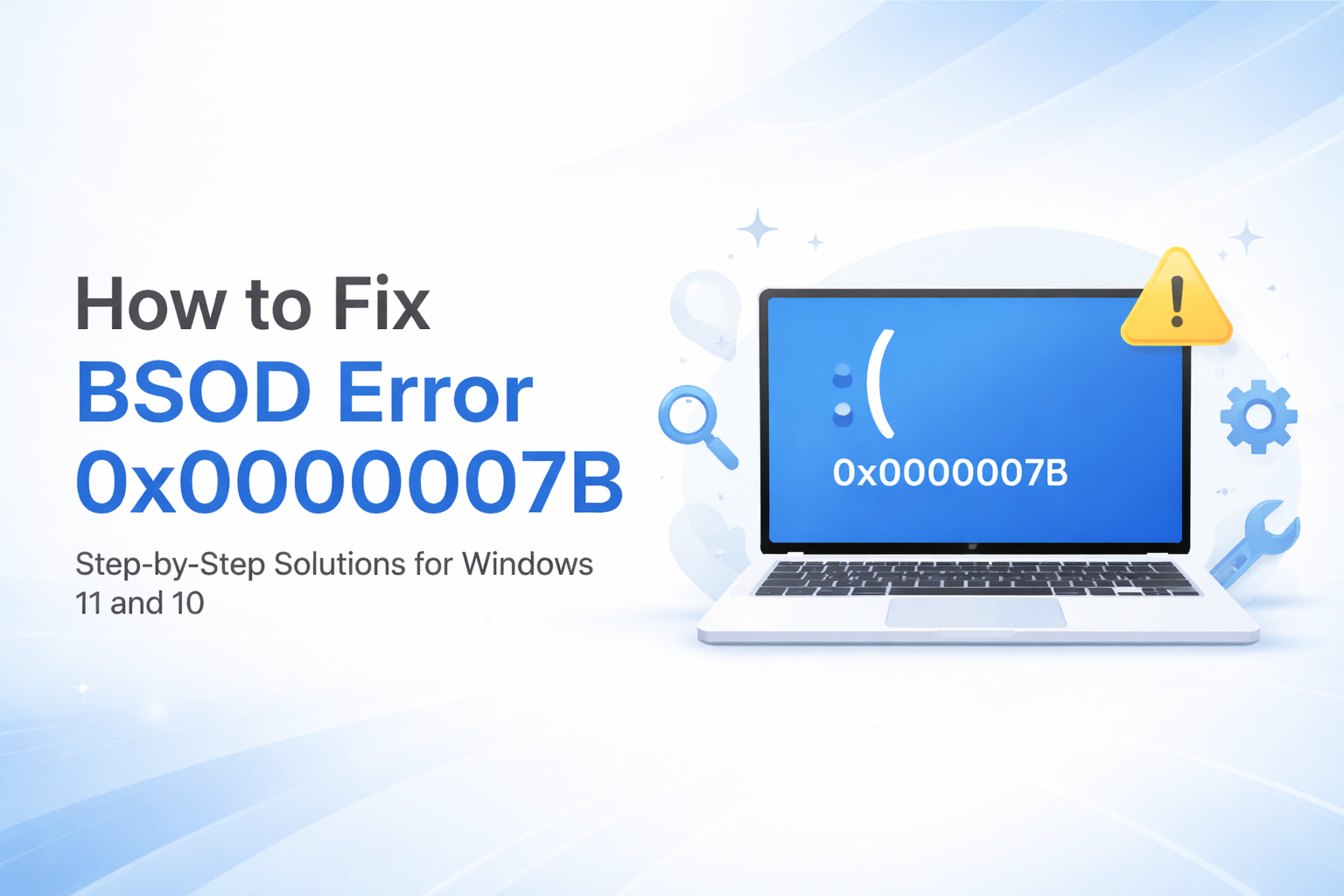
If you’re searching for How to Solve BSOD Error 0x0000007B, you’re likely dealing with a frustrating Blue Screen of Death that prevents your system from booting properly. This error, commonly known as the Inaccessible Boot Device, occurs when Windows cannot access the system partition during startup.
In this comprehensive guide, you’ll learn exactly how to solve BSOD Error 0x0000007B, including its causes, step-by-step fixes, and expert prevention tips to ensure your system runs smoothly.
What is BSOD Error 0x0000007B?
The BSOD error 0x0000007B is a critical system error that appears during Windows startup. It indicates that the operating system cannot communicate with the boot device, such as a hard drive or SSD.
Common Error Message:
STOP: 0x0000007B (INACCESSIBLE_BOOT_DEVICE)
Causes of BSOD Error 0x0000007B
Understanding the root cause of BSOD Error 0x0000007B is crucial before applying any fix. This error is typically triggered by issues such as corrupted or incompatible storage drivers, incorrect BIOS or SATA settings, damaged boot records, failing hard drives, malware infections, or problems during Windows installation or upgrades.
1. Corrupted or Missing Drivers
Corrupted or missing storage drivers can block Windows from accessing the boot drive. Outdated or incompatible drivers may disrupt communication between the system and disk, triggering this BSOD error.
2. BIOS Configuration Issues
Incorrect BIOS settings, especially SATA modes like AHCI, IDE, or RAID, can prevent Windows from recognizing the boot drive. This mismatch often leads to the 0x0000007B BSOD during startup.
3. Damaged Boot Sector or MBR
A damaged boot sector or corrupted Master Boot Record (MBR) can stop Windows from loading properly. This prevents the system from accessing boot files, resulting in the 0x0000007B error.
4. Hard Drive Problems
Hard drive issues like bad sectors or physical failure can disrupt data access during startup. When the system can’t read essential boot files, it may trigger the 0x0000007B error.
5. Malware or Virus Infection
Malware or virus infections can corrupt critical system files needed for startup. When these files are damaged or altered, Windows may fail to boot and trigger the 0x0000007B error.
6. Windows Installation Issues
Improper Windows installation or failed upgrades can create conflicts in system files and drivers. These issues may prevent the OS from accessing the boot device, causing the 0x0000007B error.
How to Solve BSOD Error 0x0000007B
To solve BSOD Error 0x0000007B, apply proven fixes that address driver issues, BIOS settings, and disk errors. The solutions below help restore access to the boot device and resolve the problem.
1. Check BIOS Settings
Check BIOS settings, as incorrect configurations—especially SATA mode—are a common cause of this error. Adjusting these options can help Windows properly detect and access the boot drive.
Steps:
- Restart your PC
- Enter BIOS (Press DEL/F2 during boot)
- Locate SATA Configuration
- Switch between:
- AHCI
- IDE
- RAID
- Save changes and restart
2. Boot into Safe Mode
Boot into Safe Mode to troubleshoot the issue without loading unnecessary drivers or services. This minimal environment helps identify conflicts and fix problems causing the 0x0000007B error.
Steps:
- Restart your PC multiple times to trigger Recovery Mode
- Go to Advanced Options
- Select Startup Settings
- Press F4 to enter Safe Mode
If your system boots successfully, uninstall recent drivers or updates.
3. Update or Reinstall Storage Drivers
Update or reinstall storage drivers, as outdated or incompatible versions often cause this error. Installing the latest drivers ensures proper communication between Windows and the boot device.
Steps:
- Boot into Safe Mode
- Open Device Manager
- Expand Disk Drives and IDE ATA/ATAPI controllers
- Right-click and update drivers
You can download official drivers from the manufacturer’s website.
4. Run CHKDSK to Fix Disk Errors
Run CHKDSK to scan and repair disk errors, as file system corruption can block Windows from accessing the boot device. Fixing these issues can resolve the 0x0000007B error.
Steps:
- Boot into Advanced Startup
- Open Command Prompt
- Run:
chkdsk /f /r C:
This will scan and repair disk errors.
5. Repair Boot Configuration (MBR)
Repair the boot configuration by fixing the Master Boot Record (MBR). Corrupted boot data can prevent Windows from starting, and rebuilding it can restore proper startup functionality.
Steps:
- Open Command Prompt from recovery
- Run the following commands:
bootrec /fixmbr
bootrec /fixboot
bootrec /rebuildbcd
6. Run System File Checker (SFC)
Run System File Checker (SFC) to scan and repair corrupted or missing system files. Fixing these files can restore stability and help resolve the 0x0000007B BSOD error.
Steps:
sfc /scannow
Run this in Command Prompt within recovery mode.
7. Use DISM Tool
Use the DISM tool to repair corrupted Windows system images. It restores essential components needed for booting, helping resolve issues that may trigger the 0x0000007B BSOD error.
Command:
DISM /Online /Cleanup-Image /RestoreHealth
8. Scan for Malware
Scan your system for malware using trusted antivirus tools. Malicious software can damage critical files, so removing infections helps restore system stability and prevent the 0x0000007B error.
9. Restore Your System
Use System Restore to roll your PC back to a previous working state. This can undo recent changes to system files, drivers, or settings that may have caused the 0x0000007B error.
Steps:
- Open Recovery Options
- Select System Restore
- Choose a restore point before the error occurred
10. Reinstall Windows
If nothing works, reinstalling Windows is the last option.
Use the official tool here:
Download Windows Installation Media
Advanced Fixes for Experts
Advanced fixes for experts can help solve BSOD Error 0x0000007B by addressing deeper system issues like registry edits, boot configuration repair, and hardware diagnostics for persistent problems.
Enable AHCI Mode via Registry
If switching SATA mode causes boot failure, enable AHCI first via registry:
- Boot into Safe Mode
- Open Registry Editor
- Navigate to:
HKEY_LOCAL_MACHINE\System\CurrentControlSet\Services\msahci
- Set “Start” value to 0
Check Hardware Connections
- Ensure SATA cables are properly connected
- Replace faulty cables if needed
- Test with another hard drive
Prevention Tips
Follow prevention tips to avoid BSOD 0x0000007B, such as keeping drivers updated, maintaining disk health, avoiding sudden shutdowns, and protecting your system from malware infections.
Keep Drivers Updated
Keep drivers updated by installing the latest versions from trusted sources. Updated drivers ensure compatibility, improve performance, and help prevent errors like BSOD 0x0000007B.
Avoid Sudden Shutdowns
Avoid sudden shutdowns, as improper power-offs can corrupt system files and damage the boot process. Always shut down your PC properly to maintain system stability and prevent BSOD errors.
Use Reliable Antivirus Software
Use reliable antivirus software to protect your system from malware and viruses. Strong security tools help prevent infections that can damage system files and trigger BSOD errors like 0x0000007B.
Monitor Disk Health
Monitor disk health regularly using diagnostic tools to detect bad sectors or errors early. This helps prevent data corruption and reduces the risk of BSOD issues like 0x0000007B.
Backup Your Data
Back up your data regularly to prevent data loss during system failures or BSOD errors. Keeping secure copies ensures you can restore important files if issues like 0x0000007B occur.
Frequently Asked Questions (FAQ)
What causes BSOD Error 0x0000007B?
It is usually caused by corrupted drivers, incorrect BIOS settings, or disk-related issues.
Can I fix 0x0000007B without reinstalling Windows?
Yes, most cases can be fixed using BIOS adjustments, driver updates, or repair tools.
Is this error related to hardware failure?
Sometimes. A failing hard drive or loose connection can trigger the error.
Does Safe Mode fix BSOD errors?
Safe Mode helps diagnose and fix the underlying issue but doesn’t directly fix the error.
How long does it take to fix this error?
It depends on the cause. Simple fixes take minutes, while advanced repairs may take longer.
Conclusion
Now you fully understand How to Solve BSOD Error 0x0000007B using proven, step-by-step solutions. Whether the issue is caused by BIOS settings, corrupted drivers, or disk errors, the methods outlined in this guide will help you restore your system quickly and effectively.
Start with the basic fixes like BIOS configuration and Safe Mode, then move to advanced solutions if necessary. With proper maintenance and prevention strategies, you can avoid encountering this error again in the future.