The memory_management bsod windows error is one of the most frustrating Blue Screen of Death (BSOD) issues in Windows 11 and Windows 10 systems. It usually indicates a serious problem with system memory handling, corrupted drivers, hardware failures, or software conflicts that force Windows to shut down unexpectedly to prevent damage. Understanding this error is essential for maintaining long-term system stability and preventing data loss.
What is Memory_Management BSOD Windows?
The memory_management bsod windows error refers to a critical system failure related to how Windows manages RAM (Random Access Memory). When the system detects corruption or unsafe memory access, it triggers a blue screen to stop further damage.
This error is commonly associated with:
- Faulty RAM modules
- Corrupted system files
- Driver incompatibility
- Disk errors
- Malware infections
- Overclocking instability
Microsoft explains BSOD errors as stop errors designed to protect system integrity:
https://learn.microsoft.com/en-us/windows-hardware/drivers/debugger/bug-check-code-reference2
Common Causes of Memory Management BSOD Windows
Understanding the root causes allows you to permanently fix the issue instead of just applying temporary solutions, ensuring long-term stability and preventing the problem from returning.
1. Faulty or Failing RAM
Defective RAM modules can lead to frequent crashes, random errors, and overall system instability, as faulty memory disrupts normal data processing and causes unpredictable Windows behavior.
2. Corrupted System Files
Corrupted system files caused by sudden shutdowns or malware can break essential Windows components, leading to errors, instability, crashes, and reduced system performance over time.
3. Outdated or Broken Drivers
Outdated or incompatible drivers after Windows updates can cause memory-related errors, system instability, crashes, and hardware communication failures that disrupt normal system performance.
4. Disk Errors or Bad Sectors
Disk errors or bad sectors can damage virtual memory and paging files, leading to slow performance, data corruption, and system instability that may trigger crashes or BSOD errors.
5. Overclocking Issues
Overclocking CPU or RAM beyond stable limits can cause overheating, instability, and memory errors, often resulting in system crashes, data corruption, and Blue Screen of Death (BSOD) issues.
6. Malware or Virus Infection
Malware or viruses can disrupt memory allocation processes, corrupt system files, steal resources, and cause instability, crashes, and serious performance degradation in Windows systems.
How to Fix Memory Management BSOD Windows
Here are proven step-by-step solutions to fix Memory Management BSOD in Windows, helping you identify the cause, repair system issues, and restore stable performance effectively.
1. Run Windows Memory Diagnostic Tool
Windows has a built-in memory diagnostic tool that checks your RAM for errors, helping detect faulty memory modules and potential hardware issues that may cause system crashes or instability.
Steps:
- Press
Windows + R - Type
mdsched.exe - Restart and check for problems
If errors are found, your RAM may need replacement.
More info: https://support.microsoft.com/en-us/windows
2. Run SFC and DISM Scans
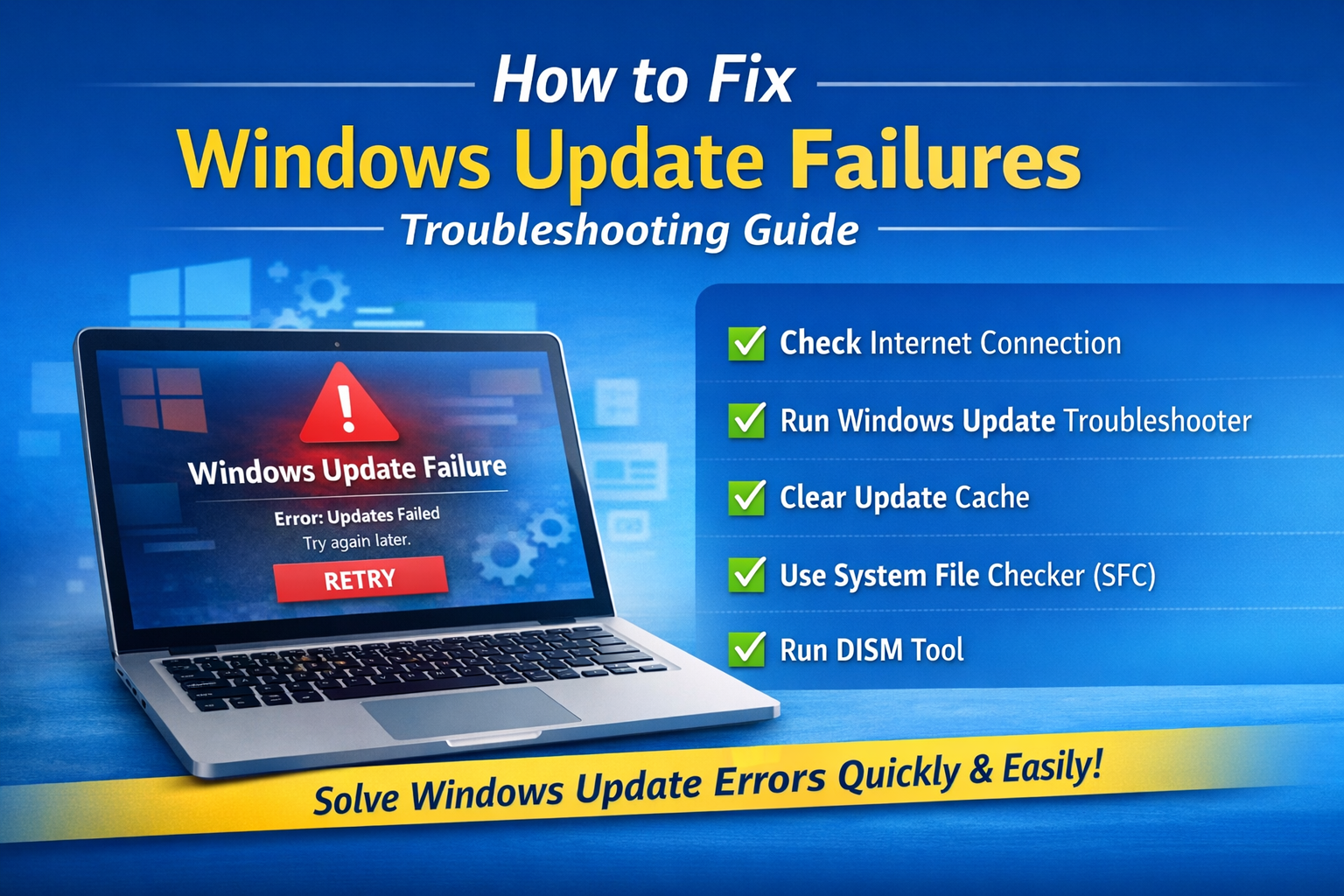
Run SFC and DISM scans to repair corrupted system files, restore missing components, and fix Windows image issues that often lead to BSOD errors and overall system instability.
Run System File Checker:
sfc /scannow
Run DISM:
DISM /Online /Cleanup-Image /RestoreHealth
These tools repair missing or damaged system components.
3. Update All Device Drivers
Update all device drivers to the latest versions, as outdated or incompatible drivers are a major cause of memory errors, system crashes, and overall Windows instability issues.
- Update GPU drivers
- Update chipset drivers
- Update storage drivers
Use Device Manager or official manufacturer websites only.
Avoid unofficial sources to prevent system instability.
4. Check Disk Health Using CHKDSK
Check disk health using CHKDSK to detect and repair file system errors and bad sectors, as disk corruption can indirectly impact memory operations and cause system instability or crashes.
Run this command:
chkdsk /f /r
This scans and fixes file system errors and bad sectors.
5. Disable Overclocking
Disable overclocking if your CPU or RAM is overclocked, as unstable settings can cause overheating, memory errors, and system crashes, leading to BSOD and reduced system stability.
If you have overclocked your CPU or RAM:
- Reset BIOS settings to default
- Disable XMP profiles temporarily
This ensures stable memory performance.
6. Scan for Malware
Use Windows Security or trusted antivirus tools.
Malware can corrupt memory processes and system files.
Microsoft Defender is recommended:
https://www.microsoft.com/en-us/windows/comprehensive-security
7. Update Windows Regularly
Keeping Windows updated ensures installation of the latest security patches, bug fixes, and performance improvements, helping protect your system from vulnerabilities and maintain stability.
- Go to Settings → Windows Update
- Install all available patches
8. Perform a Clean Boot
A clean boot starts Windows with only essential services, helping isolate software conflicts, identify problematic apps or drivers, and improve troubleshooting of system stability issues.
Steps:
- Open
msconfig - Disable non-Microsoft services
- Restart system
This helps identify problematic applications.
9. Check RAM Hardware Physically
If the issue persists, physically check your RAM by reseating modules, testing each stick individually, or replacing faulty memory to identify and resolve hardware-related instability.
- Reseat RAM sticks
- Test one RAM module at a time
- Replace faulty memory
Hardware failure is common in repeated BSOD cases.
10. Perform System Restore
Perform System Restore if the issue began recently to roll back your system to a previous stable state, undoing changes that may have caused errors, crashes, or instability.
- Restore system to a previous working state
- Undo problematic updates or software installations
11. Clean Windows Installation (Final Solution)
If all fixes fail, a clean Windows installation may be required to fully remove corruption, reset system files, and restore a fresh, stable operating system environment.
This will:
- Remove corrupted files
- Reset system configuration
- Provide a fresh environment
Backup important data before proceeding.
Microsoft guide: https://support.microsoft.com/windows/recovery-options
How to Prevent Memory Management BSOD Windows
Prevention is better than repair. Follow these best practices:
Keep Windows Updated
Keep Windows updated by installing patches regularly to fix security vulnerabilities, improve performance, and ensure system stability with the latest bug fixes and enhancements.
Use Reliable Drivers
Use reliable drivers by installing only from trusted sources or Windows Update to ensure compatibility, improve hardware performance, and reduce the risk of system crashes or errors.
Maintain Disk Health
Maintain disk health by running CHKDSK regularly to detect and repair file system errors, prevent file corruption, and keep your system stable and reliable over time.
Install Antivirus Protection
Install antivirus protection to safeguard your system from malware infections, block malicious threats, and maintain system stability, security, and overall performance.
Avoid Forced Shutdowns
Avoid forced shutdowns and always shut down your PC properly to prevent file corruption, protect system processes, and maintain long-term Windows stability and data integrity.
Monitor System Performance
Monitor system performance by regularly checking RAM usage and hardware temperatures to detect issues early, prevent overheating, and ensure stable and efficient Windows operation.
Why Memory Management BSOD Keeps Happening
If the error persists, likely causes include:
- Failing hardware components
- Persistent driver conflicts
- Deep system file corruption
- Malware infections that are not fully removed
- Unstable BIOS or firmware settings
Persistent BSOD issues often require both software and hardware diagnostics.
Advanced Troubleshooting Tips
For advanced users:
- Test RAM using MemTest86
- Update BIOS firmware
- Replace SSD/HDD if errors persist
- Check Event Viewer logs for crash patterns
- Disable third-party antivirus temporarily
Frequently Asked Questions (FAQs)
1. What does Memory Management BSOD mean?
It means Windows detected a critical memory error and stopped the system to prevent damage.
2. Is RAM the only cause?
No. It can also be caused by drivers, disk errors, malware, or system corruption.
3. Can Windows update fix this error?
Yes, sometimes updates include patches that resolve memory-related bugs.
4. Is this a serious error?
Yes, it indicates a low-level system failure that should be fixed immediately.
5. Do I need to replace my RAM?
Only if memory diagnostics confirm hardware failure.
Conclusion
The memory_management bsod windows error can look serious, but it is fully fixable in most cases using systematic troubleshooting. Start with software fixes like SFC scans and driver updates, then move to hardware diagnostics if the problem continues. A clean and well-maintained system significantly reduces the chances of recurring BSOD errors.
By following this guide, you can restore stability, improve performance, and prevent future crashes effectively.