The issue of Fix Windows 11 Black Screen After Login is one of the most common and frustrating problems users encounter on Windows 11. After entering your password, instead of seeing your desktop, you are greeted with a blank black screen, sometimes with a cursor and sometimes without.
This problem can disrupt productivity, create confusion, and even lead users to believe their system is severely damaged. Fortunately, in most cases, the issue is software-related and can be resolved with the right troubleshooting steps.
In this comprehensive tutorial, you will learn the causes, step-by-step fixes, advanced solutions, and prevention strategies to fully resolve the Fix Windows 11 Black Screen After Login issue.
What Is the Black Screen After Login Issue?
The black screen after login occurs when your system successfully authenticates your user account but fails to load the graphical user interface (GUI). This means the system is running in the background, but essential components like Windows Explorer are not launching properly.
Common Symptoms
- Black screen with cursor
- Completely blank display
- No taskbar or desktop icons
- System responds to keyboard shortcuts but shows nothing
Main Causes of Fix Windows 11 Black Screen After Login
Understanding the root cause helps you apply the correct fix.
1. Corrupted System Files
System files may become damaged due to improper shutdowns, malware, or failed updates.
2. Graphics Driver Problems
Outdated or incompatible GPU drivers often cause display issues.
3. Fast Startup Conflicts
Fast Startup can sometimes interfere with proper boot processes.
4. Faulty Windows Updates
Updates may install incorrectly, causing system instability.
5. Startup Application Conflicts
Too many or incompatible startup programs can delay or block the desktop.
Quick Fixes for Fix Windows 11 Black Screen After Login
Start with these simple solutions before moving to advanced steps.
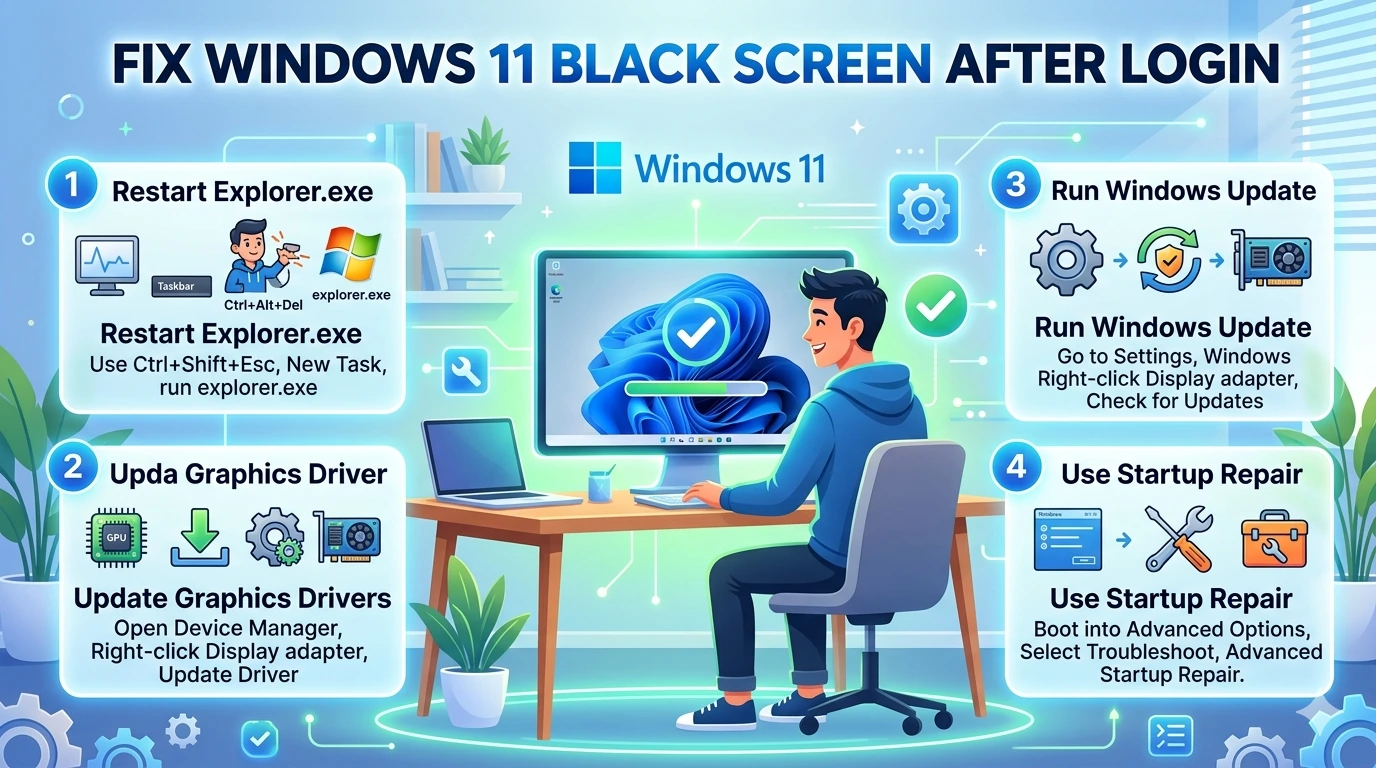
Restart Windows Explorer
- Press Ctrl + Shift + Esc
- Open Task Manager
- Click File → Run new task
- Type
explorer.exeand press Enter
This often restores your desktop instantly.
Check Display Output
- Press Windows + P
- Select PC screen only
- Ensure the correct monitor is selected
Disconnect External Devices
Remove all unnecessary peripherals such as:
- USB drives
- External monitors
- Printers
Advanced Methods to Fix Windows 11 Black Screen After Login
If basic fixes do not work, try these deeper solutions.
Boot Into Safe Mode
Safe Mode loads only essential drivers.
Steps
- Hold Shift + Restart
- Select Troubleshoot → Advanced Options → Startup Settings
- Press F4
Update or Roll Back Graphics Drivers
- Open Device Manager
- Expand Display Adapters
- Right-click your GPU
- Select Update or Roll Back
Disable Fast Startup
- Open Control Panel
- Go to Power Options
- Click “Choose what the power buttons do”
- Disable Fast Startup
👉 Windows Fast Startup: Enable, Disable & Fix Issues
Run System File Checker
Open Command Prompt and run:
sfc /scannow
This scans and repairs corrupted files.
👉 Run System File Checker to Fix Windows System Errors
Run DISM Tool
DISM /Online /Cleanup-Image /RestoreHealth
This repairs deeper system issues.
Fix Using Task Manager
Launch Explorer Manually
- Open Task Manager
- Run
explorer.exe
Disable Startup Programs
- Open Task Manager
- Go to Startup tab
- Disable unnecessary apps
Using Windows Recovery Environment
System Restore
Revert your system to a previous working state.
Startup Repair
Automatically detects and fixes boot issues.
Reset or Reinstall Windows
Reset This PC
- Keeps or removes personal files
- Reinstalls Windows
Clean Install
Reinstall Windows 11 for a fresh start.
Prevent Fix Windows 11 Black Screen After Login Issues
Keep Drivers Updated
Always install the latest GPU and system drivers.
Avoid Problematic Updates
Delay updates until they are stable.
Maintain System Health
- Use antivirus software
- Clean temporary files
- Monitor performance
Expert Tips for Faster Troubleshooting
- Use keyboard shortcuts like Ctrl + Alt + Del
- Keep a recovery USB ready
- Backup important files regularly
For official help, visit Microsoft Windows Support
Frequently Asked Questions
1. What causes the black screen after login in Windows 11?
It is usually caused by driver issues, corrupted files, or failed updates.
2. Can I fix Windows 11 black screen without reinstalling?
Yes, most issues can be fixed using Safe Mode, SFC, or System Restore.
3. Why do I see a cursor on a black screen?
This indicates the system is running but Explorer is not loading.
4. Is it a hardware problem?
In most cases, it is software-related rather than hardware failure.
5. How long does it take to fix?
Fixes can take between 5 minutes to an hour depending on the issue.
6. Should I reset my PC?
Only as a last resort if all other methods fail.
Conclusion
The Fix Windows 11 Black Screen After Login issue can seem serious, but it is usually solvable with the right approach. By following the steps outlined in this guide, you can diagnose and resolve the problem effectively.
From quick fixes like restarting Explorer to advanced tools like DISM and System Restore, there are multiple ways to restore your system. With proper maintenance and awareness, you can also prevent this issue from happening again.