Troubleshooting is one of the most important skills for any Windows 11 user. While Microsoft has designed the operating system to be stable and efficient, issues such as lag, crashes, and update errors are inevitable in a complex computing environment. These problems can disrupt productivity, cause frustration, and even lead to data loss if not addressed properly. Understanding how to diagnose and resolve them is essential for maintaining a smooth computing experience.
Windows 11 introduces several improvements over its predecessors, including a modern interface, enhanced performance optimizations, and tighter integration with cloud services. However, these advancements also bring new challenges. For example, the redesigned update system sometimes fails to install patches correctly, leading to repeated error messages. Similarly, compatibility issues with older drivers or applications can cause system instability. Even powerful hardware can experience lag if background processes consume excessive resources.
Lag and stuttering are among the most common complaints. They can occur during gaming, video playback, or even simple tasks like opening applications. Causes range from outdated drivers and insufficient memory to background apps consuming CPU cycles. Windows 11 includes built‑in tools like Task Manager and Performance Monitor, which allow users to identify resource‑hungry processes and take corrective action.
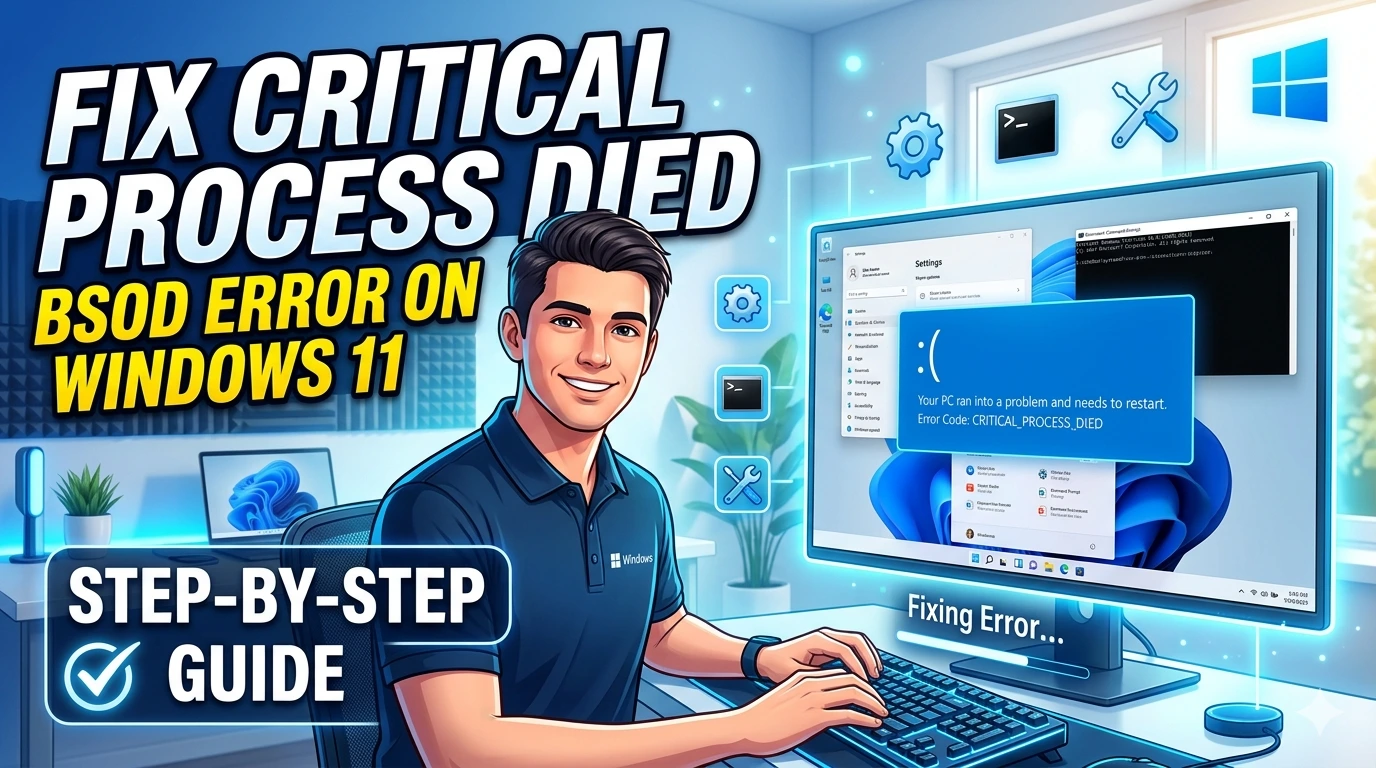
System crashes, often referred to as “blue screen errors” (BSOD), are another major concern. These crashes can result from hardware failures, driver conflicts, or corrupted system files. While occasional crashes may be unavoidable, frequent ones indicate deeper issues that require systematic troubleshooting. Windows 11 provides diagnostic logs and recovery options to help users pinpoint the root cause.
Update errors are particularly frustrating because they prevent users from receiving critical security patches and feature improvements. Common problems include failed installations, endless reboot loops, or error codes that seem cryptic. Microsoft has included tools like the Windows Update Troubleshooter and DISM/SFC commands to repair corrupted files and restore update functionality.
The importance of troubleshooting extends beyond fixing immediate problems. It also helps users develop preventive strategies. By learning how to manage drivers, monitor system performance, and apply updates correctly, users can reduce the likelihood of future issues. For businesses, effective troubleshooting ensures minimal downtime and protects against vulnerabilities that arise from failed updates or unstable systems.
This guide is structured to provide a comprehensive approach to troubleshooting Windows 11. We begin by identifying common problems, then move into step‑by‑step solutions, advanced techniques, preventive measures, and frequently asked questions. Each section is designed to be practical and actionable, allowing users to apply fixes immediately.
Troubleshooting is not just about technical knowledge—it is about mindset. A systematic approach, patience, and attention to detail are key. Instead of panicking when faced with lag or crashes, users should follow a logical sequence: identify the symptom, isolate the cause, apply a fix, and verify the result. Windows 11 provides the tools, but users must know how to use them effectively.
Ultimately, troubleshooting empowers users to take control of their computing environment. Whether you are a student, professional, or gamer, mastering these techniques ensures that Windows 11 remains a reliable platform for work and play. With the right strategies, even complex problems like update errors or persistent crashes can be resolved without professional assistance.
Common Problems
Even with Microsoft’s improvements, Windows 11 users frequently encounter performance and stability issues. Identifying these problems is the first step toward effective troubleshooting. Below are the most common challenges faced by everyday users and professionals alike.
1. Lag and Stuttering
Lag manifests as slow response times, freezing, or stuttering during tasks such as gaming, video playback, or multitasking.
- Causes: Outdated drivers, insufficient RAM, background apps consuming CPU, or fragmented storage.
- Impact: Reduced productivity, poor gaming experience, and frustration during routine tasks.
2. System Crashes (Blue Screen of Death – BSOD)
Crashes are among the most disruptive issues, often accompanied by error codes.
- Causes: Driver conflicts, hardware failures, overheating, or corrupted system files.
- Impact: Loss of unsaved work, potential data corruption, and repeated downtime.
3. Update Failures
Windows 11 relies heavily on updates for security and performance. Failed updates are a common complaint.
- Causes: Corrupted update files, insufficient disk space, unstable internet connections, or conflicts with third‑party software.
- Impact: Missing critical patches, vulnerability to threats, and repeated error messages.
4. Driver Conflicts
Drivers act as bridges between hardware and the operating system. Conflicts or outdated drivers can cause instability.
- Causes: Incompatible drivers after updates, missing manufacturer support, or improper installations.
- Impact: Hardware malfunctions (e.g., Wi‑Fi adapter not working, GPU underperforming).
5. Application Instability
Apps may freeze, crash, or fail to launch properly.
- Causes: Compatibility issues with Windows 11, corrupted installation files, or insufficient system resources.
- Impact: Interrupted workflows, inability to use critical software, and reduced reliability.
6. Boot and Startup Issues
Some users experience slow boot times or startup errors.
- Causes: Excessive startup programs, corrupted boot files, or outdated BIOS/UEFI firmware.
- Impact: Delays in accessing the system, repeated restarts, or complete boot failures.
7. Network and Connectivity Problems
Connectivity issues, such as unstable Wi‑Fi or slow internet speeds, are frequent.
- Causes: Misconfigured network settings, outdated drivers, router issues, or interference.
- Impact: Disrupted online work, poor streaming quality, and unreliable communication.
8. Resource Overload
Windows 11’s modern interface and background services can strain older hardware.
- Causes: Excessive background processes, insufficient hardware specifications, or lack of optimization.
- Impact: System slowdown, overheating, and reduced battery life on laptops.
Summary
The most common Windows 11 problems include lag, crashes, update failures, driver conflicts, app instability, boot issues, connectivity problems, and resource overload. Recognizing these issues helps users apply targeted troubleshooting methods rather than generic fixes.
Step‑by‑Step Troubleshooting
Troubleshooting Windows 11 requires a systematic approach. Instead of guessing, users should follow structured steps to identify the root cause, apply fixes, and verify results. Below is a detailed guide to resolving lag, crashes, update errors, driver conflicts, and app instability.
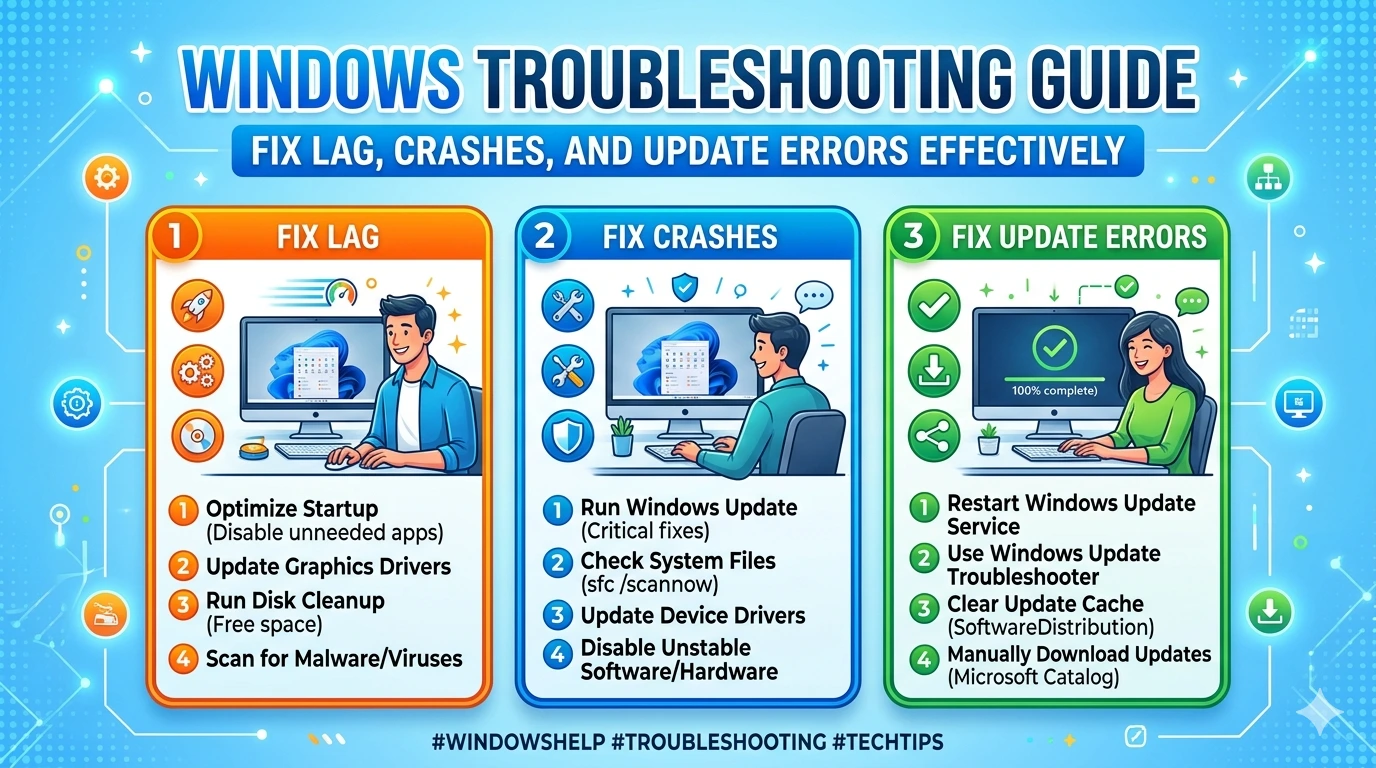
1. Diagnose Performance Issues (Lag/Stuttering)
- Check Task Manager: Press
Ctrl + Shift + Escto open Task Manager. Identify processes consuming high CPU, RAM, or disk usage. - Disable Startup Programs: Go to Task Manager → Startup and disable unnecessary apps.
- Update Drivers: Outdated GPU or chipset drivers often cause lag. Visit manufacturer websites (NVIDIA, AMD, Intel) for the latest versions.
- Adjust Visual Effects: Navigate to System → Advanced System Settings → Performance Options. Select “Adjust for best performance” to reduce graphical overhead.
- Free Up Storage: Use Storage Sense to clear temporary files and optimize disk usage.
2. Resolve System Crashes (BSOD)
- Note Error Codes: When a crash occurs, write down the stop code (e.g.,
MEMORY_MANAGEMENT). - Check Reliability Monitor: Search “Reliability Monitor” in Windows. Review crash logs for patterns.
- Run Memory Diagnostic: Type
mdsched.exein Run (Win + R) to test RAM. - Update or Roll Back Drivers: If crashes began after a driver update, roll back via Device Manager.
- Run SFC and DISM:
- Open Command Prompt (Admin).
- Run
sfc /scannowto repair corrupted system files. - Run
DISM /Online /Cleanup-Image /RestoreHealthto fix deeper issues.
3. Fix Update Failures
- Run Windows Update Troubleshooter: Go to Settings → System → Troubleshoot → Other Troubleshooters. Select “Windows Update.”
- Clear Update Cache:
- Stop Windows Update service (
net stop wuauserv). - Delete contents of
C:\Windows\SoftwareDistribution. - Restart service (
net start wuauserv).
- Stop Windows Update service (
- Check Disk Space: Ensure at least 20 GB free for major updates.
- Use Media Creation Tool: Download from Microsoft’s website to manually install updates.
- Repair with DISM/SFC: As above, these commands often resolve update corruption.
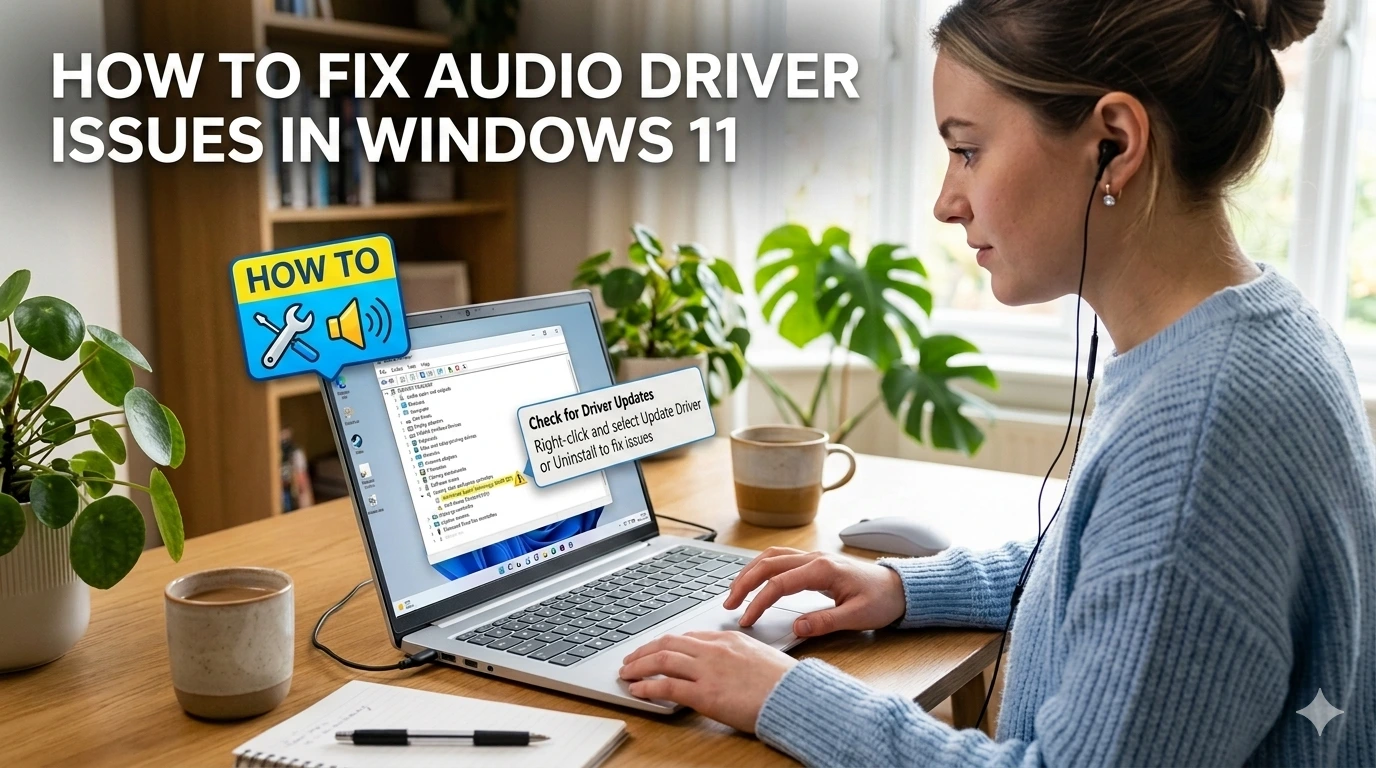
4. Resolve Driver Conflicts
- Identify Problem Drivers: Open Device Manager. Look for yellow warning icons.
- Update Drivers: Right‑click → Update driver → Search automatically.
- Roll Back Drivers: If instability started after an update, select “Roll Back Driver.”
- Use Manufacturer Tools: NVIDIA GeForce Experience, AMD Adrenalin, or Intel Driver & Support Assistant provide reliable updates.
- Uninstall/Reinstall: For persistent issues, uninstall the driver completely and reinstall fresh.
5. Fix Application Instability
- Check Compatibility: Right‑click app → Properties → Compatibility tab. Run in compatibility mode for older apps.
- Repair or Reset Apps: Go to Settings → Apps → Installed Apps. Select the app → Advanced Options → Repair/Reset.
- Reinstall Applications: If repair fails, uninstall and reinstall the latest version.
- Check Event Viewer: Logs under Windows Logs → Application reveal crash causes.
6. Address Boot and Startup Issues
- Disable Startup Apps: As noted earlier, reduce boot load.
- Run Startup Repair: Boot into Advanced Startup (Shift + Restart). Select Troubleshoot → Advanced Options → Startup Repair.
- Check Boot Configuration: Run
bcdeditin Command Prompt to verify boot entries. - Update BIOS/UEFI: Visit motherboard manufacturer’s site for firmware updates.
- Enable Fast Startup: Go to Control Panel → Power Options → Choose what the power buttons do. Enable “Turn on fast startup.”
7. Troubleshoot Network and Connectivity Problems
- Run Network Troubleshooter: Settings → Network & Internet → Advanced Network Settings → Network Troubleshooter.
- Reset Network Settings: Settings → Network & Internet → Advanced Network Settings → Network Reset.
- Update Network Drivers: Check Device Manager for Wi‑Fi/Ethernet drivers.
- Flush DNS Cache: Run
ipconfig /flushdnsin Command Prompt. - Router Reboot: Restart router or update firmware for stability.
8. Manage Resource Overload
- Check Resource Monitor: Search “Resource Monitor” to identify processes consuming CPU, RAM, or disk.
- Disable Background Services: Use
msconfig→ Services tab → Hide Microsoft services → Disable unnecessary ones. - Upgrade Hardware: If resources are consistently maxed out, consider adding RAM or switching to SSD storage.
- Battery Optimization: On laptops, enable Battery Saver mode to reduce background activity.
9. General Preventive Steps During Troubleshooting
- Create Restore Points: Before major changes, create a restore point via System Protection.
- Backup Data: Use OneDrive or external drives to safeguard files.
- Document Changes: Keep notes of adjustments made for easier rollback.
Summary
Step‑by‑step troubleshooting in Windows 11 involves diagnosing performance issues, resolving crashes, fixing update failures, managing drivers, stabilizing applications, addressing boot problems, repairing connectivity, and controlling resource overload. By following these structured methods, users can restore stability and prevent recurring issues.
Advanced Solutions
Sometimes basic troubleshooting isn’t enough. For persistent or complex problems, Windows 11 offers advanced tools and techniques that can restore stability and performance. These solutions require more technical steps but are highly effective when standard fixes fail.
1. Perform a Clean Boot
A clean boot starts Windows with minimal drivers and startup programs, helping isolate software conflicts.
- Steps:
- Press
Win + R, typemsconfig, and hit Enter. - In the System Configuration window, go to the Services tab.
- Check “Hide all Microsoft services,” then click Disable all.
- Go to the Startup tab → Open Task Manager → Disable all startup items.
- Restart your PC.
- Press
- Benefit: If the issue disappears, you can re‑enable services one by one to identify the culprit.
2. Use DISM and SFC for System Repair
Corrupted system files often cause crashes, lag, or update errors.
- System File Checker (SFC):
- Open Command Prompt (Admin).
- Run
sfc /scannow. - This scans and repairs corrupted files automatically.
- Deployment Imaging Service and Management Tool (DISM):
- Run
DISM /Online /Cleanup-Image /RestoreHealth. - This repairs deeper system image issues that SFC cannot fix.
- Run
- Benefit: Together, these commands restore system integrity and resolve many hidden problems.
3. Roll Back Updates
Sometimes new updates introduce instability. Rolling back can restore functionality.
- Steps:
- Go to Settings → Windows Update → Update History.
- Select Uninstall updates.
- Choose the problematic update and remove it.
- Feature Updates: If a major version causes issues, go to Settings → Recovery → Go back to the previous version of Windows.
- Benefit: Provides immediate relief until Microsoft releases a fixed update.
4. Hardware Diagnostics
Hardware failures often masquerade as software problems.
- Memory Test: Run
mdsched.exeto check RAM integrity. - Disk Check: Run
chkdsk /f /rin Command Prompt to scan and repair disk errors. - Temperature Monitoring: Use tools like HWMonitor to check for overheating.
- GPU Stress Test: Applications like FurMark can test GPU stability.
- Benefit: Identifies failing components before they cause repeated crashes or data loss.
5. Advanced Recovery Options
Windows 11 includes powerful recovery tools for severe issues.
- System Restore: Roll back to a previous restore point.
- Reset This PC: Go to Settings → Recovery → Reset this PC. Choose “Keep my files” or “Remove everything.”
- Advanced Startup: Access via Shift + Restart. Options include Startup Repair, Command Prompt, and Safe Mode.
- Benefit: Provides multiple pathways to recover from critical failures.
6. BIOS/UEFI Updates
Outdated firmware can cause boot issues, crashes, or hardware incompatibility.
- Steps:
- Identify your motherboard model.
- Visit the manufacturer’s website for the latest BIOS/UEFI update.
- Follow instructions carefully to avoid bricking your system.
- Benefit: Improves hardware compatibility and stability.
7. Driver Verifier Tool
For advanced users, Driver Verifier can detect problematic drivers.
- Steps:
- Type
verifierin Run (Win + R). - Select “Create standard settings” → Next → “Automatically select all drivers.”
- Restart your PC.
- Type
- Benefit: Forces drivers to reveal hidden issues, helping identify instability sources.
- Note: Use cautiously, as it may cause intentional crashes to expose faulty drivers.
8. Clean Installation of Windows 11
If all else fails, a clean install ensures a fresh start.
- Steps:
- Backup all important data.
- Download the Windows 11 Media Creation Tool.
- Create installation media and reinstall Windows.
- Benefit: Eliminates deep corruption, malware remnants, and misconfigurations.
Summary
Advanced solutions—clean boot, DISM/SFC repairs, rollback updates, hardware diagnostics, recovery options, BIOS updates, Driver Verifier, and clean installation—provide powerful methods to resolve persistent Windows 11 issues. While these steps require more effort, they ensure long‑term stability and restore confidence in your system.
Preventive Measures
Troubleshooting restores stability, but prevention ensures long‑term reliability. By adopting proactive habits, Windows 11 users can minimize the likelihood of lag, crashes, and update errors. Preventive measures focus on maintenance, monitoring, and smart configuration.
1. Regular System Updates
Keeping Windows 11 updated is the most effective way to prevent vulnerabilities and instability.
- Enable automatic updates under Settings → Windows Update.
- Schedule updates during non‑working hours to avoid interruptions.
- Regularly check for optional driver and feature updates.
2. Driver Maintenance
Drivers are critical for hardware stability.
- Use manufacturer tools (NVIDIA GeForce Experience, AMD Adrenalin, Intel Driver & Support Assistant) for reliable updates.
- Avoid third‑party driver installers, which may introduce malware or incompatible versions.
- Roll back drivers if instability occurs after an update.
3. Disk and Storage Optimization
Healthy storage prevents lag and crashes.
- Enable Storage Sense to automatically clear temporary files.
- Run Disk Cleanup monthly for deeper cleaning.
- Use SSDs instead of HDDs for faster performance and reliability.
4. Resource Management
Prevent resource overload by controlling background processes.
- Limit startup apps via Task Manager.
- Disable unnecessary services using
msconfig. - Monitor CPU, RAM, and disk usage with Resource Monitor.
5. Backup and Recovery Planning
Data protection is essential.
- Use File History or OneDrive Backup for automatic file protection.
- Create System Restore Points before major updates or driver changes.
- Maintain external backups for critical files.
6. Security Practices
Security lapses often lead to instability.
- Keep Windows Security active with real‑time protection.
- Enable Controlled Folder Access to block ransomware.
- Use BitLocker for drive encryption.
7. Update Strategy
Not all updates are stable immediately.
- Delay feature updates for a few weeks to allow Microsoft to fix early bugs.
- Install security updates promptly to prevent vulnerabilities.
- Monitor update history and uninstall problematic patches if necessary.
8. Hardware Care
Hardware health directly impacts system stability.
- Clean dust from fans and vents to prevent overheating.
- Use cooling pads for laptops under heavy load.
- Replace failing components (RAM, HDD) before they cause repeated crashes.
9. Network Stability
Stable connectivity prevents update failures and app crashes.
- Keep router firmware updated.
- Use wired connections for critical updates or large downloads.
- Configure QoS (Quality of Service) to prioritize essential applications.
Summary
Preventive measures—updates, driver maintenance, storage optimization, resource management, backups, security practices, update strategies, hardware care, and network stability—create a resilient Windows 11 environment. By embedding these habits into daily routines, users reduce the likelihood of recurring problems and ensure smoother performance over time.
FAQ
Why does my Windows 11 laptop lag even with good hardware?
Lag can occur due to background apps consuming resources, outdated drivers, or fragmented storage. Use Task Manager to identify heavy processes and update GPU/chipset drivers for smoother performance.
What should I do if my PC keeps crashing with a Blue Screen (BSOD)?
Note the error code displayed. Run SFC and DISM commands to repair corrupted files, check RAM with Windows Memory Diagnostic, and update or roll back drivers. Persistent crashes may indicate hardware issues.
Why do Windows updates fail repeatedly?
Update failures often stem from corrupted cache, insufficient disk space, or unstable connections. Clear the update cache in C:\Windows\SoftwareDistribution, ensure at least 20 GB free space, and run the Windows Update Troubleshooter.
How can I fix driver conflicts in Windows 11?
Open Device Manager to identify problematic drivers. Update them via manufacturer tools (NVIDIA, AMD, Intel). If instability began after an update, roll back the driver. In severe cases, uninstall and reinstall fresh drivers.
My apps keep freezing or crashing. What’s the solution?
Check compatibility settings, repair/reset apps via Settings → Apps, or reinstall them. Use Event Viewer to analyze crash logs for deeper insights.
Why is my PC slow to boot?
Excessive startup apps or outdated BIOS can cause delays. Disable unnecessary startup programs in Task Manager, update BIOS/UEFI firmware, and enable Fast Startup under Power Options.
How do I fix unstable Wi‑Fi or slow internet?
Run the Network Troubleshooter, update network drivers, and reset network settings. For persistent issues, flush DNS (ipconfig /flushdns) and reboot your router.
Should I reinstall Windows 11 if problems persist?
A clean installation is a last resort. Backup data, create installation media, and reinstall Windows. This eliminates deep corruption and misconfigurations but should only be done after other fixes fail.
How can I prevent future crashes and lag?
Enable automatic updates, maintain drivers, optimize storage, and monitor resources regularly. Create restore points before major changes and keep backups of critical files.
What tools are most useful for troubleshooting Windows 11?
- Task Manager & Resource Monitor → Diagnose performance issues.
- Reliability Monitor & Event Viewer → Track crashes and errors.
- SFC & DISM → Repair system files.
- Windows Update Troubleshooter → Fix update failures.
- Device Manager → Manage drivers.
Summary
These FAQs address the most common troubleshooting concerns in Windows 11—from lag and crashes to update failures and driver conflicts. By applying these solutions, users can quickly restore stability and reduce downtime.
Conclusion
Troubleshooting Windows 11 is not just about fixing problems when they occur—it is about building a stable, reliable, and efficient computing environment that supports productivity and minimizes frustration. Throughout this guide, we have explored the most common issues users face, from lag and crashes to update failures and driver conflicts, and provided both basic and advanced solutions. The conclusion ties these strategies together, emphasizing the importance of prevention and long‑term stability.
Lag and stuttering often stem from resource overload or outdated drivers. By monitoring system performance with Task Manager and Resource Monitor, users can identify bottlenecks and apply targeted fixes. Crashes, particularly BSOD errors, highlight the need for regular driver maintenance and system file integrity checks using SFC and DISM. Update failures remind us of the critical role updates play in security and performance, and how clearing caches or using manual installation tools can restore functionality.
Advanced solutions such as clean boot, rollback updates, hardware diagnostics, and BIOS/UEFI updates provide deeper control for persistent problems. These methods may require more technical confidence, but they ensure that even complex issues can be resolved without resorting to professional repair services. For severe cases, recovery options and clean installations offer a fresh start, eliminating deep corruption or misconfigurations.
Preventive measures are the cornerstone of long‑term stability. Regular updates, driver management, disk optimization, backups, and hardware care reduce the likelihood of recurring problems. By embedding these practices into daily routines, users can transform troubleshooting from a reactive process into a proactive strategy. This not only saves time but also protects against data loss and downtime.
Ultimately, troubleshooting Windows 11 is about empowerment. Microsoft provides powerful tools, but users must take responsibility for applying them effectively. With a systematic approach—diagnose, isolate, fix, and verify—any user can master the art of troubleshooting. Whether you are a student, gamer, or professional, these strategies ensure that your Windows 11 system remains reliable, secure, and optimized for the future.
The digital landscape will continue to evolve, and new challenges will arise. By combining the step‑by‑step methods, advanced solutions, and preventive measures outlined in this guide, you can maintain confidence in your system and focus on what truly matters: productivity, creativity, and seamless digital experiences.