Audio problems are among the most frustrating issues faced by Windows 11 users. Whether your speakers suddenly stop working, headphones produce no sound, or you encounter the dreaded “No Audio Output Device Installed” error, the culprit is often a corrupted or outdated driver. This article provides a comprehensive, step-by-step guide to fixing audio driver problems on Windows 11, ensuring your PC delivers clear and reliable sound.
Why Audio Driver Problems Occur
Understanding the root causes helps you prevent future issues. Common reasons include:
- Outdated drivers: Windows updates may require newer drivers.
- Corrupted drivers: Improper installations or malware can damage driver files.
- Hardware conflicts: New devices may interfere with existing audio drivers.
- Disabled devices: Audio hardware may be disabled in BIOS or Device Manager.
- Windows Update issues: Some updates unintentionally break driver compatibility.
Common Symptoms
- No sound from speakers or headphones
- Audio device not detected
- Error messages such as No Audio Output Device Installed
- Distorted, crackling, or intermittent sound
- Headphones recognized but no audio output
Step 1: Check Hardware Connections
Before troubleshooting software, confirm that:
- Speakers or headphones are properly connected.
- The correct playback device is selected in Sound Settings.
- Cables and ports are not damaged.
- Bluetooth devices are paired correctly.
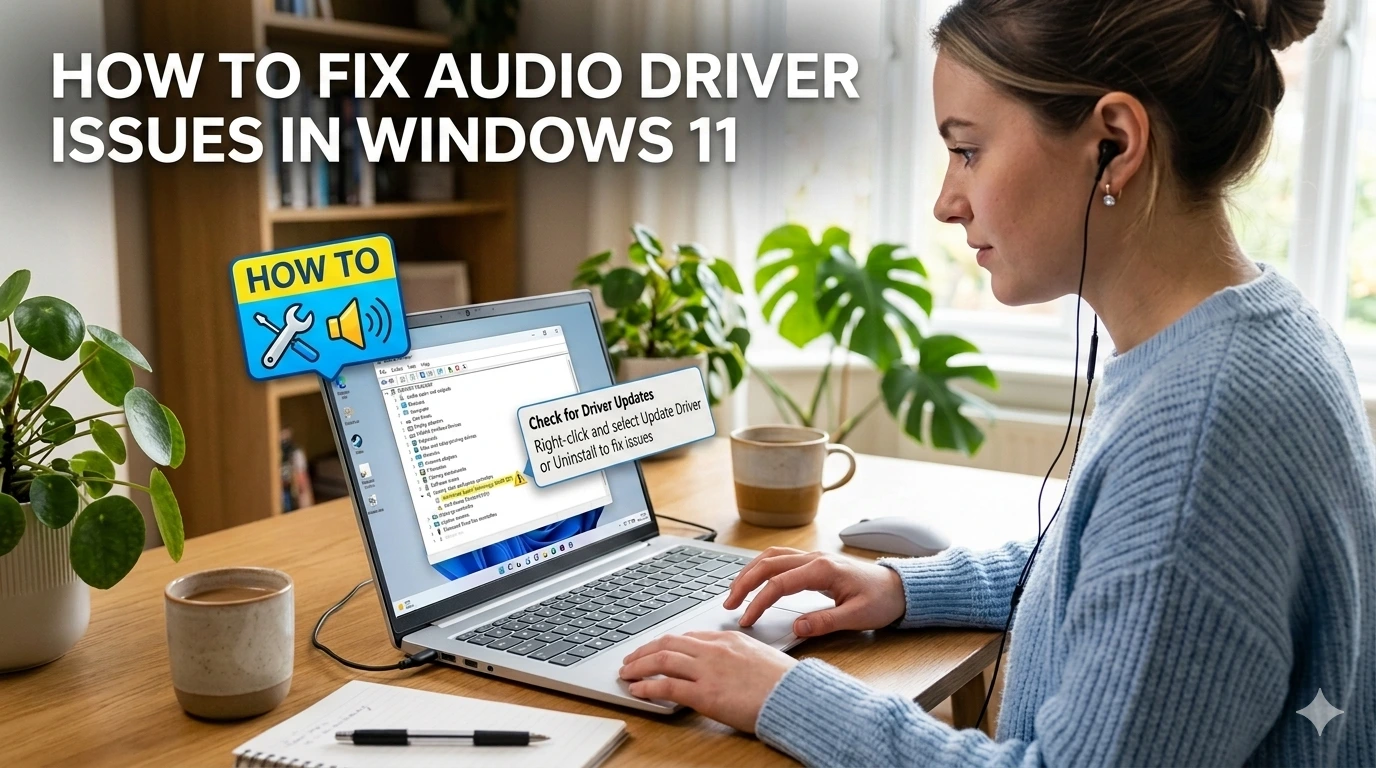
Step 2: Update Audio Drivers
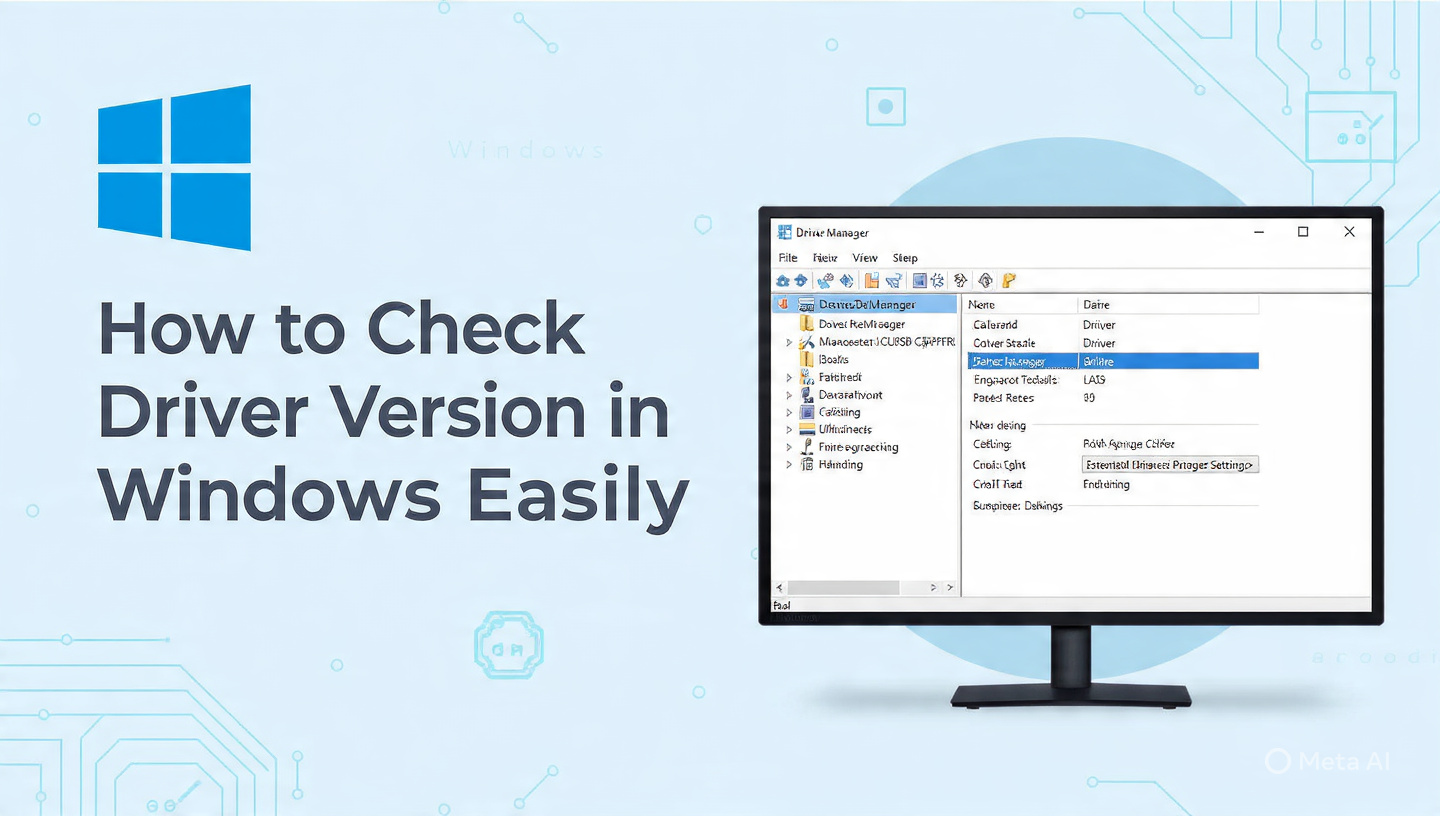
- Press Win + X → select Device Manager.
- Expand Sound, video and game controllers.
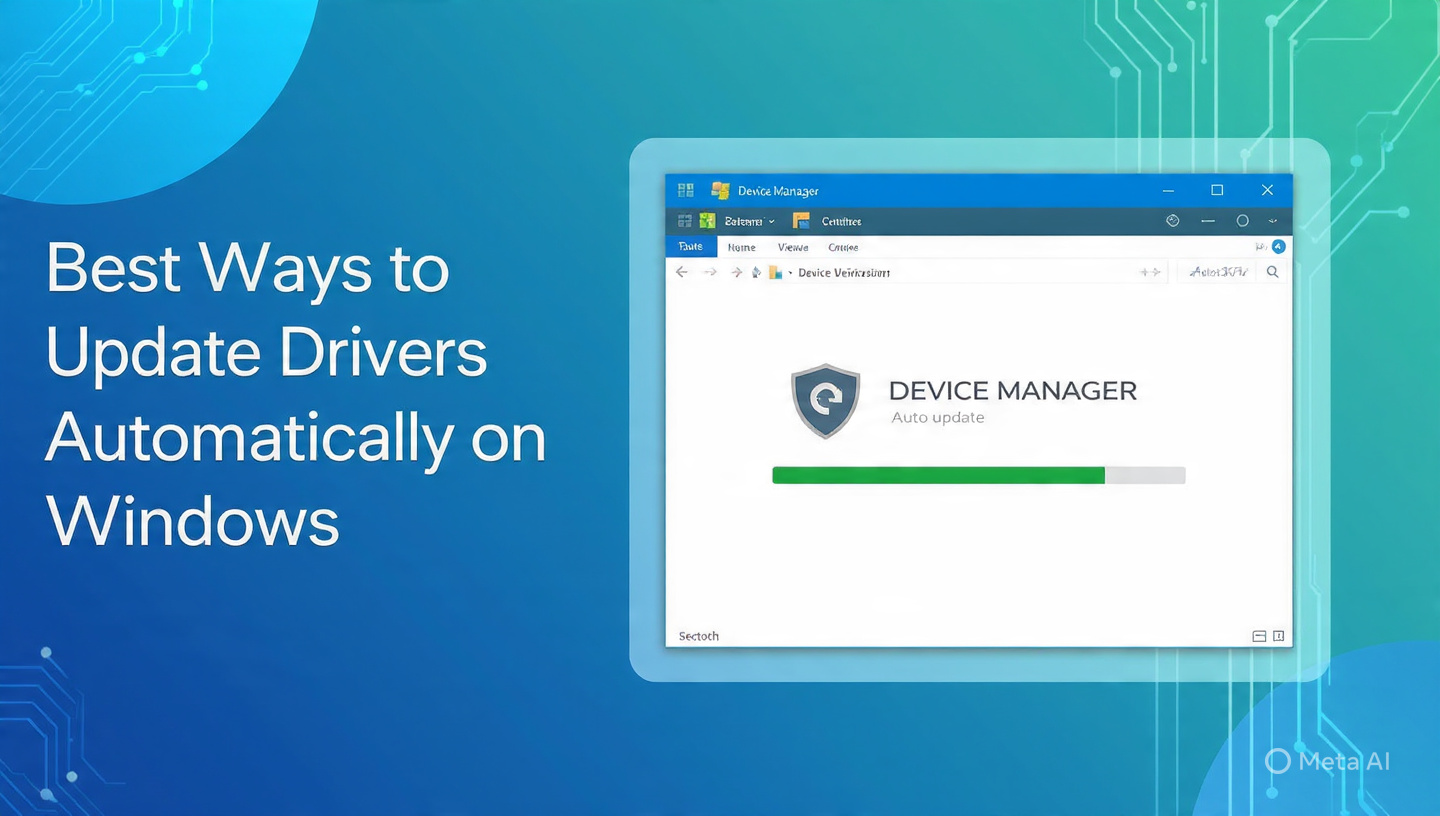
- Right-click your audio device → Update driver.
- Choose Search automatically for drivers.
👉 If Windows cannot find updates, download the latest driver from your manufacturer’s website (e.g., Realtek, Intel, ASUS, Lenovo).
Step 3: Roll Back Drivers
Sometimes new drivers cause compatibility issues.
- In Device Manager, right-click your audio device → Properties → Driver tab → Roll Back Driver.
- Restart your PC after rolling back.
Step 4: Reinstall Audio Drivers
- In Device Manager, right-click the audio device → Uninstall device.
- Restart your PC.
- Windows will automatically reinstall the default driver.
Step 5: Run Windows Troubleshooter
- Go to Settings → System → Troubleshoot → Other troubleshooters.
- Run the Playing Audio troubleshooter.
- Follow the on-screen instructions to fix detected issues.
Advanced Fixes
- Disable Audio Enhancements: Go to Sound Settings → Device Properties → Disable enhancements.
- Check BIOS/UEFI Settings: Ensure onboard audio is enabled.
- Update Chipset Drivers: Sometimes audio depends on chipset compatibility.
- Use System Restore: Roll back to a point before the issue started.
Preventive Tips
- Keep Windows Update enabled for automatic driver patches.
- Regularly back up your system before major updates.
- Always use official drivers from hardware manufacturers.
- Avoid third-party driver update tools that may install incorrect drivers.
❓ FAQ Section
Q1: Why is my Windows 11 audio not working?
A: Most audio issues are caused by outdated or corrupted drivers, incorrect playback device settings, or hardware connection problems.
Q2: How do I update Realtek audio drivers on Windows 11?
A: Use Device Manager to update drivers automatically or download the latest version from Realtek’s official website.
Q3: What does “No Audio Output Device Installed” mean?
A: It indicates that Windows cannot detect your audio hardware, usually due to missing or faulty drivers.
Q4: Can I fix crackling sound on Windows 11?
A: Yes, by updating drivers, disabling audio enhancements, or adjusting sound settings.
Q5: Should I use third-party driver updater tools?
A: It’s safer to update drivers manually via Device Manager or the manufacturer’s official site.
Q6: How do I reinstall audio drivers on Windows 11?
A: Uninstall the device in Device Manager, restart your PC, and Windows will reinstall the default driver.
Q7: Can Windows Update cause audio problems?
A: Yes, some updates may conflict with drivers. Rolling back or reinstalling drivers usually fixes the issue.
Conclusion
Most audio problems in Windows 11 can be resolved by updating, rolling back, or reinstalling drivers. If issues persist, hardware components may need to be checked or professional support contacted. By following these steps, you can restore clear and reliable sound to your PC.