
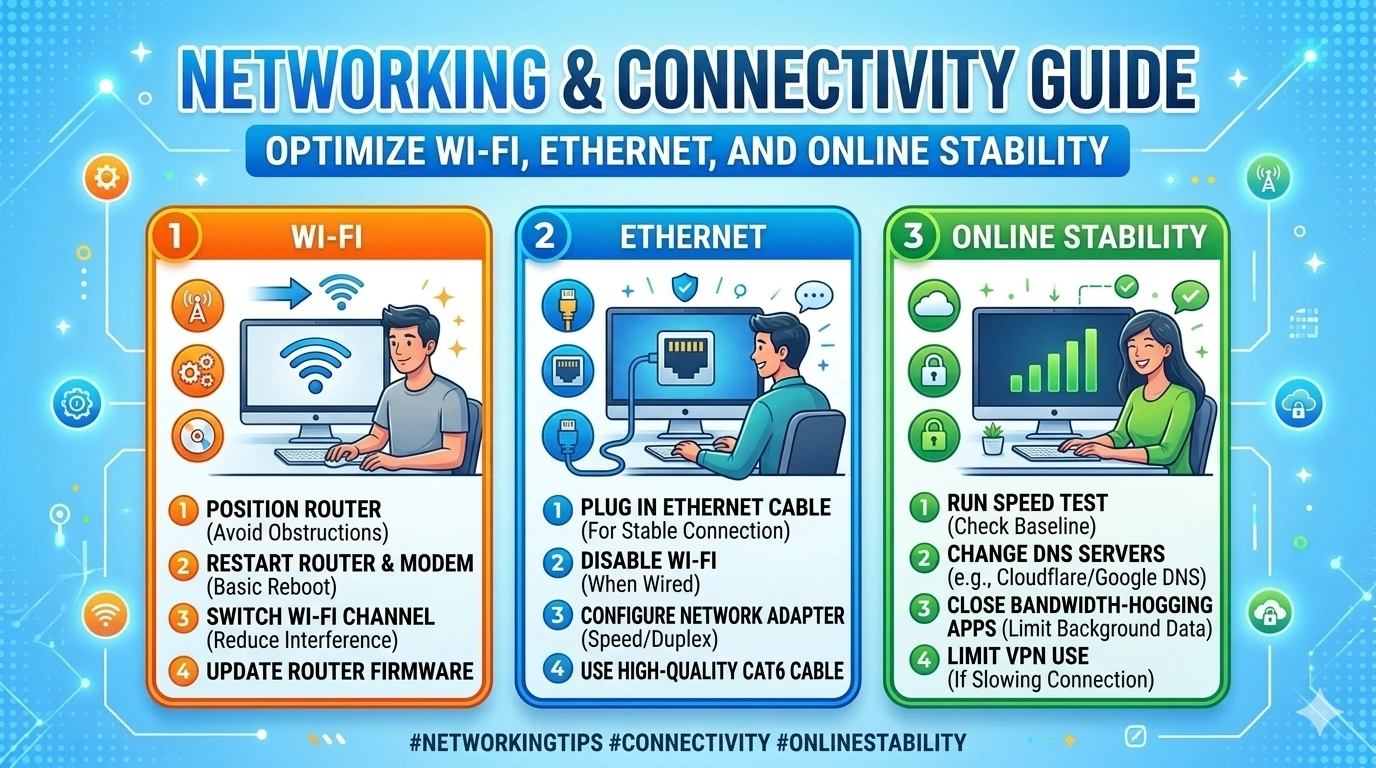
Networking & Connectivity are the lifelines of modern computing. In today’s digital environment, a fast and stable internet connection is just as important as powerful hardware or optimized software. Whether you are streaming, gaming, working remotely, or simply browsing, connectivity issues can disrupt productivity and cause frustration. Windows 11, with its advanced networking features, offers users the tools to achieve reliable performance—but only if they are configured and maintained properly.
Windows 11 builds on decades of networking improvements, integrating support for modern standards like Wi‑Fi 6/6E, enhanced Ethernet management, and tighter security protocols. These advancements are designed to deliver faster speeds, lower latency, and more secure connections. However, users still encounter common problems such as slow Wi‑Fi, frequent disconnections, DNS errors, and unstable Ethernet links. Understanding these challenges is the first step toward optimizing connectivity.
Why Networking Optimization Matters
Networking is not just about speed—it is about stability, security, and efficiency. A poorly configured connection can lead to:
- Lag in online gaming due to high latency.
- Interrupted video calls caused by unstable Wi‑Fi.
- Failed updates or downloads from weak signals or misconfigured DNS.
- Security risks when connecting to public networks without proper safeguards.
For businesses, networking optimization ensures smooth collaboration, secure data transfers, and reliable access to cloud services. For individuals, it means uninterrupted entertainment, learning, and communication.
Windows 11 Networking Features
Microsoft has equipped Windows 11 with several built‑in tools to help users manage connectivity:
- Network & Internet Settings: Centralized dashboard for Wi‑Fi, Ethernet, VPN, and proxy configurations.
- Network Troubleshooter: Automated tool to detect and fix common issues.
- Advanced Network Settings: Options to reset adapters, configure DNS, and manage IP settings.
- Wi‑Fi Sense & Hotspot 2.0: Features that simplify connections to trusted networks.
- Security Enhancements: WPA3 support, VPN integration, and firewall improvements.
These features provide flexibility, but users must know how to apply them effectively.
Common Connectivity Challenges
Despite these tools, users often face recurring issues:
- Slow Wi‑Fi speeds due to router placement or interference.
- Frequent disconnections caused by outdated drivers or unstable firmware.
- DNS errors that block access to websites.
- Ethernet instability from misconfigured adapters or faulty cables.
- Public Wi‑Fi risks exposing sensitive data without encryption.
Each of these problems requires targeted troubleshooting and optimization strategies, which will be covered in later sections.
The Role of Hardware and Environment
Networking performance is not solely dependent on software. Hardware and environment play a critical role:
- Routers and Access Points: Outdated routers may not support modern standards like Wi‑Fi 6.
- Cables: Damaged or low‑quality Ethernet cables can reduce speed and stability.
- Physical Barriers: Walls, floors, and appliances can weaken Wi‑Fi signals.
- Interference: Other wireless devices (Bluetooth, microwaves) may disrupt connectivity.
Optimizing networking therefore requires a holistic approach—configuring Windows 11 settings, maintaining hardware, and managing the environment.
Security and Privacy in Networking
Connectivity is not just about performance—it is also about safety. Public Wi‑Fi networks, if used without protection, expose users to risks such as man‑in‑the‑middle attacks. Windows 11 addresses these concerns with built‑in firewall, VPN support, and WPA3 encryption. Users must actively configure these features to ensure secure browsing and data transfers.
What This Guide Covers
This Networking & Connectivity Guide is structured to provide a complete roadmap:
- Common Networking Issues → Identifying frequent problems like slow Wi‑Fi, DNS errors, and Ethernet instability.
- Step‑by‑Step Connectivity Optimization → Practical fixes for Wi‑Fi, Ethernet, DNS, and router settings.
- Advanced Networking Solutions → VPN integration, QoS configuration, and network segmentation for power users.
- Preventive Measures → Maintenance strategies to avoid future problems.
- FAQ → Quick answers to common networking questions.
- Conclusion → Summary of best practices for stable, secure, and optimized connectivity.
Summary
Networking optimization in Windows 11 is about more than speed—it is about stability, security, and efficiency. By leveraging built‑in tools, maintaining hardware, and applying preventive strategies, users can achieve seamless connectivity across Wi‑Fi and Ethernet. This guide will provide practical steps to resolve common issues and advanced techniques for long‑term reliability.
Common Networking Issues words)
Even with Windows 11’s modern networking features, users often encounter connectivity problems that disrupt daily tasks. Identifying these issues is the foundation for effective troubleshooting and optimization. Below are the most frequent networking challenges.
1. Slow Wi‑Fi Speeds
One of the most common complaints is sluggish Wi‑Fi performance.
- Causes: Router placement, interference from other devices, outdated Wi‑Fi drivers, or ISP limitations.
- Impact: Streaming interruptions, lag in online gaming, and slow downloads.
2. Frequent Disconnections
Unstable Wi‑Fi connections can cause repeated drops during browsing or video calls.
- Causes: Outdated drivers, router firmware issues, weak signals, or misconfigured power settings.
- Impact: Interrupted communication, failed uploads, and frustration during remote work.
3. DNS Errors
DNS (Domain Name System) translates website names into IP addresses. Errors here block access to sites.
- Causes: Misconfigured DNS settings, ISP issues, or corrupted cache.
- Impact: Websites fail to load, leading to downtime and reduced productivity.
4. Ethernet Instability
While Ethernet is usually more stable than Wi‑Fi, it can still fail.
- Causes: Damaged cables, faulty ports, outdated drivers, or incorrect adapter settings.
- Impact: Sudden disconnections, reduced speed, and unreliable performance in critical tasks.
5. Public Wi‑Fi Risks
Connecting to public hotspots without protection exposes users to security threats.
- Causes: Lack of encryption, malicious access points, or man‑in‑the‑middle attacks.
- Impact: Data theft, compromised accounts, and privacy breaches.
6. Bandwidth Congestion
Multiple devices sharing the same network can overload bandwidth.
- Causes: Streaming, gaming, and downloads running simultaneously.
- Impact: Increased latency, buffering, and poor video call quality.
7. VPN‑Related Slowdowns
While VPNs enhance security, they can reduce speed.
- Causes: Server distance, encryption overhead, or overloaded VPN servers.
- Impact: Slower browsing, lag in online services, and reduced efficiency.
8. Bluetooth & Wi‑Fi Interference
Wireless devices sometimes interfere with Wi‑Fi signals.
- Causes: Bluetooth devices, microwaves, or overlapping channels.
- Impact: Reduced signal strength and unstable connections.
Summary
The most common networking issues in Windows 11 include slow Wi‑Fi, frequent disconnections, DNS errors, Ethernet instability, public Wi‑Fi risks, bandwidth congestion, VPN slowdowns, and interference. Recognizing these problems allows users to apply targeted fixes rather than generic solutions.
Step‑by‑Step Connectivity Optimization
Troubleshooting networking issues in Windows 11 requires a structured approach. Instead of guessing, users should follow systematic steps to diagnose problems, apply fixes, and verify improvements. Below is a comprehensive guide to optimizing Wi‑Fi, Ethernet, and overall connectivity.
1. Optimize Wi‑Fi Performance
- Update Wi‑Fi Drivers:
- Open Device Manager → Network Adapters.
- Right‑click your Wi‑Fi adapter → Update driver.
- For best results, download the latest drivers directly from your laptop or adapter manufacturer.
- Router Placement:
- Place the router in a central, elevated location.
- Avoid walls, floors, and appliances that block signals.
- Change Wi‑Fi Channel:
- Access router settings via browser (usually
192.168.1.1). - Switch to less congested channels (1, 6, or 11 for 2.4 GHz).
- Access router settings via browser (usually
- Enable 5 GHz or Wi‑Fi 6:
- Use 5 GHz for faster speeds and less interference.
- Ensure your router and device support Wi‑Fi 6/6E for maximum performance.
2. Stabilize Wi‑Fi Connections
- Disable Power Saving Mode for Wi‑Fi:
- Go to Device Manager → Network Adapter → Properties → Power Management.
- Uncheck “Allow the computer to turn off this device to save power.”
- Forget and Reconnect Networks:
- Settings → Network & Internet → Wi‑Fi → Manage known networks.
- Forget the problematic network and reconnect with fresh credentials.
- Reset Network Settings:
- Settings → Network & Internet → Advanced Network Settings → Network Reset.
- This reinstalls adapters and resets configurations.
3. Fix DNS Errors
- Flush DNS Cache:
- Open Command Prompt (Admin).
- Run
ipconfig /flushdns.
- Change DNS Server:
- Settings → Network & Internet → Properties → DNS Settings.
- Switch to Google DNS (
8.8.8.8,8.8.4.4) or Cloudflare DNS (1.1.1.1).
- Verify Connectivity:
- Run
ping google.comin Command Prompt to test DNS resolution.
- Run
4. Optimize Ethernet Stability
- Check Cables:
- Replace damaged or low‑quality cables with Cat5e or Cat6 for stable gigabit speeds.
- Update Ethernet Drivers:
- Same process as Wi‑Fi drivers via Device Manager.
- Disable Energy‑Efficient Ethernet:
- Device Manager → Ethernet Adapter → Properties → Advanced.
- Disable “Energy Efficient Ethernet” to prevent random disconnections.
- Static IP Configuration:
- Assign a static IP to avoid DHCP conflicts.
- Settings → Network & Internet → Ethernet → IP Settings → Manual.
5. Secure Public Wi‑Fi Usage
- Enable Firewall: Ensure Windows Firewall is active.
- Use VPN: Encrypt traffic when using public hotspots.
- Disable File Sharing: Control Panel → Network and Sharing Center → Advanced Sharing Settings.
- Forget Public Networks: Avoid automatic reconnection to insecure hotspots.
6. Manage Bandwidth Congestion
- Limit Background Apps:
- Settings → Apps → Startup. Disable unnecessary apps.
- Enable QoS (Quality of Service):
- Configure router to prioritize bandwidth for critical apps (e.g., video calls, gaming).
- Monitor Usage:
- Use Task Manager → Performance → Ethernet/Wi‑Fi to track bandwidth consumption.
7. Optimize VPN Performance
- Choose Nearby Servers: Select VPN servers closer to your location.
- Use Modern Protocols: Prefer WireGuard or OpenVPN for better speed and security.
- Split Tunneling: Route only sensitive traffic through VPN to reduce overhead.
8. Reduce Interference
- Switch Frequency Bands: Use 5 GHz or Wi‑Fi 6 to avoid crowded 2.4 GHz.
- Reposition Devices: Keep Bluetooth devices and microwaves away from routers.
- Update Router Firmware: Manufacturers often release updates to improve stability.
9. General Connectivity Maintenance
- Run Network Troubleshooter: Settings → System → Troubleshoot → Other Troubleshooters → Network Adapter.
- Check Event Viewer Logs: Windows Logs → System for detailed error reports.
- Create Restore Points: Before major changes, create restore points for easy rollback.
- Regular Router Reboots: Restart router weekly to clear memory and refresh connections.
Summary
Step‑by‑step connectivity optimization in Windows 11 involves updating drivers, adjusting router settings, managing DNS, stabilizing Ethernet, securing public Wi‑Fi, controlling bandwidth, optimizing VPNs, and reducing interference. By applying these structured fixes, users can achieve faster, more stable, and secure connections across all networking scenarios.
Advanced Networking Solutions
Basic fixes often resolve everyday connectivity problems, but advanced users and IT professionals may require deeper strategies to achieve maximum performance, stability, and security. Windows 11 supports modern networking technologies that, when configured properly, can transform the user experience.
1. Wi‑Fi 6/6E Setup
Wi‑Fi 6 and 6E are the latest wireless standards, offering faster speeds, lower latency, and better performance in crowded environments.
- Check Compatibility: Ensure both your router and device support Wi‑Fi 6/6E.
- Enable Proper Band: Access router settings and activate the 6 GHz band if available.
- Optimize Channels: Wi‑Fi 6 routers automatically manage congestion, but manual channel selection can further improve performance.
- Benefit: Ideal for gaming, streaming, and environments with many connected devices.
2. VPN Integration for Secure Networking
Virtual Private Networks (VPNs) encrypt traffic, protecting data from interception. Windows 11 integrates VPN support directly into its settings.
- Configuration: Settings → Network & Internet → VPN → Add VPN.
- Protocols: Choose modern protocols like WireGuard or OpenVPN for better speed and security.
- Split Tunneling: Route only sensitive traffic through VPN to balance performance and protection.
- Benefit: Essential for remote work, public Wi‑Fi usage, and privacy‑conscious users.
3. Quality of Service (QoS) Configuration
QoS prioritizes bandwidth for critical applications, reducing lag and buffering.
- Router Settings: Access router dashboard and enable QoS.
- Application Prioritization: Assign higher priority to video conferencing, VoIP, or gaming.
- Device Prioritization: Ensure work devices receive stable bandwidth during peak usage.
- Benefit: Prevents bandwidth congestion when multiple devices share the same network.
4. Network Segmentation
Separating devices into different networks enhances both performance and security.
- Guest Networks: Create a guest Wi‑Fi for visitors to prevent access to main devices.
- IoT Isolation: Place smart home devices on a separate network to reduce vulnerabilities.
- VLANs (Virtual LANs): Advanced users can configure VLANs for strict traffic separation.
- Benefit: Limits exposure of sensitive devices and improves overall stability.
5. Advanced DNS Configuration
DNS impacts browsing speed and reliability.
- Custom DNS Servers: Use Google DNS (
8.8.8.8), Cloudflare (1.1.1.1), or OpenDNS for faster resolution. - Encrypted DNS (DoH/DoT): Windows 11 supports DNS over HTTPS for secure queries.
- Benefit: Faster browsing, reduced downtime, and enhanced privacy.
6. Firewall and Security Rules
Windows Defender Firewall can be customized for advanced protection.
- Inbound/Outbound Rules: Restrict unnecessary traffic to reduce attack surfaces.
- Application Rules: Allow only trusted apps to access the network.
- Benefit: Prevents malware or unauthorized apps from exploiting connectivity.
7. Advanced Monitoring Tools
Monitoring ensures long‑term stability.
- Performance Monitor: Built‑in tool to track network usage trends.
- Third‑Party Tools: Wireshark or NetLimiter provide deeper packet analysis.
- Benefit: Identifies hidden issues like packet loss or unusual traffic patterns.
8. Router Firmware and Security Updates
Routers are often overlooked but critical for connectivity.
- Firmware Updates: Regularly update router firmware to patch vulnerabilities.
- Strong Passwords: Replace default credentials with complex passwords.
- Benefit: Ensures router stability and protects against external attacks.
Summary
Advanced networking solutions—Wi‑Fi 6/6E setup, VPN integration, QoS configuration, network segmentation, DNS optimization, firewall rules, monitoring tools, and router updates—provide powerful ways to enhance connectivity in Windows 11. These strategies deliver faster speeds, stronger security, and more reliable performance, especially in demanding environments.
Preventive Measures
Troubleshooting restores connectivity, but prevention ensures long‑term stability. By adopting proactive habits, Windows 11 users can minimize the likelihood of slow Wi‑Fi, disconnections, or unstable Ethernet. Preventive measures focus on maintenance, monitoring, and smart configuration.
1. Regular System & Driver Updates
Keeping Windows 11 and network drivers updated is essential.
- Enable automatic updates under Settings → Windows Update.
- Use manufacturer tools (Intel Driver & Support Assistant, NVIDIA GeForce Experience, AMD Adrenalin) for reliable driver updates.
- Update router firmware regularly to patch vulnerabilities and improve performance.
2. Router Maintenance
Routers are the backbone of connectivity.
- Reboot routers weekly to clear memory and refresh connections.
- Place routers in central, elevated locations to maximize signal coverage.
- Replace outdated routers with models supporting Wi‑Fi 6/6E for better speed and stability.
3. Bandwidth Management
Prevent congestion by controlling how devices use bandwidth.
- Configure QoS (Quality of Service) on routers to prioritize critical apps like video calls or gaming.
- Limit background downloads and streaming during peak hours.
- Monitor bandwidth usage with Task Manager or third‑party tools.
4. Security Practices
Secure networking prevents both instability and risks.
- Keep Windows Firewall active and configured.
- Use VPNs when connecting to public Wi‑Fi.
- Enable WPA3 encryption on routers for stronger protection.
- Disable automatic connection to open networks.
5. Backup & Recovery Planning
Connectivity failures can disrupt critical tasks.
- Maintain offline copies of essential files.
- Configure OneDrive Backup or File History for automatic protection.
- Document network settings for quick restoration after resets.
6. Hardware Care
Physical components directly affect stability.
- Replace damaged Ethernet cables with Cat6 or higher for gigabit speeds.
- Clean dust from routers, PCs, and laptops to prevent overheating.
- Use surge protectors to safeguard networking equipment from power fluctuations.
7. Preventive DNS Configuration
DNS issues often cause browsing failures.
- Use reliable DNS providers like Google (
8.8.8.8) or Cloudflare (1.1.1.1). - Enable DNS over HTTPS (DoH) in Windows 11 for secure queries.
- Regularly flush DNS cache (
ipconfig /flushdns) to prevent corruption.
8. Monitoring & Logging
Proactive monitoring helps detect issues early.
- Use Reliability Monitor and Event Viewer to track network errors.
- Employ third‑party tools like NetLimiter or Wireshark for deeper analysis.
- Review logs monthly to identify recurring problems.
Summary
Preventive measures—updates, router maintenance, bandwidth management, security practices, backups, hardware care, DNS configuration, and monitoring—create a resilient networking environment in Windows 11. By embedding these habits into daily routines, users reduce the likelihood of recurring problems and ensure smoother, safer connectivity over time.
FAQ
Why is my Wi‑Fi slow even though I have a fast internet plan?
Slow Wi‑Fi often results from router placement, interference, or outdated drivers. Place your router centrally, update Wi‑Fi drivers, and switch to the 5 GHz or Wi‑Fi 6 band for better speeds.
Why does my laptop keep disconnecting from Wi‑Fi?
Frequent disconnections may be caused by power‑saving settings, weak signals, or outdated firmware. Disable Wi‑Fi adapter power saving, update router firmware, and reconnect to the network with fresh credentials.
How do I fix DNS errors in Windows 11?
Flush the DNS cache (ipconfig /flushdns) and switch to reliable DNS servers like Google (8.8.8.8) or Cloudflare (1.1.1.1). This often resolves website loading issues.
Why is my Ethernet connection unstable?
Ethernet instability can stem from damaged cables, faulty ports, or misconfigured adapters. Replace cables with Cat6 or higher, update Ethernet drivers, and disable “Energy Efficient Ethernet” in adapter settings.
Is it safe to use public Wi‑Fi?
Public Wi‑Fi is inherently risky. Always enable Windows Firewall, disable file sharing, and use a VPN to encrypt traffic. Avoid automatic reconnection to open networks.
How can I prevent bandwidth congestion at home?
Enable QoS (Quality of Service) on your router to prioritize critical apps like video calls or gaming. Limit background downloads and streaming during peak hours.
Why does my VPN slow down my internet?
VPNs add encryption overhead and may route traffic through distant servers. Choose nearby servers, use modern protocols like WireGuard, and enable split tunneling to balance speed and security.
What causes interference with Wi‑Fi signals?
Bluetooth devices, microwaves, and overlapping channels can weaken Wi‑Fi. Switch to the 5 GHz or 6 GHz band, reposition devices, and update router firmware to reduce interference.
How do I reset all network settings in Windows 11?
Go to Settings → Network & Internet → Advanced Network Settings → Network Reset. This reinstalls adapters and restores default configurations.
What tools are most useful for diagnosing connectivity issues?
- Network Troubleshooter → Automated fixes for common problems.
- Event Viewer & Reliability Monitor → Logs for deeper analysis.
- Task Manager & Resource Monitor → Track bandwidth usage.
- Third‑party tools (Wireshark, NetLimiter) → Advanced packet and traffic analysis.
Summary
These FAQs address the most common networking concerns in Windows 11—from slow Wi‑Fi and disconnections to DNS errors, Ethernet instability, VPN slowdowns, and interference. By applying these solutions, users can quickly restore stability and maintain secure, optimized connectivity.
Conclusion
Networking and connectivity form the backbone of the modern Windows 11 experience. Without stable internet, even the most powerful hardware and optimized software cannot deliver their full potential. This guide has explored the most common issues users face—slow Wi‑Fi, frequent disconnections, DNS errors, Ethernet instability, and public Wi‑Fi risks—and provided both step‑by‑step and advanced solutions to address them.
The key takeaway is that networking optimization is not a one‑time fix but an ongoing process. Users must combine diagnostic tools (Task Manager, Event Viewer, Network Troubleshooter) with practical adjustments (driver updates, router placement, DNS configuration) to maintain performance. For persistent problems, advanced strategies such as Wi‑Fi 6/6E setup, VPN integration, QoS prioritization, and network segmentation offer deeper control and reliability.
Preventive measures are equally important. Regular updates, router maintenance, bandwidth management, and security practices ensure that problems are less likely to recur. By embedding these habits into daily routines, users can transform troubleshooting from a reactive process into a proactive strategy. This not only saves time but also protects against downtime, data loss, and security breaches.
Security deserves special emphasis. In a world of remote work and public Wi‑Fi usage, encryption and firewall rules are no longer optional—they are essential. Windows 11 provides WPA3 support, VPN integration, and DNS over HTTPS, but users must actively configure these features to benefit from them.
Ultimately, networking optimization empowers users to take control of their digital environment. Whether you are a gamer seeking low latency, a professional relying on video calls, or a student attending online classes, mastering these techniques ensures that Windows 11 remains a reliable platform for connectivity.
The digital landscape will continue to evolve, with new standards and challenges emerging. By applying the structured troubleshooting methods, advanced solutions, and preventive measures outlined in this guide, users can maintain confidence in their systems and enjoy seamless, secure, and efficient networking experiences.