
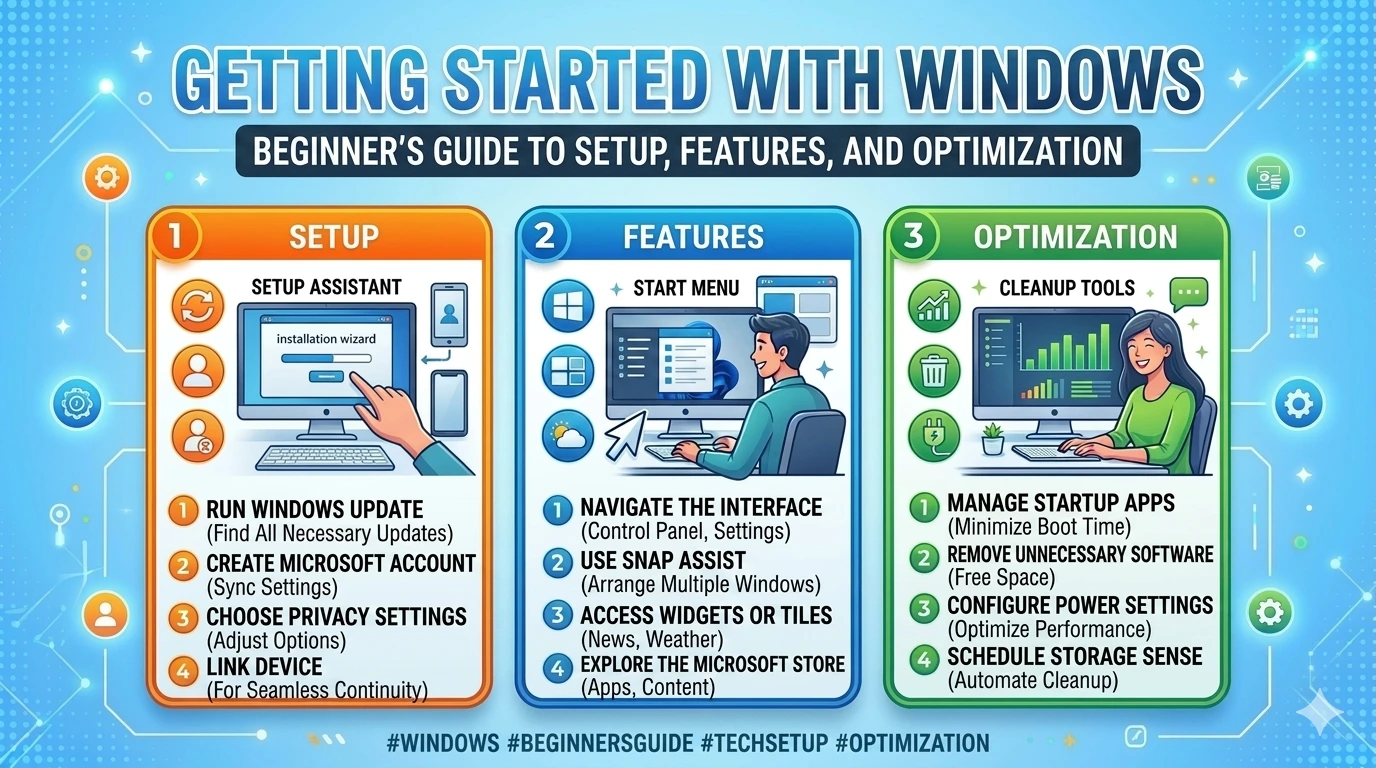
Windows 11 represents Microsoft’s most refined operating system to date, blending modern design with powerful functionality. For new users, the transition can feel both exciting and overwhelming. The “Getting Started” phase is crucial—it sets the foundation for how you will experience Windows 11, from installation and setup to exploring its features and optimizing performance.
Why “Getting Started” Matters
The first steps with Windows 11 determine whether your system runs smoothly or struggles with inefficiencies. Proper setup ensures:
- Stable performance by configuring updates and drivers early.
- Personalized experience through customization of the Start Menu, Taskbar, and themes.
- Enhanced security with account protection, firewall activation, and encryption.
- Productivity boost by learning essential features like Snap Layouts and Virtual Desktops.
By investing time in the beginning, users avoid common frustrations later.
A Fresh Design for Modern Computing
Windows 11 introduces a sleek, centered Start Menu, rounded corners, and improved animations. These design changes are not just cosmetic—they reflect Microsoft’s goal of creating a more intuitive and user‑friendly environment. Beginners will notice:
- Simplified navigation with a cleaner interface.
- Consistency across devices (PCs, tablets, and hybrids).
- Integrated Microsoft services like OneDrive and Teams for seamless collaboration.
Who Benefits from This Guide
This guide is designed for:
- New users upgrading from Windows 10 or earlier.
- Students and professionals who rely on Windows for productivity.
- Casual users who want to explore entertainment and personalization features.
- Tech enthusiasts seeking optimization tips for performance and security.
Key Areas of Focus
Getting started with Windows 11 involves several stages:
- Installation & Setup → Creating accounts, configuring updates, and initial personalization.
- Exploring the Interface → Understanding the Start Menu, Taskbar, Widgets, and File Explorer.
- Essential Features → Learning tools like Snap Layouts, Virtual Desktops, and Microsoft Store apps.
- Basic Optimization → Adjusting performance settings, managing storage, and enabling security features.
- Preventive Habits → Ensuring long‑term stability through updates and backups.
Common Beginner Challenges
New users often face hurdles such as:
- Confusion over Microsoft account requirements.
- Difficulty customizing the Start Menu and Taskbar.
- Overlooked security settings that leave systems vulnerable.
- Performance issues caused by unnecessary startup apps.
This guide addresses these challenges with clear, step‑by‑step instructions.
The Role of Security and Privacy
Windows 11 emphasizes security from the start. Beginners should pay attention to:
- Windows Hello for biometric login.
- BitLocker encryption for protecting sensitive data.
- Firewall and Defender for real‑time protection.
- Privacy settings to control app permissions and data sharing.
Configuring these features early ensures safe and reliable usage.
What You’ll Gain
By following this guide, beginners will:
- Understand the essentials of Windows 11 setup.
- Gain confidence in navigating the interface.
- Learn how to personalize the system for productivity and style.
- Apply optimization techniques for smoother performance.
- Establish preventive habits for long‑term stability.
Summary
Getting started with Windows 11 is about laying a strong foundation. From installation and setup to exploring features and optimizing performance, beginners can transform their experience by following structured steps. This guide ensures that new users not only adapt quickly but also unlock the full potential of Windows 11.
Installation & Setup
Preparing for Installation
Before installing Windows 11, ensure your device meets the minimum requirements:
- Processor: 1 GHz or faster, with at least 2 cores.
- RAM: 4 GB or more.
- Storage: 64 GB minimum.
- TPM 2.0 & Secure Boot: Required for enhanced security.
- Graphics: DirectX 12 compatible GPU with WDDM 2.0 driver.
Check compatibility using Microsoft’s PC Health Check Tool. If your device passes, back up important files to OneDrive or an external drive before proceeding.
Installation Options
- Upgrade from Windows 10:
- Go to Settings → Update & Security → Windows Update.
- If eligible, you’ll see the option to upgrade.
- Follow on‑screen instructions to complete installation.
- Clean Installation:
- Download the Windows 11 Media Creation Tool from Microsoft’s website.
- Create a bootable USB drive.
- Boot from USB and follow installation steps.
- Choose “Custom Install” for a fresh start.
Initial Setup
Once installation begins, Windows 11 guides you through setup:
- Language & Region: Select preferred language, time zone, and keyboard layout.
- Network Connection: Connect to Wi‑Fi or Ethernet for updates.
- Microsoft Account: Sign in with a Microsoft account to sync settings, OneDrive, and apps.
- Alternatively, create a local account if you prefer offline use.
- Privacy Settings: Configure location, diagnostics, and advertising preferences.
- Device Name: Assign a recognizable name for easier identification on networks.
Personalization During Setup
Windows 11 allows early customization:
- Theme Selection: Choose light or dark mode.
- Taskbar Alignment: Default is centered, but you can shift icons to the left.
- Default Apps: Select preferred browser, email client, and media player.
- OneDrive Integration: Enable automatic backup of Desktop, Documents, and Pictures folders.
Essential First Steps After Setup
- Run Windows Update:
- Settings → Windows Update → Check for updates.
- Install security patches and driver updates immediately.
- Install Drivers:
- Visit manufacturer websites for GPU, chipset, and network drivers.
- This ensures optimal performance and compatibility.
- Activate Security Features:
- Enable Windows Defender Firewall.
- Set up Windows Hello (PIN, fingerprint, or facial recognition).
- Turn on BitLocker for drive encryption if supported.
- Configure Backup:
- Enable File History or OneDrive sync.
- Create a System Restore Point for rollback safety.
Common Pitfalls to Avoid
- Skipping Updates: Leads to vulnerabilities and performance issues.
- Ignoring Privacy Settings: May allow apps to access unnecessary data.
- Using Default Passwords: Weakens account security.
- Neglecting Backups: Risk of data loss during crashes or updates.
Summary
Installation and setup are the foundation of a smooth Windows 11 experience. By checking compatibility, choosing the right installation method, configuring accounts and privacy, and enabling security features, beginners can ensure their system is ready for productivity and personalization.
Exploring the Interface
Windows 11 introduces a redesigned interface that balances modern aesthetics with practical usability. For beginners, learning the interface is essential to navigating the system efficiently and customizing it to fit personal workflows. This section explores the Start Menu, Taskbar, Widgets, File Explorer, and personalization basics.
1. The Start Menu
The Start Menu is the central hub of Windows 11.
- Centered Layout: Unlike Windows 10, the Start Menu is centered by default, giving a cleaner look.
- Pinned Apps: Frequently used apps can be pinned for quick access.
- Recommended Section: Displays recently opened files and apps.
- Search Integration: The search bar allows you to find apps, files, and settings instantly.
- Customization:
- Right‑click apps to pin/unpin.
- Rearrange icons by dragging.
- Adjust Start Menu alignment (center or left) via Settings → Personalization → Taskbar.
2. The Taskbar
The Taskbar provides quick access to apps, notifications, and system controls.
- Pinned Apps: Keep essential apps like browsers or productivity tools within reach.
- System Tray: Displays background apps, Wi‑Fi, battery, and sound controls.
- Notification Center: Accessed by clicking the clock, showing notifications and calendar events.
- Quick Settings Panel: Provides toggles for Wi‑Fi, Bluetooth, brightness, and volume.
- Customization:
- Settings → Personalization → Taskbar allows you to show/hide icons.
- Align Taskbar icons left or center.
- Enable/disable system icons like search, widgets, or task view.
3. Widgets
Widgets provide at‑a‑glance information.
- Access: Click the Widgets icon on the Taskbar or press
Win + W. - Content: News, weather, calendar, traffic, and personalized updates.
- Customization:
- Add/remove widgets (e.g., sports, finance, photos).
- Adjust layout to prioritize relevant information.
- Benefit: Keeps users informed without opening full apps.
4. File Explorer
File Explorer is redesigned for simplicity and efficiency.
- New Icons: Modern, colorful icons for folders and drives.
- Quick Access: Frequently used folders and recent files appear at the top.
- OneDrive Integration: Cloud storage is built into File Explorer for seamless syncing.
- Context Menu: Simplified right‑click menu with essential options.
- Tabs Feature: Multiple folders can be opened in tabs, reducing clutter.
- Customization:
- Pin folders to Quick Access.
- Change default File Explorer view (list, details, icons).
5. Personalization Basics
Windows 11 allows extensive personalization to create a tailored experience.
- Themes:
- Settings → Personalization → Themes.
- Choose from built‑in themes or download from Microsoft Store.
- Backgrounds:
- Set static images, slideshows, or solid colors.
- Colors:
- Adjust accent colors for windows, buttons, and highlights.
- Enable transparency effects for a modern look.
- Dark/Light Mode:
- Switch between modes for comfort and style.
- Lock Screen:
- Customize background, notifications, and quick status apps.
6. Snap Layouts & Virtual Desktops (Interface Essentials)
Windows 11 introduces productivity‑focused interface features.
- Snap Layouts:
- Hover over the maximize button to choose layout options.
- Arrange multiple apps side by side for multitasking.
- Virtual Desktops:
- Create separate desktops for work, study, or entertainment.
- Access via Task View (
Win + Tab). - Customize each desktop with unique wallpapers and apps.
7. Microsoft Store Integration
The Microsoft Store is redesigned for better usability.
- Apps & Games: Access thousands of apps, including Android apps (via Amazon Appstore).
- Entertainment: Movies, TV shows, and music available for purchase or streaming.
- Updates: Store apps update automatically for convenience.
- Benefit: Provides a safe, centralized hub for software installation.
8. Accessibility Features
Windows 11 improves accessibility for all users.
- Voice Typing: Press
Win + Hto dictate text. - Magnifier & Narrator: Tools for visually impaired users.
- High Contrast Themes: Enhance readability.
- Keyboard Shortcuts: Streamline navigation and reduce reliance on mouse input.
Summary
Exploring the Windows 11 interface involves mastering the Start Menu, Taskbar, Widgets, File Explorer, and personalization options. With Snap Layouts, Virtual Desktops, and Microsoft Store integration, beginners can quickly adapt to the new environment and boost productivity. Personalization ensures that the system feels unique, while accessibility features make Windows 11 inclusive for all users.
Essential Features
Windows 11 is more than just a visual upgrade—it introduces essential features designed to improve productivity, multitasking, and user experience. Beginners who understand these tools early will unlock the full potential of the operating system.
1. Snap Layouts
Snap Layouts are one of Windows 11’s standout features for multitasking.
- How It Works: Hover over the maximize button on any window to reveal layout options.
- Options: Split screen into halves, thirds, or custom arrangements.
- Snap Groups: Windows remembers your layout, allowing you to restore grouped apps quickly.
- Benefit: Perfect for students comparing documents, professionals managing spreadsheets, or gamers streaming while browsing.
2. Virtual Desktops
Virtual Desktops allow users to create multiple workspaces.
- Access: Press
Win + Tabto open Task View. - Customization: Each desktop can have unique wallpapers and app arrangements.
- Use Cases:
- Work desktop for productivity apps.
- Entertainment desktop for games and streaming.
- Study desktop for research and notes.
- Benefit: Keeps tasks organized and reduces clutter.
3. Microsoft Store
The Microsoft Store has been redesigned for speed and usability.
- Apps & Games: Access thousands of apps, including Android apps via Amazon Appstore.
- Entertainment: Purchase or stream movies, TV shows, and music.
- Updates: Store apps update automatically for convenience.
- Benefit: Provides a safe hub for installing software without risk of malware.
4. Integrated Apps
Windows 11 comes with built‑in apps that enhance productivity and communication.
- Microsoft Teams: Integrated into the Taskbar for quick video calls and chat.
- OneDrive: Cloud storage for automatic file syncing and backup.
- Edge Browser: Optimized for speed, security, and integration with Windows features.
- Photos & Media Player: Simplified apps for managing images and videos.
- Benefit: Beginners can start working, studying, or connecting without needing third‑party apps.
5. Widgets
Widgets provide personalized, at‑a‑glance information.
- Access: Click the Widgets icon or press
Win + W. - Content: News, weather, calendar, traffic, and stock updates.
- Customization: Add or remove widgets to tailor the dashboard.
- Benefit: Keeps users informed without opening multiple apps.
6. Settings & Control Enhancements
Windows 11 centralizes system management.
- Quick Settings Panel: Access Wi‑Fi, Bluetooth, brightness, and volume instantly.
- Notification Center: View alerts, emails, and calendar events.
- System Settings: Redesigned for clarity, making it easier for beginners to adjust preferences.
7. Accessibility Features
Windows 11 improves inclusivity with enhanced accessibility tools.
- Voice Typing: Press
Win + Hto dictate text. - Magnifier & Narrator: Assist visually impaired users.
- High Contrast Themes: Improve readability.
- Benefit: Ensures all users can navigate and use Windows effectively.
8. Security & Privacy Essentials
Security is built into Windows 11’s core features.
- Windows Hello: Biometric login via fingerprint or facial recognition.
- BitLocker: Encrypts drives to protect sensitive data.
- Firewall & Defender: Real‑time protection against malware.
- Privacy Controls: Manage app permissions for location, camera, and microphone.
- Benefit: Beginners can feel confident their system is secure from the start.
Summary
Windows 11’s essential features—Snap Layouts, Virtual Desktops, Microsoft Store, integrated apps, Widgets, accessibility tools, and security enhancements—create a powerful environment for productivity and personalization. Beginners who explore these tools early will enjoy smoother workflows, better organization, and stronger security.
Basic Optimization
Once Windows 11 is installed and the interface explored, the next step is to optimize performance. Beginners often overlook these adjustments, but small tweaks can make a big difference in speed, stability, and security.
1. Performance Tweaks
- Disable Startup Apps:
- Go to Settings → Apps → Startup.
- Turn off unnecessary apps that slow boot time.
- Adjust Visual Effects:
- Settings → System → Advanced System Settings → Performance Options.
- Choose “Adjust for best performance” or customize effects for balance.
- Enable Fast Startup:
- Control Panel → Power Options → Choose what the power buttons do.
- Enable Fast Startup to reduce boot time.
2. Storage Management
- Storage Sense:
- Settings → System → Storage → Storage Sense.
- Automatically deletes temporary files and clears recycle bin.
- Disk Cleanup:
- Search “Disk Cleanup” and remove unnecessary files.
- Uninstall Unused Apps:
- Settings → Apps → Installed Apps.
- Remove apps you no longer use to free space.
- OneDrive Integration:
- Store files in the cloud to reduce local storage usage.
3. Update Settings
- Windows Update:
- Settings → Windows Update → Advanced Options.
- Enable automatic updates for security patches.
- Driver Updates:
- Use manufacturer tools (Intel, AMD, NVIDIA) for GPU and chipset drivers.
- Optional Updates:
- Check for optional driver or firmware updates that improve stability.
4. Security Basics
- Windows Defender Firewall: Ensure it is active to block unauthorized access.
- Windows Hello: Set up PIN, fingerprint, or facial recognition for secure login.
- BitLocker: Encrypt drives to protect sensitive data.
- Privacy Settings:
- Settings → Privacy & Security.
- Control app permissions for location, camera, and microphone.
5. Backup & Restore
- System Restore Point: Create restore points before major changes.
- File History: Enable automatic backups of important folders.
- OneDrive Sync: Protect files by syncing them to the cloud.
6. Battery Optimization (for laptops)
- Battery Saver Mode: Settings → System → Power & Battery.
- Adjust Screen Brightness: Lower brightness to extend battery life.
- Disable Background Apps: Reduce power consumption by limiting background processes.
Summary
Basic optimization in Windows 11 involves performance tweaks, storage management, update settings, security basics, backup strategies, and battery optimization. These adjustments ensure smoother performance, stronger protection, and longer device lifespan. Beginners who apply these steps early will enjoy a more reliable and efficient computing experience.
FAQ
Do I need a Microsoft account to use Windows 11?
No, you can create a local account during setup. However, a Microsoft account unlocks features like OneDrive sync, Microsoft Store access, and cross‑device settings.
How do I customize the Start Menu?
Right‑click apps to pin/unpin them, drag icons to rearrange, and adjust alignment (center or left) via Settings → Personalization → Taskbar.
Can I move the Taskbar to the top or sides like in Windows 10?
Currently, Windows 11 only allows Taskbar alignment (center or left). Moving it to the top or sides is not supported natively.
How do I install apps safely?
Use the Microsoft Store for verified apps. For third‑party apps, download only from official websites and check digital signatures.
What’s the easiest way to take screenshots?
Press Win + Shift + S to open the Snipping Tool. You can capture full screen, windows, or custom areas.
How do I enable Dark Mode?
Go to Settings → Personalization → Colors and select Dark Mode. You can also set apps individually to follow system theme.
How do I manage storage space?
Enable Storage Sense under Settings → System → Storage to automatically clear temporary files. Use Disk Cleanup for manual control.
Can I use Android apps on Windows 11?
Yes, through the Amazon Appstore integrated into Microsoft Store. Availability depends on region and hardware compatibility.
How do I improve battery life on a laptop?
Enable Battery Saver Mode under Settings → System → Power & Battery. Lower screen brightness and disable background apps to extend battery.
What if I make a mistake during setup?
You can reset or reinstall Windows 11 anytime. Use Settings → System → Recovery to reset while keeping files, or perform a clean installation for a fresh start.
Summary
These FAQs address common beginner concerns: account setup, Start Menu customization, Taskbar limitations, safe app installation, screenshots, Dark Mode, storage management, Android app support, battery optimization, and recovery options. With these answers, new users can navigate Windows 11 confidently and avoid early frustrations.
Conclusion
Windows 11 is designed to be approachable for beginners while powerful enough for advanced users. The journey of “Getting Started” is not just about installing an operating system—it’s about laying the foundation for a smooth, secure, and personalized computing experience.
From the initial setup, where users configure accounts, privacy, and updates, to exploring the redesigned interface with its centered Start Menu, streamlined Taskbar, and dynamic Widgets, Windows 11 emphasizes clarity and usability. Beginners quickly discover that features like Snap Layouts and Virtual Desktops are not just conveniences but productivity enhancers, helping organize tasks and reduce clutter.
Equally important are the integrated apps and services—Microsoft Teams for communication, OneDrive for cloud storage, and the Microsoft Store for safe app installation. These tools ensure that users can begin working, studying, or connecting immediately without needing extensive third‑party software.
Optimization plays a critical role in shaping the Windows 11 experience. By disabling unnecessary startup apps, managing storage with Storage Sense, and enabling security features like Windows Hello and BitLocker, beginners can achieve a balance of speed, efficiency, and protection. Battery optimization for laptops further extends usability, making Windows 11 adaptable to both desktop and mobile environments.
Security and privacy are woven into every stage of the journey. Configuring firewalls, managing app permissions, and using VPNs on public Wi‑Fi are not optional steps—they are essential habits for safe computing. Windows 11 provides the tools, but users must take the initiative to activate and maintain them.
The FAQs addressed common beginner concerns, from customizing the Start Menu to managing storage and enabling Dark Mode. These quick answers empower users to solve problems independently and build confidence in navigating the system.
Ultimately, the “Getting Started” guide demonstrates that Windows 11 is more than an operating system—it is a platform for productivity, creativity, and security. Beginners who follow these structured steps will not only adapt quickly but also unlock the full potential of their devices.