
Windows 11 is not just a cosmetic upgrade from Windows 10; it represents Microsoft’s vision for a secure, modern, and performance-oriented operating system. Unlike its predecessor, which was designed to run on a wide range of hardware, Windows 11 enforces stricter requirements to ensure consistency across devices. These requirements are designed to protect users against evolving cyber threats, improve system stability, and prepare PCs for future workloads such as artificial intelligence integration.
The most notable changes include mandatory TPM 2.0, Secure Boot, and support for modern CPU instruction sets. While these requirements have sparked debate, they reflect Microsoft’s commitment to raising the baseline of computing standards. This article explores each requirement in detail, explains why it matters, and provides practical guidance for users who want to upgrade or troubleshoot compatibility issues.
Minimum System Requirements
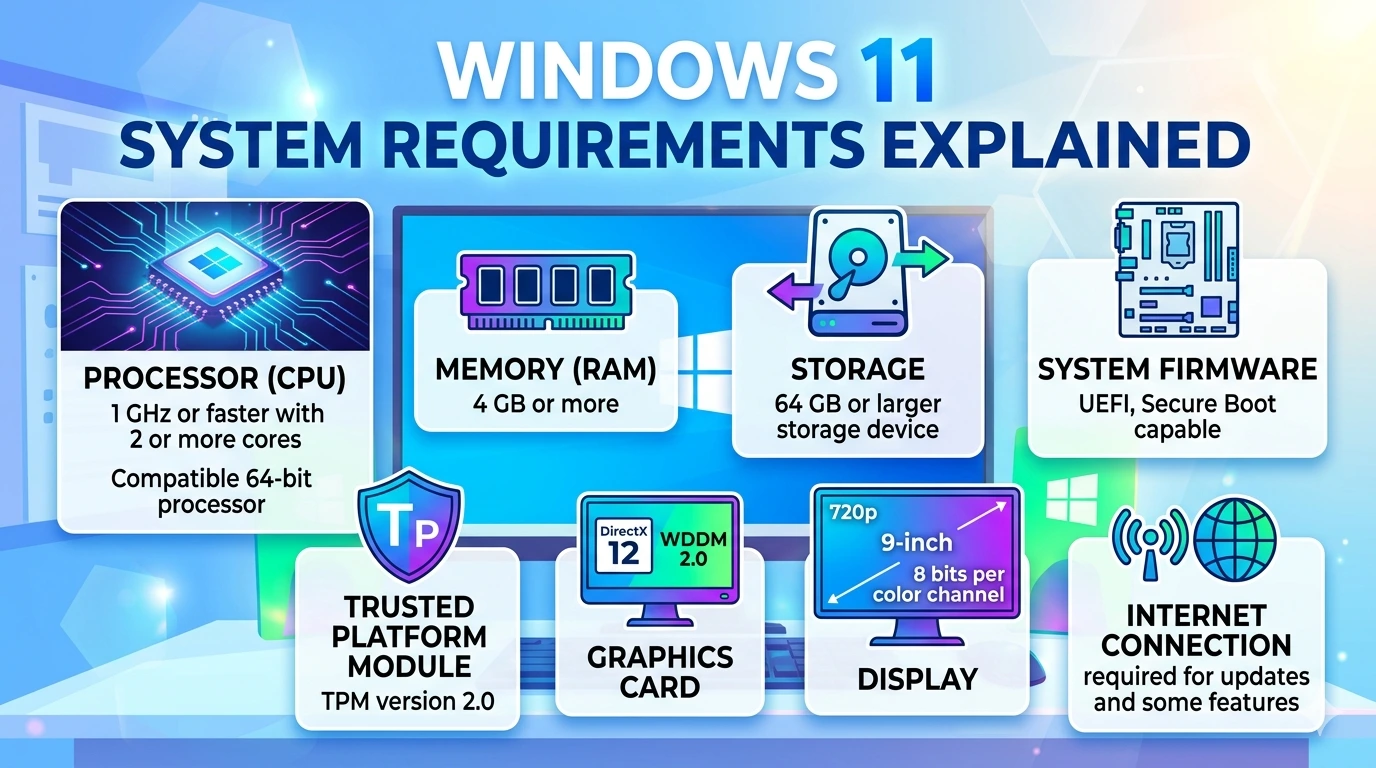
Microsoft has outlined clear minimum specifications for Windows 11. These include:
- Processor: 1 GHz or faster, 2+ cores, 64-bit CPU or SoC.
- RAM: Minimum 4 GB.
- Storage: Minimum 64 GB.
- System Firmware: UEFI with Secure Boot capability.
- TPM: Trusted Platform Module (TPM) version 2.0.
- Graphics: DirectX 12 compatible GPU with WDDM 2.0 driver.
- Display: 720p resolution, 9” diagonal, 8-bit per color channel.
- Connectivity: Internet + Microsoft account required for Windows 11 Home setup.
These requirements ensure that even entry-level devices can handle modern workloads. However, meeting the minimum does not guarantee smooth performance. For example, while 4 GB RAM allows installation, multitasking quickly becomes sluggish. Similarly, 64 GB storage may suffice initially, but cumulative updates and applications will consume space rapidly, leading to update failures.
Why These Requirements Matter
Each requirement serves a specific purpose:
- Processor & RAM: Guarantee smooth multitasking and compatibility with modern applications.
- Storage: Provides room for updates and essential applications.
- UEFI & Secure Boot: Protect against rootkits and unauthorized boot loaders.
- TPM 2.0: Enables hardware-based encryption, BitLocker, and Windows Hello.
- Graphics & Display: Support modern gaming, multimedia, and productivity workloads.
- Internet Connection: Reflects Microsoft’s push toward cloud integration and account-based authentication.
Together, these requirements balance performance, usability, and security. They raise the baseline for what users can expect from a modern PC, ensuring consistency across devices.
Additional Notes
Beyond the minimum requirements, Microsoft has introduced additional rules:
- Instruction Sets: CPUs must support SSE4.2 and POPCNT instructions.
- Processor Support: Only CPUs released from 2018 onward are officially supported.
- Copilot+ PCs: A new category of AI-powered devices requires NPUs capable of 40+ TOPS for advanced AI tasks.
These notes highlight Microsoft’s focus on future-proofing. Unsupported CPUs may technically run Windows 11, but they risk instability and lack of updates. Copilot+ PCs, meanwhile, represent the next frontier of computing, integrating AI at the hardware level.
How to Check Compatibility
Users can verify compatibility through:
- PC Health Check Tool – Official Microsoft app that scans hardware.
- BIOS/UEFI Settings – Ensure TPM 2.0 and Secure Boot are enabled.
- Manufacturer Support Pages – Check CPU compatibility lists from Intel, AMD, or OEMs.
- Third-Party Utilities – Tools like CPU-Z or Speccy provide detailed hardware specs.
By combining these methods, users can avoid failed installations and wasted time.
Risks of Unsupported Hardware
Installing Windows 11 on unsupported hardware carries risks:
- Updates May Fail: Unsupported devices may not receive security patches.
- Reduced Security: Without TPM and Secure Boot, systems are vulnerable to advanced attacks.
- Performance Issues: Older hardware may struggle with multitasking and modern workloads.
- Driver Compatibility: Unsupported devices may face instability with graphics or peripherals.
- Warranty Concerns: Bypassing requirements can void manufacturer support.
While workarounds exist, they compromise stability and security. For most users, upgrading hardware or staying on Windows 10 until support ends in 2025 is safer.
Recommended Specs for Best Experience
To unlock the full potential of Windows 11, aim for:
- RAM: 8 GB minimum, 16 GB for professionals.
- Storage: SSD with at least 128 GB (preferably 256 GB+).
- Processor: Intel 8th gen or AMD Ryzen 3000 series and newer.
- Graphics: Dedicated GPU for gaming or creative workloads.
- Display: Full HD (1080p) or higher resolution.
These specs ensure faster performance, smoother multitasking, and future readiness.
Conclusion
Windows 11’s system requirements reflect Microsoft’s commitment to modern computing standards. While minimum requirements allow installation, exceeding them provides a far better experience. The inclusion of TPM 2.0 and Secure Boot highlights the importance of hardware-based security, while support for modern CPUs ensures compatibility with advanced workloads.
For everyday users, upgrading hardware may seem inconvenient, but the benefits of stability, security, and performance make Windows 11 a worthwhile investment. For professionals, exceeding the minimum ensures productivity and prepares devices for AI-driven features. Ultimately, Windows 11 is not just another operating system—it is a platform designed for the realities of today’s digital world, where performance and security are inseparable.