
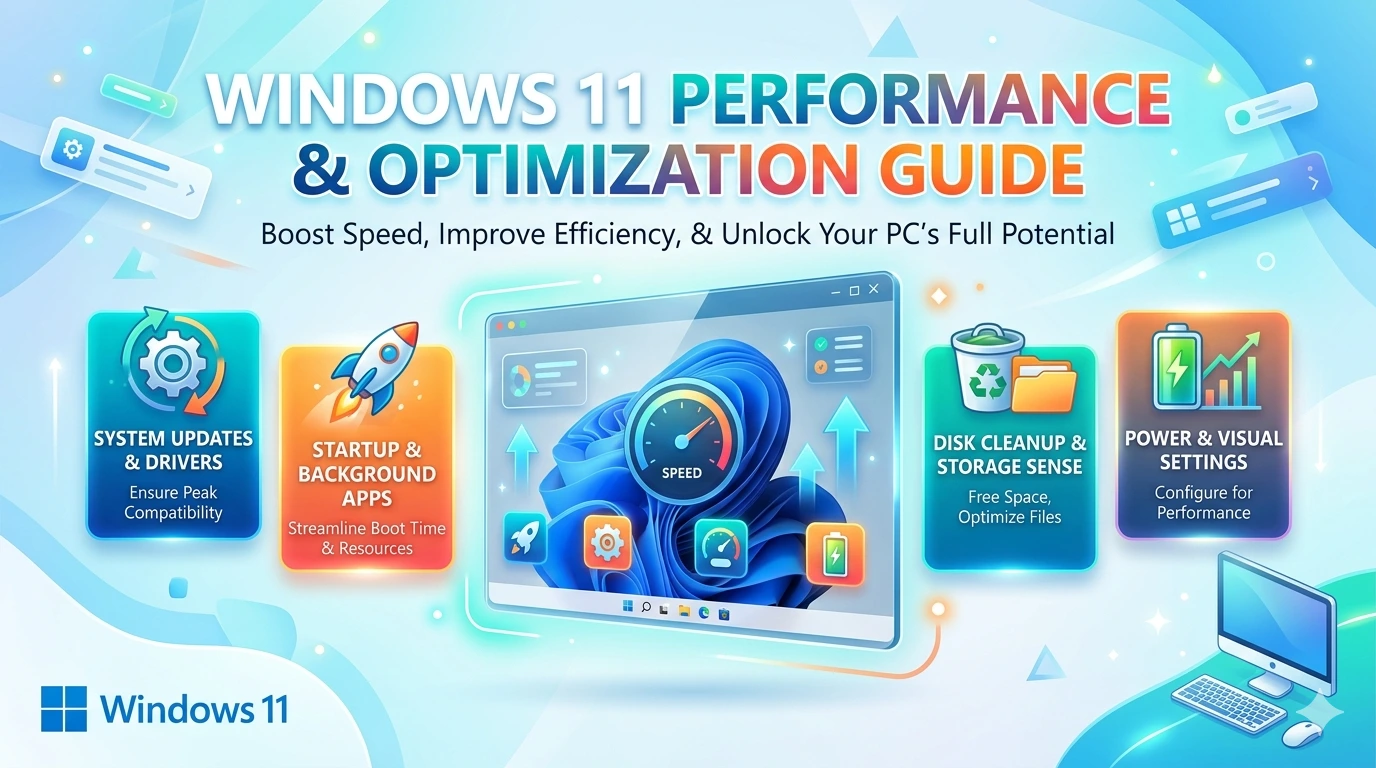
Startup speed is one of the most critical aspects of system performance because it sets the tone for the entire computing experience. A slow boot can frustrate users, waste valuable time, and even indicate deeper inefficiencies in hardware or software. Windows 11, while designed for modern devices, still requires careful optimization to achieve the fastest possible startup.
Historically, Windows systems running on mechanical hard drives often took several minutes to load. The introduction of solid‑state drives (SSDs) and NVMe storage revolutionized boot performance, reducing startup times to mere seconds. Microsoft has also introduced features like Fast Startup, UEFI firmware, and Secure Boot to streamline the boot process while maintaining security.
Startup speed matters across different user groups. Professionals benefit from faster access to work tools, gamers enjoy reduced waiting times before launching platforms, and students can quickly access study materials without losing focus. Optimization involves a combination of hardware upgrades, software configuration, BIOS/UEFI tuning, and troubleshooting practices.
This guide explores every dimension of startup speed optimization in Windows 11, providing step‑by‑step strategies, case studies, and best practices. By applying these methods, users can transform sluggish systems into responsive machines that boot in seconds, enhancing productivity and overall satisfaction.
Hardware Factors
When it comes to startup speed, hardware is the foundation. Even the most carefully tuned software settings cannot overcome the limitations of outdated or underpowered components. Windows 11 is designed to take advantage of modern hardware, and the difference between old and new technology is dramatic. In this section, we’ll explore the three most critical hardware factors—storage, memory, and processors—along with supporting elements like motherboards and firmware.
Solid‑State Drives (SSD) vs Hard Disk Drives (HDD)
For decades, mechanical hard drives were the bottleneck of system performance. Their spinning platters and moving read/write heads limited data transfer speeds to around 100 MB/s. This meant that loading the operating system, drivers, and startup applications could take minutes.
SSDs changed everything. By eliminating moving parts and relying on flash memory, SSDs deliver speeds of 500 MB/s or more. NVMe SSDs, connected via PCIe lanes, push this even further—often exceeding 3000 MB/s. The impact on startup speed is immediate: systems that once took 90 seconds to boot can now reach the desktop in under 15 seconds.
Case Study:
- Laptop with 5400 RPM HDD: ~90 seconds to boot.
- Same laptop with SATA SSD: ~25 seconds.
- Same laptop with NVMe SSD: ~12–15 seconds.
For Windows 11 users, migrating to SSD or NVMe storage is the single most effective way to improve startup speed.
RAM Capacity and Speed
Random Access Memory (RAM) plays a crucial role during startup. Windows loads essential processes, drivers, and services into memory. If RAM is insufficient, the system relies on the page file stored on disk, which is far slower.
- 4 GB RAM: Bare minimum, often results in sluggish startup.
- 8 GB RAM: Acceptable for everyday use, smoother boot.
- 16 GB RAM: Ideal for multitasking, virtually eliminates startup stalls.
Memory speed also matters. DDR4 and DDR5 modules with higher frequencies reduce latency, allowing faster initialization of processes.
Example:
A system with 4 GB RAM may take 60 seconds to reach a usable desktop, while the same system upgraded to 16 GB RAM can reduce that time by 40%, thanks to reduced reliance on paging.
CPU Generation and Efficiency
The processor orchestrates startup tasks, from initializing hardware to loading drivers. Modern CPUs are optimized for parallel processing, meaning they can handle multiple startup threads simultaneously.
- Older CPUs (Intel 4th–6th gen, AMD FX series): Struggle with multitasking, bottleneck startup.
- Modern CPUs (Intel 8th gen+, AMD Ryzen 3000+): Efficiently manage startup processes, reducing delays.
Windows 11 requires relatively recent CPUs for compatibility, ensuring that most supported systems already benefit from these improvements. However, upgrading from an older processor can still yield noticeable gains.
Motherboards and Firmware
The motherboard and its firmware (BIOS/UEFI) also influence startup speed. Outdated firmware can cause delays during hardware initialization. Modern UEFI systems are faster than legacy BIOS, offering streamlined boot sequences and features like Fast Boot, which skips unnecessary checks.
Tip: Always update motherboard firmware to the latest version. This not only improves compatibility but can also shave seconds off boot time.
Combined Impact
Startup speed is rarely determined by a single component. Instead, it is the synergy of storage, memory, CPU, and firmware. A balanced system—NVMe SSD, 16 GB RAM, modern CPU, updated UEFI—can boot Windows 11 in under 15 seconds. Conversely, a system with HDD storage, minimal RAM, and outdated firmware may take several minutes.
Key Takeaways
- SSDs and NVMe drives are the most impactful upgrade for startup speed.
- Adequate RAM (8–16 GB) prevents paging delays.
- Modern CPUs handle startup tasks more efficiently.
- Updated UEFI firmware ensures streamlined boot sequences.
- Hardware synergy is essential: upgrading one component helps, but upgrading all yields the best results.
Software & Configuration
While hardware provides the foundation for fast startup, software configuration determines how efficiently Windows 11 uses that hardware. Even the most powerful SSD and CPU can be slowed down by poorly managed startup apps, outdated drivers, or misconfigured system settings. In this section, we’ll explore the key software adjustments that can dramatically improve boot performance.
Fast Startup
Fast Startup is one of Microsoft’s most effective features for reducing boot time. It works by combining elements of hibernation with a cold boot. Instead of shutting down completely, Windows saves the system state to disk, allowing it to reload faster when powered on.
- How to enable:
- Open Control Panel → Power Options.
- Select Choose what the power buttons do.
- Enable Turn on fast startup.
- Pros:
- Cuts boot time significantly.
- Ideal for single‑OS systems.
- Cons:
- Can cause issues with dual‑boot setups (Linux/Windows).
- May interfere with certain drivers that expect a full shutdown.
Startup Apps
Every application that launches at startup adds seconds to boot time. Many programs—Spotify, Zoom, Adobe Updater—set themselves to auto‑launch by default.
- How to manage:
- Press Ctrl + Shift + Esc to open Task Manager.
- Navigate to the Startup tab.
- Disable non‑essential apps.
Case Study: Disabling 10 unnecessary apps reduced boot time by 20 seconds on a mid‑range laptop.
Services Optimization
Windows runs dozens of background services, many of which are essential. However, some third‑party applications install services that are not required at startup.
- Tool:
msconfig(System Configuration). - Best practice: Disable only non‑Microsoft services you recognize (e.g., printer update services, third‑party sync tools).
- Warning: Disabling critical services can destabilize Windows. Always research before disabling.
Driver Updates
Outdated drivers can delay startup by failing to initialize properly. Storage drivers, GPU drivers, and chipset drivers are particularly important.
- Update methods:
- Windows Update.
- Manufacturer websites (NVIDIA, AMD, Intel, etc.).
- Device Manager → Update driver.
Keeping drivers current ensures smooth hardware initialization during boot.
Windows Update & Patch Management
Regular updates improve performance and fix bugs, but poorly timed updates can slow startup.
- Tip: Schedule updates during off‑hours.
- Benefit: Updated kernels and drivers often reduce boot delays.
Registry & System Settings
The Windows registry stores startup configurations. Corrupt or bloated entries can slow boot.
- Tool: CCleaner or built‑in Disk Cleanup.
- Best practice: Avoid aggressive registry cleaning; focus on removing invalid startup entries.
Key Takeaways
- Fast Startup is a must‑enable feature for most users.
- Disabling unnecessary startup apps yields immediate improvements.
- Services optimization should be done cautiously.
- Updated drivers and patches prevent boot delays.
- Registry maintenance helps keep startup clean.
BIOS/UEFI Settings
Beyond hardware and software, the firmware layer—BIOS or UEFI—plays a decisive role in how quickly Windows 11 starts. This is the first code that runs when you power on your PC, initializing hardware and handing control over to the operating system. Misconfigured or outdated firmware can add unnecessary seconds, while optimized settings can streamline the boot sequence.
Boot Order
The boot order determines which device the system checks first for an operating system. If your PC is set to check external drives or network boot before the SSD, startup will be delayed.
- Best practice: Set your primary SSD or NVMe drive as the first boot device.
- Impact: Eliminates wasted time scanning unused devices.
Secure Boot
Secure Boot is a requirement for Windows 11, ensuring only trusted software loads during startup. Some users worry it slows boot, but when properly configured, its impact is negligible.
- Benefit: Protects against rootkits and unauthorized bootloaders.
- Tip: Keep Secure Boot enabled for both speed and security.
Fast Boot Option
Many modern motherboards include a “Fast Boot” toggle in BIOS/UEFI. This feature skips certain hardware checks, reducing boot time.
- Pros: Faster startup, especially on systems with large amounts of RAM.
- Cons: May prevent access to BIOS during boot if enabled.
- Solution: Temporarily disable Fast Boot if you need to enter BIOS.
Firmware Updates
Outdated BIOS/UEFI firmware can cause compatibility issues and slow initialization. Updating firmware often improves boot speed and stability.
- Process:
- Identify your motherboard model.
- Download the latest firmware from the manufacturer’s website.
- Follow instructions carefully—incorrect updates can cause system failure.
Case Study: A system with outdated firmware took 35 seconds to boot. After updating BIOS and enabling Fast Boot, startup time dropped to 25 seconds.
Peripheral Initialization
BIOS initializes connected devices—USB drives, external storage, expansion cards. If too many peripherals are connected, startup slows.
- Tip: Disconnect unused USB devices during boot.
- Advanced: Disable legacy USB support if not needed.
Key Takeaways
- Set SSD/NVMe as the first boot device.
- Keep Secure Boot enabled for both speed and protection.
- Enable Fast Boot for quicker startup, but disable temporarily if BIOS access is needed.
- Update BIOS/UEFI regularly to improve compatibility and performance.
- Minimize peripheral initialization by disconnecting unnecessary devices.
Advanced Troubleshooting
Even after upgrading hardware and fine‑tuning software, some systems still suffer from slow startup. In these cases, advanced troubleshooting is necessary to identify hidden bottlenecks. Windows 11 provides several built‑in tools, and experienced users can apply systematic methods to isolate and resolve issues.
Event Viewer
Event Viewer logs every step of the boot process. By examining System Logs → Diagnostics‑Performance, you can see which services or drivers delay startup.
- How to use:
- Press Win + X → select Event Viewer.
- Navigate to Applications and Services Logs → Microsoft → Windows → Diagnostics‑Performance.
- Look for warnings or errors with high boot duration.
- Benefit: Pinpoints specific drivers or services causing delays.
Windows Performance Toolkit
This advanced tool provides detailed boot analysis. It records startup events and visualizes them, showing exactly where time is spent.
- Steps:
- Install Windows Performance Toolkit via Windows SDK.
- Run a boot trace.
- Analyze results to identify bottlenecks.
- Use case: IT professionals often rely on this to troubleshoot enterprise systems.
Clean Boot
A clean boot disables all non‑Microsoft services and startup apps, allowing you to test whether third‑party software is slowing startup.
- How to perform:
- Press Win + R, type
msconfig. - Under Services, check Hide all Microsoft services, then disable the rest.
- Restart and measure boot time.
- Press Win + R, type
- Result: If startup improves, re‑enable services one by one to find the culprit.
Malware Scan
Malware often injects itself into the startup process, adding delays or hijacking resources.
- Tools: Windows Defender, Malwarebytes, or other trusted antivirus solutions.
- Tip: Run a full system scan, not just a quick scan.
- Impact: Removing malware can restore normal boot times and improve overall stability.
Registry & Corruption Issues
Corrupt registry entries or bloated startup configurations can slow boot.
- Solution: Use built‑in System File Checker (sfc /scannow) to repair corrupted files.
- Caution: Avoid aggressive registry cleaners; focus on repairing rather than deleting.
Key Takeaways
- Event Viewer identifies specific delays in the boot process.
- Windows Performance Toolkit provides deep analysis for advanced users.
- Clean Boot isolates problematic third‑party services.
- Malware scans ensure startup isn’t compromised by malicious software.
- System file checks repair corruption that may hinder boot speed.
Best Practices
Once hardware upgrades, software tweaks, and BIOS adjustments are in place, maintaining fast startup requires consistent best practices. These are simple habits and configurations that ensure Windows 11 continues to boot quickly over time, without gradually slowing down due to clutter, mismanagement, or unnecessary processes.
Keep Windows Updated
Microsoft regularly releases patches that improve performance, fix bugs, and enhance security. Ensuring your system is up to date prevents startup delays caused by outdated kernels or drivers.
- Tip: Schedule updates during off‑hours to avoid interruptions.
- Benefit: Updated systems often boot faster and more reliably.
Use Storage Sense for Cleanup
Temporary files, cached data, and old update files accumulate over time, slowing startup. Windows 11 includes Storage Sense, which automatically deletes unnecessary files.
- How to enable: Settings → System → Storage → Storage Sense.
- Impact: Keeps the OS partition lean, reducing boot delays.
Limit Background Apps
Many apps run in the background even when not needed, consuming resources during startup.
- Action: Settings → Apps → Startup → disable non‑essential apps.
- Result: Faster boot and reduced memory usage.
Choose Lightweight Antivirus Solutions
Heavy antivirus suites can add significant startup delays. Windows Defender is integrated and optimized for Windows 11, offering strong protection with minimal impact.
- Alternative: If using third‑party antivirus, select one known for efficiency.
Avoid Unnecessary Utilities
System optimizers, update managers, and third‑party launchers often auto‑start, slowing boot.
- Best practice: Install only essential software.
- Example: Printer utilities that auto‑launch can be disabled without affecting printing.
Regular Maintenance Schedule
Optimization is not a one‑time task.
- Monthly: Run Disk Cleanup or Storage Sense.
- Quarterly: Review startup apps and services.
- Annually: Check for BIOS/UEFI updates.
Key Takeaways
- Updates improve performance and stability.
- Storage Sense prevents clutter from slowing startup.
- Limiting background apps reduces boot time.
- Lightweight antivirus ensures protection without delays.
- Avoid unnecessary utilities that auto‑launch.
- Regular maintenance keeps startup consistently fast.
Case Studies
Real‑world examples are often the most convincing proof of how startup optimization works. While theory and best practices provide guidance, case studies show measurable improvements that users can expect when applying these strategies.
Case Study 1: HDD to SSD Migration
A mid‑range laptop running Windows 11 with a 5400 RPM HDD consistently took around 90 seconds to reach the desktop. After migrating the operating system to a SATA SSD, boot time dropped to 25 seconds. Upgrading further to an NVMe SSD reduced startup to 12–15 seconds.
- Lesson: Storage upgrades deliver the most dramatic improvement in startup speed.
Case Study 2: RAM Upgrade
A desktop PC with 4 GB of RAM struggled during startup, often freezing at the login screen for 30–40 seconds as background services loaded. After upgrading to 16 GB of RAM, the same system reached the desktop in 20 seconds less, with smoother responsiveness.
- Lesson: Adequate memory prevents paging delays and accelerates initialization.
Case Study 3: Disabling Startup Apps
On a business workstation, more than 15 applications were set to auto‑launch, including chat clients, cloud sync tools, and update managers. Boot time averaged 75 seconds. After disabling non‑essential apps via Task Manager, startup time improved to 55 seconds.
- Lesson: Startup app management is a quick win for reducing boot delays.
Case Study 4: BIOS Fast Boot
A gaming PC with modern hardware still took 40 seconds to boot due to extended hardware checks. Enabling the Fast Boot option in BIOS reduced startup to 30 seconds, saving 10 seconds consistently.
- Lesson: Firmware settings can fine‑tune startup efficiency.
Key Insights
- Hardware upgrades (SSD, RAM) provide the largest gains.
- Software tweaks (disabling apps, enabling Fast Startup) deliver immediate improvements.
- BIOS/UEFI adjustments add incremental but valuable speed.
- Combined, these optimizations can cut startup time by more than half.
FAQs
Even with upgrades and optimizations, users often have recurring questions about startup speed in Windows 11. Addressing these FAQs helps clarify misconceptions and provides practical solutions.
1. Why is my Windows 11 still slow even after installing an SSD?
An SSD dramatically reduces boot time, but startup can still be sluggish if too many apps launch automatically or if drivers are outdated. Check Task Manager’s Startup tab and disable unnecessary apps. Also, update GPU, chipset, and storage drivers to ensure smooth initialization.
2. Should I enable Fast Startup?
Fast Startup is recommended for most users because it combines hibernation with a cold boot, cutting boot time significantly. However, if you dual‑boot with Linux or experience driver issues, you may want to disable it. For single‑OS systems, keeping it enabled is the best choice.
3. Does Secure Boot slow down startup?
No. Secure Boot verifies that only trusted software loads during startup, but its impact on boot speed is negligible. It is a requirement for Windows 11 and should remain enabled for both performance and security.
4. Is 4 GB RAM enough for Windows 11 startup?
Technically, yes—Windows 11 can run on 4 GB RAM. However, startup will feel sluggish because the system relies heavily on paging files. Upgrading to 8 GB or 16 GB RAM provides a noticeable improvement, reducing login delays and improving responsiveness.
5. How do I check which apps are slowing down boot?
Open Task Manager (Ctrl + Shift + Esc) → Startup tab. Each app is listed with its startup impact (Low, Medium, High). Disable apps with “High” impact unless they are essential. This simple step often reduces boot time by 10–20 seconds.
6. Can outdated BIOS affect startup speed?
Yes. Outdated firmware can cause hardware initialization delays. Updating BIOS/UEFI to the latest version often improves compatibility and reduces boot time. Always follow manufacturer instructions carefully when updating firmware.
7. Does antivirus software slow startup?
Heavy antivirus suites can add delays. Windows Defender, built into Windows 11, offers strong protection with minimal impact. If using third‑party antivirus, choose lightweight options known for efficiency.
8. How often should I optimize startup?
Startup optimization is not a one‑time task. Review startup apps monthly, update drivers quarterly, and check BIOS annually. Regular maintenance ensures consistent boot performance.
Key Takeaways
- SSDs improve boot speed, but apps and drivers must be managed.
- Fast Startup is beneficial for most users.
- Secure Boot does not slow startup and should remain enabled.
- Adequate RAM (8–16 GB) is essential for smooth boot.
- Task Manager helps identify high‑impact apps.
- BIOS updates and lightweight antivirus improve startup efficiency.
- Regular maintenance keeps boot times consistently fast.
Conclusion
Optimizing startup speed in Windows 11 is about combining the right hardware, smart software configuration, and consistent maintenance. Migrating to SSD or NVMe storage, upgrading RAM, and using modern CPUs provide the strongest foundation. Features like Fast Startup, disabling unnecessary apps, and keeping drivers updated fine‑tune performance. BIOS/UEFI settings such as boot order and Fast Boot streamline initialization, while troubleshooting tools help resolve hidden delays. With regular upkeep, users can achieve boot times measured in seconds, not minutes. The result is a smoother, more responsive system that enhances productivity, gaming, and everyday computing.