
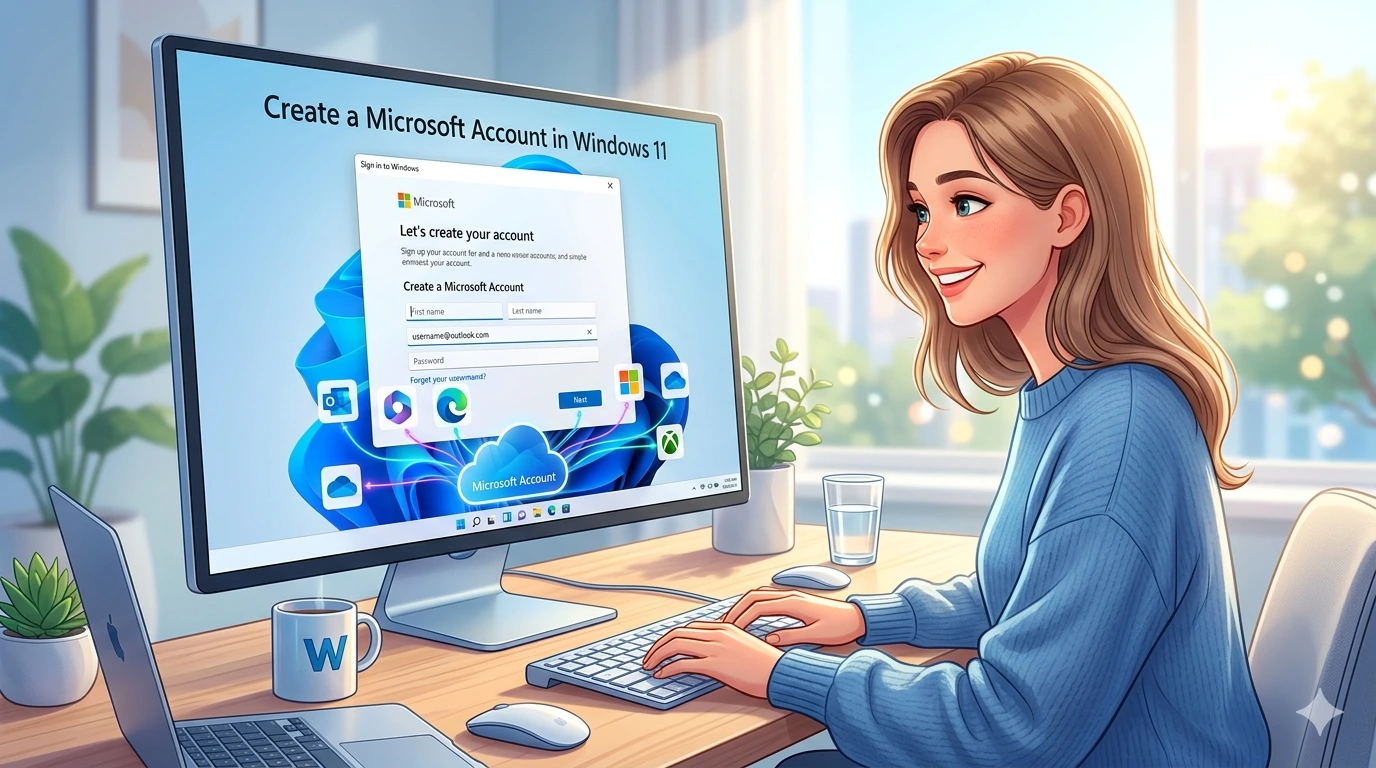
Windows 11 is designed to be more connected, secure, and personalized than any previous version of Microsoft’s operating system. At the center of this experience is the Microsoft Account. Unlike a local account, which exists only on one device, a Microsoft Account links your PC to Microsoft’s ecosystem, enabling synchronization across devices, access to cloud services, and integration with productivity tools.
This introduction explores why Microsoft has made the account mandatory for Windows 11 Home, the advantages it provides, and how it fits into the broader evolution of Windows. We’ll also look at real‑world scenarios—students syncing files between laptops and tablets, professionals accessing Office 365 seamlessly, families using parental controls, and gamers enjoying Xbox integration.
By the end of this section, you’ll understand that creating a Microsoft Account is not just a login step—it’s the gateway to unlocking the full potential of Windows 11.
Why You Need a Microsoft Account
A Microsoft Account provides:
- Synchronization: Your settings, themes, and files follow you across devices.
- Cloud Storage: OneDrive integration ensures files are backed up automatically.
- Security: Password recovery, two‑factor authentication, and Windows Hello biometric sign‑in.
- Productivity: Seamless access to Outlook, Office 365, and Teams.
- Family Safety: Parental controls, screen time monitoring, and activity reports.
- Gaming: Xbox Game Pass integration, cloud saves, and cross‑platform play.
Historically, Windows XP and Windows 7 relied on local accounts. Windows 8 introduced Microsoft Accounts, but they were optional. Windows 10 encouraged them, and now Windows 11 Home requires them. This progression reflects Microsoft’s shift toward cloud‑based computing.
Creating a Microsoft Account During Setup
When installing Windows 11, you’ll be prompted to sign in or create a Microsoft Account. Here’s the detailed process:
- Initial Prompt – On the “Let’s add your Microsoft account” screen, enter your existing email (Outlook, Hotmail, Live, or linked Gmail).
- Create New Account – If you don’t have one, click “Create one.” You can choose a new Outlook email or use your phone number.
- Password Setup – Create a strong password with letters, numbers, and symbols.
- Personal Details – Enter your name, country/region, and date of birth.
- Verification – Microsoft sends a code to your email or phone. Enter it to confirm.
- Linking to Windows 11 – Once verified, your PC connects to Microsoft’s ecosystem.
Troubleshooting During Setup
- No Internet? Windows 11 Home requires online setup. Use Ethernet or Wi‑Fi.
- Verification Failed? Double‑check your email or phone number.
- Want Local Account? Only Windows 11 Pro allows skipping Microsoft Account during setup.
Creating a Microsoft Account After Setup
If you skipped account creation, you can add one later:
- Open Settings → Accounts → Your info.
- Select Sign in with a Microsoft account instead.
- Enter your Microsoft email and password.
- Verify via email or SMS code.
- Your local account converts to a Microsoft Account.
Benefits of Adding Later
- Sync files and settings instantly.
- Access Microsoft Store apps.
- Enable OneDrive backup.
- Improve account recovery options.
Common Issues
- Conversion Errors – Ensure TPM and Secure Boot are enabled.
- Password Problems – Reset via Microsoft’s recovery page.
- Multiple Accounts – You can add secondary accounts for family members.
Tips & Best Practices
To maximize security and usability:
- Use a strong password with mixed characters.
- Enable two‑factor authentication (via SMS or Microsoft Authenticator app).
- Link your account to a phone number for recovery.
- Keep recovery email updated.
- Adjust privacy settings under Settings → Privacy & Security.
- For families, set up Microsoft Family Safety to monitor screen time and online activity.
Advanced Practices
- Use Windows Hello for biometric sign‑in.
- Manage multiple accounts with Account Manager.
- Regularly review security activity logs at account.microsoft.com.
FAQ
- Do I need a Microsoft Account for Windows 11?
Yes, Windows 11 Home requires it. Pro edition allows local accounts. - Can I use Gmail for Microsoft Account?
Yes, you can register Gmail or other emails. - Is Microsoft Account free?
Yes, it’s free to create and use. - Can I switch back to local account?
Yes, but you’ll lose synchronization and cloud features.
Conclusion
Creating a Microsoft Account in Windows 11 is more than a setup requirement—it’s the foundation of the modern Windows experience. It enables synchronization, security, productivity, and family management features that local accounts cannot match. While some users may prefer offline independence, the benefits of integration with Microsoft’s ecosystem make the account essential for most.
By following the steps outlined here—whether during installation or afterward—you can ensure your Windows 11 device is fully connected, secure, and ready to take advantage of everything Microsoft has to offer.