
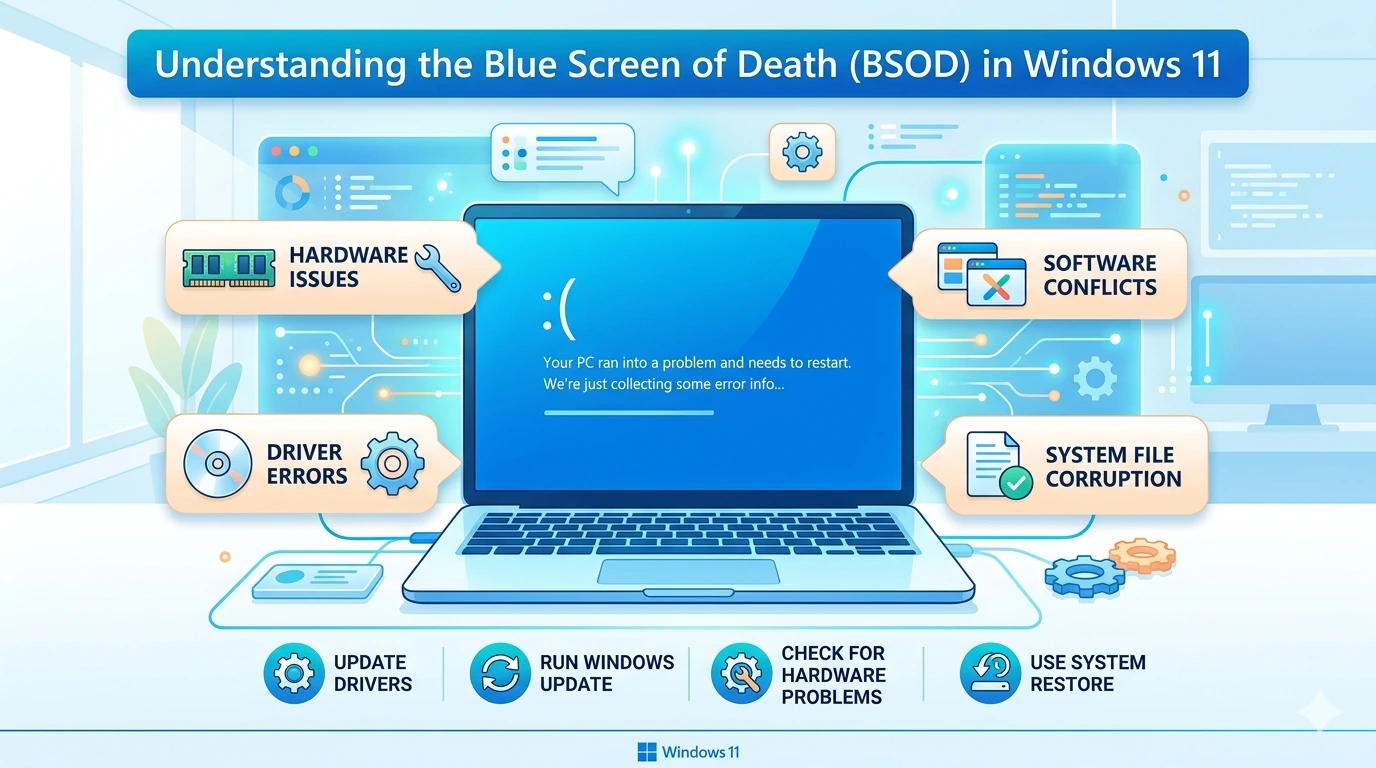
Few things strike fear into the heart of a Windows user like the sudden appearance of the Blue Screen of Death (BSOD). One moment you are working, gaming, or streaming, and the next your screen turns a chilling shade of blue, displaying cryptic error codes and forcing your system to restart. For decades, the BSOD has been both a symbol of frustration and a diagnostic tool, evolving alongside Microsoft’s operating systems from the early days of Windows XP to the modern sophistication of Windows 11.
The BSOD is not simply a random crash. It is Windows’ way of protecting itself when it encounters a critical error that could damage the system or corrupt data. Instead of continuing to run in an unstable state, the operating system halts everything, displays the error screen, and forces a reboot. While disruptive, this mechanism prevents deeper harm and provides valuable clues about what went wrong.
A Brief History of BSOD
The origins of the BSOD date back to the early 1990s, when Microsoft introduced it as a safeguard in Windows 3.x. Back then, the screen was filled with technical jargon that only developers or IT professionals could decipher. Over time, the BSOD became infamous among everyday users, often associated with hardware failures, driver conflicts, or poorly written software. In Windows XP and Vista, the BSOD was a common occurrence, sometimes appearing multiple times a week for unlucky users.
With Windows 7 and Windows 10, Microsoft improved system stability, reducing the frequency of BSODs. Yet the phenomenon never disappeared entirely. In Windows 11, the BSOD has been modernized with a cleaner design, simplified error messages, and even QR codes that link directly to troubleshooting resources. Despite these improvements, the BSOD remains a reality for anyone using complex hardware and software combinations.
Why BSOD Still Matters
The BSOD is more than just a crash screen. It is a diagnostic checkpoint that signals something serious has gone wrong. Each BSOD includes a stop code, such as CRITICAL_PROCESS_DIED or MEMORY_MANAGEMENT, which points to the underlying issue. For IT professionals, these codes are invaluable in identifying whether the problem lies in faulty drivers, failing hardware, or corrupted system files. For everyday users, the BSOD is a reminder that their system needs attention—whether through updates, repairs, or preventive maintenance.
The Emotional Impact
Beyond its technical role, the BSOD carries a psychological weight. For many users, seeing the blue screen triggers anxiety about lost work, damaged hardware, or expensive repairs. In professional environments, a BSOD can disrupt productivity, delay projects, or even cause financial losses. Gamers dread it as the ultimate interruption, often appearing in the middle of an intense session. Students fear it when working on assignments close to deadlines. In short, the BSOD is not just a technical event—it is an emotional one.
Setting the Stage for Troubleshooting
This article aims to demystify the BSOD in Windows 11. By exploring its causes, troubleshooting methods, preventive measures, and real-world case studies, we will transform the BSOD from a symbol of panic into a manageable challenge. Whether you are a casual user in Surabaya, a student in East Java, or a professional managing multiple systems, understanding the BSOD will empower you to respond effectively and minimize disruption.
In the sections that follow, we will break down the most common causes of BSODs, provide step-by-step troubleshooting guides, and share preventive strategies to keep your system stable. By the end of this series, you will not only know how to fix a BSOD but also how to reduce the chances of encountering one in the first place.
Common Causes of Blue Screen of Death (BSOD) in Windows 11
The Blue Screen of Death (BSOD) is never random. Every crash has a trigger, and understanding these causes is the first step toward effective troubleshooting. In Windows 11, BSODs are typically linked to hardware malfunctions, driver conflicts, corrupted system files, or unstable updates. Let’s break down the most frequent culprits.
1. Driver Issues
Drivers are the software bridges between hardware and the operating system. When they malfunction, Windows can no longer communicate properly with your devices, leading to system instability.
- Outdated Drivers: Legacy drivers from Windows 10 or earlier may not be fully compatible with Windows 11.
- Faulty Updates: Sometimes, a new driver update introduces bugs instead of fixes.
- Graphics Drivers: GPU drivers are notorious for causing BSODs, especially during gaming or video rendering.
- Stop Codes Linked to Drivers: DRIVER_IRQL_NOT_LESS_OR_EQUAL and VIDEO_TDR_FAILURE are common examples.
Case Example: A gamer installs the latest NVIDIA driver, only to encounter repeated BSODs during gameplay. Rolling back to the previous stable version resolves the issue.
2. Hardware Failures
Hardware problems are among the most serious causes of BSODs. Unlike software issues, they often require physical repair or replacement.
- RAM Errors: Faulty memory modules trigger stop codes like MEMORY_MANAGEMENT.
- Failing SSD/HDD: Bad sectors or failing drives can corrupt system files, leading to CRITICAL_PROCESS_DIED.
- Overheating: Excessive heat from dust buildup or poor cooling can cause sudden shutdowns and BSODs.
- Power Supply Problems: Inconsistent voltage can destabilize the system.
Case Example: A laptop repeatedly crashes with BSODs after 30 minutes of use. Diagnostics reveal overheating due to clogged fans. Cleaning the cooling system eliminates the crashes.
3. Windows Updates and Compatibility Problems
Windows updates are designed to improve stability, but occasionally they introduce new conflicts.
- Patch Conflicts: A recent update may clash with existing drivers or applications.
- Incomplete Installations: Interrupted updates can leave the system unstable.
- Compatibility Issues: Older hardware may not fully support new Windows 11 features.
Stop Codes: SYSTEM_SERVICE_EXCEPTION and PAGE_FAULT_IN_NONPAGED_AREA often appear after problematic updates.
4. Corrupted System Files
System files are the backbone of Windows. When they become corrupted, the operating system cannot function properly.
- Malware Attacks: Viruses may delete or alter critical files.
- Disk Errors: Bad sectors can damage system files.
- Improper Shutdowns: Forced power-offs can corrupt essential processes.
Stop Codes: CRITICAL_PROCESS_DIED and KERNEL_DATA_INPAGE_ERROR are strong indicators of file corruption.
5. Malware and Security Threats
Malicious software can destabilize Windows by interfering with core processes.
- Rootkits: These deeply embedded threats can corrupt kernel-level operations.
- Trojan Horses: Malware disguised as legitimate software may alter drivers.
- Spyware: Background processes consume resources, leading to instability.
Case Example: A user downloads a cracked application. Shortly after, BSODs appear with random stop codes. A malware scan reveals hidden trojans altering system files.
6. User-Induced Errors
Sometimes, BSODs are the result of user actions.
- Overclocking: Pushing CPU or GPU beyond safe limits can cause instability.
- Registry Tweaks: Improper edits to the Windows registry may break system processes.
- Third-Party Software: Poorly coded applications can conflict with Windows services.
7. Rare Causes
While less common, these issues can also trigger BSODs:
- BIOS/UEFI Bugs: Outdated firmware may conflict with Windows 11.
- Peripheral Devices: Faulty USB devices or external drives can destabilize the system.
- Virtualization Conflicts: Running multiple virtual machines may overload resources.
Summary
The BSOD in Windows 11 is not a mystery—it is a symptom of underlying problems. Whether caused by drivers, hardware, updates, or malware, each crash provides clues through stop codes and system behavior. By identifying the root cause, users can apply targeted fixes instead of guessing blindly.
Troubleshooting Blue Screen of Death (BSOD) Step-by-Step in Windows 11
When the Blue Screen of Death (BSOD) strikes, panic is natural. But effective troubleshooting requires a systematic approach. Instead of guessing, users should follow a structured process that isolates the root cause and applies targeted fixes. Below is a comprehensive guide to resolving BSODs in Windows 11.
1. Initial Response: Restart and Observe
- Restart the PC: Many BSODs are one-time events caused by temporary glitches.
- Note the Stop Code: Write down or photograph the error message (e.g., CRITICAL_PROCESS_DIED).
- Observe Patterns: Does the BSOD occur during gaming, startup, or random use? Patterns reveal clues.
2. Boot into Safe Mode
Safe Mode loads only essential drivers and services, making it ideal for diagnosing software-related crashes.
Steps to Enter Safe Mode:
- Hold Shift while clicking Restart.
- Navigate to Troubleshoot → Advanced Options → Startup Settings.
- Select Enable Safe Mode.
Analysis:
- If BSOD does not appear in Safe Mode, the issue is likely driver or software related.
- If BSOD persists, hardware or system files may be at fault.
3. Update or Roll Back Drivers
Drivers are frequent BSOD culprits.
- Update Drivers:
- Open Device Manager.
- Right-click hardware → Update driver.
- Prefer official drivers from manufacturer websites.
- Roll Back Drivers:
- If BSOD started after a recent update, revert to the previous version.
- In Device Manager, select Properties → Driver → Roll Back Driver.
Tip: GPU drivers (NVIDIA, AMD, Intel) are especially prone to causing BSODs.
4. Run Memory Diagnostic
Faulty RAM is a common hardware trigger.
Steps:
- Press
Windows + R, typemdsched.exe. - Choose Restart now and check for problems.
- Windows Memory Diagnostic will scan RAM for errors.
Outcome:
- If errors are found, replace the faulty RAM module.
- If no errors, move to other hardware checks.
5. Repair System Files
Corrupted system files can destabilize Windows.
Commands (run in Command Prompt as Administrator):
sfc /scannow→ Scans and repairs system files.DISM /Online /Cleanup-Image /RestoreHealth→ Repairs Windows image.
Result:
- If corruption is fixed, BSOD frequency should decrease.
- If errors persist, deeper hardware or malware issues may exist.
6. Manage Windows Updates
Updates can both fix and cause BSODs.
- Check for Updates: Go to Settings → Windows Update → Check for updates.
- Uninstall Problematic Updates:
- Settings → Windows Update → Update history → Uninstall updates.
- Remove recent patches if BSODs began after installation.
7. Use System Restore
System Restore reverts Windows to a previous stable state.
Steps:
- Search System Restore in Start menu.
- Select a restore point before BSODs began.
- Follow prompts to restore system.
Note: Personal files remain intact, but apps installed after the restore point may be removed.
8. Reset Windows 11 (Last Resort)
If all else fails, reset Windows.
Steps:
- Settings → System → Recovery → Reset this PC.
- Choose Keep my files (recommended).
- Windows reinstalls while preserving personal data.
Result:
- Fresh installation eliminates corrupted files and faulty configurations.
- If BSOD persists even after reset, hardware replacement may be necessary.
9. Advanced Troubleshooting
For persistent or complex BSODs:
- BIOS/UEFI Update: Outdated firmware can conflict with Windows 11.
- Check Hardware Health: Use tools like CrystalDiskInfo for SSD/HDD, HWMonitor for CPU/GPU temperatures.
- Disable Overclocking: Reset BIOS settings to default.
- Disconnect Peripherals: Faulty USB devices can trigger BSODs.
10. Professional Tools
- Event Viewer: Logs detailed crash information.
- BlueScreenView (NirSoft): Analyzes BSOD dump files.
- WhoCrashed: Identifies faulty drivers causing crashes.
11. When to Seek Help
If BSODs persist after all troubleshooting:
- Hardware Replacement: RAM, SSD, or motherboard may be failing.
- Professional Repair: IT technicians can run advanced diagnostics.
- Warranty Claims: If under warranty, request manufacturer support.
Summary
Troubleshooting BSODs in Windows 11 requires patience and structure. Start with Safe Mode and driver updates, then progress to memory diagnostics, system file repairs, and restore points. If necessary, reset Windows or seek professional help. By following these steps, users can transform BSOD from a nightmare into a solvable challenge.
Preventive Measures: How to Avoid BSOD in Windows 11
The best way to deal with the Blue Screen of Death (BSOD) is to prevent it from happening in the first place. While no system can be completely immune to crashes, consistent maintenance and smart usage habits dramatically reduce the risk. Preventive measures not only keep your PC stable but also extend its lifespan and improve performance.
1. Keep Drivers Updated
Drivers are the most common source of BSODs. Outdated or incompatible drivers can destabilize Windows 11.
- Automatic Updates: Enable Windows Update to automatically install driver patches.
- Manufacturer Websites: For critical hardware like GPUs, download drivers directly from NVIDIA, AMD, or Intel.
- Driver Management Tools: Utilities like Driver Booster or Snappy Driver Installer can simplify updates.
Tip: Always back up your system before installing major driver updates.
2. Maintain Windows Updates
Microsoft regularly releases patches to fix bugs and improve stability.
- Enable Automatic Updates: Keep your system patched against vulnerabilities.
- Delay Major Updates: Wait a few weeks before installing large feature updates to avoid early bugs.
- Uninstall Problematic Updates: If BSODs appear after an update, roll back to the previous version.
3. Hardware Care and Maintenance
Physical health of your PC directly impacts stability.
- Clean Dust: Dust buildup causes overheating. Clean fans and vents every few months.
- Monitor Temperatures: Use HWMonitor or Core Temp to track CPU/GPU heat.
- Check RAM and Storage: Run diagnostics periodically to detect failing components.
- Stable Power Supply: Use surge protectors or UPS systems to prevent voltage fluctuations.
4. Manage Disk Space
Low disk space can destabilize Windows.
- Keep 15–20% Free Space: Windows needs room for swap files and updates.
- Use Disk Cleanup: Remove temporary files and system caches.
- Defragment HDDs: For mechanical drives, defragmentation improves stability. (Not needed for SSDs.)
5. Protect Against Malware
Malware can corrupt system files and trigger BSODs.
- Windows Security: Built-in antivirus provides strong baseline protection.
- Third-Party Tools: Malwarebytes or Bitdefender add extra layers of defense.
- Safe Browsing Habits: Avoid downloading cracked software or suspicious attachments.
6. Backup Strategies
Even with preventive measures, BSODs may still occur. Backups ensure you don’t lose critical data.
- File History: Windows 11 includes File History for automatic backups.
- Cloud Storage: Services like OneDrive or Google Drive provide redundancy.
- External Drives: Regularly copy important files to external storage.
7. Avoid Risky User Behavior
Many BSODs are caused by user actions.
- Limit Overclocking: Pushing hardware beyond safe limits increases instability.
- Avoid Registry Tweaks: Editing the registry without expertise can break system processes.
- Install Trusted Software Only: Poorly coded apps may conflict with Windows services.
8. Monitor System Health
Proactive monitoring helps detect issues before they escalate.
- Event Viewer: Check logs for recurring warnings.
- Reliability Monitor: Built into Windows, it tracks system stability.
- Third-Party Tools: Programs like Speccy provide detailed hardware reports.
9. Educate Yourself
Understanding BSOD stop codes empowers users to respond quickly.
- Common Codes: Learn the meaning of MEMORY_MANAGEMENT, CRITICAL_PROCESS_DIED, and SYSTEM_SERVICE_EXCEPTION.
- Microsoft Resources: Official documentation provides troubleshooting steps.
- Community Forums: Tech communities often share solutions for specific stop codes.
10. Enterprise-Level Prevention
For businesses, BSOD prevention is critical to productivity.
- Centralized Updates: IT departments should manage updates across all systems.
- Hardware Standardization: Using consistent hardware reduces driver conflicts.
- Regular Audits: Scheduled diagnostics catch issues early.
Summary
Preventing BSODs in Windows 11 requires a mix of technical maintenance and smart habits. By keeping drivers updated, maintaining hardware health, managing disk space, protecting against malware, and avoiding risky behaviors, users can dramatically reduce the likelihood of crashes. Prevention is not just about avoiding downtime—it’s about ensuring a smoother, more reliable computing experience.
Real-World Scenarios of BSOD in Windows 11
Understanding the Blue Screen of Death (BSOD) becomes easier when we look at real-world examples. These scenarios highlight how different causes manifest in daily use and how targeted troubleshooting can resolve them.
Gaming Laptop with GPU Driver Conflict
Scenario:
A university student in East Java installs the latest NVIDIA graphics driver to improve gaming performance. Shortly after, the laptop begins crashing with BSODs during gameplay, showing the stop code VIDEO_TDR_FAILURE.
Analysis:
The new driver introduced instability, conflicting with Windows 11’s graphics subsystem.
Solution:
- Booted into Safe Mode.
- Rolled back the GPU driver to the previous stable version.
- Disabled automatic driver updates temporarily.
Outcome:
The BSODs disappeared, and the laptop returned to stable performance.
Office PC After Windows Update
Scenario:
A small business in Surabaya updates several office PCs with the latest Windows 11 patch. Within days, employees report frequent BSODs with the stop code SYSTEM_SERVICE_EXCEPTION.
Analysis:
The update conflicted with legacy printer drivers used in the office.
Solution:
- Uninstalled the problematic Windows update.
- Updated printer drivers from the manufacturer’s website.
- Delayed future updates until compatibility was confirmed.
Outcome:
The BSODs stopped, and the office regained productivity.
RAM Failure in a Home Desktop
Scenario:
A home user experiences random BSODs with the stop code MEMORY_MANAGEMENT. The crashes occur during heavy multitasking, such as running multiple applications simultaneously.
Analysis:
Faulty RAM modules were causing memory errors.
Solution:
- Ran Windows Memory Diagnostic (
mdsched.exe). - Identified defective RAM stick.
- Replaced the faulty module with a new one.
Outcome:
System stability was restored, and multitasking became smooth again.
Malware-Induced BSOD
Scenario:
A user downloads a cracked application from an unverified source. Shortly after, BSODs appear with varying stop codes, including CRITICAL_PROCESS_DIED.
Analysis:
Malware embedded in the application corrupted system files.
Solution:
- Booted into Safe Mode with Networking.
- Ran full scans using Windows Security and Malwarebytes.
- Removed infected files and restored corrupted system files using
sfc /scannow.
Outcome:
The BSODs ceased, and the system returned to normal operation.
Overheating in a Gaming Desktop
Scenario:
A gamer notices BSODs after long sessions, with stop codes like KERNEL_DATA_INPAGE_ERROR.
Analysis:
Dust buildup in the cooling system caused overheating, destabilizing the CPU.
Solution:
- Cleaned dust from fans and heat sinks.
- Applied new thermal paste to the CPU.
- Installed additional case fans for better airflow.
Outcome:
Temperatures dropped, and BSODs no longer occurred during gaming.
Summary
These case studies demonstrate that BSODs are not random—they stem from identifiable causes such as driver conflicts, hardware failures, updates, malware, or overheating. By analyzing stop codes and system behavior, users can apply targeted fixes and restore stability.
Frequently Asked Questions (FAQ)
What is the Blue Screen of Death (BSOD)?
The BSOD is a system crash screen in Windows 11 that appears when the operating system encounters a critical error. It halts all processes to prevent further damage and displays a stop code that helps identify the cause.
What are the most common causes of BSOD?
BSODs are usually triggered by faulty drivers, hardware failures (RAM, SSD, overheating), corrupted system files, malware infections, or problematic Windows updates.
Can BSOD damage my computer?
No, the BSOD itself does not damage hardware. It is a protective mechanism. However, the underlying issue (such as failing RAM or overheating) may cause long-term harm if not addressed.
How do I fix a BSOD?
Start by rebooting into Safe Mode, updating or rolling back drivers, running memory diagnostics, repairing system files with sfc /scannow, and checking for Windows updates. If issues persist, use System Restore or reset Windows 11.
How can I prevent BSODs?
Keep drivers and Windows updated, maintain hardware health, protect against malware, avoid risky behaviors like overclocking, and back up important files regularly.
Should I seek professional help?
If BSODs continue after troubleshooting, consult a technician. Persistent crashes may indicate failing hardware that requires replacement.
Conclusion
The Blue Screen of Death (BSOD) in Windows 11, while disruptive, is ultimately a safeguard against deeper system damage. Each crash provides diagnostic clues through stop codes, helping users identify whether the issue stems from drivers, hardware, updates, or malware. By applying structured troubleshooting—Safe Mode, driver management, memory checks, and system file repairs—most BSODs can be resolved without professional intervention. Preventive measures such as regular updates, hardware care, malware protection, and backups further reduce risks. With knowledge and preparation, the BSOD becomes less of a threat and more of a guide toward system stability.