
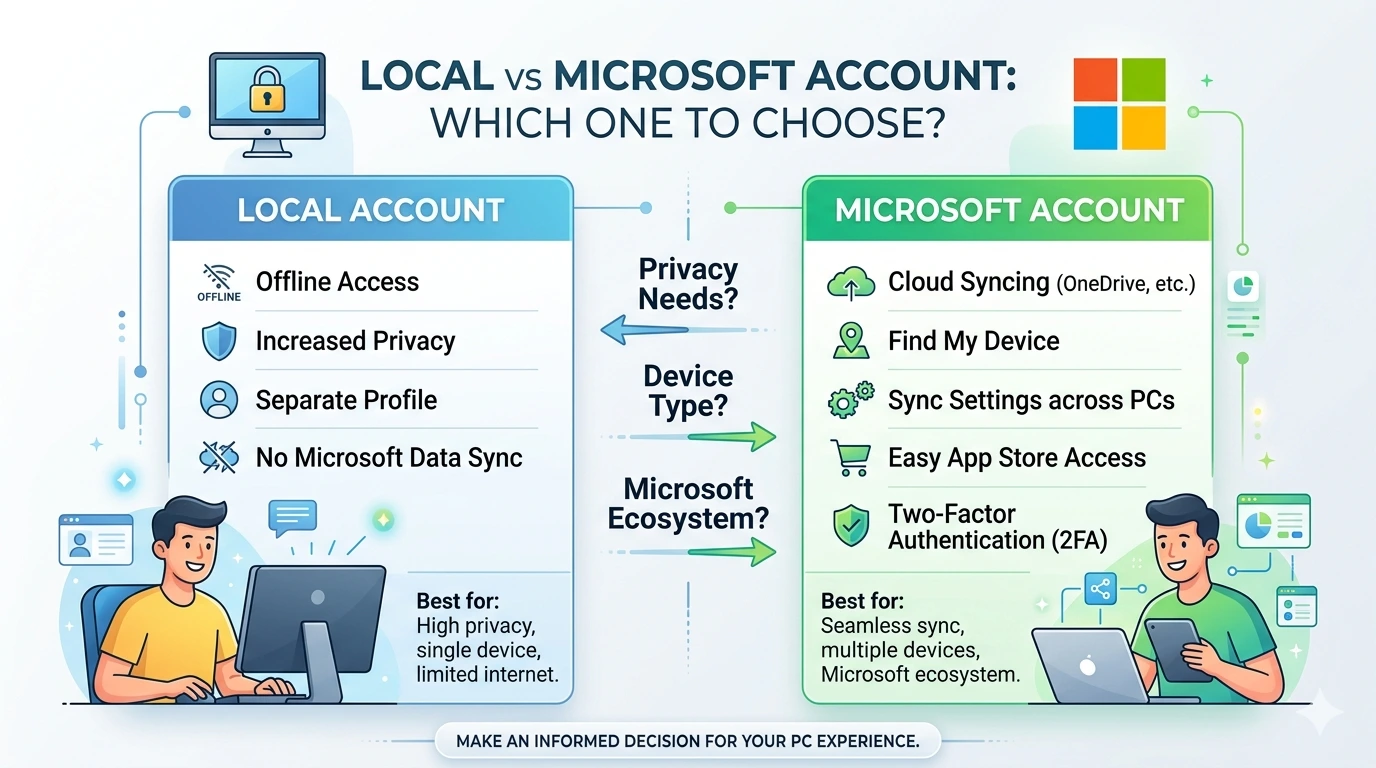
When setting up a new Windows 11 device, one of the first decisions you encounter is deceptively simple: how do you want to sign in? Microsoft presents two primary options—using a Local Account or a Microsoft Account. At first glance, this may feel like a minor technical choice, something you breeze through during installation. Yet in reality, this decision shapes the way you interact with your computer, how your data is stored, and how much control you retain over your digital environment.
A Local Account is the traditional method of logging into Windows. It exists only on your device, requiring a username and password (or PIN) stored locally. It does not rely on internet connectivity, nor does it automatically share information with Microsoft. In contrast, a Microsoft Account is cloud‑based. It ties your identity to Microsoft’s ecosystem, enabling access to services like OneDrive, Outlook, Office 365, Xbox, and the Microsoft Store. It also allows synchronization of settings across multiple devices, advanced security features such as two‑factor authentication, and recovery options if your device is lost or stolen.
The choice between these two accounts is not just about convenience—it reflects deeper priorities. Do you value privacy and independence, preferring to keep your data offline and under your sole control? Or do you prioritize security and integration, embracing the benefits of cloud synchronization and Microsoft’s ecosystem of services? Each path has its advantages and trade‑offs, and understanding them is essential for making an informed decision.
Why This Choice Matters
In today’s digital world, accounts are more than just login credentials. They are gateways to ecosystems. Apple IDs connect users to iCloud, iTunes, and the App Store. Google Accounts tie into Gmail, Google Drive, and Android devices. Similarly, Microsoft Accounts serve as the backbone of Windows integration, linking your PC to a suite of productivity and entertainment services.
Choosing a Local Account means opting out of this ecosystem, at least initially. You retain independence, but you also miss out on features designed to make your digital life more seamless. Conversely, choosing a Microsoft Account means embracing convenience and security, but at the cost of sharing more data with Microsoft.
This decision is particularly relevant for users in regions where internet connectivity may be inconsistent. In places where offline functionality is crucial, a Local Account can be more practical. On the other hand, professionals, students, and families who rely on cloud services may find the Microsoft Account indispensable.
The Evolution of Windows Accounts
Historically, Windows began with Local Accounts as the default. In Windows XP, Vista, and even Windows 7, users simply created a username and password stored on their machine. With the rise of cloud computing and mobile integration, Microsoft introduced the Microsoft Account, initially tied to Hotmail and later Outlook. By the time Windows 8 launched, Microsoft Accounts were positioned as the preferred option, offering synchronization and access to the Windows Store.
Windows 11 continues this trend, especially with the Home edition, where Microsoft strongly encourages (and in some cases requires) users to sign in with a Microsoft Account during setup. This reflects Microsoft’s broader strategy of integrating Windows into its cloud ecosystem. Yet Local Accounts remain available, particularly in the Pro edition, ensuring that users who value independence still have a choice.
Framing the Debate: Privacy vs Security
At its core, the Local vs Microsoft Account debate boils down to two competing values: privacy and security.
- Privacy: Local Accounts minimize data sharing. Your credentials and information remain on your device, reducing exposure to external servers. This appeals to users who are cautious about corporate data collection or who prefer to keep their digital footprint small.
- Security: Microsoft Accounts offer advanced protections. Features like two‑factor authentication, password recovery, and Find My Device provide safeguards that Local Accounts cannot match. For users concerned about theft, hacking, or accidental data loss, these protections are invaluable.
Of course, privacy and security are not mutually exclusive. A Local Account can be secure if managed carefully, and a Microsoft Account can respect privacy if configured with the right settings. The challenge lies in balancing these priorities according to your personal needs.
Setting the Stage for Comparison
This article will explore both account types in detail, examining their advantages, limitations, and ideal use cases. We will look at how Local Accounts empower privacy‑focused users, how Microsoft Accounts enhance productivity and security, and how hybrid approaches can combine the best of both worlds.
By breaking down the features, analyzing real‑world scenarios, and providing practical recommendations, this guide aims to help you make an informed choice. Whether you are a student juggling multiple devices, a professional seeking seamless integration, a gamer wanting Xbox connectivity, or a privacy advocate wary of data collection, understanding the nuances of Local vs Microsoft Accounts is essential.
Ultimately, the decision is not about which account is “better” in absolute terms. It is about which account aligns with your priorities, lifestyle, and digital philosophy. Windows 11 gives you the flexibility to choose, and this article will provide the clarity you need to make that choice confidently.
Local Account Explained
A Local Account is the most traditional way of signing into Windows. It has been around since the earliest versions of the operating system, long before cloud services and online identities became the norm. At its core, a Local Account is simple: your credentials—username and password—are stored directly on your device. No internet connection is required, and no external servers are involved in managing your login. This makes it appealing to users who value independence, privacy, and control.
What Is a Local Account?
When you create a Local Account, you are essentially telling Windows to recognize you as a user based on information stored only on your computer. Unlike a Microsoft Account, which connects to Microsoft’s servers and ties your identity to a broader ecosystem, a Local Account is self‑contained. It does not automatically sync files, settings, or preferences across devices. It is limited to the machine where it was created.
This simplicity is both its greatest strength and its biggest limitation. On one hand, it ensures that your data remains under your control. On the other, it means you miss out on the convenience of cloud integration and advanced features that depend on online connectivity.
Advantages of a Local Account
- Privacy First
A Local Account minimizes data sharing. Since your credentials and information are stored locally, Microsoft receives little to no data about your usage. For privacy‑conscious users, this is a major advantage. You are not automatically feeding information into Microsoft’s servers, and your digital footprint remains smaller. - Offline Independence
With a Local Account, you can use your PC without internet access. This is particularly useful in environments where connectivity is unreliable or intentionally restricted. For example, businesses that run sensitive software offline may prefer Local Accounts to reduce exposure to external networks. - Simplicity of Setup
Creating a Local Account is straightforward. You choose a username and password, and you’re ready to go. There are fewer prompts for linking to cloud services, fewer notifications about syncing, and less complexity overall. For users who want a “no‑frills” experience, this simplicity is refreshing. - Reduced Ecosystem Lock‑In
By using a Local Account, you avoid being tied into Microsoft’s ecosystem. You are free to use third‑party services for email, storage, and productivity without feeling pressured to adopt Microsoft’s offerings.
Limitations of a Local Account
- No Synchronization Across Devices
One of the biggest drawbacks of a Local Account is the lack of synchronization. Your settings, preferences, Wi‑Fi passwords, and files remain confined to the device. If you use multiple PCs, you will need to manually configure each one. - Weaker Recovery Options
If you forget your password, recovery can be challenging. Unlike Microsoft Accounts, which offer password reset via email, phone, or two‑factor authentication, Local Accounts rely on local recovery tools. If those fail, you may need to reset the device entirely. - Limited Access to Services
Many modern Windows features require a Microsoft Account. The Microsoft Store, OneDrive, and Outlook integration are unavailable without linking your Local Account to Microsoft’s ecosystem. This limits functionality, especially for users who want access to apps and cloud storage. - Security Risks in Case of Theft
Because Local Accounts lack cloud‑based recovery and tracking features, they are more vulnerable if your device is stolen. Microsoft’s “Find My Device” and remote lock features are unavailable, leaving you with fewer options to protect your data.
Ideal Use Cases for Local Accounts
- Secondary PCs or Test Machines
If you are setting up a computer for testing, experimentation, or occasional use, a Local Account is sufficient. It avoids unnecessary complexity and keeps the system isolated. - Privacy‑Focused Users
Individuals who are wary of corporate data collection often prefer Local Accounts. By keeping credentials offline, they reduce exposure to external servers. - Restricted Environments
In workplaces or institutions where internet access is limited, Local Accounts are practical. They allow users to log in and work without requiring connectivity. - Small Businesses
A small business in Surabaya running offline accounting software, for example, may prefer Local Accounts to minimize risk. By keeping systems disconnected from the cloud, they reduce the chance of external breaches.
Real‑World Example
Consider a family that uses a desktop PC primarily for offline tasks—word processing, spreadsheets, and local media playback. They have no need for cloud synchronization or Microsoft Store apps. For them, a Local Account is ideal. It keeps the system simple, private, and independent.
On the other hand, imagine a student in East Java who uses multiple devices for schoolwork. They rely on cloud storage to access assignments from different locations. For this student, a Local Account would be limiting, as it would not provide the synchronization and integration they need.
Balancing Simplicity and Modern Needs
The Local Account appeals to users who prioritize simplicity and privacy. It strips away the layers of cloud integration and keeps Windows closer to its traditional roots. Yet in a world increasingly dependent on online services, its limitations are hard to ignore.
For many, the Local Account is best suited as a secondary option—a way to maintain independence on certain devices while using a Microsoft Account on others. This hybrid approach allows users to balance privacy with productivity, choosing the right tool for the right context.
Microsoft Account Explained
A Microsoft Account is more than just a way to log into Windows—it is a digital identity that connects you to Microsoft’s entire ecosystem of services. Unlike a Local Account, which exists only on your device, a Microsoft Account is cloud‑based. It ties your credentials to Microsoft’s servers, enabling synchronization, advanced security, and seamless access to productivity and entertainment tools.
What Is a Microsoft Account?
At its core, a Microsoft Account is an online profile. It can be created using an email address (such as Outlook.com, Hotmail.com, or even a third‑party email like Gmail). Once established, this account becomes the gateway to Microsoft’s services: OneDrive for cloud storage, Outlook for email, Office 365 for productivity, Xbox for gaming, and the Microsoft Store for apps.
When you sign into Windows 11 with a Microsoft Account, your device becomes part of this ecosystem. Your settings, preferences, and files can sync across multiple PCs, tablets, and even Xbox consoles. This integration is designed to make your digital life more seamless, reducing friction between devices and services.
Advantages of a Microsoft Account
- Cloud Synchronization
One of the most powerful features of a Microsoft Account is synchronization. Your desktop background, Wi‑Fi passwords, browser favorites, and even app settings can be synced across devices. This means that if you switch from a laptop to a desktop, your environment feels familiar and consistent. - Advanced Security Features
Microsoft Accounts offer protections that Local Accounts cannot match. Two‑factor authentication (2FA), Windows Hello biometric login, and password recovery options provide layers of defense against unauthorized access. If your device is lost or stolen, you can use “Find My Device” to locate, lock, or even wipe it remotely. - Access to Microsoft Services
A Microsoft Account unlocks the full suite of Microsoft services. You can store files in OneDrive, collaborate in real time with Office 365, send and receive emails through Outlook, and download apps from the Microsoft Store. For gamers, Xbox integration provides achievements, cloud saves, and multiplayer features. - Family Safety Features
Parents benefit from built‑in family controls. With a Microsoft Account, you can set screen time limits, filter inappropriate content, and monitor purchases. These features make it easier to manage children’s digital activities in a safe and controlled environment. - Productivity and Collaboration
For professionals and students, a Microsoft Account is invaluable. It enables seamless collaboration through Teams, shared documents in OneDrive, and synchronized calendars. In an era of remote work and online learning, these tools are essential.
Limitations of a Microsoft Account
- Internet Dependency
A Microsoft Account requires internet connectivity for setup and full functionality. While you can still log in offline once the account is established, many features—such as synchronization and cloud storage—depend on being online. - Data Sharing with Microsoft
Using a Microsoft Account means sharing more data with Microsoft. The company collects usage information to personalize services, improve security, and deliver targeted recommendations. While this can enhance the user experience, privacy‑conscious individuals may find it intrusive. - Ecosystem Lock‑In
Heavy reliance on Microsoft services can create a sense of lock‑in. For example, if you use OneDrive extensively, switching to another cloud provider may be inconvenient. Similarly, Outlook and Office 365 integration may discourage exploring alternatives. - Complexity Compared to Local Accounts
For users who prefer simplicity, a Microsoft Account introduces more complexity. Notifications about syncing, prompts to use cloud services, and integration with apps can feel overwhelming if you only want a basic computing experience.
Ideal Use Cases for Microsoft Accounts
- Professionals
Employees who rely on Office 365, Teams, and Outlook benefit from the seamless integration of a Microsoft Account. It ensures that files, calendars, and communications are synchronized across devices. - Students
Students who use multiple devices for schoolwork gain from cloud storage and collaboration tools. Assignments saved in OneDrive can be accessed from home, campus, or mobile devices. - Families
Parents can manage children’s screen time, purchases, and online activity through Family Safety features. This makes the Microsoft Account a practical choice for households with younger users. - Gamers
Xbox integration is a major advantage. Achievements, cloud saves, and multiplayer features are tied to your Microsoft Account, making it essential for serious gamers.
Real‑World Example
Imagine a university student in East Java who owns a laptop, a tablet, and an Xbox console. By using a Microsoft Account, they can sync files across devices, access Outlook for email, collaborate on group projects via OneDrive, and enjoy Xbox gaming with cloud saves. Without a Microsoft Account, managing these activities would be fragmented and inefficient.
Similarly, consider a professional working remotely in Surabaya. They rely on Teams for meetings, Outlook for communication, and OneDrive for file sharing. A Microsoft Account ensures that all these tools are integrated, secure, and accessible from any device.
Balancing Convenience and Privacy
The Microsoft Account excels at convenience and security. It reduces friction between devices, enhances collaboration, and provides advanced protections against theft or hacking. Yet it comes with trade‑offs: increased data sharing and greater dependence on Microsoft’s ecosystem.
For many users, these trade‑offs are acceptable, especially given the productivity and security benefits. However, those who prioritize privacy may prefer to limit their use of Microsoft Accounts, relying on Local Accounts for certain devices while using Microsoft Accounts selectively for services that require them.
Detailed Comparison: Local Account vs Microsoft Account
Choosing between a Local Account and a Microsoft Account in Windows 11 is not simply a matter of preference—it is a decision that influences your daily workflow, your security posture, and your relationship with Microsoft’s ecosystem. To make this choice clearer, let’s break down the comparison across multiple dimensions: security, privacy, synchronization, services, usability, and suitability for different user profiles.
Security
- Local Account:
Security in a Local Account is limited to the strength of your password or PIN. While you can enable Windows Hello for biometric login, recovery options are minimal. If you forget your password, you may need to reset the device or use offline recovery tools. In case of theft, there is no cloud‑based mechanism to lock or track your device. - Microsoft Account:
Microsoft Accounts provide advanced security features. Two‑factor authentication (2FA) adds an extra layer of protection, requiring a code sent to your phone or email. Windows Hello integrates seamlessly, offering biometric login. If your device is stolen, “Find My Device” allows you to locate, lock, or wipe it remotely. Password recovery is straightforward, with multiple options available.
Verdict: Microsoft Account offers stronger, more modern security protections, while Local Account relies on traditional, device‑only safeguards.
Privacy
- Local Account:
Privacy is the Local Account’s strongest advantage. Since credentials and data remain on your device, Microsoft receives minimal information. You are not automatically sharing usage data, browsing habits, or app preferences. This appeals to privacy advocates and users wary of corporate data collection. - Microsoft Account:
Using a Microsoft Account involves sharing more data with Microsoft. The company collects information to personalize services, deliver recommendations, and improve security. While these practices are common across tech ecosystems, they raise concerns for users who prefer minimal data exposure.
Verdict: Local Account wins on privacy, offering independence from corporate data collection.
Synchronization
- Local Account:
With a Local Account, your settings, files, and preferences remain confined to the device. If you use multiple PCs, you must manually configure each one. There is no automatic transfer of Wi‑Fi passwords, desktop backgrounds, or app settings. - Microsoft Account:
Synchronization is one of the Microsoft Account’s most powerful features. Your environment follows you across devices—whether it’s a laptop, desktop, or tablet. Files stored in OneDrive are accessible anywhere, and settings like browser favorites or personalization options sync automatically.
Verdict: Microsoft Account excels at synchronization, making it ideal for multi‑device users.
Access to Services
- Local Account:
Access to Microsoft services is limited. You cannot use OneDrive, Outlook integration, or the Microsoft Store without linking a Microsoft Account. This restricts functionality, especially for users who want apps, cloud storage, or collaboration tools. - Microsoft Account:
A Microsoft Account unlocks the full suite of services. You gain access to OneDrive, Outlook, Office 365, Xbox integration, and the Microsoft Store. For professionals, students, and gamers, these services are essential.
Verdict: Microsoft Account provides far greater access to services, while Local Account remains basic.
Usability and Setup
- Local Account:
Setup is simple and offline. You choose a username and password, and you’re ready to go. There are fewer prompts for cloud integration, fewer notifications, and less complexity overall. - Microsoft Account:
Setup requires internet connectivity and involves linking your device to Microsoft’s servers. While this adds complexity, it also provides immediate access to cloud services and synchronization.
Verdict: Local Account is easier to set up, but Microsoft Account offers more functionality once configured.
Case Studies
- Privacy Advocate in Surabaya
A small business owner running offline accounting software prefers Local Accounts. They value independence, avoid unnecessary data sharing, and keep systems disconnected from the cloud to minimize risk. - University Student in East Java
A student juggling multiple devices benefits from a Microsoft Account. Assignments saved in OneDrive are accessible from home, campus, or mobile devices. Outlook integration ensures seamless communication with professors and classmates. - Professional Working Remotely
A remote worker relies on Teams, Outlook, and OneDrive. A Microsoft Account ensures that files, calendars, and communications are synchronized across devices, enhancing productivity. - Family with Children
Parents use Microsoft Accounts to manage screen time, filter content, and monitor purchases. Family Safety features make it easier to control children’s digital activities. - Gamer in Surabaya
A gamer benefits from Xbox integration. Achievements, cloud saves, and multiplayer features are tied to the Microsoft Account, making it essential for serious gaming.
Hybrid Approach
Many users find that a hybrid approach works best. For example, you might use a Local Account on a secondary PC dedicated to offline tasks, while using a Microsoft Account on your primary device for productivity and collaboration. This balance allows you to enjoy privacy where it matters most, while still benefiting from cloud services when needed.
Comparative Table
| Feature | Local Account | Microsoft Account |
|---|---|---|
| Security | Basic password/PIN | Advanced 2FA, recovery options |
| Privacy | Minimal data sharing | Data shared with Microsoft |
| Synchronization | None | Full sync across devices |
| Services | Limited | Full Microsoft ecosystem |
| Usability | Simple, offline setup | Internet required, more complex |
| Best For | Privacy‑focused, offline users | Connected, productivity‑focused users |
Final Analysis
The Local Account represents independence, simplicity, and privacy. It appeals to users who want minimal data sharing and offline functionality. The Microsoft Account, on the other hand, represents integration, security, and convenience. It appeals to users who rely on cloud services, multiple devices, and advanced protections.
Neither option is universally better. The right choice depends on your priorities. If privacy and independence are paramount, choose Local. If security and productivity are essential, choose Microsoft. For many, combining both approaches provides the best balance.
Practical Recommendations
After exploring the strengths and weaknesses of both Local Accounts and Microsoft Accounts, the next step is to translate this knowledge into practical guidance. The truth is, there is no universal “best” option—your choice depends on your priorities, lifestyle, and the context in which you use your computer. Below are clear recommendations tailored to different user scenarios.
When to Choose a Local Account
A Local Account is the right choice if you value privacy, independence, and simplicity above all else.
- Privacy Advocates: If you are cautious about corporate data collection and prefer to minimize your digital footprint, a Local Account ensures that your credentials and information remain on your device.
- Offline Users: In environments where internet access is limited or unreliable, a Local Account allows you to work without interruption. This is especially relevant in rural areas or workplaces that intentionally restrict connectivity.
- Secondary Devices: For PCs used occasionally—such as a family desktop for basic tasks or a test machine for experimentation—a Local Account avoids unnecessary complexity.
- Small Businesses: Companies running sensitive software offline may prefer Local Accounts to reduce exposure to external networks.
Key Takeaway: Choose a Local Account if independence and privacy outweigh the need for cloud services and synchronization.
When to Choose a Microsoft Account
A Microsoft Account is ideal if you prioritize security, convenience, and integration.
- Professionals: Employees who rely on Office 365, Teams, and Outlook benefit from seamless integration. Files, calendars, and communications are synchronized across devices, enhancing productivity.
- Students: Cloud storage and collaboration tools are invaluable for students. Assignments saved in OneDrive can be accessed from home, campus, or mobile devices, while Outlook ensures smooth communication with professors and classmates.
- Families: Parents can manage children’s screen time, filter content, and monitor purchases through Family Safety features. This makes the Microsoft Account a practical choice for households with younger users.
- Gamers: Xbox integration is a major advantage. Achievements, cloud saves, and multiplayer features are tied to your Microsoft Account, making it essential for serious gaming.
Key Takeaway: Choose a Microsoft Account if you want stronger security, seamless access to services, and synchronization across multiple devices.
The Hybrid Approach
For many users, the best solution is not choosing one account type exclusively, but combining both. This hybrid approach allows you to balance privacy with productivity.
- Use a Local Account on secondary or offline devices where privacy and independence are paramount.
- Use a Microsoft Account on your primary device to access cloud services, synchronization, and advanced security.
- Switch between accounts as needed—Windows 11 allows multiple profiles, so you can maintain both options on the same machine.
This flexibility ensures that you are not locked into one ecosystem while still enjoying the benefits of modern features.
Scenario Analysis
- Home User with Basic Needs
A family using a desktop PC for word processing, spreadsheets, and local media playback may find a Local Account sufficient. They do not need cloud synchronization or Microsoft Store apps, and they value simplicity. - University Student in East Java
A student juggling multiple devices benefits from a Microsoft Account. Assignments saved in OneDrive are accessible anywhere, and Outlook integration ensures smooth communication. Without a Microsoft Account, managing these tasks would be fragmented. - Remote Professional in Surabaya
A professional working remotely relies on Teams, Outlook, and OneDrive. A Microsoft Account ensures that files, calendars, and communications are synchronized across devices, enhancing productivity and security. - Small Business Owner
A business running offline accounting software may prefer Local Accounts to minimize risk. By keeping systems disconnected from the cloud, they reduce exposure to external breaches. - Gamer
A gamer benefits from Xbox integration. Achievements, cloud saves, and multiplayer features are tied to the Microsoft Account, making it essential for serious gaming.
Final Recommendation
- Local Account: Best for privacy‑focused, offline users who value independence.
- Microsoft Account: Best for connected, productivity‑focused users who want security and integration.
- Hybrid Approach: Best for those who want flexibility, using Local Accounts for privacy and Microsoft Accounts for services.
Ultimately, the choice depends on your priorities. Windows 11 gives you the flexibility to decide, and by understanding the trade‑offs, you can make a choice that aligns with your digital lifestyle.
FAQ
When deciding between a Local Account and a Microsoft Account, many users encounter practical questions. Below are clear answers to the most common concerns.
Can I switch from a Local Account to a Microsoft Account later?
Yes. Windows 11 allows seamless migration. You can start with a Local Account and later link it to a Microsoft Account through the Settings menu. This flexibility ensures you are not locked into one choice permanently.
Is a Microsoft Account mandatory in Windows 11 Home?
For most users, yes. Microsoft strongly encourages the use of a Microsoft Account during setup of Windows 11 Home. However, advanced users may find workarounds to create a Local Account, especially in offline installation scenarios. Windows 11 Pro offers more flexibility, allowing Local Accounts during setup.
Which account type is safer if my device is stolen?
Microsoft Account provides stronger protections. Features like “Find My Device,” remote lock, and password recovery options make it easier to secure your data. Local Accounts lack these cloud‑based safeguards, leaving you more vulnerable in case of theft.
Can I use both a Local Account and a Microsoft Account on the same PC?
Yes. Windows 11 supports multiple profiles. You can create a Local Account for privacy‑focused tasks and a Microsoft Account for services that require cloud integration. This hybrid approach offers flexibility.
Does using a Microsoft Account mean Microsoft can see all my files?
No. Microsoft does not automatically access your local files. However, files stored in OneDrive are subject to Microsoft’s cloud policies. Users concerned about privacy can limit what they upload to the cloud.
Conclusion
The choice between a Local Account and a Microsoft Account in Windows 11 is ultimately about aligning your digital environment with your personal priorities. A Local Account offers simplicity, privacy, and independence. It is best suited for users who prefer offline functionality, minimal data sharing, or secondary devices where cloud services are unnecessary. On the other hand, a Microsoft Account provides advanced security, synchronization across devices, and seamless access to Microsoft’s ecosystem of services—from OneDrive and Outlook to Office 365 and Xbox.
Neither option is inherently superior; each serves a distinct purpose. Privacy‑focused individuals and small businesses may lean toward Local Accounts, while professionals, students, families, and gamers often benefit from the integration and protections of Microsoft Accounts. For many, the most practical solution is a hybrid approach, using Local Accounts where independence matters and Microsoft Accounts where productivity and convenience are essential.
Windows 11 gives you the flexibility to choose, adapt, and even switch between account types as your needs evolve. By understanding the trade‑offs, you can make a confident decision that balances privacy, security, and usability—ensuring your Windows experience truly supports the way you live and work.