
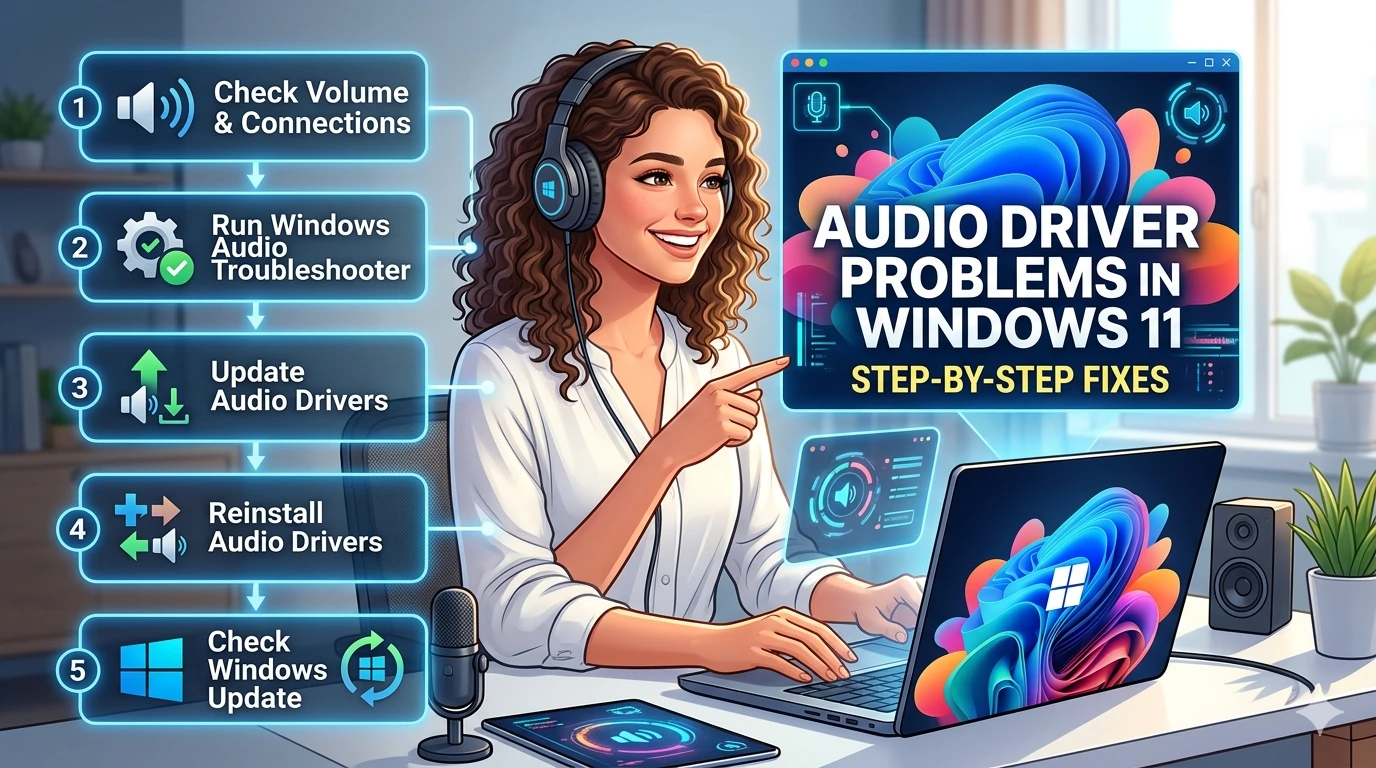
In the modern computing environment, audio is no longer a luxury—it is a necessity. From online meetings and virtual classrooms to streaming entertainment and immersive gaming, sound plays a central role in how users interact with their devices. On Windows 11, audio performance depends heavily on the stability and reliability of its drivers. These drivers act as the communication link between the operating system and the hardware, ensuring that signals from the sound card or integrated chipset are properly translated into usable output for speakers, headphones, or microphones.
When audio drivers malfunction, the impact is immediate and disruptive. Imagine joining a critical business meeting only to discover that your microphone is not working, or attempting to watch a movie but hearing nothing from your speakers. These scenarios highlight the importance of maintaining healthy driver functionality. Unlike superficial issues such as cosmetic glitches, audio driver problems directly affect productivity, communication, and user satisfaction.
Why Audio Drivers Matter in Windows 11
Drivers are essentially software components that allow hardware to “speak” the language of the operating system. In the case of audio, the driver ensures that digital signals are processed correctly, enabling playback, recording, and real-time communication. Without a functioning driver, Windows 11 cannot recognize or utilize the audio hardware, leaving users with silence or distorted sound.
Windows 11 places a strong emphasis on multimedia performance. Features such as spatial audio, enhanced microphone privacy controls, and integration with conferencing platforms like Microsoft Teams depend on stable drivers. A single corrupted or outdated driver can compromise these features, leading to frustration and lost productivity.
The Growing Complexity of Audio Systems
Modern audio systems are more complex than ever. Laptops often include multiple audio devices—internal speakers, headphone jacks, Bluetooth connections, and HDMI audio outputs. Each of these requires proper driver support. Furthermore, professional users may rely on external sound cards, USB microphones, or studio equipment, all of which demand precise driver compatibility.
This complexity increases the likelihood of conflicts. For example, installing a new Bluetooth headset may inadvertently disable the default speaker output, or updating Windows may overwrite a manufacturer’s driver with a generic version that lacks advanced features. Understanding these dynamics is crucial for troubleshooting.
Common Symptoms of Audio Driver Problems
Users typically encounter one or more of the following issues:
- No sound output: Speakers or headphones are connected, but Windows reports “No Output Device Installed.”
- Distorted or crackling audio: Playback is inconsistent, often due to driver conflicts or incorrect sampling rates.
- Microphone not detected: Input devices fail to record, affecting communication in video calls or voice chats.
- Sudden dropouts: Audio cuts off unexpectedly during gaming or streaming.
- Error codes in Device Manager: Messages such as “Code 10 – Device cannot start” indicate driver-level failures.
These symptoms are not only inconvenient but can also signal deeper system instability. Left unresolved, they may lead to recurring crashes or degraded performance across other applications.
The Importance of Systematic Troubleshooting
While audio issues can feel overwhelming, most problems can be resolved through systematic troubleshooting. Windows 11 provides built-in tools such as the Audio Troubleshooter and Device Manager, which allow users to identify and correct driver-related errors. In addition, manufacturers like Realtek, Intel, and AMD regularly release updated drivers to address compatibility and performance concerns.
By approaching audio driver problems methodically—starting with basic checks and progressing to advanced solutions—users can restore functionality without resorting to drastic measures like reinstalling the operating system. This structured approach not only saves time but also reduces the risk of introducing new errors.
Why This Guide Matters
This article is designed to serve as a comprehensive resource for Windows 11 users facing audio driver challenges. It will:
- Explain the root causes of common audio issues.
- Provide step-by-step instructions for resolving them.
- Offer advanced techniques for persistent problems.
- Share preventive strategies to minimize future disruptions.
By following this guide, users will gain both practical solutions and a deeper understanding of how audio drivers function within Windows 11. This knowledge empowers them to troubleshoot confidently, ensuring that sound remains reliable across all applications.
Common Issues
Audio driver problems in Windows 11 manifest in several recognizable patterns. While the symptoms may vary depending on hardware, software environment, and driver version, most users encounter a core set of issues that disrupt sound playback or recording. Understanding these common scenarios is the first step toward effective troubleshooting.
1. No Sound Output
One of the most frequent complaints is the complete absence of audio. Users connect speakers or headphones, yet Windows reports “No Output Device Installed” or simply produces silence. This issue often arises from:
- Outdated drivers that are incompatible with Windows 11 updates.
- Disabled audio devices in the Sound settings or Device Manager.
- Incorrect output selection, where Windows defaults to a disconnected device.
- Corrupted driver files preventing proper communication with hardware.
The frustration is amplified when the system appears to recognize the device but fails to deliver sound.
2. Distorted or Crackling Audio
Another common symptom is distorted playback. Users may hear crackling, popping, or static noise during music, video, or calls. Causes include:
- Driver conflicts between Windows’ generic drivers and manufacturer‑specific ones.
- Improper sampling rates configured in audio properties.
- Hardware acceleration issues that overload the driver.
- Background processes consuming system resources and interfering with audio streams.
Distorted audio not only ruins entertainment but also undermines professional tasks like video conferencing or content creation.
3. Device Not Detected
Sometimes Windows 11 fails to recognize the sound card or integrated chipset altogether. The audio device may be missing from Device Manager, leaving users unable to select it in settings. This typically results from:
- Incomplete driver installation after a system update.
- BIOS misconfiguration disabling onboard audio.
- Hardware faults in the sound card or motherboard.
- Driver corruption caused by malware or improper updates.
This issue is particularly disruptive because it prevents any audio functionality until resolved.
4. Microphone Problems
Input devices such as microphones often suffer from driver‑related issues. Users may find that their microphone is not detected, fails to record, or produces muffled sound. Common causes include:
- Privacy settings in Windows 11 blocking microphone access.
- Outdated or missing drivers for USB or integrated microphones.
- Incorrect permissions in conferencing apps like Teams or Zoom.
- Driver conflicts when multiple input devices are connected.
For professionals and students relying on online communication, microphone failures can be devastating.
5. Sudden Audio Dropouts
Even when audio works initially, users may experience sudden cut‑offs during playback or calls. These dropouts often occur due to:
- Driver instability under heavy system load.
- Background updates replacing or modifying drivers mid‑session.
- Power management settings disabling audio hardware to conserve battery.
- Conflicts with external devices such as Bluetooth headsets.
Dropouts are particularly common in laptops, where power optimization settings interact aggressively with drivers.
6. Error Codes in Device Manager
Windows 11 provides diagnostic information through Device Manager. Users may encounter error codes such as:
- Code 10 – Device cannot start
- Code 19 – Registry corruption
- Code 37 – Driver failed to initialize
- Code 43 – Device reported problems
These codes indicate deeper driver‑level failures that require targeted troubleshooting. While intimidating, they provide valuable clues about the root cause.
7. Compatibility Issues After Updates
Windows 11 frequently delivers cumulative updates that affect driver compatibility. Users often report audio problems immediately after installing updates. Causes include:
- Generic drivers replacing manufacturer versions during updates.
- Incomplete migration of driver settings.
- Conflicts with new system features such as enhanced audio privacy controls.
Compatibility issues are among the hardest to predict, but they remain a leading source of audio driver complaints.
8. External Device Conflicts
Modern users rely on diverse audio hardware—Bluetooth headsets, USB microphones, HDMI monitors with built‑in speakers. Each device introduces potential conflicts:
- Bluetooth drivers may override default audio settings.
- HDMI audio drivers can disable onboard sound.
- USB devices may fail to install correctly, leaving phantom entries in Device Manager.
These conflicts highlight the importance of managing multiple drivers carefully.
9. Application‑Specific Failures
Sometimes audio works system‑wide but fails in specific applications. For example, sound may play in YouTube but not in Zoom. Causes include:
- Application‑level permissions blocking microphone or speaker access.
- Driver incompatibility with certain codecs or streaming formats.
- Outdated app versions unable to interface with Windows 11 drivers.
Such failures often mislead users into blaming hardware when the issue lies in software integration.
10. Security and Malware Interference
Though less common, malware can corrupt or disable audio drivers. Symptoms include:
- Missing driver files after infection.
- Registry corruption affecting audio services.
- Unauthorized modifications to driver settings.
Security‑related driver issues require both troubleshooting and malware removal to restore stability.
Why Identifying Common Issues Matters
Recognizing these patterns allows users to approach troubleshooting logically. Instead of guessing, they can match symptoms to likely causes and apply targeted fixes. This structured approach reduces downtime and ensures that solutions are effective rather than temporary.
Audio Driver Problems in Windows 11 – Step‑by‑Step Fixes
When audio fails in Windows 11, the most effective approach is to follow a structured troubleshooting process. Instead of guessing, users should move through a series of logical steps, starting with simple checks and progressing toward more advanced interventions. This ensures that problems are resolved efficiently without introducing new complications.
Step 1: Verify Sound Settings
Before diving into technical fixes, confirm that the correct audio device is selected.
- Open Settings → System → Sound.
- Under Output, ensure the right device (speakers, headphones, HDMI monitor) is chosen.
- Adjust the volume slider and test playback.
Many “no sound” complaints stem from Windows defaulting to a disconnected device after updates or hardware changes.
Step 2: Run the Windows Audio Troubleshooter
Windows 11 includes a built‑in troubleshooter that automatically detects and resolves common audio issues.
- Navigate to Settings → System → Troubleshoot → Other troubleshooters.
- Select Playing Audio → Run.
- Follow the prompts as Windows scans for problems.
The troubleshooter can reset services, reconfigure devices, and apply quick fixes without manual intervention.
Step 3: Check Device Manager
Device Manager provides direct insight into driver status.
- Press Win + X → Device Manager.
- Expand Sound, video and game controllers.
- Look for warning icons (yellow triangles) next to audio devices.
- Right‑click the device → Update driver or Uninstall device.
If uninstalled, restart the PC. Windows will attempt to reinstall the driver automatically.
Step 4: Update or Reinstall Drivers
Outdated drivers are a leading cause of audio failures.
- Visit the manufacturer’s website (Realtek, Intel, AMD) for the latest drivers.
- Download and install manually.
- Alternatively, use Windows Update → Optional updates to check for audio driver patches.
Manual installation ensures compatibility and restores missing features that generic drivers may lack.
Step 5: Roll Back Drivers
Sometimes new drivers introduce instability.
- In Device Manager, right‑click the audio device → Properties.
- Navigate to Driver → Roll Back Driver.
- Confirm and restart.
Rolling back restores the previous version, often resolving issues introduced by recent updates.
Step 6: Restart Audio Services
Windows relies on background services to manage audio.
- Press Win + R → type services.msc.
- Locate Windows Audio and Windows Audio Endpoint Builder.
- Right‑click → Restart.
If services are disabled, audio will not function regardless of driver status.
Step 7: Adjust Advanced Sound Properties
Incorrect configurations can cause distortion or silence.
- Right‑click the speaker icon → Sounds.
- Select the playback device → Properties.
- Under Advanced, adjust the default format (e.g., 16‑bit, 44100 Hz).
- Disable enhancements if distortion persists.
Tweaking these settings often resolves crackling or static issues.
Step 8: Test Hardware Connections
Rule out physical faults:
- Try different headphones or speakers.
- Switch USB ports for external devices.
- Test Bluetooth headsets on another device.
Hardware problems can mimic driver failures, so testing ensures accuracy.
Step 9: Reset Audio Components
For persistent issues, reset audio components entirely.
- Open Settings → System → Sound → Advanced → Reset.
- This reinstalls audio configurations without affecting other system files.
Step 10: Use System Restore
If problems began after a recent update, revert to a restore point.
- Search System Restore in the Start menu.
- Choose a restore point prior to the issue.
- Follow prompts to roll back system changes.
System Restore is a last resort but can undo problematic updates or installations.
Practical Example
Consider a user who updates Windows 11 and suddenly loses sound. By following these steps:
- They confirm the correct device is selected.
- Run the troubleshooter, which resets audio services.
- Device Manager shows a corrupted Realtek driver.
- They reinstall the driver from Realtek’s website.
- Audio is restored without needing a full system reinstall.
Why Step‑by‑Step Fixes Work
This structured approach minimizes guesswork. Each step builds on the previous one, ensuring that simple solutions are tried before complex interventions. It also prevents unnecessary changes that could destabilize the system further.
Advanced Solutions
While most audio driver problems can be resolved through basic troubleshooting, some cases require advanced interventions. These solutions go beyond simple updates and settings adjustments, targeting deeper system layers such as the registry, BIOS, and compatibility frameworks. They are particularly useful for users who continue to experience issues after exhausting standard fixes.
1. Registry Tweaks
The Windows Registry contains configuration data that directly influences audio behavior. Corruption or misconfiguration here can cause persistent failures.
- Access the Registry Editor: Press Win + R → type regedit → Enter.
- Navigate to HKEY_LOCAL_MACHINE → SOFTWARE → Microsoft → Windows → CurrentVersion → MMDevices → Audio.
- Look for entries related to playback and recording devices.
- Delete corrupted keys (only if you are confident) and restart Windows.
⚠️ Caution: Editing the registry incorrectly can destabilize the system. Always create a backup before making changes.
2. BIOS Updates and Settings
Sometimes audio hardware is disabled at the firmware level.
- Enter BIOS/UEFI by pressing Del/F2 during startup.
- Locate Integrated Peripherals → Onboard Audio.
- Ensure audio is enabled.
- If issues persist, check the motherboard manufacturer’s website for BIOS updates.
Updating BIOS can resolve compatibility problems between Windows 11 and older audio chipsets.
3. Compatibility Mode Installation
Certain drivers may not yet be fully optimized for Windows 11. Installing them in compatibility mode can restore functionality.
- Right‑click the driver installer → Properties.
- Navigate to Compatibility tab.
- Select Run this program in compatibility mode for Windows 10.
- Apply and run the installer.
This approach is especially effective for legacy devices whose manufacturers have not released dedicated Windows 11 drivers.
4. Third‑Party Driver Utilities
Specialized tools can automate driver management:
- Display Driver Uninstaller (DDU): Though designed for graphics, it can remove stubborn audio drivers.
- Snappy Driver Installer: Offers a large database of drivers for offline installation.
- Driver Booster: Simplifies updates and scans for outdated drivers.
While convenient, these tools should be used cautiously. Always prefer official drivers when available.
5. Disable Exclusive Mode
Exclusive Mode allows applications to take full control of audio devices, sometimes causing conflicts.
- Right‑click the speaker icon → Sounds.
- Select playback device → Properties.
- Under Advanced, uncheck Allow applications to take exclusive control of this device.
- Apply changes.
Disabling Exclusive Mode often resolves distortion or sudden dropouts during conferencing.
6. Power Management Adjustments
On laptops, aggressive power saving can disable audio hardware.
- Open Device Manager.
- Expand Sound, video and game controllers.
- Right‑click the audio device → Properties.
- Under Power Management, disable options that allow Windows to turn off the device.
This ensures audio remains stable even when the system attempts to conserve battery.
7. Clean Boot Troubleshooting
Conflicts with third‑party software can interfere with drivers.
- Press Win + R → type msconfig.
- Under Services, check Hide all Microsoft services → Disable all.
- Restart the PC.
If audio works in clean boot, re‑enable services one by one to identify the culprit.
8. Reinstall Windows Audio Components
For severe corruption, reinstalling audio components may be necessary.
- Open PowerShell as Administrator.
- Run:
Get-AppxPackage *Microsoft.WindowsSoundRecorder* | Remove-AppxPackage - Then reinstall via Microsoft Store.
This resets audio frameworks without requiring a full OS reinstall.
9. Firmware Updates for External Devices
USB microphones, Bluetooth headsets, and external sound cards often require firmware updates.
- Visit the manufacturer’s support page.
- Download and apply firmware patches.
- Reconnect the device and reinstall drivers.
Firmware updates ensure compatibility with Windows 11’s evolving audio stack.
10. Advanced Diagnostic Tools
Windows includes advanced diagnostic logs:
- Press Win + R → type dxdiag.
- Review the Sound tab for driver details and errors.
- Export logs for deeper analysis.
DxDiag provides technical insights that can guide further troubleshooting or support requests.
Why Advanced Solutions Matter
These methods target the root causes of persistent audio failures. While basic fixes address surface‑level problems, advanced solutions tackle deeper conflicts in firmware, registry, and compatibility layers. For power users, IT professionals, and anyone relying heavily on audio, mastering these techniques ensures reliability and minimizes downtime.
Preventive Tips
Fixing audio driver problems is only half the battle. The real key to a smooth Windows 11 experience is prevention. By adopting proactive habits, users can minimize the risk of driver failures and ensure consistent audio performance across all applications.
1. Keep Drivers Updated
Regularly check for updates from official sources such as Realtek, Intel, or AMD. Manufacturer drivers are optimized for specific hardware and often include bug fixes that generic Windows drivers lack.
2. Use Windows Update Wisely
Windows Update occasionally pushes optional driver updates. Review these carefully before installation. If your audio is stable, consider delaying updates until you confirm compatibility.
3. Avoid Third‑Party Driver Packs
While tempting, third‑party driver bundles can introduce malware or incompatible files. Always download drivers directly from trusted sources.
4. Create System Restore Points
Before major updates, create a restore point. This allows you to roll back quickly if audio problems arise.
5. Monitor Power Settings
On laptops, adjust power management to prevent audio hardware from being disabled during battery conservation.
6. Manage Multiple Devices Carefully
If you use Bluetooth headsets, HDMI monitors, or USB microphones, configure them properly in Sound settings. Avoid leaving unused devices enabled, as they may conflict with default outputs.
7. Regular Maintenance
Run periodic scans with Windows Troubleshooter and Device Manager to catch issues early. Preventive maintenance reduces the likelihood of sudden failures.
FAQ
Why does my Windows 11 PC have no sound after an update?
Answer: Updates may replace manufacturer drivers with generic versions. Check Device Manager, roll back drivers if necessary, or reinstall from the manufacturer’s website.
How do I reinstall Realtek audio drivers?
Answer:
- Open Device Manager → Sound, video and game controllers.
- Right‑click Realtek device → Uninstall.
- Restart the PC.
- Download the latest driver from Realtek’s official site and install manually.
Can outdated drivers cause crackling audio?
Answer: Yes. Outdated drivers often conflict with Windows 11’s audio enhancements, leading to distortion. Updating drivers usually resolves this issue.
Is it safe to use third‑party driver tools?
Answer: Tools like Driver Booster can help, but they should not replace official drivers. Always verify updates with the manufacturer to avoid compatibility risks.
Why is my microphone not detected in Windows 11?
Answer: Privacy settings may block microphone access. Go to Settings → Privacy & Security → Microphone, and ensure apps have permission. Also check Device Manager for driver status.
What does “Code 10 – Device cannot start” mean?
Answer: This error indicates a driver initialization failure. Solutions include reinstalling the driver, rolling back to a previous version, or checking for hardware faults.
How can I prevent audio dropouts during video calls?
Answer: Disable Exclusive Mode in audio properties, update drivers, and ensure power management settings do not disable audio hardware.
Should I update BIOS to fix audio problems?
Answer: Only if recommended by your motherboard manufacturer. BIOS updates can resolve compatibility issues but should be approached cautiously.
Conclusion
Audio driver problems in Windows 11 are disruptive but manageable. By combining systematic troubleshooting with preventive strategies, users can maintain stable, high‑quality sound across all devices and applications. Regular updates, careful configuration, and proactive maintenance form the foundation of reliable audio performance.