
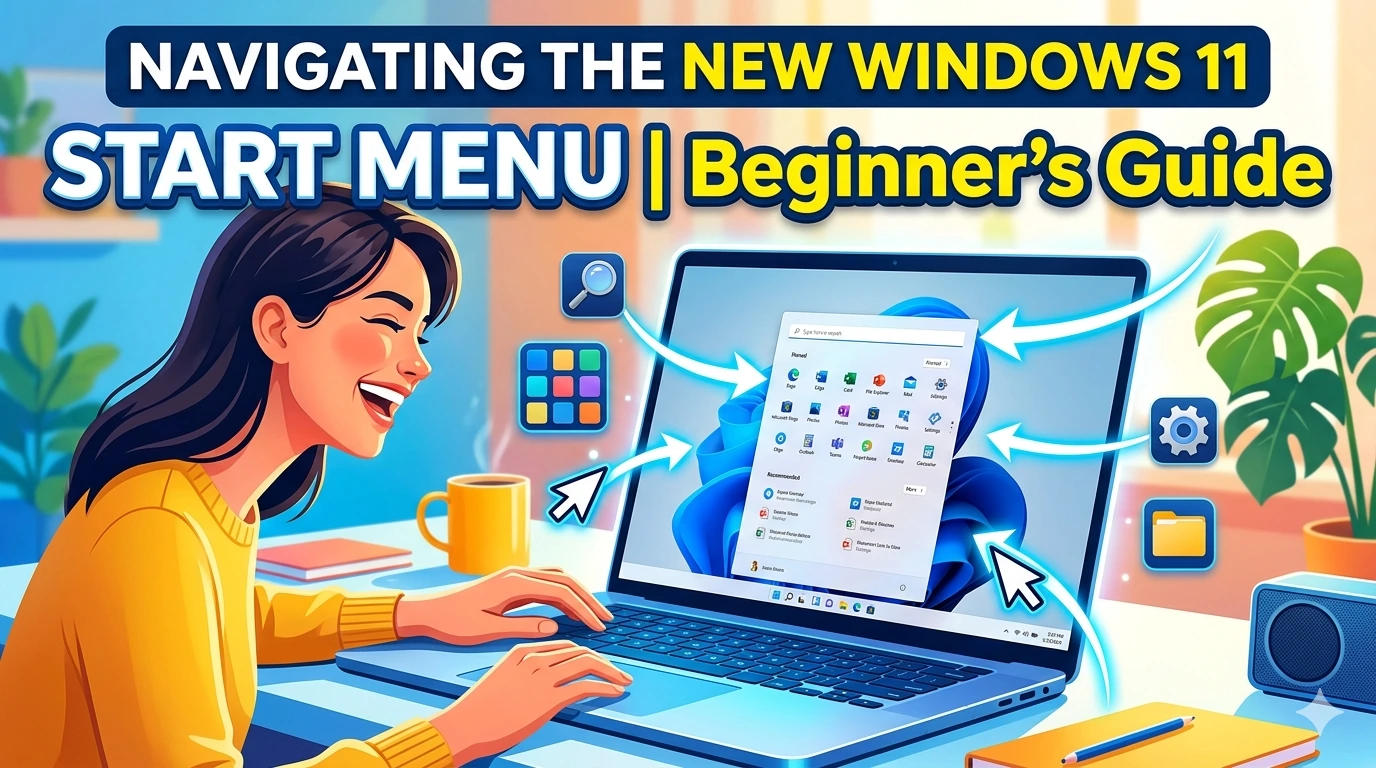
For more than two decades, the Start Menu has been the beating heart of the Windows operating system. Since its debut in Windows 95, it has served as the central hub where users launch applications, access documents, and find system settings. Over the years, the Start Menu has undergone numerous transformations—sometimes subtle, sometimes radical—reflecting Microsoft’s evolving vision of how people should interact with their computers. With Windows 11, the Start Menu has once again been reimagined, and this time the changes are both aesthetic and functional.
The Windows 11 Start Menu is not just a cosmetic update. It represents a deliberate shift toward simplicity, clarity, and productivity. Microsoft has stripped away much of the clutter that characterized earlier versions, opting instead for a minimalist design that emphasizes ease of use. The menu is now centered by default, giving the desktop a balanced, modern look. Rounded corners, simplified icons, and a streamlined layout contribute to a sense of calm and focus. For users accustomed to the busy, tile‑based design of Windows 10, this new approach may feel unfamiliar at first. Yet beneath the surface lies a powerful tool designed to make everyday computing smoother and more intuitive.
Why the Start Menu Matters
The Start Menu is more than just a launcher. It is the gateway to the Windows experience. Every time you boot up your PC, the Start Menu is there to guide you toward your tasks—whether that means opening a productivity app, checking recent files, or searching for a setting. Its importance cannot be overstated: a well‑designed Start Menu saves time, reduces frustration, and enhances productivity. Conversely, a confusing or cluttered Start Menu can slow you down and make even simple tasks feel cumbersome.
Microsoft understands this, which is why the Start Menu has always been a focal point of design innovation. In Windows 11, the company has sought to strike a balance between tradition and modernity. The new Start Menu retains familiar elements, such as pinned apps and search functionality, while introducing fresh ideas like the Recommended section. The result is a menu that feels both recognizable and refreshingly new.
Evolution of the Start Menu
To appreciate the changes in Windows 11, it helps to look back at the Start Menu’s evolution. In Windows 95, the Start Menu was a simple list of programs and documents. Windows XP refined the design with a two‑column layout, while Windows 7 introduced a sleeker, more compact version. Windows 8 attempted a radical departure with a full‑screen Start Screen, but user backlash led Microsoft to restore the traditional menu in Windows 10, albeit with live tiles and a hybrid design.
Windows 11 represents another turning point. The live tiles are gone, replaced by a grid of pinned apps. The menu is centered, reflecting modern design trends. The Recommended section highlights recent activity, making it easier to resume tasks. These changes are not just aesthetic—they reflect Microsoft’s broader vision of a computing environment that is streamlined, focused, and integrated with cloud services.
First Impressions
For many users, the first encounter with the Windows 11 Start Menu is a moment of surprise. The centered alignment immediately stands out, breaking with decades of tradition. The minimalist design feels clean, but it also raises questions: Where are the live tiles? How do I access my files? What happened to the old layout?
These questions are natural, and they underscore the importance of learning to navigate the new Start Menu effectively. Once you understand its structure and features, the design begins to make sense. The pinned apps provide quick access to your most important programs. The Recommended section surfaces recent files, saving you the trouble of digging through folders. The search bar at the top is more powerful than ever, allowing you to find apps, files, and settings in seconds.
Setting the Stage
This article will serve as a comprehensive guide to navigating the new Windows 11 Start Menu. We will explore its layout and design, examine its key features, and provide practical tips for customization. We will also address common questions and concerns, helping you adapt to the changes with confidence.
Whether you are a student juggling assignments, a professional managing projects, a gamer seeking quick access to your library, or a casual user who simply wants a smoother experience, mastering the Start Menu is essential. By the end of this guide, you will not only understand how the new Start Menu works—you will know how to make it work for you.
Layout and Design
The Windows 11 Start Menu represents one of the most visible changes in Microsoft’s latest operating system. While earlier versions of Windows emphasized functionality over aesthetics, Windows 11 introduces a design philosophy centered on simplicity, balance, and modernity. Understanding the layout and design of the new Start Menu is essential for users who want to navigate it efficiently and take advantage of its features.
Centered Alignment
Perhaps the most striking change is the centered alignment of the Start Menu. Traditionally, the Start button has always been anchored to the bottom‑left corner of the screen. In Windows 11, Microsoft moved it to the center of the taskbar by default. This design choice reflects modern UI trends, giving the desktop a balanced, symmetrical look.
For users who prefer the classic layout, the Start Menu can be realigned to the left through Settings > Personalization > Taskbar. This flexibility ensures that both traditionalists and modernists can find a setup that suits their preferences.
Minimalist Aesthetic
The new Start Menu embraces a minimalist aesthetic. Gone are the live tiles of Windows 10, which often felt cluttered and overwhelming. Instead, Windows 11 uses a grid of static icons for pinned apps. Rounded corners, subtle transparency effects, and simplified icons contribute to a clean, modern appearance.
This design is not just about looks—it also improves usability. By reducing visual noise, Microsoft makes it easier for users to focus on the tasks at hand. The minimalist approach aligns with broader trends in software design, where clarity and simplicity are prioritized over complexity.
Structure of the Start Menu
The Start Menu is divided into three main sections:
- Search Bar (Top):
Positioned at the very top, the search bar is the fastest way to find apps, files, or settings. It integrates with Bing to deliver web results, making it a powerful tool for both local and online searches. - Pinned Apps (Middle):
This section displays a grid of applications chosen by the user. By default, Windows 11 includes commonly used apps such as Microsoft Edge, File Explorer, and Settings. Users can customize this grid by pinning or unpinning apps, rearranging them, and grouping them for better organization. - Recommended Section (Bottom):
The Recommended section highlights recent activity. It shows recently opened files, newly installed apps, and suggested documents. This feature is designed to save time by surfacing items you are likely to need next.
Together, these sections create a streamlined workflow: search at the top, quick access in the middle, and recent activity at the bottom.
Comparison with Windows 10
For users upgrading from Windows 10, the differences are significant. Windows 10’s Start Menu combined static icons with live tiles, creating a hybrid design. While functional, it often felt cluttered and inconsistent. Windows 11 eliminates live tiles entirely, opting for a cleaner, more uniform layout.
The centered alignment is another major departure. While some users appreciate the modern look, others find it disorienting. Fortunately, Microsoft provides customization options to accommodate both preferences.
Accessibility Considerations
The design of the Windows 11 Start Menu also reflects Microsoft’s commitment to accessibility. The minimalist layout reduces cognitive load, making it easier for users with attention difficulties to navigate. The search bar provides quick access to settings and files, reducing the need to remember complex navigation paths.
Additionally, Windows 11 supports high‑contrast themes, screen readers, and keyboard shortcuts, ensuring that the Start Menu is usable by a wide range of individuals.
Transparency and Visual Effects
Windows 11 introduces subtle transparency and blur effects, known as Mica material, which give the Start Menu a polished, modern look. These effects create a sense of depth without overwhelming the user. For those who prefer a simpler appearance, transparency can be disabled in Settings > Personalization > Colors.
Customization of Layout
Users are not locked into the default design. Windows 11 allows customization of the Start Menu layout:
- Pinning/Unpinning Apps: Right‑click an app to pin or unpin it.
- Rearranging Apps: Drag and drop icons to create a personalized grid.
- Adding Folders: Add shortcuts to system folders (Documents, Downloads, Settings) for faster access.
- Disabling Recommendations: If you prefer a cleaner look, you can disable the Recommended section entirely.
These options ensure that the Start Menu can be tailored to individual workflows.
User Reactions
Initial reactions to the new Start Menu have been mixed. Some users appreciate the clean, modern design and centered alignment, while others miss the live tiles and traditional left‑aligned layout. Over time, however, many users find that the streamlined approach improves productivity by reducing clutter and focusing on essentials.
Design Philosophy
Ultimately, the design of the Windows 11 Start Menu reflects Microsoft’s broader philosophy: simplicity, clarity, and productivity. By removing unnecessary elements and emphasizing core features, Microsoft aims to create a user experience that is both modern and efficient.
Key Features of the Windows 11 Start Menu
The redesigned Start Menu in Windows 11 is more than just a visual refresh—it introduces a set of features designed to streamline navigation, improve productivity, and integrate seamlessly with Microsoft’s ecosystem. Understanding these features is crucial for making the most of your Windows 11 experience.
1. Pinned Apps
At the heart of the Start Menu lies the Pinned Apps section. This grid of icons provides quick access to your most frequently used programs. Unlike the live tiles of Windows 10, pinned apps in Windows 11 are static, creating a cleaner and more consistent look.
How to Manage Pinned Apps:
- Pinning Apps: Right‑click any application and select Pin to Start.
- Unpinning Apps: Right‑click and choose Unpin from Start.
- Rearranging Apps: Drag and drop icons to create a personalized layout.
- Grouping Apps: Organize apps into logical clusters (e.g., productivity, entertainment, utilities).
Benefits:
Pinned apps reduce the time spent searching for programs. By customizing this section, you can create a Start Menu that reflects your workflow, ensuring that essential tools are always within reach.
2. Recommended Section
The Recommended Section is one of the most notable additions in Windows 11. Located beneath the pinned apps, it highlights recent activity, making it easier to resume tasks.
What It Shows:
- Recently opened files.
- Newly installed applications.
- Suggested documents based on usage patterns.
Customization Options:
- You can disable or limit recommendations in Settings > Personalization > Start.
- You can clear recent activity to maintain privacy.
Benefits:
The Recommended Section saves time by surfacing items you are likely to need next. For students, this might mean quickly reopening assignments. For professionals, it could mean resuming a presentation or spreadsheet.
3. Search Integration
The Search Bar at the top of the Start Menu is more powerful than ever. It allows you to find apps, files, and settings instantly, while also integrating with Bing to deliver web results.
Capabilities:
- Local Search: Quickly locate installed apps, documents, or system settings.
- Web Search: Access Bing results without opening a browser.
- Filters: Narrow results by category (apps, documents, settings).
Benefits:
Search integration reduces friction. Instead of navigating through menus or folders, you can type a keyword and access what you need in seconds.
4. Simplified Navigation
Windows 11 emphasizes simplified navigation. By removing live tiles and focusing on static icons, Microsoft reduces visual clutter. The layout is intuitive: search at the top, pinned apps in the middle, and recent activity at the bottom. This structure ensures that users can quickly locate what they need without feeling overwhelmed.
5. Cloud Integration
For users with a Microsoft Account, the Start Menu integrates with cloud services. Files stored in OneDrive appear in the Recommended Section, and preferences can sync across devices. This ensures consistency, whether you are using a laptop, desktop, or tablet.
6. Accessibility Features
The Start Menu is designed with accessibility in mind:
- Keyboard Shortcuts:
Win + Sopens search,Win + Numberlaunches pinned apps. - High Contrast Themes: Improve visibility for users with visual impairments.
- Screen Reader Support: Ensures that all elements are accessible to users with disabilities.
7. Customization Flexibility
While the default layout is centered and minimalist, Windows 11 allows customization:
- Alignment: Move the Start Menu to the left for a traditional look.
- Themes: Switch between light and dark modes.
- Transparency Effects: Enable or disable background blur.
- Folders: Add shortcuts to system folders for faster access.
Real‑World Scenarios
- Student Workflow:
A student can pin apps like Word, Excel, and Teams, while relying on the Recommended Section to reopen recent assignments. The search bar helps locate settings or documents quickly. - Professional Productivity:
A remote worker can pin Outlook, Teams, and OneDrive. The Recommended Section surfaces recent presentations, while search integration provides instant access to files. - Casual User:
A home user can pin entertainment apps like Spotify and Netflix, while using the Recommended Section to reopen photos or videos. - Gamer:
A gamer can pin Xbox and Steam, while the Recommended Section highlights recently played titles.
Final Thoughts on Features
The Windows 11 Start Menu is designed to be both functional and elegant. By focusing on pinned apps, recommendations, and powerful search integration, Microsoft creates a tool that adapts to diverse workflows. Whether you are a student, professional, gamer, or casual user, the Start Menu provides the features you need to navigate Windows 11 efficiently.
Customization Options
One of the most powerful aspects of the Windows 11 Start Menu is its flexibility. While Microsoft has introduced a clean, centered design by default, users are not locked into this layout. Instead, Windows 11 provides a wide range of customization options that allow you to tailor the Start Menu to your personal workflow, aesthetic preferences, and productivity needs.
Alignment: Center vs Left
By default, the Start Menu is centered on the taskbar. This modern look emphasizes balance and symmetry, but not everyone prefers it. For users who feel more comfortable with the traditional left‑aligned Start Menu, Windows 11 offers a simple solution.
How to Change Alignment:
- Right‑click the taskbar and select Taskbar Settings.
- Scroll to Taskbar Behaviors.
- Under Taskbar Alignment, choose Left.
This option restores the classic feel of earlier versions of Windows, ensuring that long‑time users can maintain familiarity while still benefiting from the new design.
Themes: Light, Dark, and Custom
Windows 11 supports both light and dark themes, allowing you to choose the look that best suits your environment.
- Light Theme: Bright and clean, ideal for daytime use or well‑lit environments.
- Dark Theme: Sleek and modern, reducing eye strain in low‑light settings.
- Custom Theme: Mix and match elements, such as a dark taskbar with light windows.
Themes affect not only the Start Menu but also system apps and windows, creating a consistent aesthetic across the operating system.
Transparency and Visual Effects
Windows 11 introduces Mica material, a subtle transparency and blur effect that gives the Start Menu a polished, modern look. This creates a sense of depth and elegance.
How to Adjust Transparency:
- Go to Settings > Personalization > Colors.
- Toggle Transparency Effects on or off.
Disabling transparency can improve performance on older hardware, while enabling it enhances aesthetics on modern systems.
Pinning and Unpinning Apps
The Pinned Apps section is highly customizable. You can decide which applications appear here, ensuring that your most important tools are always accessible.
Steps to Customize:
- Right‑click an app and select Pin to Start to add it.
- Right‑click and choose Unpin from Start to remove it.
- Drag and drop icons to rearrange them.
This flexibility allows you to create a Start Menu that reflects your workflow. For example, a student might pin Word, Excel, and Teams, while a gamer might pin Xbox, Steam, and Discord.
Adding Folders
Windows 11 allows you to add shortcuts to system folders directly in the Start Menu. This feature is particularly useful for quick access to commonly used directories.
How to Add Folders:
- Go to Settings > Personalization > Start.
- Select Folders.
- Choose which folders (Documents, Downloads, Settings, etc.) you want to appear.
These shortcuts appear next to the power button in the Start Menu, providing fast navigation.
Managing the Recommended Section
The Recommended Section highlights recent files and apps, but not everyone finds it useful. Some users prefer a cleaner Start Menu without recommendations.
How to Customize Recommendations:
- Go to Settings > Personalization > Start.
- Toggle off Show recently added apps or Show recently opened items.
This allows you to control how much information appears in the Recommended Section, balancing convenience with privacy.
Advanced Customization: Registry Tweaks and Third‑Party Tools
For power users, customization can go beyond the built‑in options.
- Registry Tweaks: Advanced users can modify registry settings to adjust Start Menu behavior. This requires caution, as incorrect changes can affect system stability.
- Third‑Party Tools: Applications like Start11 or Open‑Shell allow deeper customization, including restoring the classic Windows 7 Start Menu or adding new features.
These tools are popular among users who want maximum control over their interface.
Customization for Different User Profiles
- Students:
Pin productivity apps (Word, Excel, Teams). Add folders for quick access to Documents and Downloads. Disable unnecessary recommendations to reduce distractions. - Professionals:
Pin Outlook, Teams, and OneDrive. Enable recommendations to quickly resume recent files. Use dark theme for long work sessions. - Gamers:
Pin Xbox, Steam, and Discord. Customize alignment to left for familiarity. Add folders for quick access to game directories. - Families:
Pin apps for entertainment and education. Use Family Safety features integrated with Microsoft Accounts. Customize recommendations to highlight recent photos or documents.
Benefits of Customization
Customizing the Start Menu is not just about aesthetics—it directly impacts productivity. By tailoring the layout to your workflow, you reduce the time spent searching for apps or files. A well‑organized Start Menu creates a smoother, more efficient computing experience.
Final Thoughts on Customization
The Windows 11 Start Menu is designed to be flexible. Whether you prefer the modern centered look or the traditional left‑aligned layout, whether you want transparency effects or a simple solid background, Windows 11 gives you the tools to create a Start Menu that feels personal.
By pinning essential apps, adding folders, and managing recommendations, you can transform the Start Menu into a powerful productivity hub. For advanced users, registry tweaks and third‑party tools provide even deeper customization.
Ultimately, the Start Menu is not just a launcher—it is the gateway to your digital workspace. Customizing it ensures that Windows 11 works the way you want, adapting to your lifestyle and enhancing your efficiency.
Productivity Tips
The Windows 11 Start Menu is not only a gateway to applications and files—it is also a powerful productivity tool when used strategically. By learning shortcuts, customizing layouts, and integrating features, you can transform the Start Menu into a hub that saves time and enhances efficiency.
1. Master Keyboard Shortcuts
Keyboard shortcuts are one of the fastest ways to interact with the Start Menu. Instead of relying on mouse clicks, you can launch apps and perform actions instantly.
- Win + S: Opens the search bar directly, allowing you to type queries without opening the full Start Menu.
- Win + Number: Launches pinned apps based on their position in the taskbar. For example,
Win + 1opens the first pinned app,Win + 2opens the second, and so on. - Win + E: Opens File Explorer, bypassing the need to navigate through menus.
- Win + I: Opens Settings, giving you immediate access to system controls.
By memorizing these shortcuts, you reduce friction and streamline your workflow.
2. Combine Start Menu with Taskbar
The Start Menu works best when paired with the taskbar. Pinning essential apps to both ensures maximum accessibility.
Example Workflow:
- Pin productivity apps (Word, Excel, Outlook) to the Start Menu.
- Pin communication apps (Teams, Slack) to the taskbar.
- Use the Start Menu for occasional apps, and the taskbar for daily essentials.
This dual approach creates a balance between quick access and organized navigation.
3. Leverage the Recommended Section
The Recommended Section is designed to save time by surfacing recent activity. Instead of browsing through folders, you can reopen documents or apps directly from the Start Menu.
Tips for Using Recommendations:
- Use it to resume work quickly after breaks.
- Rely on it for accessing recently installed apps.
- Clear recommendations periodically to maintain privacy.
For students, this might mean reopening assignments. For professionals, it could mean resuming a presentation or spreadsheet.
4. Sync Preferences Across Devices
If you use a Microsoft Account, your Start Menu preferences can sync across multiple devices. This ensures consistency whether you are working on a laptop, desktop, or tablet.
Benefits of Syncing:
- Your pinned apps remain the same across devices.
- Settings such as themes and personalization carry over.
- Files stored in OneDrive appear in the Recommended Section everywhere.
This feature is particularly useful for remote workers and students who switch between devices frequently.
5. Use Snap Layouts and Focus Assist
While not part of the Start Menu itself, Snap Layouts and Focus Assist complement its functionality.
- Snap Layouts: Allow you to organize multiple windows on the screen. Combined with the Start Menu, you can launch apps and immediately snap them into place.
- Focus Assist: Minimizes distractions by silencing notifications. When paired with the Start Menu, it ensures that your workspace remains focused and efficient.
6. Customize for Productivity
Customization is not just about aesthetics—it directly impacts productivity.
- Pin apps you use daily.
- Add folders for quick access to Documents or Downloads.
- Disable unnecessary recommendations to reduce clutter.
- Align the Start Menu to the left if it feels more natural.
By tailoring the Start Menu to your workflow, you create a system that supports your goals.
Real‑World Productivity Scenarios
- Student Workflow:
A student pins Word, Excel, and Teams. The Recommended Section surfaces recent assignments, while the search bar helps locate settings or documents instantly. - Professional Workflow:
A remote worker pins Outlook, Teams, and OneDrive. The Recommended Section highlights recent presentations, while keyboard shortcuts provide quick access to system tools. - Gamer Workflow:
A gamer pins Xbox and Steam. The Recommended Section shows recently played titles, while Snap Layouts allow multitasking between games and communication apps.
Final Thoughts on Productivity
The Windows 11 Start Menu is more than a launcher—it is a productivity hub. By mastering shortcuts, combining it with the taskbar, leveraging recommendations, syncing preferences, and customizing layouts, you can transform the Start Menu into a tool that saves time and enhances efficiency.
Whether you are a student, professional, gamer, or casual user, these tips ensure that the Start Menu works for you, adapting to your lifestyle and supporting your daily tasks.
Frequently Asked Questions (FAQ)
Even with its clean design, the Windows 11 Start Menu raises questions for many users. Below are answers to the most common concerns, helping you navigate the changes with confidence.
Can I disable the Recommended section?
Yes. Go to Settings > Personalization > Start and toggle off options like Show recently added apps or Show recently opened items. This removes recommendations, leaving a cleaner Start Menu.
Can I restore the classic Windows 10 Start Menu?
Not directly. Windows 11 does not include live tiles or the hybrid layout of Windows 10. However, third‑party tools such as Start11 or Open‑Shell allow you to recreate older designs if you prefer.
Is the centered Start Menu mandatory?
No. While Windows 11 defaults to a centered alignment, you can realign it to the left through Taskbar Settings. This option restores the traditional look familiar to long‑time Windows users.
Can I sync Start Menu settings across devices?
Yes, if you use a Microsoft Account. Your pinned apps, personalization choices, and even OneDrive files can sync across multiple PCs, ensuring consistency in your workflow.
Does the Start Menu affect system performance?
No. The Start Menu itself is lightweight. Disabling recommendations may slightly reduce background processes, but overall performance remains unaffected.
Conclusion
The Windows 11 Start Menu is more than a cosmetic redesign—it is a reflection of Microsoft’s vision for a modern, streamlined, and productivity‑focused operating system. By centering the layout, simplifying icons, and introducing features like the Recommended section, Microsoft has created a tool that balances clarity with functionality.
For long‑time Windows users, the changes may feel unfamiliar at first. Yet once you explore pinned apps, leverage the search bar, and customize the layout, the Start Menu reveals itself as a powerful hub for daily tasks. Whether you are a student reopening assignments, a professional managing projects, or a gamer launching titles, the Start Menu adapts to your workflow.
Customization ensures that the Start Menu is not one‑size‑fits‑all. From alignment and themes to folders and recommendations, Windows 11 empowers you to create a workspace that feels personal and efficient. Combined with shortcuts and cloud integration, the Start Menu becomes more than a launcher—it becomes the gateway to your digital life.
Ultimately, mastering the Start Menu means mastering Windows 11 itself. By embracing its design and tailoring it to your needs, you unlock a smoother, faster, and more productive computing experience.