Driver problems are one of the most common causes of system instability in Windows computers. From sudden crashes and blue screens to hardware not being recognized, driver issues can significantly affect performance.
This Driver Issues Fix guide provides a complete step-by-step solution to diagnose, repair, and prevent driver-related problems on Windows systems. Whether you are facing outdated drivers, missing drivers, corrupted installations, or update conflicts, this guide covers everything in detail.
What Are Driver Issues?
Driver issues occur when the software that connects your operating system to hardware stops working correctly. Drivers act as translators between Windows and components like:
- Graphics cards
- Audio devices
- Network adapters
- USB devices
- Printers
- Storage drives
When drivers fail, your system may experience instability, performance drops, or hardware malfunction.
Common causes include:
- Outdated drivers
- Corrupted installations
- Windows updates conflicts
- Incompatible driver versions
- Malware or system corruption
Signs You Need Driver Issues Fix
Recognizing driver problems early helps prevent serious system failures. Common symptoms include:
1. Blue Screen Errors (BSOD)
Frequent crashes often point to faulty drivers.
👉 Fix Blue Screen of Death (BSOD)
2. Device Not Recognized
Windows cannot detect hardware properly.
3. Poor Performance
Slow gaming, lagging audio, or unstable network.
4. Random System Crashes
Unexpected restarts or freezes.
5. Missing Device in Device Manager
Hardware shows as “Unknown Device.”
Why Driver Issues Happen
Understanding the root cause helps apply the correct Driver Issues Fix method.
1. Outdated Drivers
Old drivers may not support new Windows updates.
2. Windows Updates Conflicts
New updates may break compatibility.
3. Corrupt Driver Files
Incomplete installations or system errors.
4. Hardware Changes
New hardware requires updated drivers.
5. Malware Infection
Some viruses target system drivers.
Step-by-Step Driver Issues Fix Methods
Below are proven methods to fix driver issues effectively.
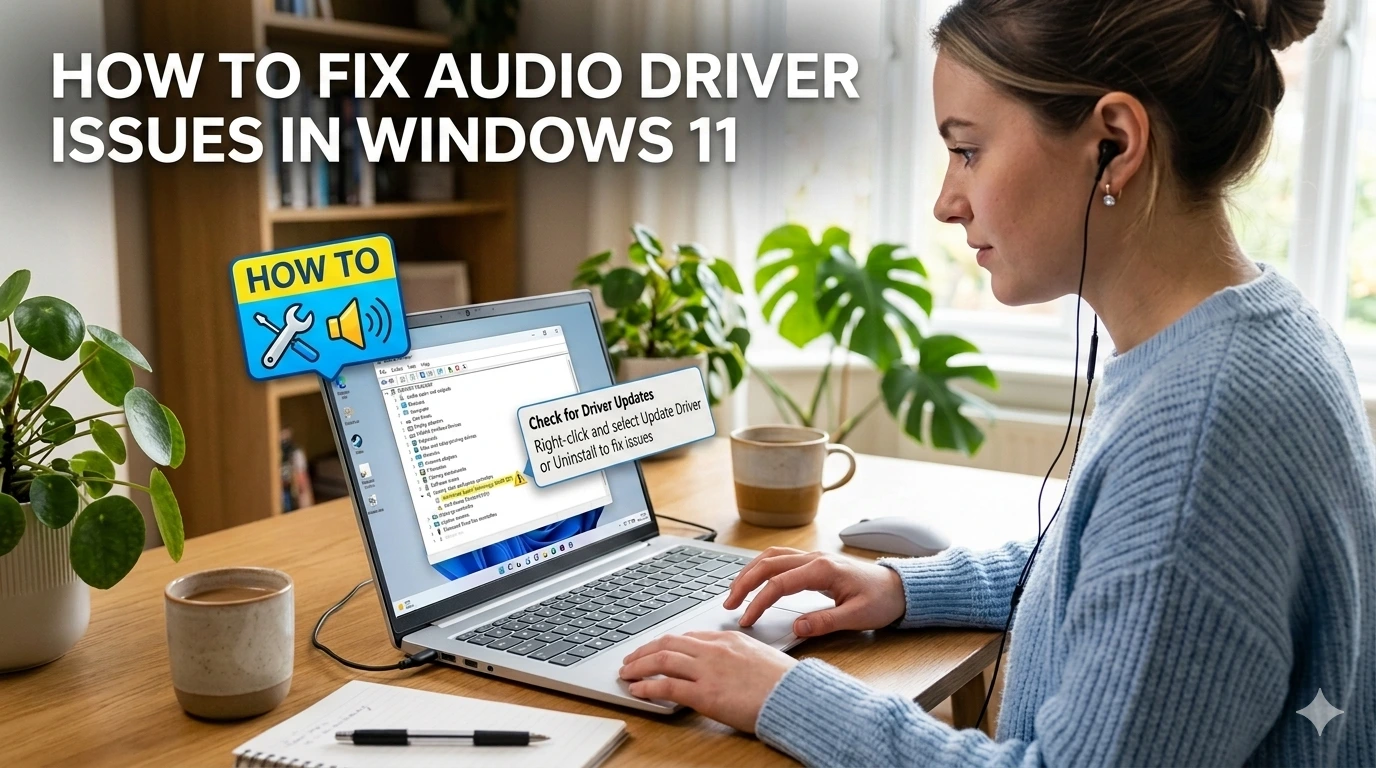
Method 1: Update Drivers via Device Manager
This is the most basic Driver Issues Fix method.
Steps:
- Press Windows + X
- Open Device Manager
- Right-click the problematic device
- Click “Update driver”
- Select “Search automatically”
Windows will install the latest compatible version.
Method 2: Reinstall Drivers Completely
If updating does not work, reinstalling helps.
Steps:
- Open Device Manager
- Right-click the driver
- Select “Uninstall device”
- Restart your PC
- Windows will reinstall drivers automatically
Method 3: Use Official Manufacturer Drivers
Always download drivers from trusted sources:
- Intel Driver Support: https://www.intel.com/content/www/us/en/support.html
- NVIDIA Drivers: https://www.nvidia.com/Download/index.aspx
- AMD Drivers: https://www.amd.com/en/support
This ensures compatibility and stability.
Method 4: Windows Update Driver Fix
Windows Update often includes driver patches.
Steps:
- Go to Settings
- Click Update & Security
- Select Windows Update
- Click Check for updates
Install all recommended updates.
Method 5: Roll Back Driver
If a new driver causes issues:
Steps:
- Open Device Manager
- Right-click device
- Click Properties
- Go to Driver tab
- Click Roll Back Driver
Method 6: Use System Restore
Restore system to previous working state.
Steps:
- Search “System Restore”
- Choose restore point
- Follow instructions
This is a powerful Driver Issues Fix method for severe errors.
Method 7: Run Windows Troubleshooter
Windows has built-in diagnostic tools.
Steps:
- Open Settings
- Go to Update & Security
- Click Troubleshoot
- Run Hardware and Devices tool
Advanced Driver Issues Fix Techniques
For persistent problems, advanced methods are required.
1. Clean Driver Installation (DDU Method)
Use Display Driver Uninstaller (DDU) for GPU issues.
Steps:
- Boot into Safe Mode
- Run DDU
- Remove GPU drivers
- Install fresh drivers
2. Check System File Integrity
Run System File Checker:
sfc /scannow
Fixes corrupted system files affecting drivers.
3. Use DISM Tool
DISM /Online /Cleanup-Image /RestoreHealth
Repairs Windows image issues.
4. BIOS Update
Outdated BIOS can cause driver conflicts.
Visit motherboard manufacturer website for updates.
Driver Issues Fix for Graphics Cards
Graphics drivers are most sensitive.
Common issues:
- Game crashes
- Screen flickering
- Low FPS
Fix:
- Update NVIDIA/AMD drivers
- Clean install drivers
- Disable overlays
Driver Issues Fix for Network Problems
If Wi-Fi or Ethernet stops working:
Fix steps:
- Reinstall network adapter driver
- Reset network settings
- Update firmware
Driver Issues Fix for Audio Problems
If sound stops working:
Fix:
- Update Realtek audio driver
- Check playback device
- Restart Windows Audio service
Preventing Driver Issues in Future
Prevention is better than repair.
Best practices:
- Keep Windows updated
- Avoid third-party driver tools
- Create restore points
- Update drivers monthly
- Avoid unstable beta drivers
Recommended Tools for Driver Issues Fix
1. Driver Booster (optional use)
Helps detect outdated drivers.
2. Snappy Driver Installer
Offline driver installation tool.
3. Windows Update
Most reliable source.
Performance Impact of Driver Issues
Driver issues can reduce system performance by:
- 30–70% in gaming
- Causing input lag
- Increasing CPU usage
- Reducing battery life
Fixing drivers restores full system performance.
Expert Tips for Stable Drivers
- Always restart after updates
- Avoid installing multiple driver versions
- Keep backup of working drivers
- Use WHQL-certified drivers
Common Mistakes in Driver Issues Fix
Avoid these errors:
- Downloading drivers from unknown websites
- Installing incorrect versions
- Ignoring Windows updates
- Using outdated hardware drivers
Frequently Asked Questions (FAQ)
1. What is the fastest Driver Issues Fix method?
Updating drivers via Device Manager or Windows Update is the fastest.
2. Can driver issues cause blue screen errors?
Yes, corrupted or incompatible drivers often cause BSOD.
3. Is it safe to reinstall all drivers?
Yes, Windows will reinstall essential drivers automatically.
4. How often should I update drivers?
Every 1–3 months or when issues appear.
5. Do I need third-party driver tools?
Not required. Official manufacturer sources are safer.
6. Can outdated drivers slow down my PC?
Yes, especially graphics and chipset drivers.
Conclusion
A proper Driver Issues Fix process is essential for maintaining system stability, performance, and hardware compatibility. Whether you are dealing with outdated drivers, corrupted installations, or system conflicts, applying the methods in this guide ensures long-term stability.
By following safe update practices, using official drivers, and maintaining system health, you can prevent most driver-related problems in the future and keep your Windows system running smoothly.