
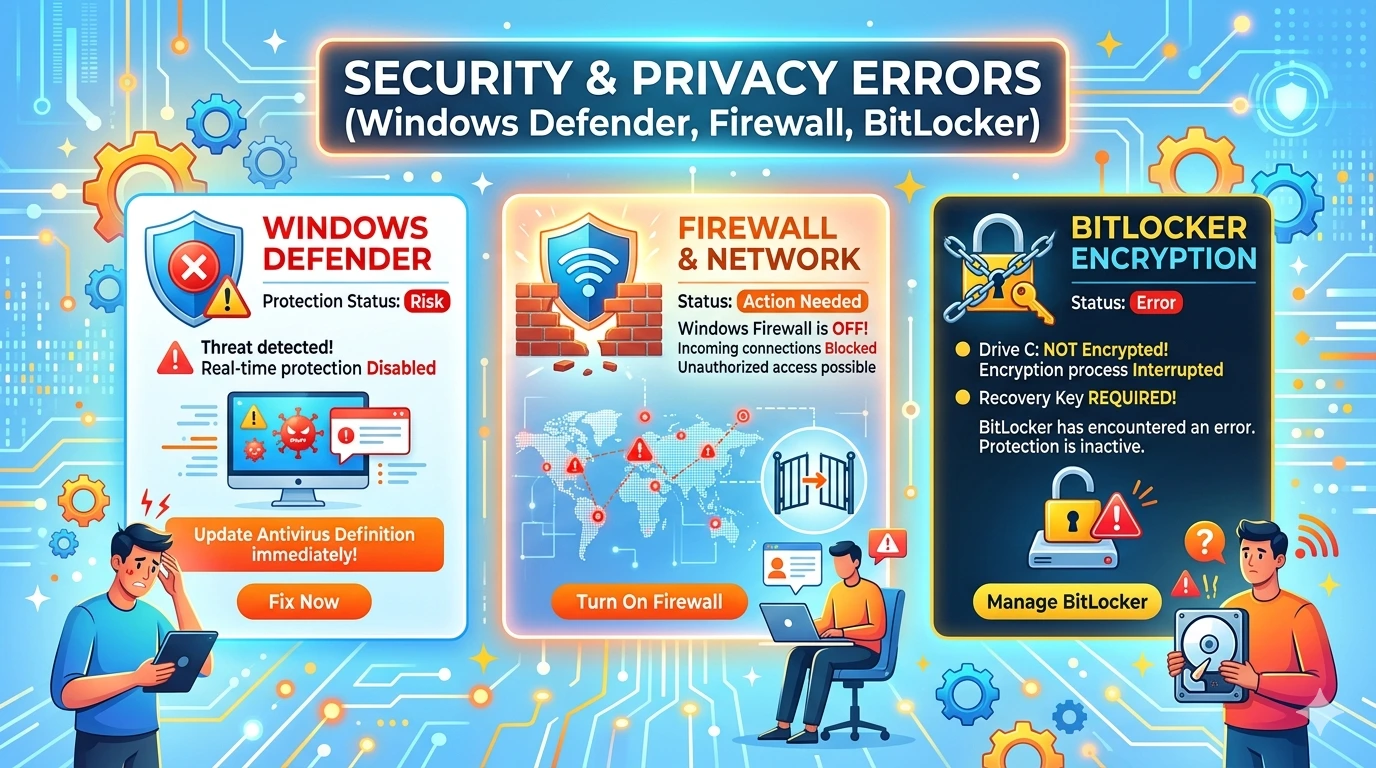
Security and privacy utilities are the guardians of Windows 11. Unlike entertainment or productivity apps, tools such as Windows Defender, Firewall, and BitLocker are critical for protecting systems against malware, unauthorized access, and data breaches. When these utilities malfunction, the consequences can be severe—ranging from exposure to cyber threats to loss of encrypted data.
Why Security & Privacy Utilities Matter in Windows 11
Windows 11 emphasizes a secure computing environment.
- Windows Defender provides real‑time protection against viruses, ransomware, and spyware.
- Firewall controls network traffic, blocking unauthorized connections.
- BitLocker encrypts drives, ensuring sensitive data remains secure even if hardware is stolen.
Errors in these utilities can prevent users from:
- Detecting and removing malware.
- Blocking suspicious network activity.
- Accessing encrypted files or drives.
Without reliable security utilities, users risk compromised privacy and system integrity.
The Growing Complexity of Security Ecosystems
Modern threats are more sophisticated than ever, and Windows 11 integrates multiple layers of defense.
- Windows Defender now includes cloud‑based protection, controlled folder access, and exploit guard.
- Firewall integrates with advanced network profiles and application rules.
- BitLocker supports TPM (Trusted Platform Module) and PIN authentication for enhanced encryption.
This complexity increases the likelihood of errors. A single misconfigured policy or corrupted update can disable critical protections.
Common Symptoms of Security Utility Errors
Users typically encounter one or more of the following issues:
- Windows Defender: Fails to start, real‑time protection disabled, or updates not installing.
- Firewall: Rules not applying, blocked applications, or inability to connect to networks.
- BitLocker: Drive fails to unlock, recovery key not accepted, or encryption process stuck.
These symptoms are disruptive and can leave systems vulnerable to attacks.
The Importance of Systematic Troubleshooting
Security errors can feel alarming, especially since they expose systems to risks. However, most issues can be resolved through systematic troubleshooting. Windows 11 provides built‑in recovery tools such as DISM, SFC, and Group Policy Editor, while Microsoft regularly releases patches to address vulnerabilities.
By approaching security utility errors methodically—starting with basic checks and progressing to advanced solutions—users can restore protection without resorting to drastic measures like reinstalling Windows. This structured approach ensures both safety and efficiency.
Why This Guide Matters
This article series is designed to serve as a comprehensive resource for Windows 11 users facing security and privacy challenges. It will:
- Explain the root causes of common security utility errors.
- Provide step‑by‑step instructions for resolving them.
- Offer advanced techniques for persistent problems.
- Share preventive strategies to minimize future disruptions.
By following this guide, users will gain both practical solutions and a deeper understanding of how security utilities interact with Windows 11. This knowledge empowers them to troubleshoot confidently, ensuring that Windows Defender, Firewall, and BitLocker remain reliable guardians of system integrity.
Common Issues
Security and privacy utilities are critical for protecting Windows 11 systems. When they malfunction, users face risks ranging from malware infections to blocked network access or locked drives. Below are the most common issues with Windows Defender, Firewall, and BitLocker, along with explanations of why they occur.
Windows Defender Errors
1. Real‑Time Protection Disabled
- Causes: Group policy restrictions, corrupted system files, or third‑party antivirus conflicts.
- Impact: Defender fails to block malware in real time, leaving the system vulnerable.
2. Update Failures
- Causes: Windows Update service corruption, network instability, or insufficient storage.
- Impact: Defender cannot download new virus definitions, reducing protection against emerging threats.
3. Scan Freezes or Crashes
- Causes: Corrupted Defender components, malware interference, or outdated drivers.
- Impact: Full scans fail to complete, leaving threats undetected.
4. Error Codes (e.g., 0x800704ec)
- Causes: Registry corruption or disabled Defender via group policy.
- Impact: Defender refuses to start, forcing reliance on third‑party tools.
Firewall Errors
1. Firewall Fails to Start
- Causes: Corrupted Windows Firewall service, registry errors, or malware disabling the service.
- Impact: Network traffic is unprotected, exposing the system to unauthorized access.
2. Rules Not Applying
- Causes: Misconfigured policies, outdated rules, or conflicts with third‑party firewalls.
- Impact: Applications fail to connect or remain blocked despite permissions.
3. Blocked Applications
- Causes: Incorrect inbound/outbound rules or overly restrictive profiles.
- Impact: Essential apps like Teams or Outlook cannot connect to the internet.
4. Network Profile Errors
- Causes: Incorrect detection of public/private networks.
- Impact: Firewall applies wrong rules, blocking safe connections or allowing unsafe ones.
BitLocker Errors
1. Drive Fails to Unlock
- Causes: Corrupted TPM, incorrect PIN, or damaged boot files.
- Impact: Users cannot access encrypted drives, risking data loss.
2. Recovery Key Not Accepted
- Causes: Key mismatch, corrupted metadata, or system updates altering encryption state.
- Impact: Users are locked out of their own data.
3. Encryption Process Stuck
- Causes: Insufficient disk space, driver conflicts, or hardware errors.
- Impact: Drives remain partially encrypted, creating instability.
4. BitLocker Disabled Unexpectedly
- Causes: Group policy changes, registry corruption, or malware interference.
- Impact: Drives lose encryption protection, exposing sensitive data.
Cross‑Utility Issues
1. Compatibility Problems After Updates
- Causes: Windows updates replacing stable components with newer versions.
- Impact: Defender fails to start, Firewall rules reset, BitLocker keys become invalid.
2. Security and Permissions Errors
- Causes: Enhanced Windows 11 security blocking utilities from accessing hardware or files.
- Impact: Defender cannot scan certain directories, Firewall cannot apply rules, BitLocker cannot access TPM.
3. Cloud Integration Failures
- Causes: Network instability or outdated authentication protocols.
- Impact: Defender fails to connect to cloud protection, Firewall fails to sync rules, BitLocker fails to store recovery keys in Microsoft account.
Why Identifying Common Issues Matters
Recognizing these patterns allows users to troubleshoot logically. Instead of guessing, they can match symptoms to likely causes and apply targeted fixes. This structured approach reduces downtime and ensures that solutions are effective rather than temporary.
Security & Privacy Errors (Windows Defender, Firewall, BitLocker) Step‑by‑Step Fixes
Security and privacy errors can be alarming because they expose systems to risks. However, most issues can be resolved through systematic troubleshooting. By following a logical sequence of steps, users can restore functionality in Windows Defender, Firewall, and BitLocker without unnecessary reinstalls or data loss.
Windows Defender – Step‑by‑Step Fixes
Step 1: Restart Defender and Windows
- Close Defender completely.
- Restart Windows to clear temporary conflicts.
Step 2: Run Windows Security Troubleshooter
- Open Settings → System → Troubleshoot → Other troubleshooters.
- Select Windows Security.
Step 3: Update Virus Definitions
- Open Windows Security → Virus & threat protection → Check for updates.
- Install latest definitions.
Step 4: Run SFC and DISM
- Open Command Prompt (Admin).
- Run:
sfc /scannow DISM /Online /Cleanup-Image /RestoreHealth - Repairs corrupted system files.
Step 5: Re‑enable via Group Policy
- Press Win + R → gpedit.msc.
- Navigate to Computer Configuration → Administrative Templates → Windows Components → Windows Defender Antivirus.
- Ensure Turn off Windows Defender Antivirus is set to Disabled.
Firewall – Step‑by‑Step Fixes
Step 1: Restart Firewall Service
- Press Win + R → services.msc.
- Locate Windows Defender Firewall.
- Ensure status is Running.
Step 2: Reset Firewall Rules
- Open Control Panel → Windows Defender Firewall → Restore defaults.
- Reset rules to default state.
Step 3: Allow Apps Through Firewall
- Open Control Panel → Windows Defender Firewall → Allow an app.
- Add trusted apps (Teams, Outlook, etc.).
Step 4: Check Network Profiles
- Open Settings → Network & Internet.
- Ensure correct profile (Private/Public) is applied.
Step 5: Run Command Line Reset
- Open Command Prompt (Admin).
- Run:
netsh advfirewall reset - Restores firewall to default configuration.
BitLocker – Step‑by‑Step Fixes
Step 1: Restart BitLocker Service
- Press Win + R → services.msc.
- Locate BitLocker Drive Encryption Service.
- Ensure status is Running.
Step 2: Unlock Drive with Recovery Key
- At boot, select More options → Enter recovery key.
- Input 48‑digit recovery key stored in Microsoft account or printed copy.
Step 3: Resume Encryption Process
- Open Control Panel → BitLocker Drive Encryption.
- Select Resume encryption.
Step 4: Check TPM Status
- Press Win + R → tpm.msc.
- Ensure TPM is enabled and ready.
Step 5: Re‑enable BitLocker
- Open Control Panel → BitLocker Drive Encryption.
- Turn off BitLocker, restart, then re‑enable encryption.
Cross‑Utility Fixes
Step 1: Run System Restore
- Search System Restore in Start menu.
- Select a restore point prior to the issue.
Step 2: Check Event Viewer Logs
- Press Win + X → Event Viewer.
- Review Application logs for error codes.
Step 3: Perform Clean Boot
- Press Win + R → msconfig.
- Disable non‑Microsoft services.
- Restart to test utilities without third‑party conflicts.
Step 4: Reinstall Security Components
- Open PowerShell (Admin).
- Run:
Get-WindowsCapability -Online | Where-Object Name -like 'Security*' | Add-WindowsCapability -Online
Practical Example
Consider a user whose Defender refuses to start, Firewall blocks Teams, and BitLocker drive fails to unlock. By following these steps:
- They run SFC/DISM to repair Defender.
- Reset Firewall rules and allow Teams through.
- Unlock BitLocker drive using recovery key and resume encryption.
- Security and privacy protections are restored without reinstalling Windows.
Why Step‑by‑Step Fixes Work
This structured approach ensures that simple solutions are tried first, reducing risk and saving time. It also prevents unnecessary reinstalls, as most security problems stem from corrupted settings or outdated components rather than fundamental system faults.
Here’s Potong 4 – Advanced Solutions (~900 words) for the Security & Privacy Errors (Windows Defender, Firewall, BitLocker) article. This section covers deeper troubleshooting methods for persistent or complex security issues.
Advanced Solutions
Basic troubleshooting often resolves security utility errors, but some cases require advanced interventions. These solutions target deeper system layers such as registry, group policy, and diagnostic tools. They are especially useful for users who continue to experience instability after exhausting standard fixes.
Windows Defender – Advanced Solutions
1. Registry Cleanup
Corrupted registry entries can destabilize Defender.
- Press Win + R → regedit.
- Navigate to HKEY_LOCAL_MACHINE → SOFTWARE → Policies → Microsoft → Windows Defender.
- Delete corrupted subkeys cautiously.
- Restart Windows.
⚠️ Always back up the registry before making changes.
2. Group Policy Adjustments
- Press Win + R → gpedit.msc.
- Navigate to Computer Configuration → Administrative Templates → Windows Components → Windows Defender Antivirus.
- Ensure policies do not disable Defender.
3. PowerShell Reinstallation
- Open PowerShell (Admin).
- Run:
Get-AppxPackage *Microsoft.WindowsDefender* | Remove-AppxPackage
Get-AppxPackage -allusers *Microsoft.WindowsDefender* | Foreach {Add-AppxPackage -DisableDevelopmentMode -Register "$($_.InstallLocation)\AppXManifest.xml"}
4. Compatibility Mode
If Defender fails after updates, run in compatibility mode for Windows 10.
Firewall – Advanced Solutions
1. Registry Fixes
- Press Win + R → regedit.
- Navigate to HKEY_LOCAL_MACHINE → SYSTEM → CurrentControlSet → Services → SharedAccess.
- Delete corrupted entries.
2. Group Policy Adjustments
- Press Win + R → gpedit.msc.
- Navigate to Computer Configuration → Windows Settings → Security Settings → Windows Defender Firewall.
- Ensure policies allow firewall operation.
3. Command Line Diagnostics
- Open Command Prompt (Admin).
- Run:
netsh advfirewall show allprofiles - Review rules and reset if necessary.
4. Compatibility Mode
Run Firewall configuration tools in compatibility mode if crashes occur after updates.
BitLocker – Advanced Solutions
1. TPM Reset
- Press Win + R → tpm.msc.
- Clear TPM and reinitialize.
- Restart Windows.
2. Group Policy Adjustments
- Press Win + R → gpedit.msc.
- Navigate to Computer Configuration → Administrative Templates → Windows Components → BitLocker Drive Encryption.
- Ensure policies allow encryption.
3. Command Line Unlock
- Open Command Prompt (Admin).
- Run:
manage-bde -unlock D: -RecoveryPassword <your-key> - Replace D: with drive letter and insert recovery key.
4. Re‑enable BitLocker
- Turn off BitLocker, restart, then re‑enable encryption to refresh configuration.
Cross‑Utility Advanced Solutions
1. Clean Boot Troubleshooting
Third‑party software can conflict with security utilities.
- Press Win + R → msconfig.
- Under Services, check Hide all Microsoft services → Disable all.
- Restart the PC.
2. Event Viewer Analysis
- Press Win + X → Event Viewer.
- Review Application logs for error codes.
- Use logs to identify root causes.
3. Group Policy Adjustments (Enterprise)
In corporate settings, group policies may block utilities.
- Press Win + R → gpedit.msc.
- Navigate to Computer Configuration → Administrative Templates → System.
- Adjust policies restricting utility execution.
4. Reinstall Security Components
For severe corruption, reinstall frameworks.
- Open PowerShell (Admin).
- Run:
DISM /Online /Cleanup-Image /RestoreHealth - Restart the PC.
Why Advanced Solutions Matter
These methods target the root causes of persistent security utility failures. While basic fixes address surface‑level problems, advanced solutions tackle deeper conflicts in registry entries, group policies, and system services. For professionals, students, and businesses, mastering these techniques ensures reliability and maximizes protection against threats.
Preventive Tips
Fixing security and privacy errors is essential, but preventing them is even more important. By adopting proactive habits, users can minimize the risk of vulnerabilities and ensure smooth protection in Windows 11.
1. Keep Windows Updated
Regularly install updates to ensure Defender, Firewall, and BitLocker remain stable. Microsoft frequently releases patches to fix bugs and improve security.
2. Avoid Registry Tampering
Unnecessary registry edits often destabilize security utilities. Only modify registry entries when guided by trusted documentation.
3. Manage Third‑Party Security Tools
Running multiple antivirus or firewall programs can cause conflicts. Use only one trusted solution alongside Windows Defender and Firewall.
4. Backup Recovery Keys
For BitLocker, always store recovery keys securely in your Microsoft account or offline storage. This prevents lockout scenarios.
5. Monitor Resource Usage
High CPU or RAM usage can cause Defender scans or Firewall services to fail. Use Task Manager to monitor performance and close unnecessary background processes.
6. Secure Network Profiles
Ensure correct firewall profiles (Private/Public) are applied. Misconfigured profiles can block safe connections or allow unsafe ones.
7. Create System Restore Points
Before major updates, create a restore point. This allows quick rollback if new updates cause instability.
8. Regular Maintenance
Run periodic scans with SFC and DISM to repair system files. Preventive maintenance reduces the likelihood of sudden failures.
FAQ
Why does Windows Defender fail to start?
Answer: This usually indicates group policy restrictions or corrupted system files. Run SFC/DISM and check group policy settings.
How do I fix Firewall rules not applying?
Answer: Reset Firewall to default settings and reconfigure rules. Use netsh advfirewall reset if necessary.
Can outdated drivers affect BitLocker?
Answer: Yes. Outdated TPM or storage drivers often cause encryption errors. Update drivers via Device Manager.
Why does Defender show error code 0x800704ec?
Answer: This error means Defender is disabled by group policy or registry. Re‑enable via Group Policy Editor.
Why does Firewall block safe applications?
Answer: Incorrect inbound/outbound rules or wrong network profile cause this. Manually allow apps through Firewall.
What does “Encryption stuck” mean in BitLocker?
Answer: It indicates insufficient disk space or hardware conflicts. Resume encryption via Control Panel or free up space.
Should I clear Defender cache regularly?
Answer: Yes. Clearing cache prevents corrupted files from causing scan errors and improves performance.
How can I prevent problems after Windows updates?
Answer: Delay optional updates until confirmed stable, create restore points, and run maintenance tools after installation.
Conclusion
Security and privacy errors in Windows 11 can expose systems to risks, but they are manageable with the right approach. By combining systematic troubleshooting with preventive strategies, users can maintain reliable protection in Windows Defender, Firewall, and BitLocker. Regular updates, careful configuration, and proactive monitoring form the foundation of stable and secure system usage.