If your computer feels sluggish, lags during multitasking, or takes too long to open apps, you are dealing with Windows slow performance issues. This is one of the most common problems users face across all versions of Windows, including Windows 10 and Windows 11. The good news is that most performance issues are not caused by hardware failure but by software inefficiencies, background processes, outdated drivers, or misconfigured system settings.
In this complete guide, you will learn how to fix Windows slow performance using step-by-step solutions, advanced optimization techniques, and preventive strategies to keep your PC running smoothly.
Windows Slow Performance: Understanding the Problem
When discussing Windows slow performance, we are referring to:
- Slow boot times
- Laggy applications
- Freezing or stuttering
- Delayed file access
- High CPU or RAM usage
These issues are typically caused by system overload or misconfiguration rather than permanent hardware damage.
What Causes Windows Slow Performance?
1. Too Many Startup Programs
Programs running at boot consume memory immediately.
2. Background Processes
Apps continue running even when not in use.
3. Low RAM or Storage
Insufficient memory leads to constant swapping.
4. Outdated Drivers
Drivers control hardware efficiency.
5. Malware or Adware
Malicious software slows system performance.
6. Disk Fragmentation (HDD Only)
Fragmented files slow access speed.
7. Visual Effects Overload
Animations and transparency effects consume GPU resources.
Windows Slow Performance Fix: Step-by-Step Solutions
Follow these methods in order for best results.
1. Restart Your Computer
A simple restart clears temporary memory issues.
2. Disable Startup Apps
Steps:
- Press Ctrl + Shift + Esc
- Open Task Manager
- Go to Startup tab
- Disable unnecessary apps
How to change startup apps in Windows step by step to speed up boot time, improve performance, and control background programs easily.
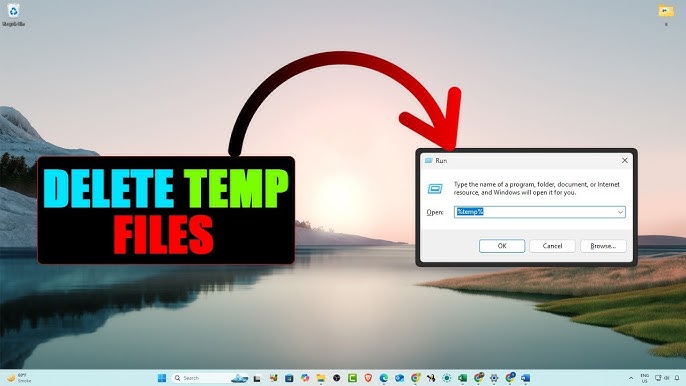
3. Clean Temporary Files
Steps:
- Press Win + R
- Type:
temp - Delete all files
Also use Disk Cleanup tool. Learn how to clean temporary files in Windows to free up space, boost speed, and fix errors with simple step-by-step methods.
4. Upgrade Windows Drivers
Outdated drivers cause system lag. Upgrade Windows drivers to fix lag and boost performance. Learn how outdated drivers cause system lag and how to update them step by step.
Official sources:
- Intel: https://www.intel.com/content/www/us/en/download-center/home.html
- NVIDIA: https://www.nvidia.com/Download/index.aspx
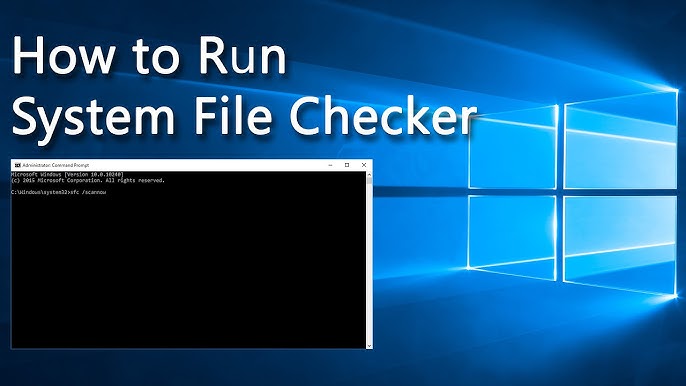
5. Run System File Checker
sfc /scannow
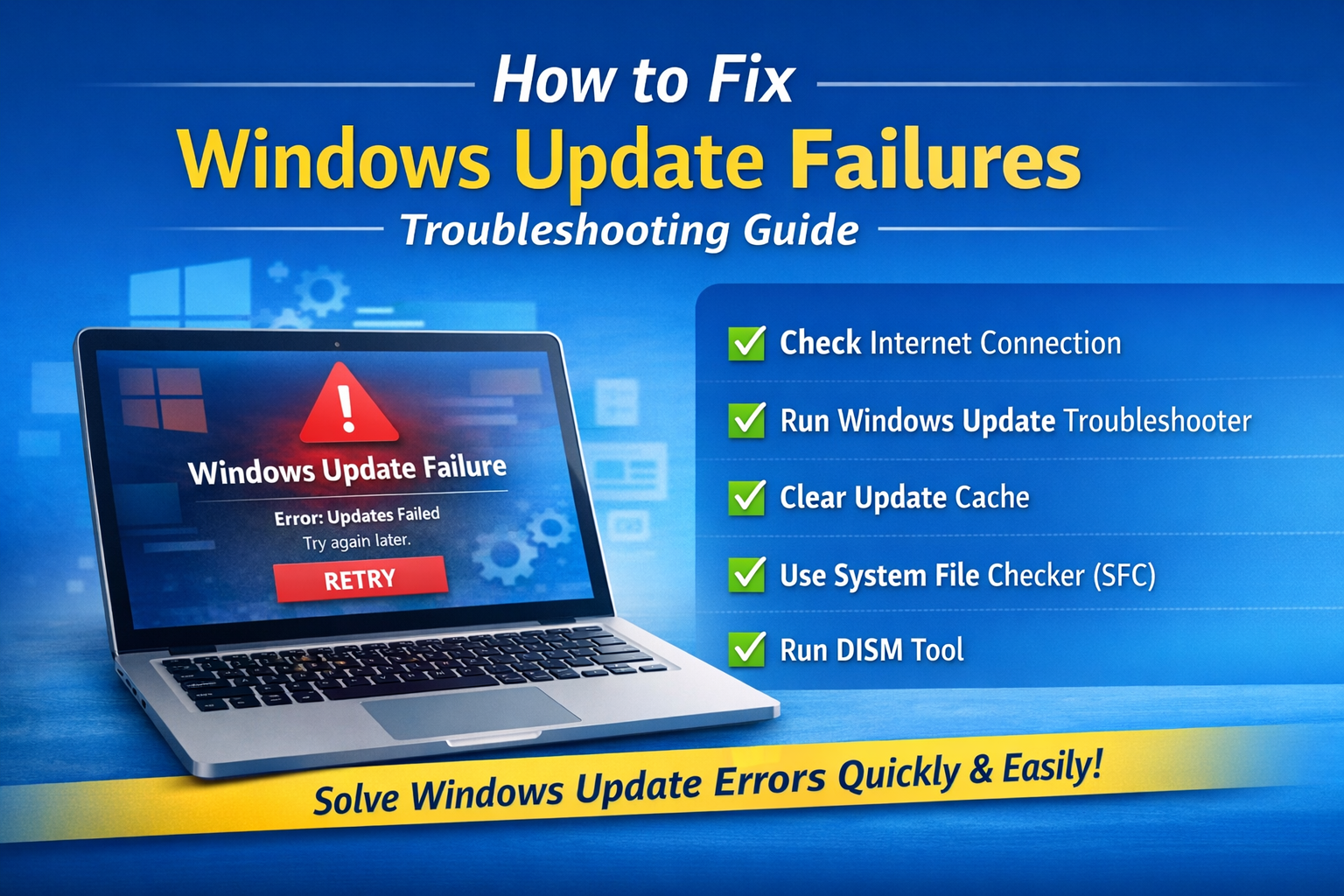
Learn how to Run System File Checker in Windows to repair system files, fix errors, and improve performance with step-by-step guide.
6. Run DISM Tool
DISM /Online /Cleanup-Image /RestoreHealth
7. Check Disk Health
chkdsk /f /r
8. Disable Visual Effects
Steps:
- System Properties
- Performance Settings
- Select “Adjust for best performance”
9. Uninstall Unnecessary Programs
Remove unused software to free resources.
10. Scan for Malware
Use Windows Security:
👉 https://www.microsoft.com/en-us/windows/comprehensive-security
11. Increase Virtual Memory
Boost performance for low-RAM systems.
12. Optimize Storage
- Defragment HDD
- Enable SSD optimization
Advanced Windows Slow Performance Fix Methods
1. Upgrade to SSD
SSDs dramatically improve speed.
👉 https://www.crucial.com/articles/about-ssd/how-an-ssd-works
2. Add More RAM
8GB minimum recommended for modern Windows.
3. Disable Background Services
Use msconfig to disable non-essential services.
4. Clean Boot Windows
Eliminates software conflicts.
5. Update BIOS
Improves hardware compatibility and performance.
Windows Slow Performance in Windows 11
In Windows 11, performance issues often come from:
- AI-based background services
- Copilot integration
- Search indexing
- Telemetry services
Disabling unnecessary features can improve speed significantly.
How to Monitor Windows Performance
Use built-in tools:
Task Manager
- Check CPU usage
- Monitor RAM usage
- Identify heavy processes
Resource Monitor
- Analyze disk and network usage
Real-World Example
A user with a 4-year-old laptop experiences severe lag. After disabling startup apps, upgrading to SSD, and removing background bloatware, system speed improves by over 70%.
Windows Slow Performance Optimization Tips
1. Keep System Updated
2. Avoid Installing Unnecessary Software
3. Regularly Clean Storage
4. Use Lightweight Applications
5. Restart PC Weekly
Common Mistakes That Cause Slow Performance
1. Ignoring Updates
2. Running Too Many Apps
3. Using HDD Instead of SSD
4. Not Cleaning Temporary Files
Preventing Windows Slow Performance
To keep your system fast:
- Maintain free disk space (at least 20%)
- Limit startup apps
- Regular malware scans
- Keep drivers updated
Key Insight
Most Windows slow performance issues are caused by software overload rather than hardware failure. With proper maintenance, even older systems can perform efficiently.
External Resources
- Microsoft Performance Tips:
👉 https://support.microsoft.com/windows/tips-to-improve-pc-performance - Windows Optimization Guide:
👉 https://learn.microsoft.com/en-us/windows/
Frequently Asked Questions
Why is my Windows PC running slow?
Windows slow performance is usually caused by too many background programs, outdated drivers, low RAM, or disk usage issues.
How can I fix Windows slow performance quickly?
You can fix Windows slow performance by disabling startup programs, updating drivers, running disk cleanup, and scanning for malware.
What causes high CPU usage in Windows?
High CPU usage is often caused by background apps, malware, outdated drivers, or system processes consuming too many resources.
Does updating drivers improve performance?
Yes, updating drivers can fix bugs and improve system stability, which helps reduce slow performance issues.
How do I speed up Windows 10 or Windows 11?
To speed up Windows, disable startup apps, uninstall unused programs, upgrade RAM, and optimize system settings.
Can viruses cause slow performance?
Yes, malware and viruses can consume system resources and significantly slow down your PC.
Is low RAM the reason for slow performance?
Yes, insufficient RAM can cause lag, slow multitasking, and overall poor performance.
Should I reset Windows to fix performance issues?
Resetting Windows can fix performance issues, but it should be used as a last resort after trying other solutions.
Conclusion
Fixing Windows slow performance is achievable with a combination of system cleanup, hardware upgrades, and proper configuration. By following this guide, you can significantly improve speed, reduce lag, and enhance overall system responsiveness.
With consistent maintenance and optimization, your system running Windows 11 will stay fast, stable, and efficient for years to come.
{
“@context”: “https://schema.org”,
“@type”: “FAQPage”,
“mainEntity”: [
{
“@type”: “Question”,
“name”: “Why is my Windows PC running slow?”,
“acceptedAnswer”: {
“@type”: “Answer”,
“text”: “Windows slow performance is usually caused by background programs, outdated drivers, low RAM, or disk usage issues.”
}
},
{
“@type”: “Question”,
“name”: “How can I fix Windows slow performance quickly?”,
“acceptedAnswer”: {
“@type”: “Answer”,
“text”: “You can fix slow performance by disabling startup programs, updating drivers, running disk cleanup, and scanning for malware.”
}
},
{
“@type”: “Question”,
“name”: “What causes high CPU usage in Windows?”,
“acceptedAnswer”: {
“@type”: “Answer”,
“text”: “High CPU usage is often caused by background apps, malware, outdated drivers, or system processes.”
}
},
{
“@type”: “Question”,
“name”: “Does updating drivers improve performance?”,
“acceptedAnswer”: {
“@type”: “Answer”,
“text”: “Yes, updating drivers improves system stability and can fix performance-related issues.”
}
},
{
“@type”: “Question”,
“name”: “How do I speed up Windows 10 or Windows 11?”,
“acceptedAnswer”: {
“@type”: “Answer”,
“text”: “Disable startup apps, uninstall unused programs, upgrade RAM, and optimize system settings to improve speed.”
}
},
{
“@type”: “Question”,
“name”: “Can viruses cause slow performance?”,
“acceptedAnswer”: {
“@type”: “Answer”,
“text”: “Yes, malware can consume system resources and significantly slow down your PC.”
}
},
{
“@type”: “Question”,
“name”: “Is low RAM the reason for slow performance?”,
“acceptedAnswer”: {
“@type”: “Answer”,
“text”: “Yes, insufficient RAM can cause lag and slow multitasking performance.”
}
},
{
“@type”: “Question”,
“name”: “Should I reset Windows to fix performance issues?”,
“acceptedAnswer”: {
“@type”: “Answer”,
“text”: “Resetting Windows can fix performance issues but should be used as a last resort.”
}
}
]
}