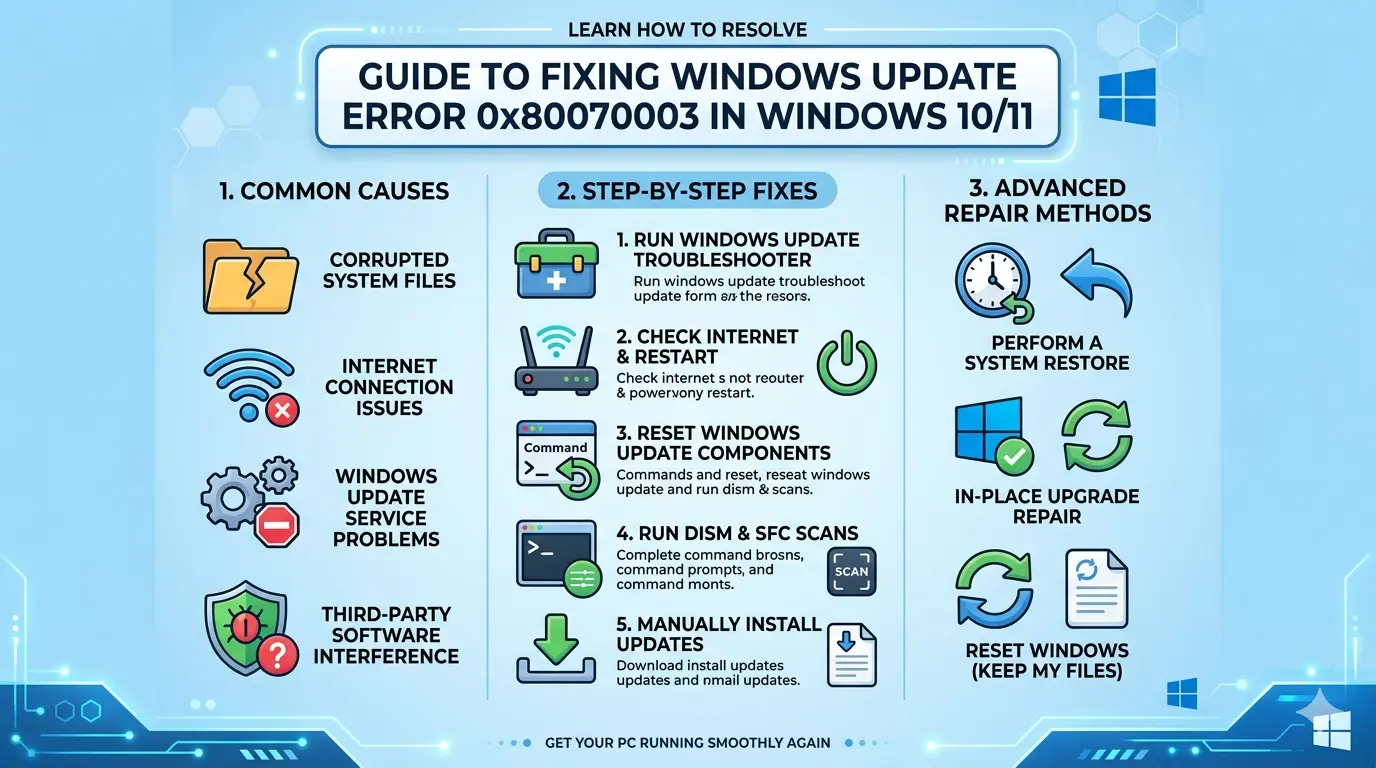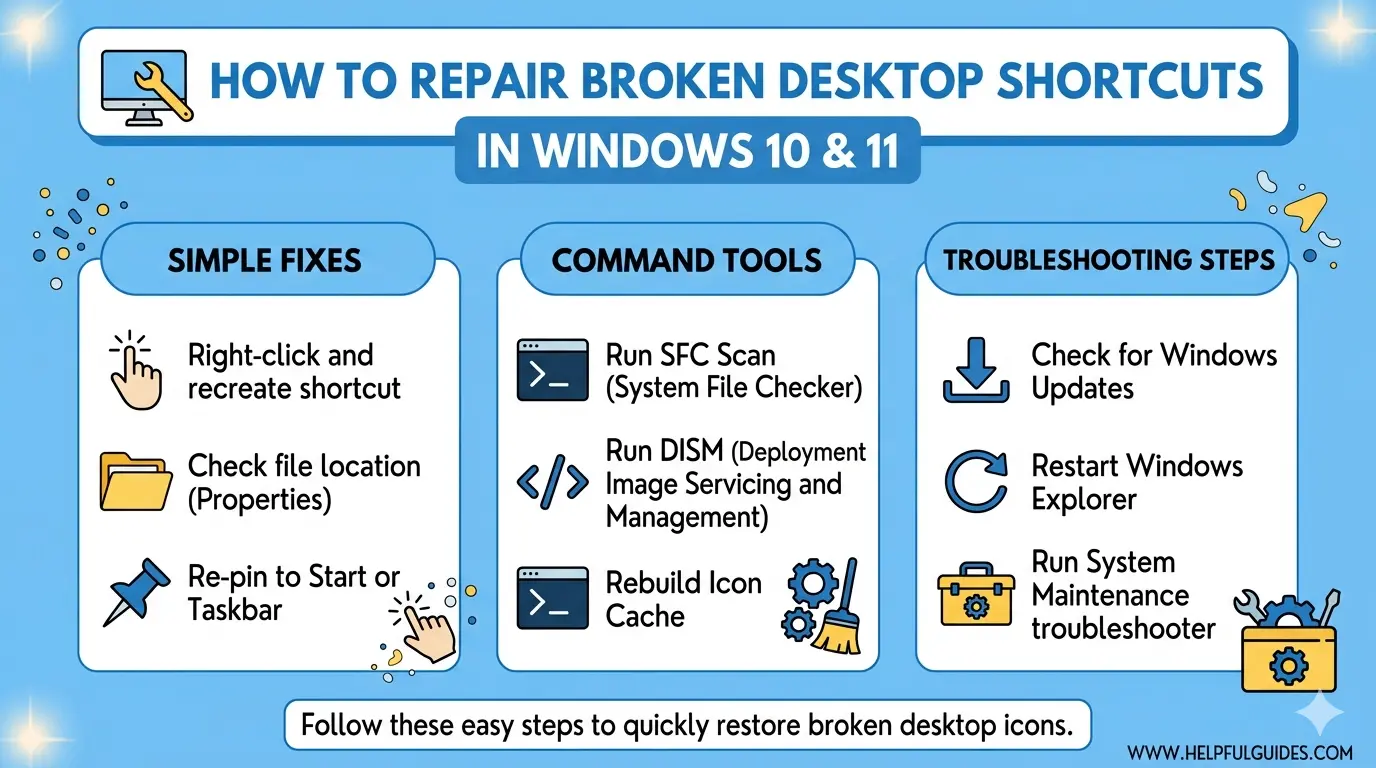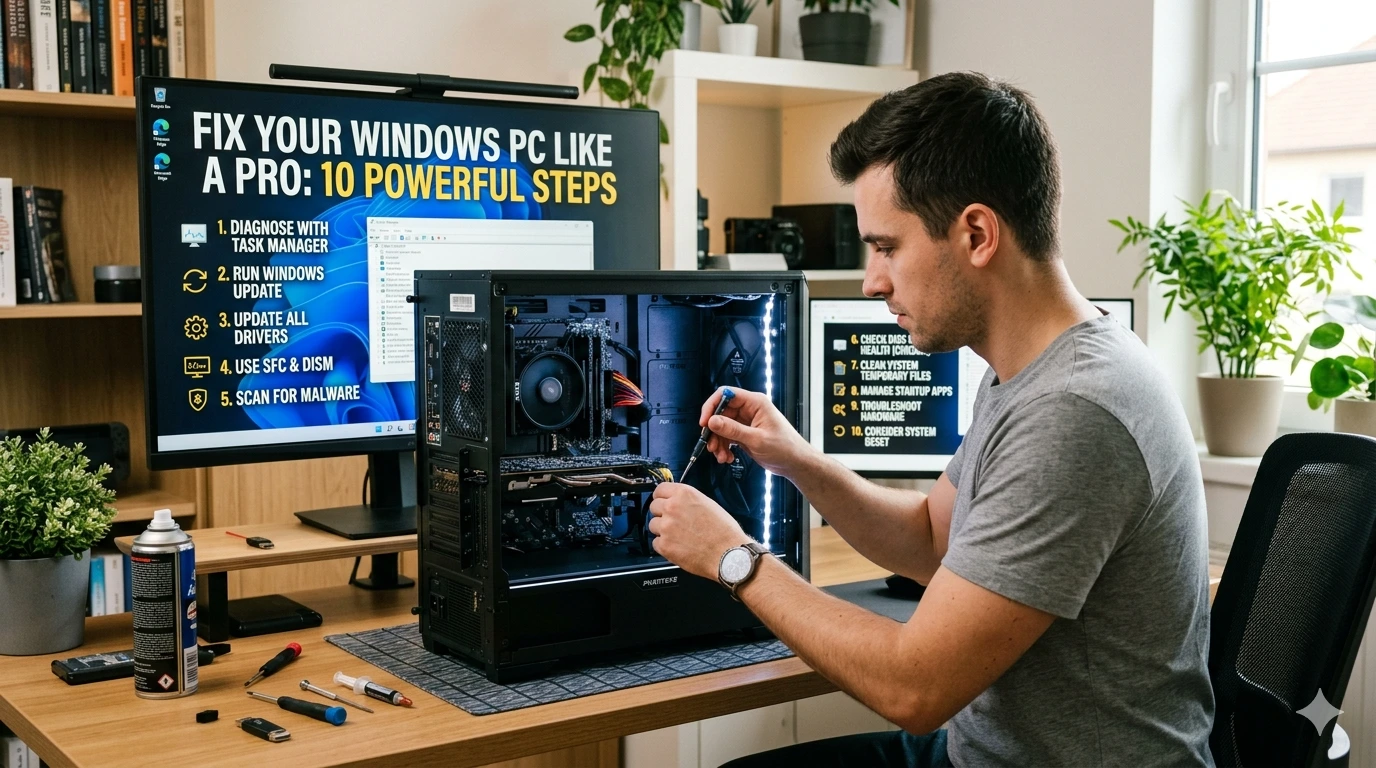
If your computer is running slow, crashing, or showing unexpected errors, it’s time to fix your Windows PC like a pro. This step-by-step tutorial will help you troubleshoot and optimize your system efficiently without needing advanced technical skills.
1. Restart Your PC First
Before diving into complex solutions, restart your system. This simple action clears temporary memory issues and resolves minor bugs.
2. Update Windows System
Keeping your system updated is essential to fix your Windows PC like a pro.
Steps:
- Open Settings
- Go to Update & Security
- Click Check for Updates
Updates often include bug fixes and performance improvements.
3. Scan for Malware and Viruses
Malware is a common cause of slow performance.
Recommended Tools:
- Windows Security
- Malwarebytes
Run a full system scan to remove threats.
4. Clean Up Disk Space
A cluttered drive slows down your PC.
Steps:
- Search for Disk Cleanup
- Select your drive
- Delete temporary files
You can also use Storage Sense for automatic cleanup.
5. Disable Startup Programs
Too many startup apps increase boot time.
Steps:
- Press Ctrl + Shift + Esc
- Open Startup tab
- Disable unnecessary apps
This helps fix your Windows PC like a pro by speeding up startup.
6. Update Drivers
Outdated drivers can cause hardware issues.
How to Update:
- Open Device Manager
- Right-click device
- Select Update Driver
Focus on graphics, network, and chipset drivers.
7. Run System File Checker (SFC)
Corrupted system files can cause errors.
Command:
sfc /scannow
Run this in Command Prompt as Administrator.
8. Check Disk for Errors
Disk errors can affect performance.
Command:
chkdsk /f /r
Restart your PC to begin scanning.
9. Adjust Performance Settings
Optimize Windows for better speed.
Steps:
- Search “Performance Options”
- Select “Adjust for best performance”
This disables unnecessary visual effects.
10. Reset or Reinstall Windows
If nothing works, resetting your system can fix deep issues.
Options:
- Keep your files
- Remove everything
Use this as a last resort to fix your Windows PC like a pro.
- Microsoft Official Guide: Windows Troubleshooting Tips
- Malware Protection Tool: Download Malwarebytes
Frequently Asked Questions (FAQs)
1. How often should I fix my Windows PC?
You should perform basic maintenance weekly and deep optimization monthly.
2. Will resetting Windows delete my files?
It depends on the option you choose. You can keep personal files if selected.
3. Why is my PC still slow after cleanup?
It could be due to hardware limitations or background processes.
4. Is antivirus enough to protect my PC?
Basic antivirus helps, but combining it with safe browsing habits is best.
5. Can I fix my Windows PC like a pro without tools?
Yes, many built-in Windows tools are enough for most issues.
Conclusion
Learning to fix your Windows PC like a pro saves time, improves performance, and extends your device’s lifespan. By following these 10 powerful steps, you can troubleshoot common problems, boost speed, and maintain a healthy system without relying on expensive services. Regular maintenance is the key to keeping your PC running smoothly.