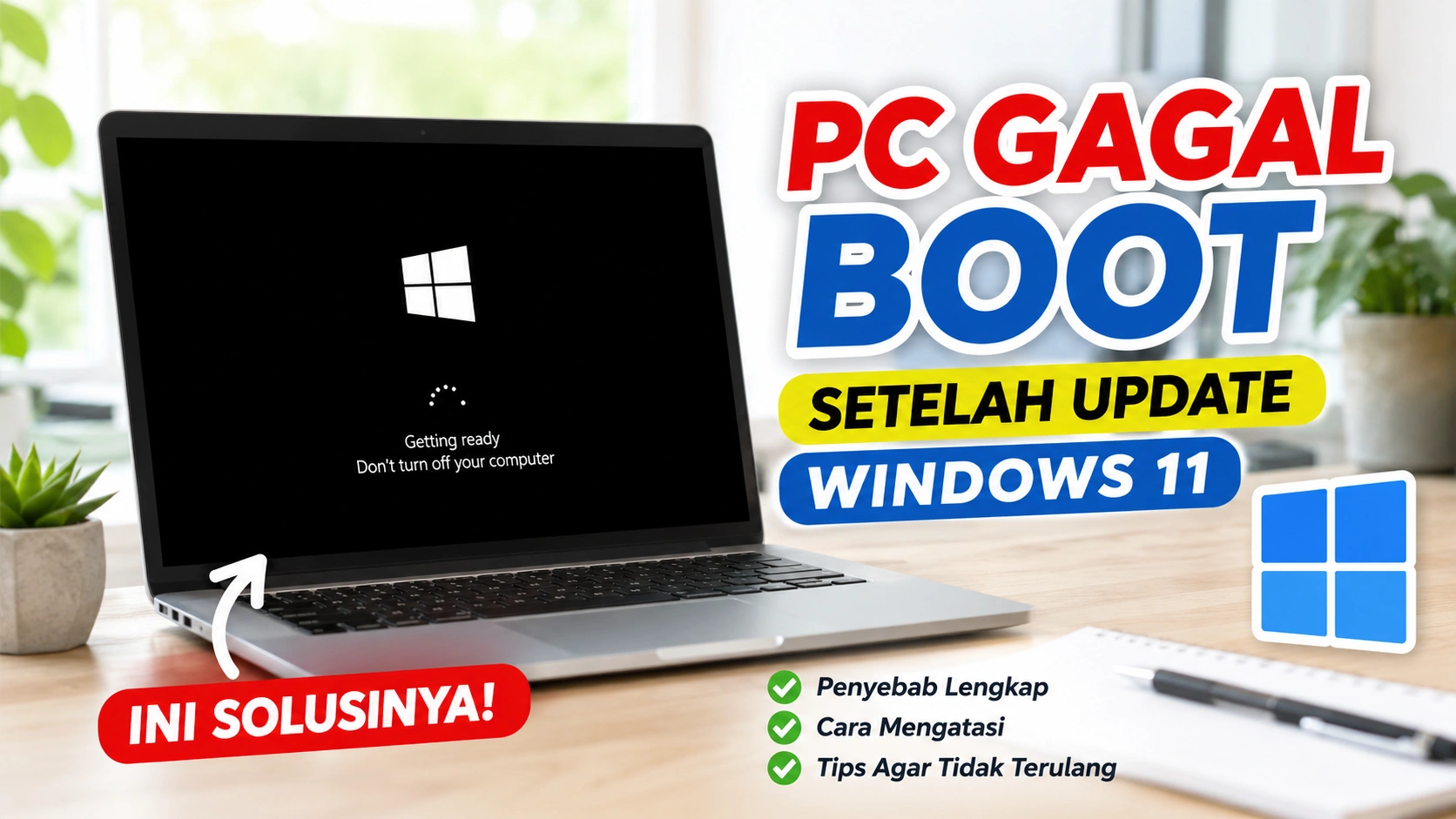




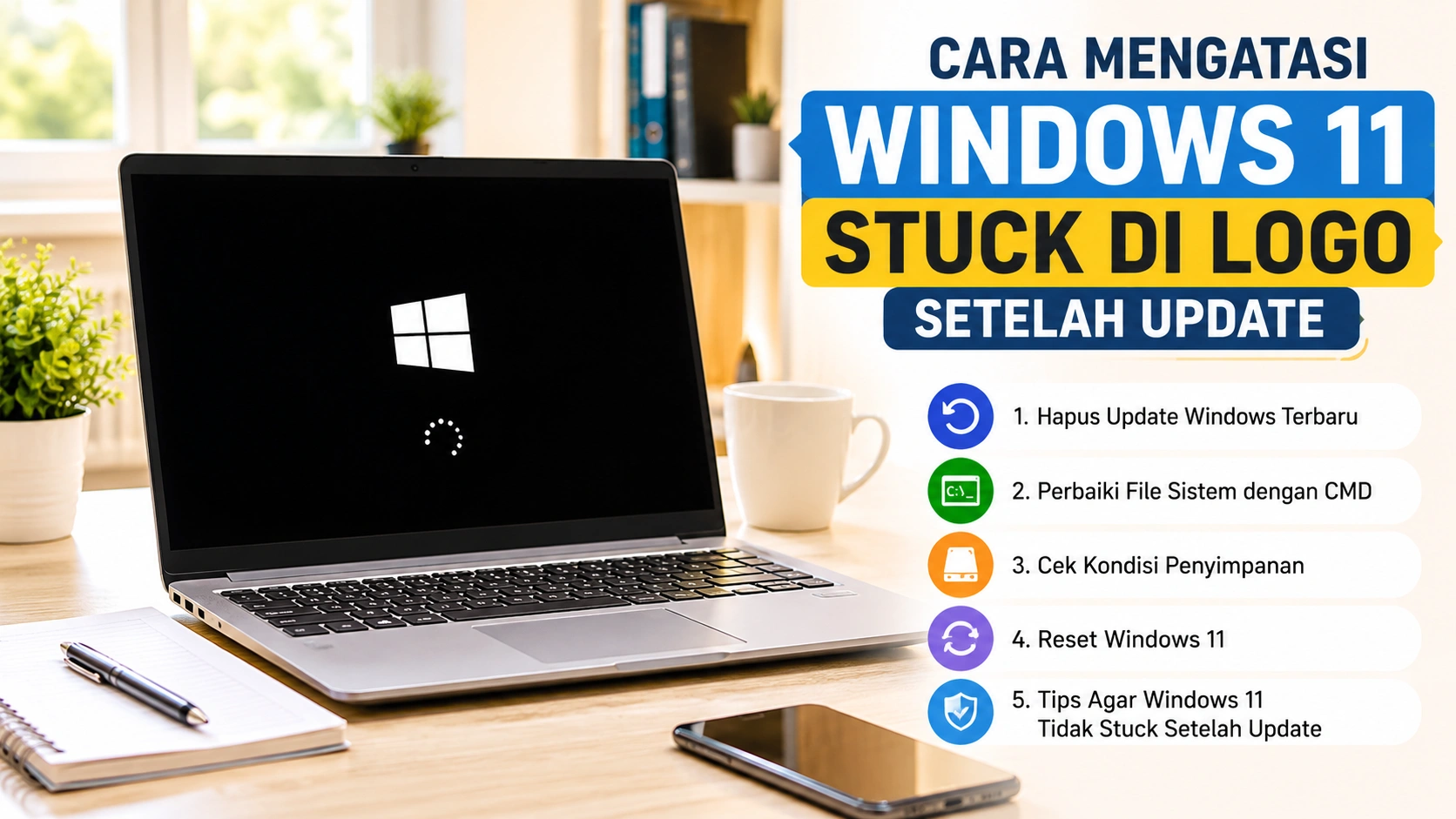
Setelah pengguna melakukan update Windows 11, sistem sering mengalami masalah yang membuat proses booting terhenti di logo Windows. Kondisi ini terjadi ketika komputer gagal melanjutkan proses masuk ke desktop dan hanya menampilkan layar loading tanpa respon. Banyak pengguna langsung mengira perangkat mereka rusak, padahal masalah ini biasanya berasal dari gangguan sistem setelah update.
Dalam banyak kasus, Windows 11 menjadi stuck di logo karena proses update tidak berjalan sempurna, sehingga beberapa file sistem penting tidak terpasang dengan benar. Selain itu, driver yang tidak kompatibel dengan versi terbaru Windows juga dapat menyebabkan konflik saat sistem dijalankan. Tidak hanya itu, kerusakan pada file sistem, gangguan pada SSD atau HDD, hingga error pada boot loader juga sering memicu masalah ini.
Saat kondisi ini terjadi, pengguna tetap dapat melakukan beberapa langkah perbaikan tanpa harus langsung melakukan instal ulang. Dengan penanganan yang tepat, Windows biasanya bisa kembali normal seperti semula. Oleh karena itu, penting bagi pengguna untuk memahami penyebab dan cara mengatasinya agar tidak panik ketika laptop atau PC mengalami stuck di logo setelah update.
Kenapa Windows 11 Bisa Stuck di Logo?
Windows 11 yang berhenti di logo setelah update biasanya disebabkan oleh beberapa masalah pada sistem. Penyebab paling umum adalah proses update yang gagal sehingga file penting Windows menjadi rusak atau tidak terbaca dengan benar. Selain itu, driver yang tidak kompatibel, konflik software, hingga kerusakan pada SSD atau HDD juga dapat membuat proses booting terganggu. Dalam beberapa kasus, file sistem corrupt atau gangguan pada boot loader Windows menyebabkan komputer hanya menampilkan logo tanpa berhasil masuk ke desktop seperti biasa.
Update Tidak Berjalan Sempurna
Proses update yang terhenti mendadak atau gagal selesai dapat merusak file sistem penting Windows. Akibatnya, komputer tidak mampu menjalankan proses booting secara normal dan hanya berhenti di logo Windows saat dinyalakan setelah pembaruan selesai dipasang.
Driver Tidak Cocok dengan Versi Update
Driver perangkat yang sudah lama atau belum diperbarui terkadang tidak kompatibel dengan versi terbaru Windows 11. Kondisi ini dapat memicu konflik sistem sehingga proses startup gagal berjalan normal dan komputer berhenti di logo Windows saat booting.
File Sistem Mengalami Kerusakan
File sistem Windows yang corrupt atau hilang dapat mengganggu proses booting. Akibatnya, Windows gagal memuat komponen penting sehingga komputer hanya berhenti di tampilan logo dan tidak berhasil masuk ke desktop secara normal.
SSD atau HDD Bermasalah
SSD atau HDD yang mengalami bad sector atau kerusakan hardware dapat menyebabkan file boot Windows sulit dibaca. Kondisi ini membuat proses startup berjalan lambat, macet, atau berhenti di logo Windows saat komputer dinyalakan.
Konflik Aplikasi atau Antivirus
Beberapa aplikasi, terutama antivirus pihak ketiga, dapat menyebabkan konflik dengan proses update Windows. Gangguan ini bisa menghambat instalasi pembaruan sistem dan membuat proses startup tidak berjalan normal sehingga Windows berhenti di logo saat dinyalakan.
Cara Mengatasi Windows 11 Stuck di Logo
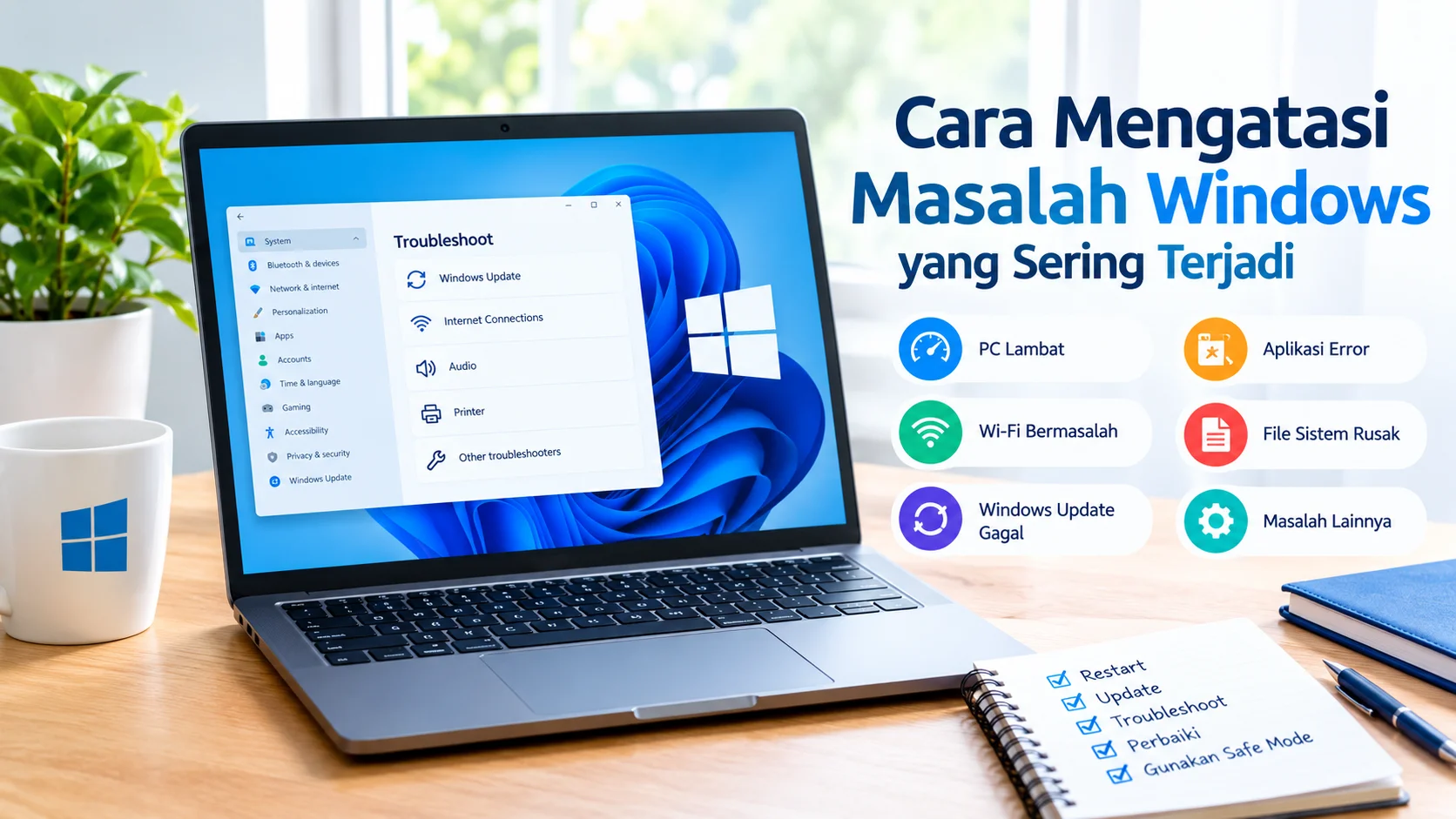
Berikut beberapa langkah yang bisa dilakukan untuk memperbaiki masalah Windows 11 yang berhenti di logo saat proses booting setelah update. Cara ini bisa dicoba secara bertahap mulai dari yang paling sederhana hingga solusi lanjutan agar sistem bisa kembali normal tanpa instal ulang.
Tunggu Hingga Proses Selesai
Kadang Windows masih menjalankan konfigurasi update di background. Tunggu sekitar 15 hingga 30 menit sebelum melakukan tindakan lain.
Jika layar tetap stuck, lanjut ke cara berikutnya.
Lakukan Force Restart
Restart paksa sering membantu menghentikan boot error sementara.
Caranya:
- Tekan tombol power selama beberapa detik hingga PC mati.
- Nyalakan kembali perangkat.
- Ulangi 2–3 kali sampai muncul menu Automatic Repair.
Gunakan Safe Mode
Safe Mode memungkinkan Windows berjalan dengan sistem minimum sehingga lebih mudah mendeteksi penyebab masalah.
Langkah masuk Safe Mode:
- Buka menu Advanced Options.
- Pilih Startup Settings.
- Tekan tombol F4.
- Tunggu hingga Windows masuk Safe Mode.
Jika berhasil masuk, Anda dapat menghapus driver atau update yang menyebabkan error.
Hapus Update Windows Terbaru
Kadang update Windows terbaru justru menjadi penyebab utama sistem bermasalah. Jika setelah update Windows 11 menjadi stuck di logo, menghapus pembaruan terakhir bisa membantu mengembalikan sistem ke kondisi stabil dan membuat proses booting kembali normal.
Cara uninstall update:
- Masuk ke Advanced Options.
- Pilih Uninstall Updates.
- Klik Uninstall latest quality update.
- Restart komputer.
Metode ini cukup efektif jika masalah muncul tepat setelah update selesai.
Jalankan Startup Repair
Fitur Startup Repair bawaan Windows dapat memperbaiki boot yang rusak secara otomatis.
Langkah:
- Masuk ke menu Advanced Options.
- Pilih Startup Repair.
- Tunggu proses pemeriksaan selesai.
Setelah selesai, komputer biasanya akan restart otomatis.
Perbaiki File Sistem dengan CMD
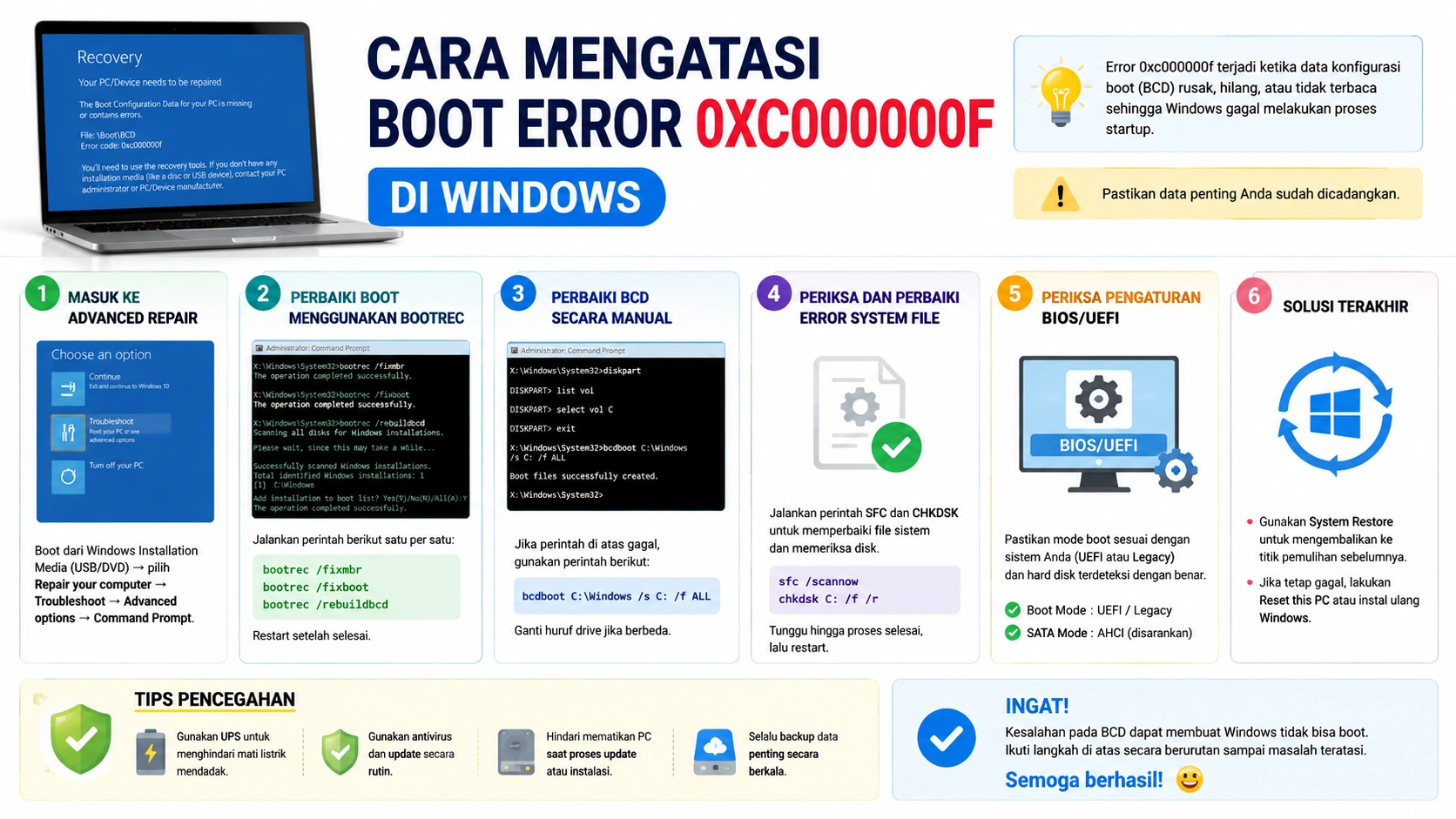
Jika file sistem Windows mengalami corrupt, Anda bisa menggunakan Command Prompt (CMD) untuk memperbaikinya. Cara ini membantu memulihkan file penting yang rusak sehingga sistem dapat kembali berjalan normal dan proses booting tidak lagi berhenti di logo Windows.
Jalankan perintah berikut:
sfc /scannow
DISM /Online /Cleanup-Image /RestoreHealth
Tunggu hingga proses selesai lalu restart perangkat.
Cek Kondisi Penyimpanan
SSD atau HDD yang bermasalah dapat menghambat proses booting Windows. Jika terdapat bad sector atau kerusakan pada media penyimpanan, sistem akan kesulitan membaca file penting sehingga Windows gagal masuk ke desktop dan hanya berhenti di logo saat dinyalakan.
Gunakan perintah berikut:
chkdsk /f /r
Perintah tersebut akan memeriksa sekaligus memperbaiki error pada drive sistem.
Reset Windows 11
Jika semua langkah sebelumnya tidak berhasil, reset Windows 11 bisa menjadi pilihan terakhir. Fitur ini akan mengembalikan sistem ke kondisi awal sehingga file yang bermasalah dapat diperbaiki. Anda juga bisa memilih opsi untuk tetap menyimpan data pribadi agar tidak hilang saat proses reset dilakukan.
Caranya:
- Masuk ke Advanced Options.
- Pilih Reset This PC.
- Gunakan opsi Keep My Files agar data pribadi tidak terhapus.
Tips Agar Windows 11 Tidak Stuck Setelah Update
Untuk mengurangi risiko Windows 11 mengalami stuck di logo setelah update, ada beberapa langkah pencegahan yang bisa dilakukan. Dengan perawatan sistem yang baik, proses update akan berjalan lebih lancar dan stabil tanpa mengganggu proses booting, lakukan beberapa hal berikut:
- Pastikan kapasitas penyimpanan masih cukup
- Jangan mematikan PC saat update berjalan
- Update driver secara berkala
- Gunakan antivirus yang kompatibel
- Backup data penting sebelum update besar
Kesimpulan
Masalah Windows 11 stuck di logo setelah update umumnya terjadi karena file update rusak, driver tidak kompatibel, atau kerusakan pada sistem boot. Meski terlihat serius, masalah ini masih dapat diperbaiki dengan Safe Mode, Startup Repair, uninstall update, hingga reset Windows.
Dengan melakukan pengecekan secara bertahap, Windows biasanya bisa kembali normal tanpa perlu instal ulang total.