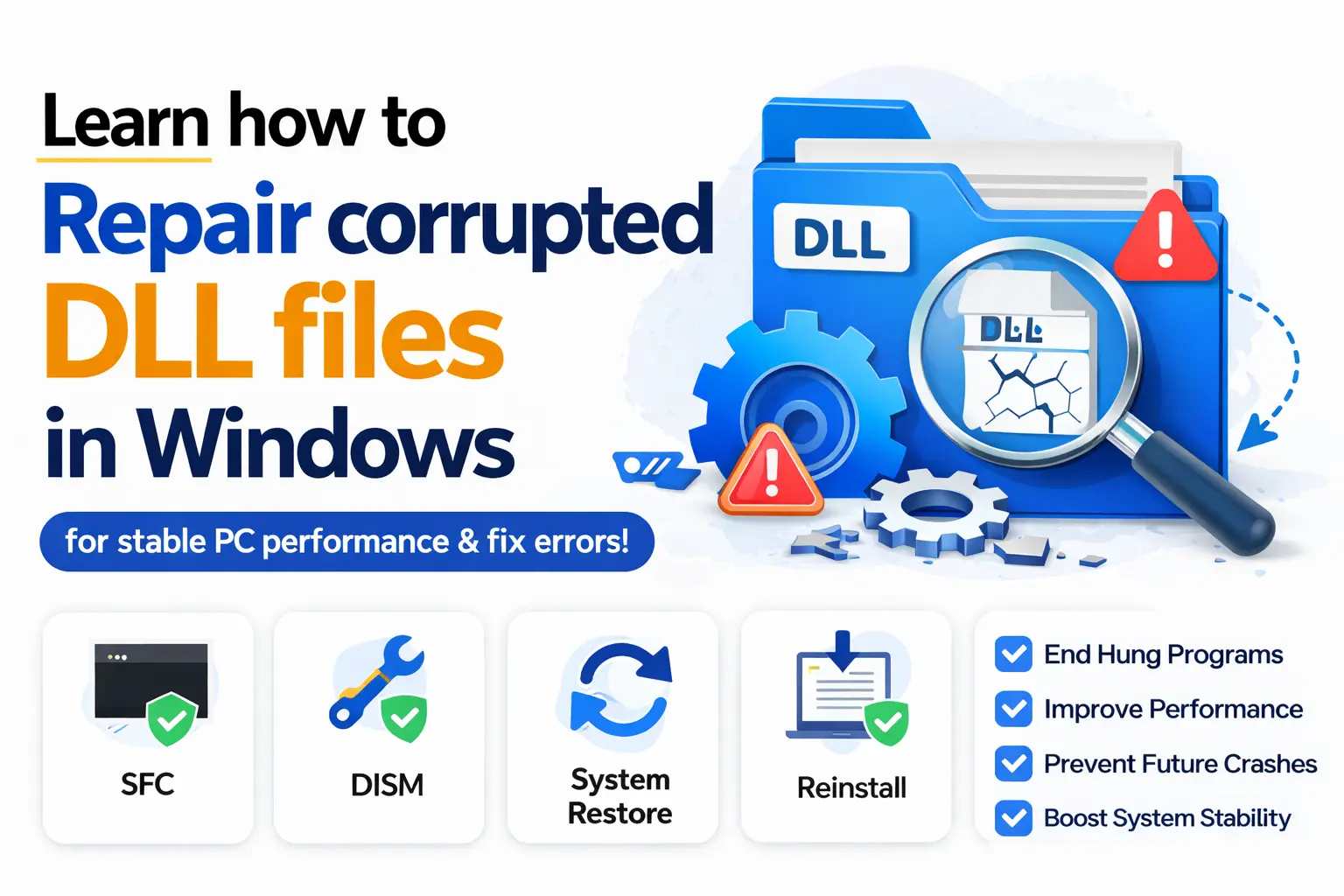
Repair corrupted DLL files in Windows is one of the most common troubleshooting needs for users facing system crashes, missing file errors, or software launch failures. If your PC shows messages like “DLL not found” or “application failed to start because a DLL is missing,” this guide will help you understand and fix the problem effectively. In this article, you will learn how to Repair corrupted DLL files in Windows using proven methods that restore system stability and improve performance.
What Are DLL Files in Windows?
DLL (Dynamic Link Library) files are essential components of the Windows operating system. They contain code, data, and resources that multiple programs can use at the same time. Without DLL files, software would need to include duplicate code, making systems slower and less efficient.
When you attempt to Repair corrupted DLL files in Windows, you are essentially restoring these shared system resources so programs can run correctly again. Missing or corrupted DLL files can lead to application crashes, system instability, and even boot errors.
Understanding this foundation is critical before you attempt to Repair corrupted DLL files in Windows using advanced methods.
Common Causes of Corrupted DLL Files
DLL file corruption can occur due to multiple system or software-related issues. Common causes include sudden power outages during updates, incomplete or faulty software installations, malware or virus infections, and accidental deletion of system files. Windows registry errors, bad sectors on the hard drive, and incompatible software updates can also damage DLL files. Additionally, improper shutdowns or system crashes may interrupt file processes, leading to corruption and application errors.
- Sudden power failure while updating software
- Malware or virus infections
- Improper software installation or removal
- Faulty Windows updates
- Hardware issues like bad sectors on the hard drive
Whenever these issues occur, users often need to Repair corrupted DLL files in Windows to restore normal functionality.
Repair corrupted DLL files in Windows Using Built-in Tools
Windows provides powerful built-in tools that can automatically fix missing or damaged system files. These tools are the safest way to Repair corrupted DLL files in Windows without risking further system damage.
System File Checker (SFC)
The System File Checker is the first tool you should use when trying to Repair corrupted DLL files in Windows. It scans your system for missing or corrupted files and replaces them automatically.
To run SFC:
- Open Command Prompt as Administrator
- Type the following command:
sfc /scannow
- Press Enter and wait for the scan to complete
SFC is highly effective when you need to Repair corrupted DLL files in Windows caused by system file damage.
For official details, visit Microsoft documentation:
https://support.microsoft.com
DISM Tool
If SFC fails, DISM (Deployment Imaging Service and Management Tool) is your next step. It repairs the Windows system image itself.
Run these commands:
DISM /Online /Cleanup-Image /CheckHealth
DISM /Online /Cleanup-Image /RestoreHealth
This method is often used to Repair corrupted DLL files in Windows when deeper system issues exist.
Using System Restore to Fix DLL Errors
System Restore allows you to roll back your computer to a previous working state. If DLL errors started recently, this is one of the easiest ways to Repair corrupted DLL files in Windows.
Steps:
- Open Control Panel
- Search “System Restore”
- Choose a restore point before the issue began
- Follow instructions to restore system
This method is extremely useful when you need to Repair corrupted DLL files in Windows after a faulty update or software installation.
Reinstalling Problematic Software
Sometimes DLL errors are caused by a single application. Reinstalling the program can automatically restore missing DLL files.
If a specific app triggers the error, uninstall it completely and reinstall it. This simple step often helps Repair corrupted DLL files in Windows without advanced tools.
Downloading Missing DLL Files Safely
While many websites offer DLL downloads, not all are safe. Only download from trusted sources or official software vendors.
Never randomly download DLL files, as this can worsen system problems instead of helping you Repair corrupted DLL files in Windows.
Updating Windows to Fix DLL Issues
Microsoft regularly releases updates that fix system bugs and replace corrupted files.
To update:
- Go to Settings
- Click Windows Update
- Install all available updates
Updating Windows is a safe method to Repair corrupted DLL files in Windows and improve system stability.
Repair corrupted DLL files in Windows via Safe Mode
Safe Mode loads only essential drivers and services. This helps isolate issues and makes it easier to Repair corrupted DLL files in Windows.
To enter Safe Mode:
- Restart PC
- Press F8 or use advanced startup
- Select Safe Mode
Then run SFC or DISM again.
Using Command Prompt Advanced Fixes
Advanced users can use command-line tools to manually Repair corrupted DLL files in Windows. These include:
- regsvr32 command
- bootrec commands
- system repair scripts
Example:
regsvr32 missingfile.dll
This registers DLL files again in the system.
Registry Fix for DLL Errors
The Windows Registry stores important DLL references. If corrupted, DLL errors may occur.
Be careful: incorrect edits can damage your system. Always back up before making changes.
Registry repair can sometimes help Repair corrupted DLL files in Windows caused by broken file paths.
Malware Scan and Virus Removal
Viruses are a major cause of DLL corruption. Always scan your system using Windows Defender or trusted antivirus software.
Malware removal is essential if you want to fully Repair corrupted DLL files in Windows and prevent future damage.
Repair corrupted DLL files in Windows with Startup Repair
Startup Repair fixes boot-related DLL issues automatically.
Steps:
- Restart PC using recovery mode
- Select Startup Repair
- Let Windows diagnose and fix issues
This is useful when you cannot even boot properly and need to Repair corrupted DLL files in Windows urgently.
Preventing Future DLL Corruption
To avoid future issues:
- Keep Windows updated
- Avoid unsafe software downloads
- Use antivirus protection
- Shut down PC properly
- Avoid forced shutdowns
These steps reduce the need to frequently Repair corrupted DLL files in Windows.
Advanced Troubleshooting Tips
If nothing works:
- Check hard drive health using CHKDSK
- Reinstall Windows as last resort
- Replace failing hardware
Advanced troubleshooting ensures long-term stability after you Repair corrupted DLL files in Windows.
Frequently Asked Questions (FAQs)
1. What causes DLL file corruption in Windows?
Mostly malware, power failure, bad updates, or software conflicts.
2. Can I manually replace DLL files?
Yes, but only from trusted sources. Incorrect files can worsen issues.
3. Is SFC enough to Repair corrupted DLL files in Windows?
Often yes, but severe cases require DISM or restore tools.
4. Do Windows updates fix DLL errors?
Yes, updates often replace or repair damaged system files.
5. Is DLL download safe from websites?
No, many are unsafe and may contain malware.
6. What is the fastest way to Repair corrupted DLL files in Windows?
Using SFC scan is usually the fastest safe method.
Conclusion
Learning how to Repair corrupted DLL files in Windows is essential for maintaining a stable and fast system. Whether you use SFC, DISM, System Restore, or Windows Update, each method plays a key role in restoring system health. By following the steps in this guide, you can confidently Repair corrupted DLL files in Windows and prevent future errors that disrupt your workflow.
Regular maintenance, safe browsing habits, and system updates will ensure you rarely need to Repair corrupted DLL files in Windows again.