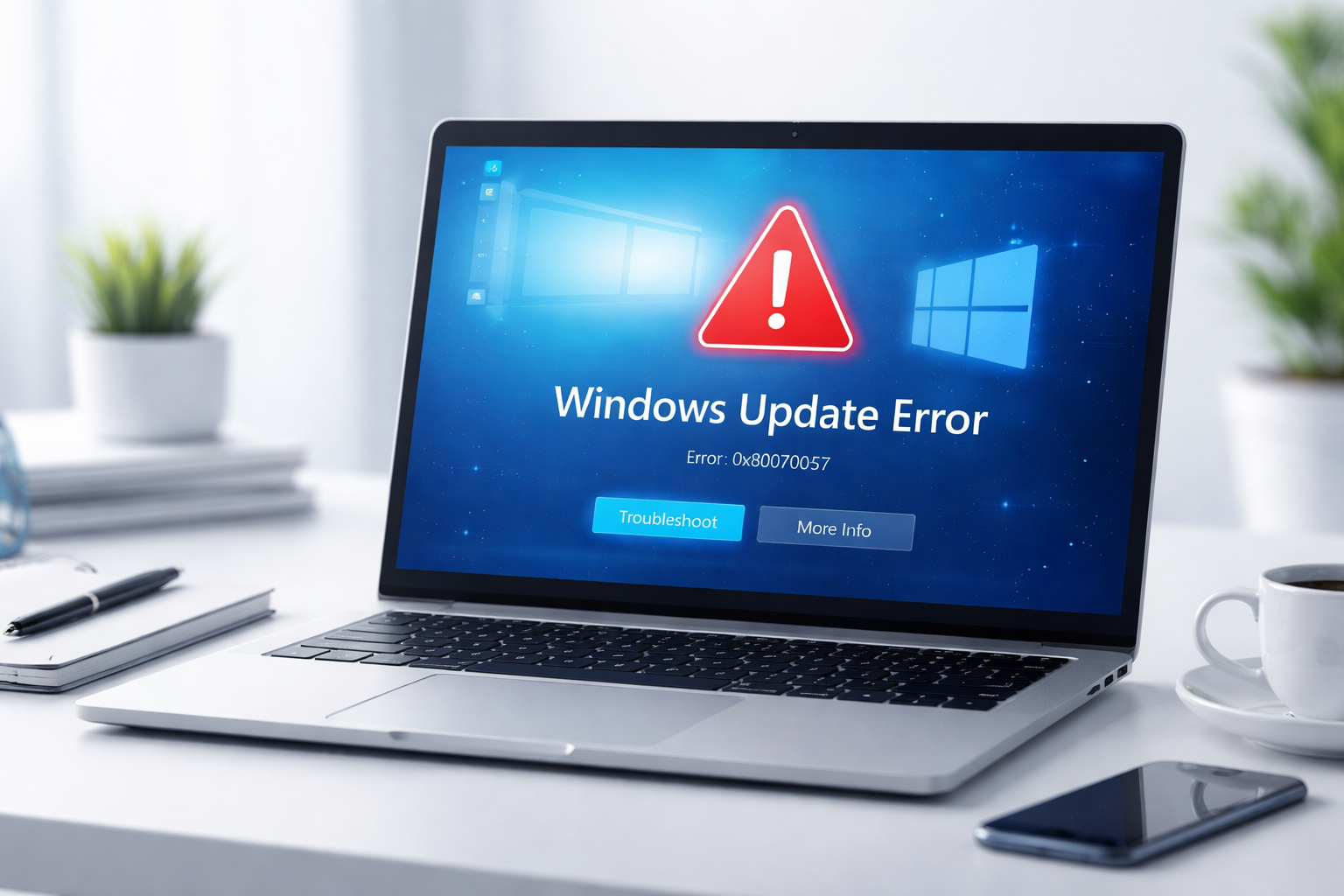
If you are struggling to Fix Windows Update Error 0x80070057, you are not alone. This error is one of the most common Windows Update failures affecting both Windows 10 and Windows 11 users. It usually appears when the system cannot install updates due to corrupted files, incorrect parameters, or issues in the Windows Update service itself.
In this complete guide, you will learn how to Fix Windows Update Error 0x80070057, understand its causes, and apply step-by-step solutions that actually work. These methods are safe, tested, and suitable for beginners as well as advanced users.
What Is Windows Update Error 0x80070057?
The error code 0x80070057 typically indicates a parameter or configuration issue in Windows. When it appears during a Windows Update, it means the system cannot process update installation due to corrupted update components or incorrect system settings.
Common message examples include:
- “There were some problems installing updates”
- “Error 0x80070057”
- “Windows could not search for new updates”
This issue is often linked to:
- Corrupted Windows Update cache
- Disk errors
- Registry misconfiguration
- Insufficient system resources
Common Causes of Windows Update Error 0x80070057
To effectively fix Windows Update Error 0x80070057, you must first understand its root causes, such as corrupted system files, incorrect update settings, registry issues, or storage and disk errors.
1. Corrupted Windows Update Files
Temporary update files can become corrupted or incomplete, which may block the installation process and cause Windows Update to fail or stop unexpectedly during updates.
2. Incorrect Registry Values
Incorrect or misconfigured registry parameters can interfere with Windows Update processes, causing errors, failed installations, or preventing updates from completing properly.
3. Disk or File System Errors
Bad sectors on the disk or file system corruption can disrupt Windows Update, leading to installation failures, missing files, or repeated update errors.
4. Misconfigured System Settings
Incorrect system settings, such as wrong date, time, or regional configuration, can disrupt update verification and cause Windows Update failures or validation errors.
5. Antivirus or Third-Party Software Interference
Antivirus or third-party software can interfere with Windows Update by blocking system processes, causing installation failures or triggering error 0x80070057 during update operations.
How to Fix Windows Update Error 0x80070057
Below are the most effective methods to permanently fix Windows Update Error 0x80070057 and ensure Windows updates install properly without further interruptions or failures.
1. Run Windows Update Troubleshooter
Windows Update Troubleshooter is a built-in Windows tool that automatically scans for update issues and applies fixes to repair errors, helping resolve problems like failed updates or error 0x80070057 quickly.
Steps:
- Go to Settings
- Click System
- Select Troubleshoot
- Click Other troubleshooters
- Run Windows Update Troubleshooter
This tool will automatically reset components and fix minor issues.
2. Reset Windows Update Components
One of the most effective methods to fix Windows Update Error 0x80070057 is to manually reset Windows Update services, clearing corrupted components and restoring normal update functionality.
Steps:
- Open Command Prompt as Administrator
- Run the following commands:
net stop wuauserv
net stop bits
net stop cryptsvc
Then rename update folders:
ren C:\Windows\SoftwareDistribution SoftwareDistribution.old
ren C:\Windows\System32\catroot2 catroot2.old
Restart services:
net start wuauserv
net start bits
net start cryptsvc
This clears corrupted update data.
3. Run SFC and DISM Tools
Running SFC and DISM tools helps repair corrupted or missing system files, which are common causes of Windows Update errors and ensures system stability and proper update installation.
Run SFC:
sfc /scannow
Run DISM:
DISM /Online /Cleanup-Image /RestoreHealth
These tools repair damaged system files and restore Windows integrity.
4. Check Disk for Errors (CHKDSK)
Running CHKDSK scans your drive for file system errors and bad sectors, fixing disk problems that may prevent Windows updates from installing properly or cause update failures.
Steps:
- Open Command Prompt (Admin)
- Run:
chkdsk C: /f /r
Restart your PC to allow scanning.
5. Adjust Date and Time Settings
Adjust your system date and time settings correctly, as incorrect time or region settings can cause Windows Update validation failures and lead to errors like 0x80070057 during updates.
Fix:
- Go to Settings → Time & Language
- Enable Set time automatically
- Sync time manually if needed
6. Disable Antivirus Temporarily
Temporarily disabling antivirus can help Windows Update run without interference, as some security programs block system processes and cause update failures or error 0x80070057 during installation.
Try:
- Disabling real-time protection temporarily
- Running Windows Update again
If it works, consider switching antivirus software.
7. Perform a Clean Boot
Performing a clean boot starts Windows with only essential services, helping identify and remove software conflicts that may block updates or trigger Windows Update errors like 0x80070057.
Steps:
- Press
Win + R - Type
msconfig - Disable all non-Microsoft services
- Restart PC
Then try updating again.
8. Use Windows Media Creation Tool
If nothing works, reinstall system files using Microsoft’s official tool.
If other methods fail, use the official Windows Media Creation Tool to repair or reinstall system files and fix Windows Update issues effectively without data loss in many cases.
This method repairs system files without deleting personal data.
Advanced Fix: Registry Repair (Use Carefully)
Incorrect or corrupted registry entries can disrupt Windows Update processes, leading to installation failures and errors like 0x80070057 by breaking system configuration and update validation.
Steps:
- Press
Win + R - Type
regedit - Navigate to update-related keys
- Ensure values are correct
⚠ Always backup registry before changes.
How to Prevent Windows Update Error 0x80070057
After successfully fixing Windows Update Error 0x80070057, follow these tips to maintain system stability, prevent future update issues, and keep Windows running smoothly and securely.
- Keep Windows updated regularly
- Avoid forced shutdowns during updates
- Use trusted drivers only
- Run disk cleanup monthly
- Maintain at least 20% free storage space
When You Should Seek Professional Help
If the error persists after all steps:
- Your system drive may be failing
- Windows installation may be severely corrupted
- Hardware issues (RAM/SSD) may exist
In such cases, consider professional repair or clean installation.
Frequently Asked Questions (FAQ)
1. What is error 0x80070057 in Windows Update?
It is a system error caused by corrupted files, incorrect settings, or update service issues.
2. Is Windows Update Error 0x80070057 dangerous?
No, but it prevents updates which may expose your system to vulnerabilities.
3. Can antivirus cause this error?
Yes, some antivirus programs block update processes.
4. Will resetting Windows fix error 0x80070057?
Yes, in severe cases a reset or clean installation can permanently fix it.
5. How long does it take to fix this error?
Basic fixes take 10–30 minutes; advanced solutions may take longer.
Conclusion
To Fix Windows Update Error 0x80070057, you must address both software corruption and system configuration issues. The most effective solutions include resetting Windows Update components, running SFC/DISM tools, and repairing disk errors.
By following the steps in this guide, you can permanently resolve the issue and restore smooth Windows updates.
Keeping your system clean, updated, and well-maintained is the best way to prevent this error from returning in the future.