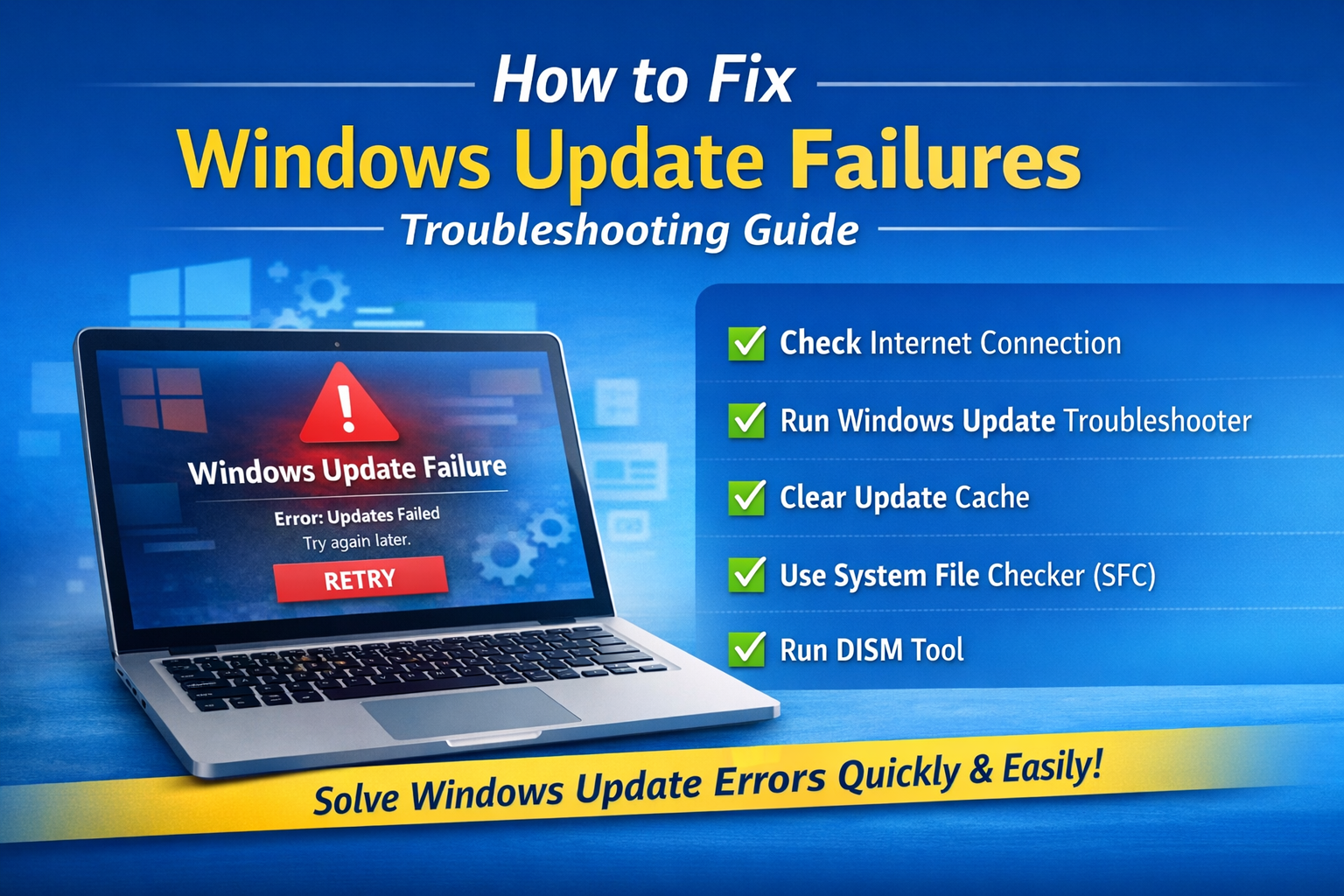
If your PC keeps showing error messages, stuck downloads, or update loops, you are likely dealing with Windows Update Failures. These issues are common in Microsoft Windows and can prevent your system from receiving important security patches and performance improvements.
In this complete SEO guide from PC-Status, you will learn how to diagnose and fix Windows Update Failures., understand their causes, and apply step-by-step solutions to restore smooth Windows updates.
Windows Update Failures: What It Means
The keyword Update failures. refers to problems that occur when Windows cannot install or complete system updates. These failures may appear as:
- Error codes (0x80070002, 0x80070057, etc.)
- Stuck update downloads
- Restart loops
- Failed installation messages
Problem: Why Windows Update Failures. Happen
Understanding the root causes of Update failures. is essential before applying fixes.
Common Causes:
- Corrupted update cache
- Insufficient disk space
- Internet connection issues
- Outdated drivers
- System file corruption
- Antivirus interference
👉 Fix Windows Errors Guide
👉 Run System File Checker Guide
How to Fix Windows Update Failures. (Step-by-Step Guide)
Step 1: Restart Your PC
A simple restart clears temporary update glitches.
Step 2: Check Internet Connection
A stable connection is required for updates.
👉 Try:
- Switching WiFi networks
- Restarting router
- Using Ethernet cable
Step 3: Run Windows Update Troubleshooter
- Go to Settings
- Select Update & Security
- Click Troubleshoot
- Run Windows Update tool
Step 4: Clear Windows Update Cache
Steps:
- Open Command Prompt (Admin)
- Stop services:
net stop wuauserv
net stop bits
- Delete cache folder:
C:WindowsSoftwareDistribution
- Restart services:
net start wuauserv
net start bits
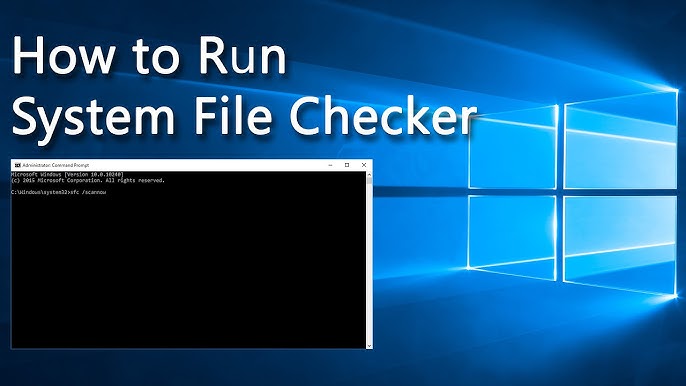
Step 5: Run System File Checker
sfc /scannow
👉 Learn how to Run System File Checker in Windows to repair system files, fix errors, and improve performance with step-by-step guide.
Step 6: Use DISM Tool
DISM /Online /Cleanup-Image /RestoreHealth
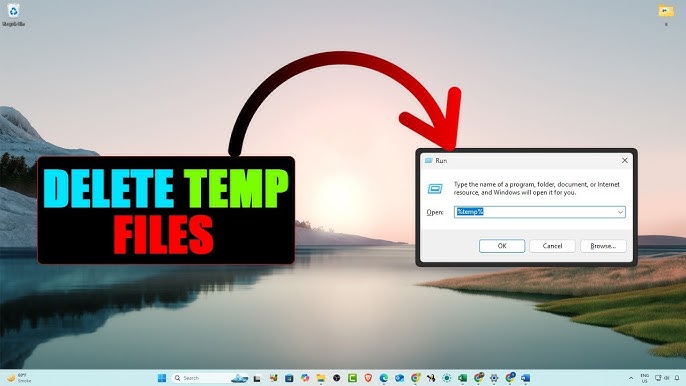
Step 7: Free Up Disk Space
Low storage often causes Windows Update Failures.
👉 Learn how to clean temporary files in Windows to free up space, boost speed, and fix errors with simple step-by-step methods.
Step 8: Update Drivers
Outdated drivers can block updates.
👉 Check Driver Version: Learn how to check driver version in Windows step by step. Identify outdated drivers, fix issues, and improve PC performance quickly.
👉 Update Drivers Automatically: Discover the best ways to update drivers automatically in Windows. Improve performance, fix errors, and keep your system optimized easily.
Step 9: Disable Antivirus Temporarily
Some antivirus software blocks updates.
⚠️ Re-enable after updates complete.
Step 10: Reset Windows Update Components
Advanced fix for persistent issues.
Advanced Fixes for Windows Update Failures.
1. Use Safe Mode
Boot into Safe Mode and retry updates.
2. Perform Clean Boot
Disable startup programs to avoid conflicts.
3. Reset PC (Last Option)
Use only if all other methods fail.
Benefits of Fixing Windows Update Failures.
- Improves system security
- Fixes bugs and vulnerabilities
- Enhances performance
- Ensures compatibility
- Prevents system crashes
Common Mistakes to Avoid
- Ignoring disk space issues
- Skipping system restart
- Using unstable internet
- Interrupting updates
Real-World Example
A user faced repeated Windows Update Failures. due to corrupted update cache. After clearing SoftwareDistribution folder and running SFC, updates installed successfully.
Key Insight
Most Windows Update Failures. are not serious hardware problems. Instead, they are caused by corrupted files, cache issues, or driver conflicts that can be fixed with built-in tools.
Frequently Asked Questions
What are Update failures. in Windows?
Update failures. occur when Windows cannot download or install updates properly.
How do I fix Windows Update Failures. quickly?
Restart your PC, run troubleshooter, and clear update cache.
Are Windows Update Failures. dangerous?
They can expose your system to security risks if not fixed.
Why do Windows updates fail?
Common reasons include corrupted files, low storage, and network issues.
Can drivers cause Windows Update Failures.?
Yes, outdated or incompatible drivers can block updates.
Do I need to reinstall Windows?
Only in rare cases where all fixes fail.
Conclusion
Fixing Windows Update Failures. is essential for keeping your system secure and up to date. By using tools like Troubleshooter, SFC, DISM, and update cache reset, you can resolve most issues without reinstalling Windows.
With proper maintenance, your system running Microsoft Windows will stay stable, fast, and fully updated.