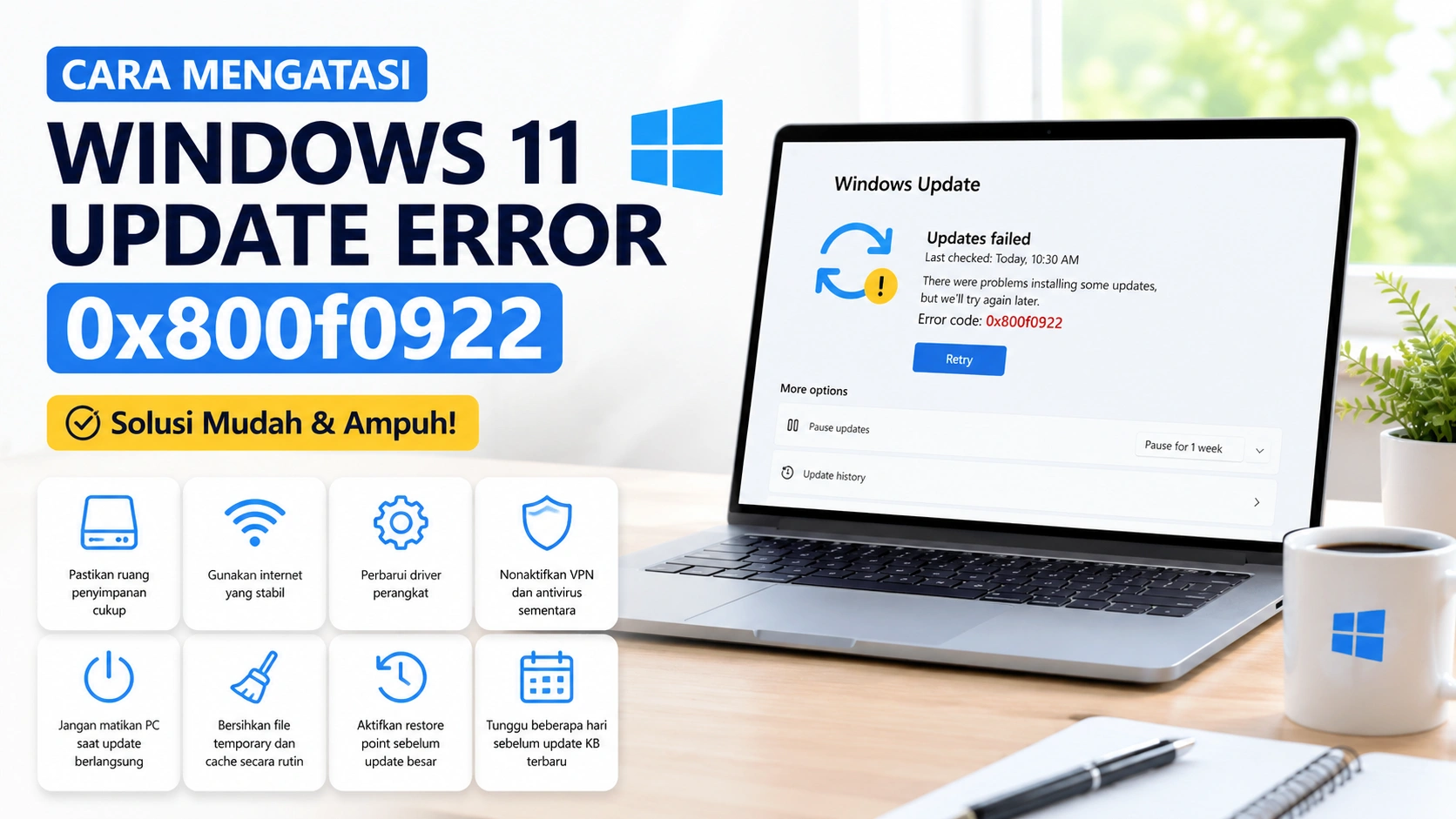




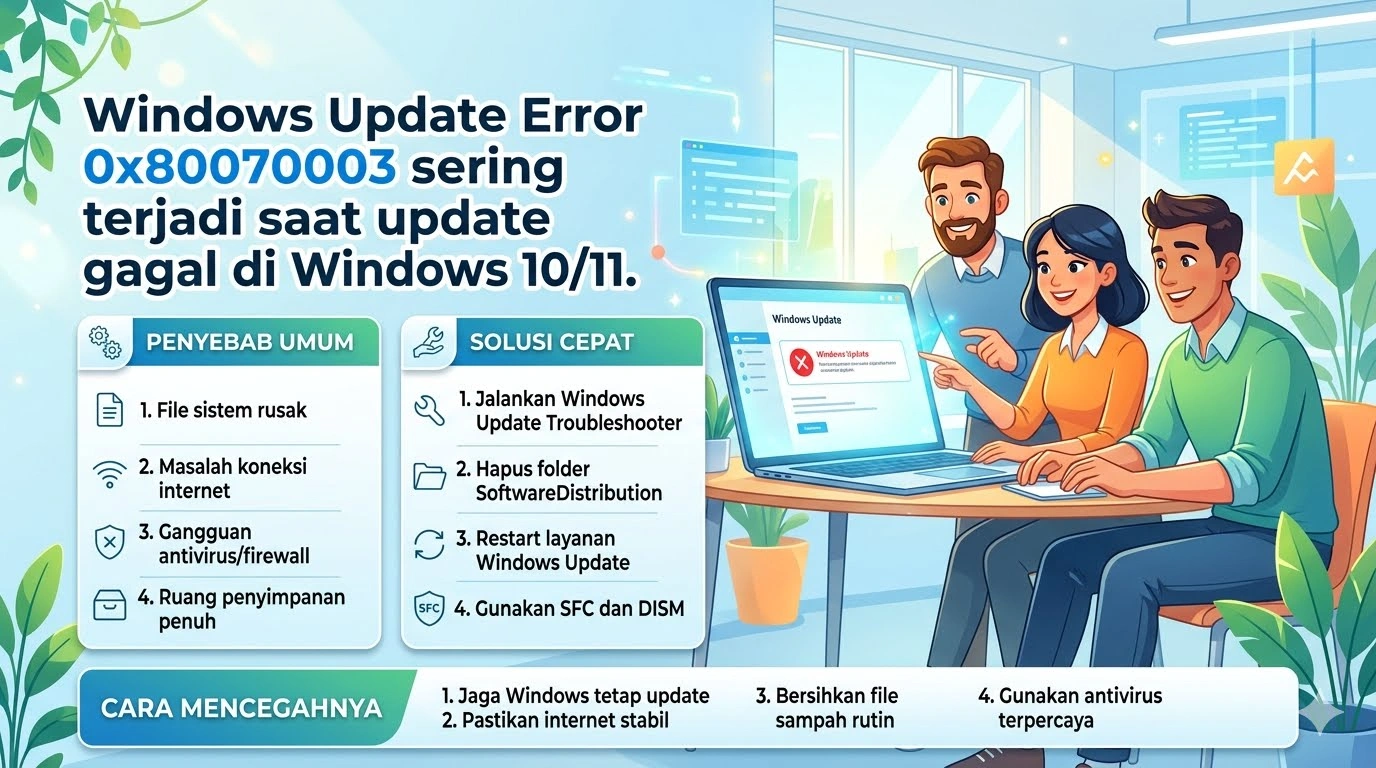
Windows Update merupakan komponen penting dalam sistem operasi Windows yang berfungsi untuk menjaga keamanan, stabilitas, dan performa sistem. Namun, tidak jarang pengguna mengalami masalah saat melakukan update, salah satunya adalah Windows Update Error 0x80070003.
Error ini biasanya muncul ketika proses update gagal karena file yang dibutuhkan tidak ditemukan atau terjadi kesalahan pada sistem path. Akibatnya, pembaruan Windows tidak dapat diselesaikan dengan normal.
Dalam artikel ini, kita akan membahas secara lengkap penyebab dan cara mengatasi Windows Update Error 0x80070003 dengan langkah-langkah yang mudah diikuti.
Apa Itu Windows Update Error 0x80070003?
Windows Update Error 0x80070003 adalah kode kesalahan yang menunjukkan bahwa sistem tidak dapat menemukan file atau lokasi yang diperlukan selama proses update.
Dengan kata lain, Windows mencoba mengakses file update tertentu, tetapi file tersebut tidak tersedia atau rusak. Karena itu, proses update gagal dan sistem menampilkan error.
Penyebab Windows Update Error 0x80070003
Sebelum masuk ke solusi, penting untuk memahami penyebabnya terlebih dahulu. Dengan demikian, Anda bisa mencegah error ini muncul kembali di masa depan.
1. File Update Hilang atau Rusak
Pertama-tama, file update yang tidak lengkap atau corrupt dapat menyebabkan error ini.
2. Masalah pada Folder SoftwareDistribution
Folder SoftwareDistribution menyimpan file sementara update Windows. Jika folder ini bermasalah, proses update bisa gagal.
3. Sistem Path yang Tidak Valid
Selain itu, Windows mungkin tidak dapat menemukan lokasi file yang diperlukan karena path yang salah.
4. Gangguan Antivirus atau Firewall
Di beberapa kasus, antivirus dapat memblokir proses update sehingga menyebabkan error.
5. Hard Drive Bermasalah
Jika terdapat bad sector atau kerusakan pada disk, Windows Update juga bisa terganggu.
Cara Mengatasi Windows Update Error 0x80070003
Berikut beberapa solusi efektif yang bisa Anda coba satu per satu.
1. Restart Komputer Terlebih Dahulu
Sebagai langkah awal, lakukan restart komputer. Terkadang, error sementara dapat hilang setelah sistem dimulai ulang.
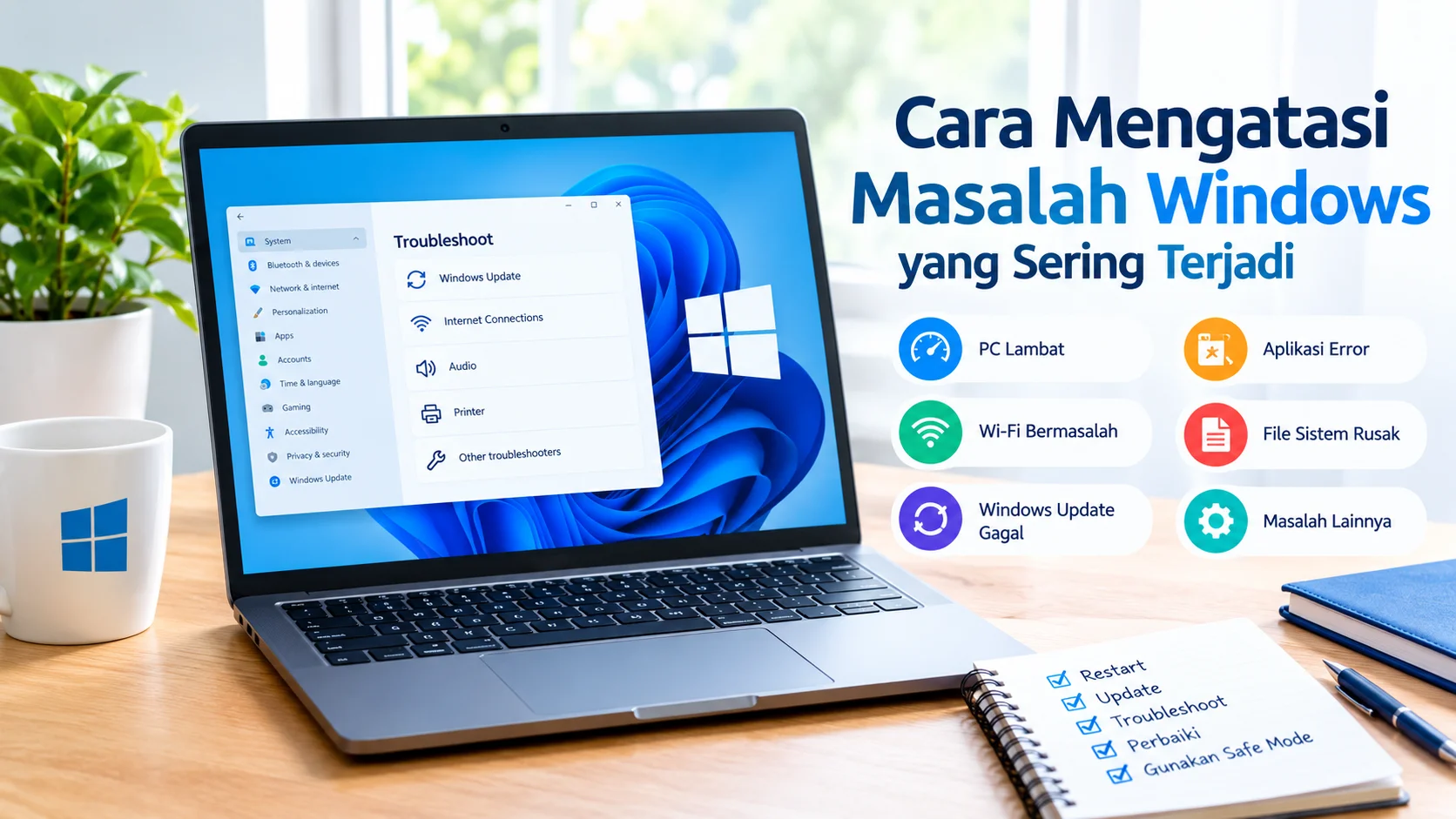
2. Jalankan Windows Update Troubleshooter
Windows menyediakan alat otomatis untuk memperbaiki masalah update.
Langkah-langkah:
- Buka Settings
- Pilih Update & Security
- Klik Troubleshoot
- Pilih Windows Update
- Jalankan proses perbaikan
Dengan cara ini, sistem akan mencoba mendeteksi dan memperbaiki masalah secara otomatis.
3. Hapus Cache Windows Update (SoftwareDistribution)
Selanjutnya, Anda bisa membersihkan cache update.
Langkah-langkah:
- Buka Command Prompt (Run as Administrator)
- Ketik perintah berikut:
net stop wuauserv
net stop bits
- Lalu buka folder:
C:\Windows\SoftwareDistribution
- Hapus semua isi folder tersebut
- Jalankan kembali layanan:
net start wuauserv
net start bits
Dengan demikian, file update yang rusak akan di-reset.
4. Jalankan SFC Scan
Jika masalah masih terjadi, perbaiki file sistem dengan:
sfc /scannow
Proses ini akan memeriksa dan memperbaiki file sistem yang rusak.
5. Gunakan DISM Tool
Jika SFC belum cukup, gunakan DISM:
DISM /Online /Cleanup-Image /RestoreHealth
Perintah ini akan memperbaiki image Windows yang bermasalah.
6. Periksa Ruang Penyimpanan
Pastikan drive C memiliki ruang yang cukup. Windows Update membutuhkan ruang untuk mengunduh dan mengekstrak file.
7. Nonaktifkan Antivirus Sementara
Selain itu, coba nonaktifkan antivirus sementara karena beberapa software keamanan dapat mengganggu proses update.
8. Reset Windows Update Components
Jika semua cara gagal, lakukan reset komponen Windows Update secara manual atau menggunakan script otomatis.
Cara Mencegah Windows Update Error 0x80070003
Agar masalah ini tidak terulang, berikut beberapa tips penting:
- Rutin melakukan update Windows
- Jangan mematikan komputer saat update berjalan
- Pastikan koneksi internet stabil
- Gunakan antivirus yang tidak mengganggu sistem update
- Bersihkan file sampah secara berkala
Dengan menerapkan langkah-langkah ini, sistem Anda akan lebih stabil dan minim error.
Kesimpulan
Windows Update Error 0x80070003 biasanya terjadi karena file update hilang, cache rusak, atau gangguan sistem. Namun demikian, masalah ini dapat diatasi dengan berbagai cara seperti menjalankan troubleshooter, membersihkan SoftwareDistribution, hingga menggunakan SFC dan DISM.
Oleh karena itu, penting untuk memahami penyebabnya agar Anda bisa mencegah error ini muncul kembali di masa depan.