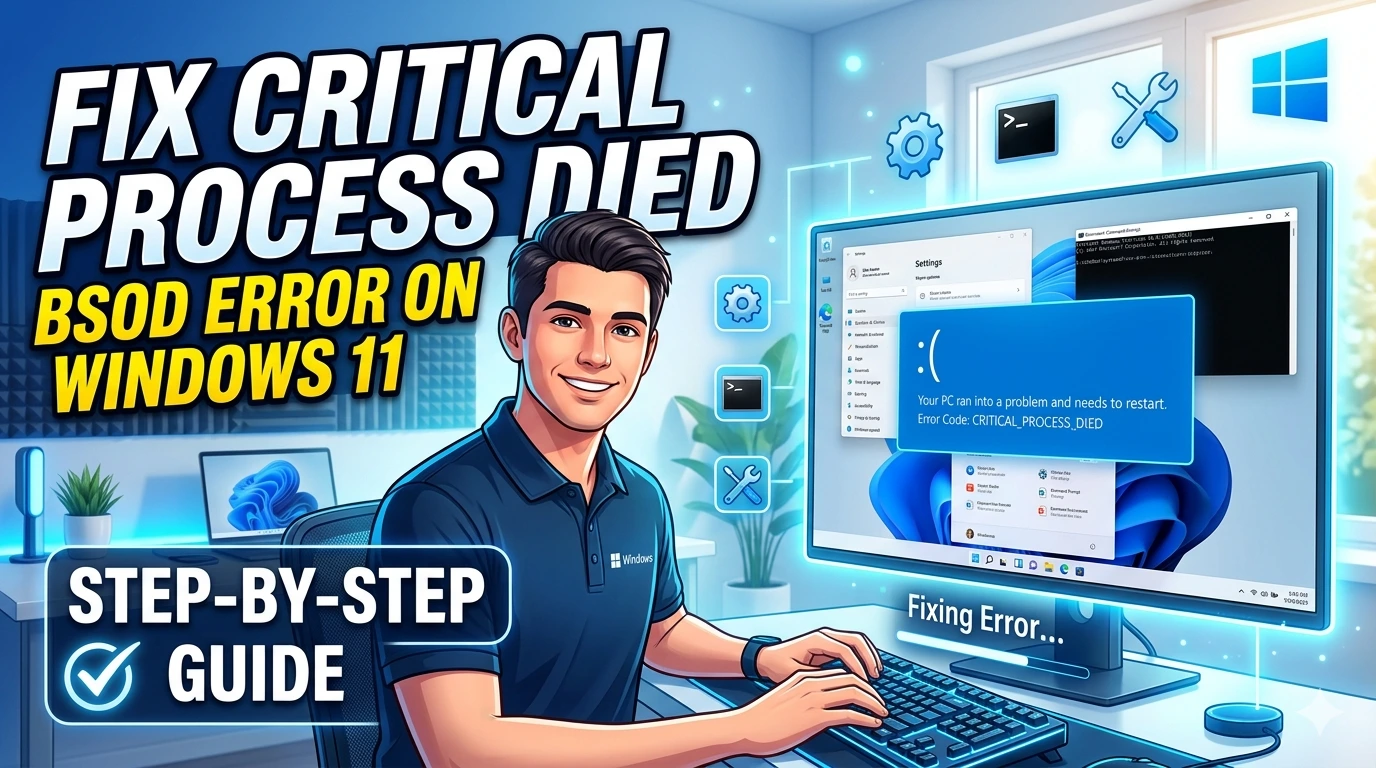
The Blue Screen of Death (BSOD) is one of the most dreaded errors in Windows. Among the many stop codes, Critical Process Died is particularly frustrating because it often appears suddenly and forces your system to restart. This article explains what causes the error and provides practical solutions to fix it on Windows 11.
What Causes the “Critical Process Died” Error?
- Corrupted system files: Damaged or missing files can trigger BSOD.
- Faulty drivers: Outdated or incompatible drivers often cause system crashes.
- Hardware issues: Failing RAM or hard drives may lead to critical errors.
- Malware infections: Malicious software can corrupt essential processes.
- Windows updates: Incomplete or buggy updates sometimes trigger BSOD.
Step 1: Boot into Safe Mode
- Restart your PC.
- Press F11 or hold Shift + Restart.
- Navigate to Troubleshoot → Advanced options → Startup Settings → Restart.
- Select Safe Mode with Networking.
Safe Mode loads only essential drivers, making it easier to troubleshoot.
Step 2: Run System File Checker (SFC)
- Open Command Prompt (Admin).
- Type:
sfc /scannow - Press Enter.
This scans and repairs corrupted system files.
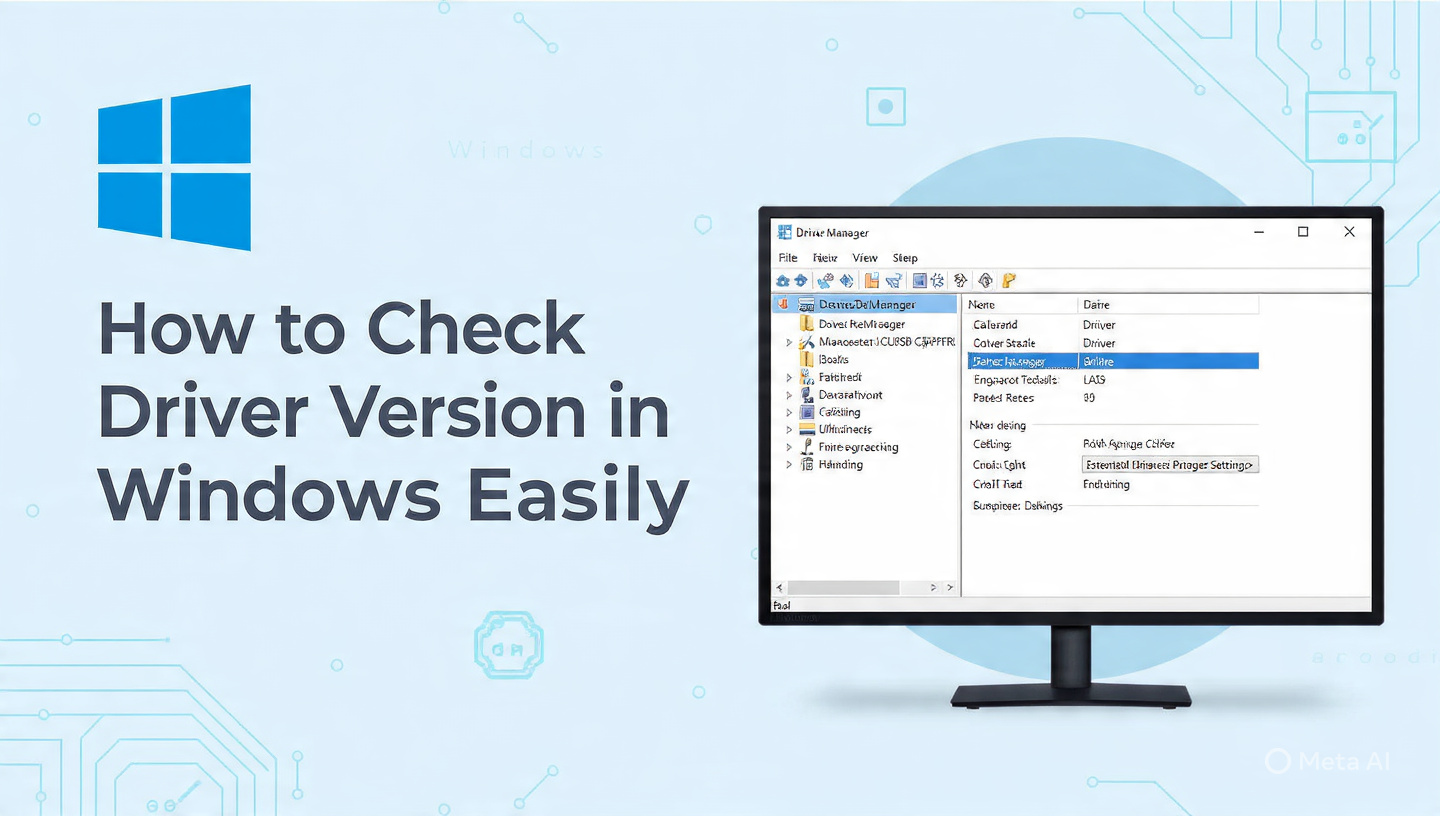
Step 3: Update or Roll Back Drivers
- Open Device Manager.
- Check for drivers with warning icons.
- Update them or roll back to a previous version if the issue started after an update.
Step 4: Run DISM Tool
- Open Command Prompt (Admin).
- Type:
DISM /Online /Cleanup-Image /RestoreHealth - Press Enter.
This repairs Windows system image and fixes deeper corruption.
Step 5: Check Hardware Health
- Run Windows Memory Diagnostic to test RAM.
- Use CHKDSK to scan hard drives:
chkdsk /f /r
Step 6: Uninstall Problematic Updates
- Go to Settings → Windows Update → Update history.
- Uninstall recent updates if the BSOD started after installation.
Step 7: Scan for Malware
- Use Windows Security or a trusted antivirus.
- Perform a full system scan to remove infections.
Preventive Tips
- Keep drivers updated.
- Regularly back up important files.
- Avoid installing unverified software.
- Maintain system health with regular scans.
❓ FAQ Section
Q1: What does “Critical Process Died” mean in Windows 11?
A: It means a vital system process has failed, often due to corrupted files or drivers.
Q2: How do I fix Critical Process Died BSOD?
A: Boot into Safe Mode, run SFC/DISM, update drivers, and check hardware health.
Q3: Can hardware cause Critical Process Died error?
A: Yes, faulty RAM or hard drives can trigger BSOD.
Q4: Does malware cause BSOD errors?
A: Malware can corrupt system processes, leading to BSOD.
Q5: Should I reinstall Windows if the error persists?
A: Reinstallation is a last resort if all troubleshooting steps fail.
Conclusion
The Critical Process Died BSOD error in Windows 11 can be fixed by repairing system files, updating drivers, checking hardware, and removing problematic updates. With these steps, you can restore stability and prevent future crashes.