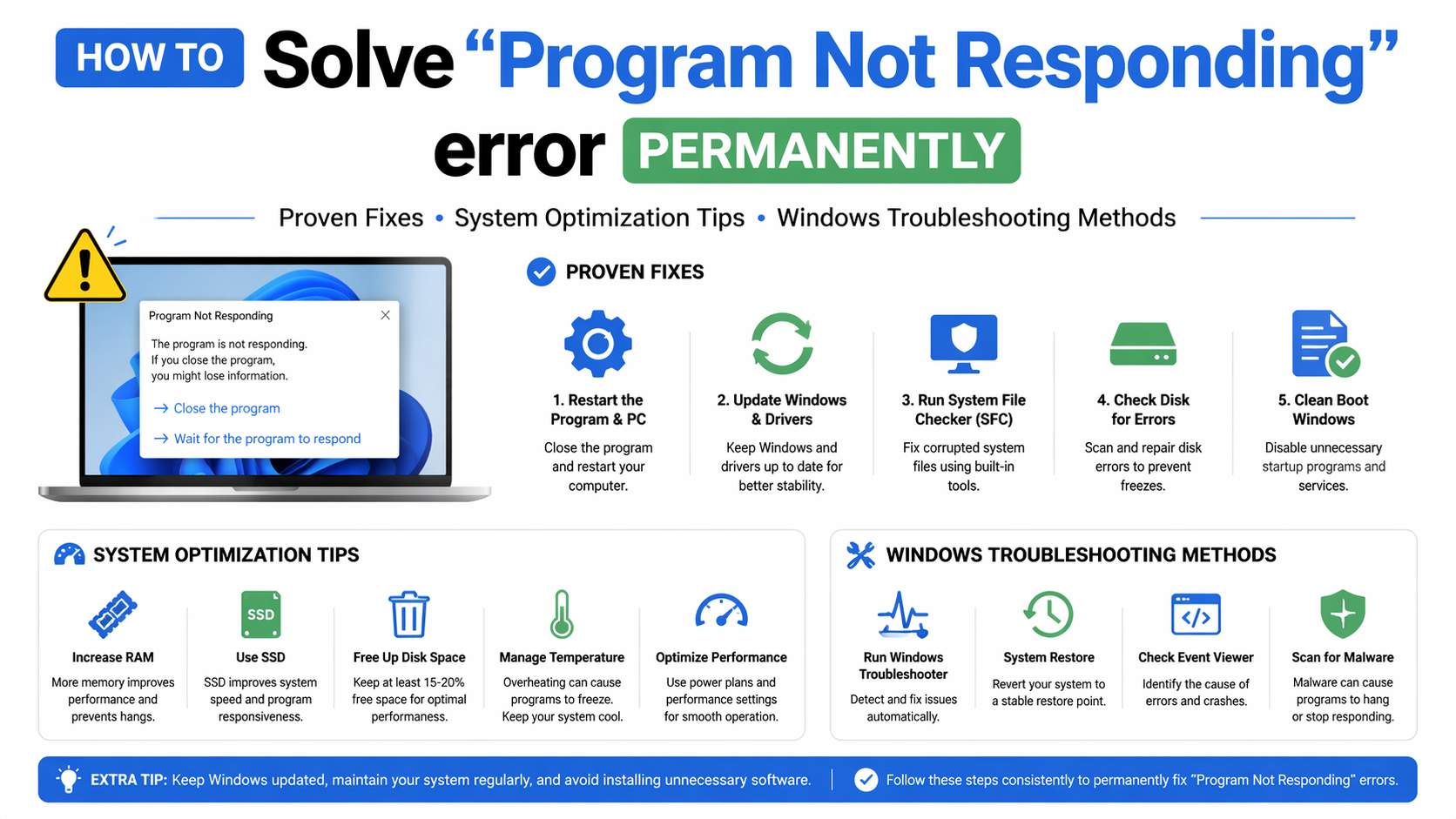
If you are constantly struggling with frozen applications, delays, or crashes, learning how to Solve “Program Not Responding” error permanently is essential for maintaining a smooth Windows experience. This issue is one of the most common problems faced by Windows 10 and Windows 11 users, often caused by insufficient system resources, software conflicts, corrupted files, or outdated drivers.
In this complete SEO-optimized guide, you will learn step-by-step solutions to fix the issue permanently, optimize your system performance, and prevent it from happening again.
What Is the “Program Not Responding” Error?
The “Program Not Responding” error occurs when a software application stops interacting with the Windows operating system for a certain period of time. Windows automatically flags it as unresponsive when it cannot process input, execute commands, or complete tasks.
This issue can affect:
- Web browsers (Chrome, Edge, Firefox)
- Office applications (Word, Excel)
- Games and heavy software
- System utilities
Why You Need to Solve “Program Not Responding” Error Permanently
Ignoring the “Program Not Responding” error can seriously impact system performance and user productivity. It may lead to frequent application crashes, unsaved work loss, and slower overall responsiveness. Over time, it can indicate deeper issues like low memory, software conflicts, or system instability that worsen if not fixed permanently.
Ignoring this issue can lead to:
1. Data Loss
Data loss can occur when applications freeze unexpectedly, causing unsaved files, edits, or progress to disappear permanently.
2. Reduced Productivity
Frequent application crashes disrupt tasks, waste time, and reduce efficiency, making it harder to maintain a smooth and productive workflow.
3. System Instability
Repeated freezing can signal underlying system problems such as corrupted files, low memory, or software conflicts, leading to overall instability.
4. Hardware Stress
Overloaded CPU or RAM over long periods can generate excessive heat and strain hardware components, potentially reducing their lifespan and causing long-term performance degradation or failures.
Common Causes of “Program Not Responding” Error
Understanding the root causes of the “Program Not Responding” error is the first step toward solving it permanently. This issue is commonly triggered by low system resources, such as insufficient RAM or high CPU usage, as well as corrupted system files, outdated drivers, or software conflicts. In some cases, malware infections or background processes consuming excessive resources can also contribute. Identifying the exact cause helps apply the right fix and prevents the problem from recurring.
1. Low System Resources
Low system resources, such as insufficient RAM or high CPU usage, can cause applications to slow down or freeze. When the system cannot allocate enough memory or processing power, programs become unresponsive and may stop working until resources are freed or the system is optimized.
2. Corrupted System Files
Corrupted or damaged Windows system files can disrupt normal program execution, causing applications to freeze or become unresponsive. When essential system components are missing or broken, the operating system may fail to properly run software, leading to errors and instability.
3. Outdated Drivers
Outdated drivers can create compatibility problems between hardware and software, leading to slow performance, crashes, or unresponsive applications. Keeping drivers updated ensures smooth communication between the operating system and hardware components, reducing errors and improving system stability.
4. Software Conflicts
Software conflicts occur when multiple programs run simultaneously and compete for limited system resources like CPU, RAM, or disk usage. This competition can overload the system, causing applications to slow down, freeze, or become unresponsive. Proper resource management helps prevent these issues.
5. Malware or Viruses
Malware or viruses can interfere with system processes by consuming resources, altering files, or blocking normal application functions. This malicious activity often slows down performance, causes crashes, or makes programs unresponsive until the infection is removed.
How to Solve “Program Not Responding” Error Permanently (Step-by-Step)
To Solve “Program Not Responding” error permanently, start by ending the frozen task via Task Manager, then free system resources by closing background apps. Update Windows and device drivers, run SFC and DISM scans to repair system files, and check for malware. Improve performance by increasing virtual memory, disabling unnecessary startup programs, and ensuring sufficient disk space for stable system operation.
1. Restart the Application
Restarting the application is often the quickest fix for the “Program Not Responding” error. Use Task Manager to close the frozen program completely, then relaunch it to clear temporary glitches, release stuck resources, and restore normal functionality without restarting the entire system.
- Press Ctrl + Shift + Esc
- Select the frozen program
- Click “End Task”
2. Increase System Resources
Increasing available system resources helps prevent applications from freezing. Close unnecessary background programs to free up RAM and CPU usage, allowing the active application to run more smoothly and reducing the chances of it becoming unresponsive or slow.
3. Update Windows
Updating Windows helps fix known bugs, improve system security, and enhance overall stability. Regular updates ensure better compatibility with applications, reduce performance issues, and help prevent errors like “Program Not Responding” by keeping the operating system optimized and up to date.
Official guide: https://support.microsoft.com/windows/update-windows
4. Update Device Drivers
Updating device drivers is essential because outdated drivers often cause system instability, performance drops, and application freezes. Installing the latest drivers ensures proper communication between hardware and software, improves compatibility, and helps prevent “Program Not Responding” errors from occurring repeatedly.
Update via:
- Device Manager
- Manufacturer website (NVIDIA, Intel, AMD)
5. Run System File Checker (SFC)
Running the System File Checker (SFC) tool helps detect and repair corrupted Windows system files that may cause applications to freeze or become unresponsive. By opening Command Prompt as Administrator and executing the scan, Windows automatically checks system integrity and restores damaged files to improve stability and performance.
Open Command Prompt as Administrator and run:
sfc /scannow
This scans and repairs corrupted system files.
6. Use DISM Tool
Using the DISM (Deployment Image Servicing and Management) tool helps repair deeper Windows system image issues that SFC may not fix. By running the command in Command Prompt as Administrator, DISM restores corrupted system components, improving overall stability and helping resolve persistent “Program Not Responding” errors.
DISM /Online /Cleanup-Image /RestoreHealth
7. Check for Malware
Checking for malware is essential because malicious software can slow down system performance, consume resources, or block applications from responding properly. Using Windows Defender or a trusted antivirus tool helps detect, quarantine, and remove threats, restoring system stability and preventing repeated “Program Not Responding” errors.
Recommended tools:
- Windows Security
- Bitdefender
- Malwarebytes
8. Increase Virtual Memory
Increasing virtual memory helps low-RAM systems run more smoothly by allowing Windows to use a portion of the hard drive as additional memory. Adjusting the paging file size improves multitasking performance, reduces freezing, and helps prevent “Program Not Responding” errors during heavy application usage.
Low RAM systems benefit from virtual memory adjustments:
- Go to System Properties
- Advanced > Performance Settings
- Adjust paging file size
9. Clean Boot Windows
Performing a clean boot starts Windows with only essential services and drivers, helping identify whether background programs are causing conflicts. By disabling third-party startup items, you can isolate problematic software, reduce system interference, and fix “Program Not Responding” errors more effectively.
Microsoft guide: https://support.microsoft.com/help/929135
10. Reinstall Problematic Software
Reinstalling problematic software can resolve persistent freezing issues when a specific program keeps becoming unresponsive. A clean reinstallation removes corrupted files, resets configuration settings, and ensures the latest version is properly installed, improving compatibility and restoring normal application performance.
Advanced Methods to Solve “Program Not Responding” Error Permanently
Advanced methods to Solve “Program Not Responding” error permanently involve deeper system optimization beyond basic troubleshooting. These include upgrading hardware such as adding more RAM or switching to an SSD for faster performance, monitoring CPU and memory usage to detect bottlenecks, and disabling unnecessary startup programs to reduce system load. You can also check disk health using CHKDSK, optimize power settings for high performance, and ensure background services are not consuming excessive resources. These advanced steps help maintain long-term system stability and prevent repeated freezing issues.
1. Upgrade Hardware
Upgrading hardware such as adding more RAM or switching to an SSD improves system speed, reduces lag, and prevents application freezing issues.
2. Monitor CPU and RAM Usage
Monitoring CPU and RAM usage helps you identify which processes are consuming excessive system resources. Using Task Manager, you can detect heavy applications, close unnecessary tasks, and balance system load, improving performance and reducing the chances of programs becoming unresponsive.
3. Disable Startup Programs
Disabling unnecessary startup programs reduces system load during boot, improves startup speed, frees up RAM and CPU resources, and enhances overall performance.
- Open Task Manager
- Go to Startup tab
- Disable unnecessary apps
4. Check Disk Health
Run CHKDSK:
chkdsk /f /r
5. Optimize Power Settings
Optimizing power settings by selecting High Performance mode boosts CPU performance, improves system responsiveness, and reduces application lag or freezing issues.
Preventing “Program Not Responding” Error in the Future
Preventing the “Program Not Responding” error in the future requires consistent system maintenance and smart usage habits. Keep Windows and drivers updated, avoid running too many heavy applications at once, and regularly clean temporary files to free system resources. Using an SSD instead of an HDD, installing trusted software only, and monitoring system performance can also help maintain long-term stability and reduce the chances of freezing issues.
To ensure long-term stability:
- Keep system updated
- Avoid running too many apps simultaneously
- Clean temporary files regularly
- Use SSD instead of HDD
- Install trusted software only
Signs Your System Needs Immediate Fix
Frequent freezing, slow performance, high CPU usage, and repeated crashes indicate your system needs immediate troubleshooting to restore stability.
- Frequent freezing of multiple apps
- High CPU usage (above 90%)
- Slow startup time
- Random crashes
Frequently Asked Questions (FAQ)
1. What causes “Program Not Responding” error?
It is usually caused by low RAM, corrupted files, or software conflicts.
2. Can I fix it permanently?
Yes, by optimizing system performance, updating drivers, and fixing corrupted files.
3. Does reinstalling Windows help?
Yes, it is a last resort solution for persistent issues.
4. Is this error a virus?
Not always, but malware can contribute to system freezing.
5. Why does only one program freeze?
It may be due to software bugs or incompatibility.
Conclusion
Learning how to Solve “Program Not Responding” error permanently is essential for maintaining a stable and efficient Windows system. By following the methods outlined in this guide—ranging from simple restarts to advanced system optimization—you can eliminate freezing issues and significantly improve performance.
Consistent maintenance, updated drivers, and proper system monitoring are the keys to preventing this issue in the long term.