If your computer is running slow, experiencing hardware issues, or showing unexpected errors, understanding How to Check Driver Version in Windows is a critical first step. Many users overlook driver versions, yet outdated or incompatible drivers are one of the most common causes of performance problems in Microsoft Windows.
In this complete guide for PC-Status readers, you’ll learn How to Check Driver Version in Windows, why it matters, and how to ensure your drivers are always up to date for optimal performance.
How to Check Driver Version in Windows (Complete Guide)
Learning How to Check Driver Version in Windows helps you identify outdated drivers, troubleshoot hardware issues, and maintain system stability.
What Are Drivers?
Drivers are small software programs that allow Windows to communicate with hardware components such as:
- Graphics cards
- Network adapters
- Sound devices
- USB peripherals
Without updated drivers, your system may not function properly.
Why Checking Driver Version Is Important
Before diving into the steps, it’s important to understand why checking driver versions matters.
Key Benefits:
- Detect outdated drivers
- Fix system lag and crashes
- Improve hardware compatibility
- Enhance performance
- Prevent errors after updates
Outdated drivers often lead to system instability, especially after major Windows updates.
Problem: Common Issues Caused by Outdated Drivers
Many users only check drivers after problems occur.
Common Problems:
- Slow PC performance
- WiFi not connecting
- No sound from speakers
- Graphics glitches or low FPS
- Devices not recognized
For example, an outdated GPU driver can significantly reduce gaming performance, while an old network driver may cause unstable internet connections.
👉 Read our full guide on fixing driver issues
👉 Learn how to update drivers automatically
How to Check Driver Version in Windows (Step by Step)
Here are the most effective methods to check driver versions.
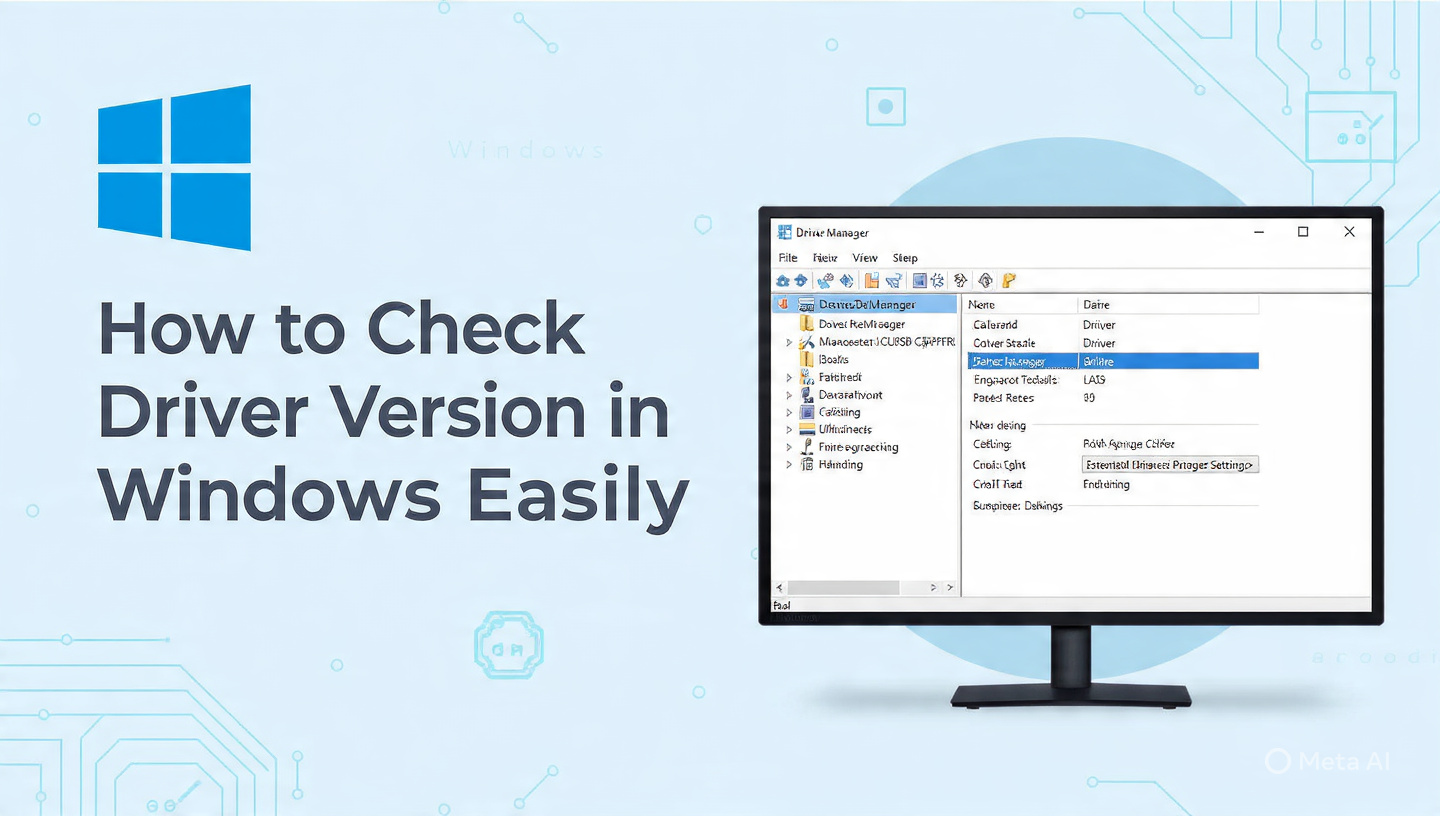
Method 1: Using Device Manager (Recommended)
This is the easiest and most widely used method.
Steps:
- Press Win + X
- Select Device Manager
- Expand the device category (e.g., Display adapters)
- Right-click your device
- Click Properties
- Go to the Driver tab
- Check:
- Driver Version
- Driver Date
This method works for all hardware types.
Method 2: Using Command Prompt
Advanced users can use Command Prompt.
Steps:
- Open Command Prompt as Administrator
- Enter the command:
driverquery
- Press Enter
This will display a list of installed drivers and their versions.
Method 3: Using PowerShell
PowerShell provides more detailed driver information.
Steps:
- Open PowerShell
- Run:
Get-WmiObject Win32_PnPSignedDriver
This shows:
- Driver version
- Manufacturer
- Device name
Method 4: Using System Information Tool
Steps:
- Press Win + R
- Type:
msinfo32
- Navigate to Components
This tool helps identify problematic drivers.
Method 5: Using Manufacturer Tools
Some manufacturers provide automatic detection tools.
Examples:
- Intel Driver & Support Assistant
👉 Intel Driver Download Center - NVIDIA Drivers
👉 NVIDIA Driver Downloads - AMD Drivers
👉 AMD Support Drivers
These tools automatically detect your driver version and suggest updates.
How to Compare Driver Versions
After checking your driver version, compare it with the latest available version.
Steps:
- Visit the official manufacturer website
- Search your device model
- Compare version numbers
- Update if needed
When Should You Update Drivers?
Update Drivers If:
- You experience system lag
- Hardware stops working
- After Windows updates
- Games or apps perform poorly
Avoid Updating If:
- System is stable
- No performance issues
- No compatibility problems
Additional Tips for Managing Drivers
1. Create a Restore Point
Always create a backup before updating drivers.
2. Use Official Sources Only
Avoid downloading drivers from unknown websites.
3. Update Important Drivers First
Focus on:
- Graphics drivers
- Network drivers
- Audio drivers
4. Enable Automatic Updates
Use Windows Update for basic driver updates.
5. Check Drivers Regularly
Make it a habit to check drivers monthly.
Common Mistakes to Avoid
1. Ignoring Driver Updates
2. Installing Wrong Drivers
3. Using Untrusted Tools
4. Updating Everything Without Need
Real-World Example
A user experiences frequent crashes while gaming. After checking the driver version, they discover their graphics driver is outdated. Updating it improves stability and performance immediately.
Key Insight
Understanding How to Check Driver Version in Windows is essential for diagnosing system issues early. It gives you control over your hardware performance and prevents long-term problems.
Frequently Asked Questions
How do I check driver version in Windows?
You can check it using Device Manager → Properties → Driver tab.
Why should I check driver versions?
To identify outdated drivers and fix performance issues.
Can outdated drivers cause lag?
Yes, outdated drivers can reduce system performance.
Is it safe to update drivers?
Yes, as long as you use official sources.
How often should I check drivers?
At least once a month or after major updates.
Conclusion
Learning How to Check Driver Version in Windows is a simple yet powerful way to maintain your computer’s performance. By using built-in tools like Device Manager, Command Prompt, or manufacturer software, you can quickly identify outdated drivers and take action.
For readers of PC-Status, this step is essential in keeping your system fast, stable, and error-free. Combine regular driver checks with safe updates and proper maintenance to ensure long-term performance.
By following this guide, your system running Microsoft Windows will stay optimized, responsive, and reliable for everyday use.