One of the most common frustrations for Windows users is a slow startup. You press the power button, wait for the logo to appear, and then sit through what feels like an eternity before the desktop finally loads. In today’s fast‑paced digital environment, where efficiency and productivity are paramount, waiting several minutes for a computer to boot can feel like wasted time. For professionals, students, and everyday users alike, a sluggish boot process can disrupt workflows, delay tasks, and create unnecessary stress.
Windows 11, Microsoft’s latest operating system, introduced a modern interface, improved security, and enhanced performance features. Yet even with these advancements, many users still experience slow boot times. The reasons vary: outdated hardware, unnecessary startup programs, fragmented drives, or misconfigured system settings. Understanding these causes is the first step toward resolving them.
Why Boot Speed Matters
Boot time is more than just convenience. A faster startup improves overall user experience and sets the tone for productivity. For businesses, quick boot times mean employees can begin work immediately, reducing downtime. For gamers, it means less waiting and more playing. For students, it ensures they can access resources quickly during lectures or study sessions. In short, boot speed directly impacts efficiency.
Common Causes of Slow Boot Times
- Startup Programs: Applications that launch automatically during boot consume resources and delay system readiness.
- Outdated Drivers: Incompatible or outdated drivers can slow down initialization.
- Fragmented or Full Drives: Mechanical hard drives, in particular, suffer from fragmentation, while SSDs slow down when nearly full.
- Background Services: Unnecessary services running in the background extend boot time.
- Malware or Bloatware: Malicious software or pre‑installed programs can hog resources.
- System Updates: Pending or incomplete updates sometimes cause delays during startup.
Windows 11 Improvements
Microsoft has made strides in optimizing boot performance. Features like Fast Startup, improved memory management, and better SSD handling are designed to reduce delays. However, these features are not always enabled by default, and users may need to configure settings manually to reap the benefits.
Why a Comprehensive Guide Is Needed
Many articles offer quick tips—disable startup programs, enable Fast Startup, or upgrade to an SSD. While helpful, these solutions often address only part of the problem. A comprehensive guide ensures users understand the full range of causes and solutions, from basic settings to advanced optimizations. It also emphasizes preventive measures, ensuring that once boot speed is improved, it remains consistent over time.
Setting the Stage
This tutorial will provide a step‑by‑step roadmap for speeding up Windows 11 boot times. We’ll begin by identifying startup bottlenecks, then move into practical fixes such as disabling unnecessary programs, updating drivers, and optimizing storage. Advanced solutions like BIOS/UEFI tweaks and registry adjustments will also be covered. Finally, we’ll explore preventive strategies to maintain fast boot performance.
By the end of this guide, readers will not only know how to accelerate their Windows 11 startup but also how to keep their system optimized for long‑term efficiency.
Understanding Boot Delays
Slow boot times in Windows 11 are rarely caused by a single factor. Instead, they result from a combination of hardware limitations, software conflicts, and system misconfigurations. By breaking down these causes, we can better understand why startup performance suffers and how to address it.
1. Startup Programs and Services
One of the most common culprits is the sheer number of applications that launch automatically when Windows starts.
- Examples: Messaging apps, cloud storage clients, update managers, and even gaming platforms like Steam.
- Impact: Each program consumes CPU cycles and memory, delaying the time it takes for the desktop to become responsive.
Windows 11 includes a Startup Apps manager in Task Manager, which allows users to disable unnecessary programs. Identifying and limiting these apps is often the quickest way to improve boot speed.
2. Outdated or Incompatible Drivers
Drivers are essential for hardware communication. When they are outdated or incompatible, they can slow down initialization during boot.
- Graphics drivers may cause delays if they fail to load properly.
- Network drivers can stall startup while attempting to connect.
- Peripheral drivers (printers, scanners, external devices) may add unnecessary load.
Keeping drivers updated ensures smoother hardware recognition and faster boot times.
3. Storage Issues
The type and condition of your storage drive play a major role in boot speed.
- HDDs (Hard Disk Drives): Mechanical drives are slower, especially when fragmented.
- SSDs (Solid State Drives): Faster, but performance drops when nearly full.
- NVMe SSDs: Offer the fastest boot times but require proper BIOS/UEFI configuration.
Regular maintenance, such as defragmenting HDDs and keeping SSDs below 80% capacity, helps maintain optimal performance.
4. Background Services
Windows runs numerous background services, some essential, others optional.
- Examples: Printer spoolers, update services, telemetry, and third‑party utilities.
- Impact: Each service adds seconds to the boot process.
Disabling non‑essential services through msconfig or Task Manager can reduce startup delays.
5. Malware and Bloatware
Malicious software or unnecessary pre‑installed programs can hog resources.
- Malware: Often runs hidden processes that slow down boot.
- Bloatware: Trial software and manufacturer utilities load automatically, adding clutter.
Running regular scans and removing unused software keeps boot times lean.
6. System Updates and Configuration
Pending updates or misconfigured settings can also delay startup.
- Windows Updates: Sometimes apply changes during boot, extending startup time.
- Fast Startup: If disabled, boot times increase because Windows performs a full initialization instead of a hybrid boot.
- BIOS/UEFI Settings: Misconfigured boot order or legacy settings can add unnecessary delays.
Ensuring updates are applied promptly and enabling Fast Startup can significantly improve performance.
Key Takeaway
Boot delays in Windows 11 stem from a mix of software, hardware, and configuration issues. Startup programs, outdated drivers, storage conditions, background services, malware, and system settings all contribute. By identifying these bottlenecks, users can apply targeted fixes to restore fast and efficient boot performance.
How to Speed Up Windows 11 Boot Time – Step‑by‑Step Fixes
Now that we’ve identified the common causes of slow startup, let’s move into practical solutions. These fixes are arranged from the simplest to the most advanced, so you can start with the easy steps and progress if the problem persists.
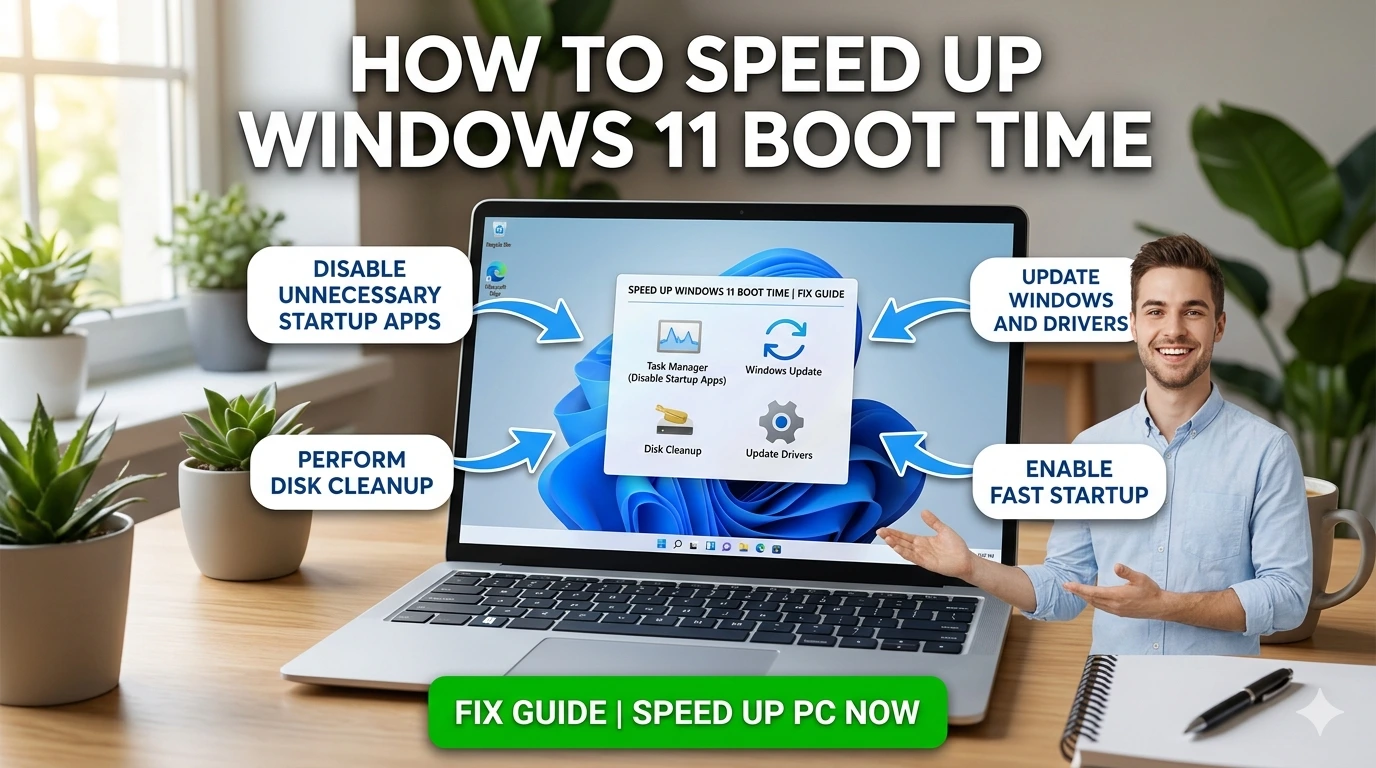
1. Disable Unnecessary Startup Programs
Startup programs are the number one reason for sluggish boot times.
Steps:
- Press Ctrl + Shift + Esc to open Task Manager.
- Go to the Startup tab.
- Review the list of programs.
- Right‑click and disable any non‑essential apps (e.g., Spotify, Zoom, Adobe Updater).
This ensures only critical apps load during startup, reducing delays.
2. Enable Fast Startup
Fast Startup combines hibernation and shutdown to speed up boot.
Steps:
- Open Control Panel → Power Options.
- Click Choose what the power buttons do.
- Select Change settings that are currently unavailable.
- Check Turn on fast startup.
This feature can cut boot times significantly, especially on HDD systems.
3. Update Drivers
Outdated drivers slow down hardware initialization.
Steps:
- Press Win + X → Device Manager.
- Expand categories (Display, Network, Sound).
- Right‑click → Update driver.
- Choose Search automatically for drivers.
For best results, download drivers directly from manufacturer websites.
4. Optimize Storage
Storage performance directly impacts boot speed.
- For HDDs: Run Defragment and Optimize Drives.
- For SSDs: Ensure TRIM is enabled.
- General Tip: Keep at least 20% of the drive free.
Steps:
- Search Defragment and Optimize Drives.
- Select your drive.
- Click Optimize.
5. Reduce Background Services
Windows runs many services by default, but not all are essential.
Steps:
- Press Win + R, type
msconfig, and press Enter. - Go to the Services tab.
- Check Hide all Microsoft services.
- Disable unnecessary third‑party services.
This reduces background load during startup.
6. Scan for Malware and Remove Bloatware
Malware and pre‑installed bloatware can hog resources.
Steps:
- Run Windows Security → Full Scan.
- Use trusted tools like Malwarebytes for deeper scans.
- Uninstall trial software or manufacturer utilities you don’t use.
7. Adjust BIOS/UEFI Settings
Boot delays can stem from misconfigured BIOS/UEFI.
Steps:
- Restart your PC and enter BIOS/UEFI (usually Del or F2).
- Set boot order to prioritize your system drive.
- Enable Fast Boot if available.
- Disable legacy boot options unless needed.
8. Manage Windows Updates
Pending updates can slow boot.
Steps:
- Go to Settings → Windows Update.
- Install all pending updates.
- Restart your PC to complete installation.
9. Clean Boot for Diagnostics
If startup remains slow, perform a clean boot to isolate conflicts.
Steps:
- Press Win + R, type
msconfig. - Disable non‑Microsoft services.
- Disable startup items in Task Manager.
- Restart and test boot speed.
If performance improves, re‑enable services one by one to find the culprit.
10. Upgrade Hardware (Last Resort)
If software fixes don’t help, hardware may be the bottleneck.
- Upgrade from HDD to SSD for dramatic boot speed improvement.
- Increase RAM if your system is resource‑constrained.
- Consider NVMe SSDs for the fastest performance.
Key Takeaway
These step‑by‑step fixes address the most common causes of slow boot times in Windows 11. Start with disabling startup programs and enabling Fast Startup, then move to driver updates, storage optimization, and BIOS tweaks. If necessary, perform a clean boot or upgrade hardware for lasting improvements.
Advanced Solutions
If the basic fixes don’t deliver the performance boost you’re looking for, it’s time to explore advanced methods. These optimizations go deeper into Windows 11’s configuration and require more technical steps, but they can significantly reduce boot times when applied correctly.
1. Registry Tweaks for Faster Startup
The Windows Registry controls many system behaviors, including startup processes. Adjusting certain keys can improve boot performance.
Steps:
- Press Win + R, type
regedit, and press Enter. - Navigate to:
HKEY_LOCAL_MACHINE\SYSTEM\CurrentControlSet\Control\Session Manager\Memory Management - Look for the value
ClearPageFileAtShutdown. - Set it to
0(disabled).
This prevents Windows from clearing the page file at shutdown, which can add seconds to boot time. Always back up the registry before making changes.
2. Optimize Scheduled Tasks
Windows runs scheduled tasks during startup, some of which are unnecessary.
Steps:
- Press Win + R, type
taskschd.msc, and press Enter. - Review tasks under Task Scheduler Library.
- Disable tasks that are not critical (e.g., update checkers for third‑party apps).
Reducing startup tasks lightens the load during boot.
3. Advanced BIOS/UEFI Configuration
BIOS/UEFI settings play a crucial role in boot speed.
Steps:
- Restart your PC and enter BIOS/UEFI (usually Del or F2).
- Enable Fast Boot if available.
- Set boot order to prioritize your system drive.
- Disable unused hardware controllers (e.g., legacy USB support if not needed).
These adjustments streamline hardware initialization during startup.
4. Disable Visual Effects During Boot
Windows 11 includes animations that can slightly delay startup.
Steps:
- Press Win + R, type
sysdm.cpl, and press Enter. - Go to the Advanced tab → Performance Settings.
- Select Adjust for best performance.
This disables unnecessary visual effects, shaving seconds off boot time.
5. Use ReadyBoost (for HDD Systems)
If you’re still using a mechanical hard drive, ReadyBoost can help.
Steps:
- Insert a USB flash drive.
- Right‑click → Properties → ReadyBoost.
- Allocate space for ReadyBoost.
This uses the flash drive as cache, improving boot speed on older systems.
6. Manage Startup Scripts and Group Policies
In enterprise environments, startup scripts and policies can delay boot.
Steps:
- Press Win + R, type
gpedit.msc. - Navigate to Computer Configuration → Windows Settings → Scripts (Startup/Shutdown).
- Remove unnecessary scripts.
This ensures only essential policies run during startup.
7. Upgrade to NVMe SSD and Enable AHCI Mode
Hardware upgrades can deliver dramatic improvements.
- NVMe SSDs offer faster read/write speeds than SATA SSDs.
- AHCI Mode ensures optimal SSD performance.
Steps:
- Enter BIOS/UEFI.
- Ensure SATA mode is set to AHCI.
- Install Windows on an NVMe SSD for maximum speed.
Key Takeaway
Advanced solutions require more technical knowledge but deliver substantial improvements. Registry tweaks, BIOS/UEFI adjustments, and scheduled task management streamline startup processes. Hardware upgrades like NVMe SSDs provide the most dramatic boost. Together, these methods ensure Windows 11 boots quickly and efficiently.
Prevention Tips
Once you’ve optimized your system for faster startup, the next challenge is keeping it that way. Without preventive measures, boot times can gradually slow down again due to clutter, outdated drivers, or misconfigured settings. Here are practical strategies to maintain consistently fast boot performance in Windows 11.
1. Regularly Review Startup Programs
Over time, new applications may add themselves to startup without your knowledge.
- Check Task Manager’s Startup tab monthly.
- Disable apps that aren’t essential for boot.
- Keep only productivity‑critical programs active (e.g., OneDrive, antivirus).
This prevents startup bloat from creeping back in.
2. Keep Drivers and Windows Updated
Updates often include performance improvements and bug fixes.
- Use Device Manager or manufacturer websites to update drivers.
- Install Windows updates promptly to avoid cumulative delays.
- Restart after updates to ensure changes take effect.
3. Maintain Storage Health
Storage issues are a silent cause of slow boot times.
- Keep SSDs below 80% capacity for optimal performance.
- Defragment HDDs regularly if you still use them.
- Run Optimize Drives monthly to maintain efficiency.
4. Monitor Background Services
Even after initial optimization, new services may be added.
- Use
msconfigto review non‑Microsoft services. - Disable those you don’t need.
- Avoid installing unnecessary utilities that run in the background.
5. Protect Against Malware and Bloatware
Malware and unwanted software can reintroduce delays.
- Run weekly scans with Windows Security or trusted tools.
- Uninstall trialware or manufacturer apps you don’t use.
- Avoid downloading software from unverified sources.
6. Enable Fast Startup and BIOS Optimizations
Ensure performance features remain active.
- Verify Fast Startup stays enabled after major updates.
- Periodically check BIOS/UEFI settings for boot order and Fast Boot options.
- Disable legacy boot options unless required.
7. Backup and Restore Points
System changes can sometimes slow boot unexpectedly.
- Create restore points before major updates or software installations.
- Use File History or OneDrive for personal file backups.
- Restore quickly if performance declines.
8. Practice Good Shutdown Habits
Abrupt shutdowns can corrupt files and slow future startups.
- Always shut down properly.
- Avoid forcing power‑offs during updates.
- Use a UPS if power outages are common.
9. Periodic System Maintenance
Consistency is key.
- Run SFC and DISM scans every few months.
- Clear temporary files with Disk Cleanup or Storage Sense.
- Audit startup and services quarterly.
Key Takeaway
Preventing slow boot times in Windows 11 requires ongoing attention. By regularly reviewing startup programs, keeping drivers updated, maintaining storage health, and protecting against malware, you can ensure your system remains fast and efficient. Combined with backups and proper shutdown habits, these practices create a stable environment where boot delays are minimized long‑term.
Comparisons
To fully appreciate the boot performance challenges in Windows 11, it helps to compare them with earlier versions of Windows. Each generation introduced improvements, but also carried forward certain limitations. Understanding these differences provides context for why slow boot times persist and how Windows 11 stands apart.
Windows 7 vs. Windows 11
- Windows 7: Boot times were heavily dependent on mechanical hard drives. Fragmentation and startup programs often caused delays. Fast Startup did not exist, so every shutdown required a full initialization.
- Windows 11: Benefits from SSD optimization, Fast Startup, and improved memory management. However, startup programs and background services remain a bottleneck.
Key Difference: Windows 11 is designed for modern hardware, while Windows 7 relied on legacy HDD systems. Boot delays in Windows 11 are less about hardware limitations and more about software clutter.
Windows 8/8.1 vs. Windows 11
- Windows 8/8.1: Introduced Fast Startup, combining hibernation and shutdown to reduce boot times. However, inconsistent driver support and a confusing interface limited adoption.
- Windows 11: Builds on Fast Startup with better SSD handling and streamlined startup processes. The interface is more user‑friendly, making optimization easier.
Key Difference: Windows 11 refines the Fast Startup concept, offering smoother performance on modern hardware compared to Windows 8’s early implementation.
Windows 10 vs. Windows 11
- Windows 10: Improved boot speed compared to Windows 7 and 8, but suffered from cumulative update delays and startup bloat. Many users reported slow boots after major updates.
- Windows 11: Addresses some of these issues with enhanced update management and reduced background processes. Still, startup programs and third‑party software can slow boot times.
Key Difference: Windows 11 is more efficient with updates, but still vulnerable to the same user‑side issues (startup apps, malware, storage clutter).
Windows 11 vs. macOS and Linux
- macOS: Generally faster boot times due to tighter hardware/software integration. Apple controls both, reducing variability.
- Linux: Lightweight distributions can boot extremely fast, but performance varies depending on configuration and hardware.
- Windows 11: Offers flexibility across diverse hardware, but this diversity introduces variability in boot performance.
Key Difference: Unlike macOS or Linux, Windows must support a wide range of hardware and drivers, making boot optimization more complex.
Why Comparisons Matter
By comparing Windows 11 with earlier versions and other operating systems, we see that boot delays are not new. Each generation improved performance but introduced new challenges. Windows 11’s slow boot times are less about fundamental flaws and more about user environment—startup programs, outdated drivers, and cluttered storage.
Key Takeaway
Windows 11 offers faster boot potential than its predecessors, especially on SSDs with Fast Startup enabled. However, without proper maintenance, it can still suffer from the same delays that plagued earlier versions. Understanding these comparisons highlights the importance of proactive optimization and preventive practices.
FAQ
Even after applying fixes and optimizations, many users still have questions about slow boot times in Windows 11. Here are clear answers to the most common concerns.
1. Why is my Windows 11 still slow to boot after disabling startup programs?
Disabling startup apps helps, but other factors—like outdated drivers, full storage, or BIOS settings—may still cause delays. It’s important to apply multiple fixes together for noticeable improvement.
2. Does upgrading to an SSD always fix slow boot times?
Yes, switching from an HDD to an SSD (especially NVMe SSDs) dramatically improves boot speed. However, SSDs can slow down if nearly full or misconfigured, so maintenance and proper BIOS settings are still necessary.
3. Should I enable Fast Startup?
Fast Startup is recommended for most users because it reduces boot time by combining hibernation and shutdown. The only exceptions are when dual‑booting with another OS or troubleshooting hardware issues, where Fast Startup may interfere.
4. Can malware really slow down boot times?
Absolutely. Malware often runs hidden processes during startup, consuming resources and delaying boot. Regular scans with Windows Security or trusted tools like Malwarebytes help prevent this.
5. How much free space should I keep on my system drive?
Keep at least 20% of your drive free. SSDs in particular slow down when nearly full, which directly impacts boot speed.
6. Do BIOS/UEFI settings affect boot performance?
Yes. Misconfigured boot order, legacy support, or disabled Fast Boot can add seconds to startup. Reviewing BIOS/UEFI settings ensures hardware initializes efficiently.
7. Is ReadyBoost worth using?
ReadyBoost can help on older systems with HDDs, but it’s less effective on modern SSD‑based PCs. If you already have an SSD, ReadyBoost won’t provide noticeable improvements.
8. Will disabling visual effects make a big difference?
Disabling animations and visual effects won’t cut boot time dramatically, but it can make the system feel more responsive immediately after startup. It’s a small but useful tweak.
9. Why does my PC boot slowly after updates?
Major updates sometimes reconfigure system files during the first few startups, temporarily slowing boot. This usually resolves after one or two restarts. Keeping updates current prevents cumulative delays.
10. What’s the ultimate solution if nothing works?
If all fixes fail, a repair install or clean reinstall of Windows 11 may be necessary. This refreshes system files and eliminates deep corruption while preserving personal data (if you choose the repair option).
Key Takeaway
Slow boot times in Windows 11 can stem from multiple causes—software clutter, hardware limitations, or misconfigured settings. By combining fixes like disabling startup apps, enabling Fast Startup, updating drivers, and maintaining storage health, most users can achieve consistently fast boot performance.
Conclusion
A slow startup can be one of the most frustrating experiences for Windows 11 users. But as we’ve seen throughout this guide, boot delays are not inevitable—they are the result of specific causes that can be identified and resolved with the right approach.
Summarizing the Fixes
We began by understanding the root causes: startup programs, outdated drivers, storage issues, background services, malware, and misconfigured settings. From there, we explored step‑by‑step solutions:
- Disabling unnecessary startup programs.
- Enabling Fast Startup.
- Updating drivers and Windows itself.
- Optimizing storage health.
- Reducing background services.
- Scanning for malware and removing bloatware.
- Adjusting BIOS/UEFI settings.
- Performing clean boots for diagnostics.
- Upgrading hardware when necessary.
Advanced solutions like registry tweaks, scheduled task management, and NVMe SSD upgrades provided deeper optimization for persistent cases.
Preventive Practices
Equally important are the preventive strategies that keep boot times consistently fast:
- Regularly reviewing startup programs.
- Keeping drivers and Windows updated.
- Maintaining storage health.
- Monitoring background services.
- Protecting against malware and bloatware.
- Backing up system files and creating restore points.
These habits ensure that once you’ve optimized boot speed, it remains stable over time.
Comparisons and Context
By comparing Windows 11 with earlier versions, we saw that boot delays are not new. Windows 7 struggled with HDD limitations, Windows 8 introduced Fast Startup, and Windows 10 improved performance but suffered from update‑related delays. Windows 11 refines these features, offering faster potential—but only if users actively manage their systems.
Final Thoughts
Windows 11 is capable of fast, efficient boot times, especially on modern hardware. The key is proactive maintenance: disabling unnecessary startup apps, keeping drivers updated, and ensuring storage remains healthy. For users willing to apply both basic and advanced fixes, boot delays can be reduced to mere seconds.
Ultimately, speeding up boot time is about more than convenience—it’s about productivity, efficiency, and a smoother computing experience. With the strategies outlined in this guide, you can transform your Windows 11 startup from sluggish to swift, ensuring your PC is ready when you are.