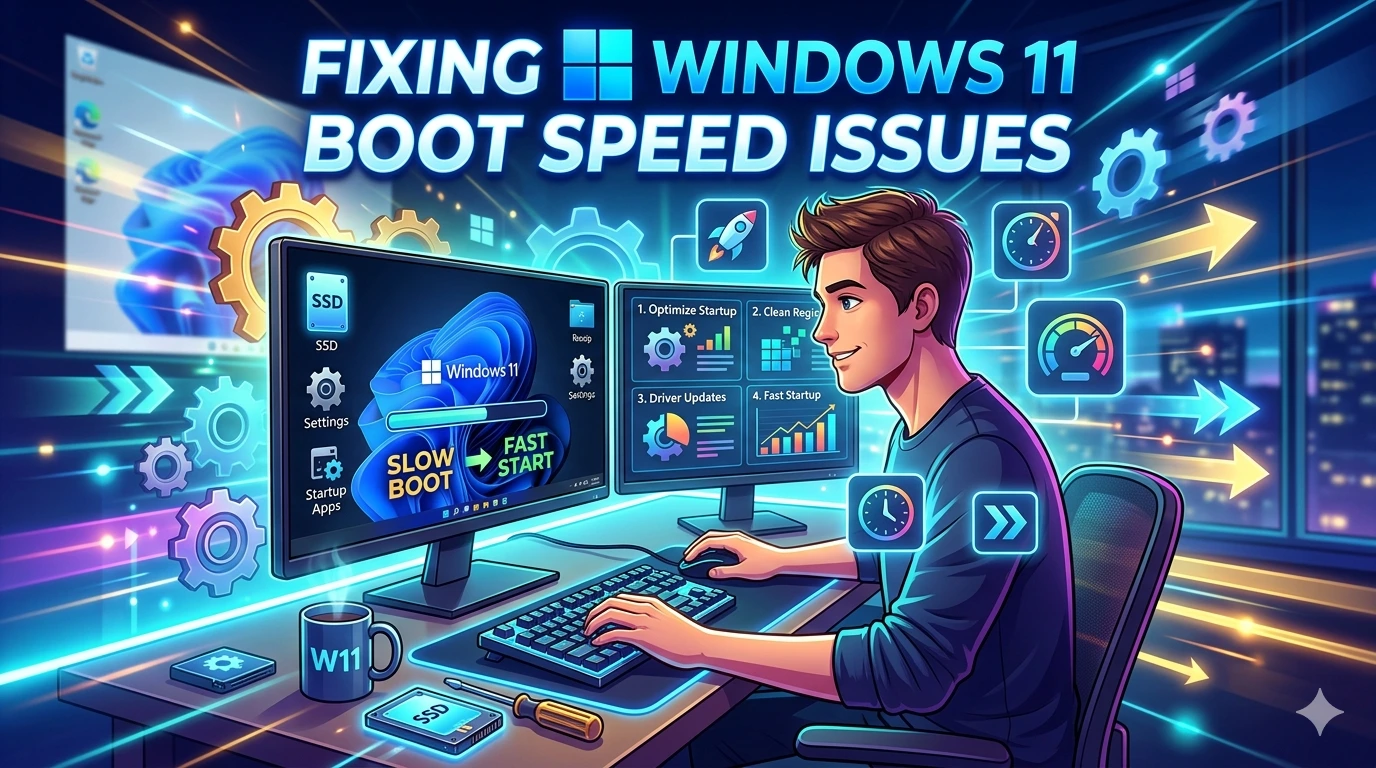
A slow boot process is one of the most common frustrations for Windows 11 users. Whether you’re a gamer eager to jump into a session, a content creator needing rapid access to tools, or a professional working on tight schedules, waiting for your laptop or PC to start up wastes valuable time. Optimizing boot speed not only improves convenience but also enhances overall system responsiveness.
Why Boot Speed Matters
- Productivity: Faster startup means you can begin tasks immediately without delays.
- Gaming: Quick boot ensures you get into your games faster, especially when paired with SSDs and optimized drivers.
- System Health: A sluggish boot often signals underlying issues like bloated startup apps, outdated drivers, or misconfigured BIOS settings.
Common Causes of Slow Boot in Windows 11
- Startup Programs: Too many apps launching at boot consume CPU and RAM.
- Background Services: Cloud sync, update managers, and antivirus tools can delay startup.
- Hardware Bottlenecks: HDDs are slower than SSDs; limited RAM also impacts boot speed.
- Windows Updates: Pending updates or misconfigured update settings can slow down startup.
- BIOS/UEFI Settings: Incorrect boot order or disabled fast boot options add delays.
Benefits of Optimization
- Time Savings: Reduced boot time means faster access to your system.
- Performance Gains: Optimized startup ensures smoother overall operation.
- Longevity: Efficient boot processes reduce strain on hardware and extend lifespan.
Windows 11 Features That Help
Microsoft has included several tools to improve boot speed:
- Fast Startup: Combines cold boot and hibernation for quicker launches.
- Task Manager Startup Control: Lets you disable unnecessary apps.
- Storage Sense: Automatically clears temporary files that can slow boot.
- Power Plans: Customizable settings to balance speed and efficiency.
Why Optimization Is Essential
Without proper configuration, even powerful systems can feel sluggish. Boot delays often accumulate over time as more apps and services are installed. By applying targeted fixes, you can restore startup speed and keep your system running efficiently.
Setting the Stage
By the end of this guide, you’ll know how to configure Windows 11 for faster boot times, eliminate unnecessary delays, and maintain efficiency over the long term. Whether you’re optimizing for gaming, content creation, or everyday use, these strategies will help you unlock the full potential of your system.
Understanding Boot Delays
Before applying fixes, it’s important to understand why Windows 11 systems sometimes take longer to boot. Startup delays can come from hardware limitations, software misconfigurations, or background processes that load during initialization. Identifying these causes helps you apply the right optimizations.
1. Hardware Bottlenecks
- HDD vs SSD: Systems running on HDDs experience slower boot times due to mechanical read/write speeds. SSDs, especially NVMe drives, drastically reduce startup delays.
- RAM Limitations: Insufficient RAM forces Windows to rely on virtual memory, slowing down boot.
- Aging Hardware: Older CPUs and motherboards may not support fast boot features, adding seconds to startup.
2. Startup Programs
- Cause: Applications like cloud sync tools, chat apps, and update managers launch automatically.
- Impact: Each startup program consumes CPU cycles and memory, extending boot time.
- Examples: Steam, Discord, OneDrive, antivirus suites.
3. Background Services
- Cause: Windows services and third‑party utilities run silently at boot.
- Impact: Services like indexing, telemetry, and update schedulers delay system readiness.
- Tip: Many services are useful but can be delayed or disabled for faster startup.
4. Windows Updates and Drivers
- Cause: Pending updates or outdated drivers can slow boot.
- Impact: Windows may apply updates during startup, adding minutes to boot time.
- Tip: Keeping drivers and updates current prevents unexpected delays.
5. Security Tools and Antivirus
- Cause: Antivirus software often scans during boot.
- Impact: Real‑time protection can delay startup, especially with heavy suites.
- Tip: Configure antivirus to avoid scanning at boot or use lightweight options.
6. BIOS/UEFI Misconfigurations
- Cause: Incorrect boot order, disabled fast boot, or legacy settings.
- Impact: BIOS may spend extra time initializing unused devices.
- Tip: Enable Fast Boot, set SSDs as primary boot devices, and disable unused controllers.
7. System Clutter
- Cause: Temporary files, registry bloat, and fragmented HDDs.
- Impact: Windows takes longer to load essential components.
- Tip: Use Storage Sense and regular cleanup tools to maintain efficiency.
Key Takeaway
Boot delays in Windows 11 stem from a mix of hardware, startup apps, background services, updates, antivirus scans, and BIOS settings. By identifying which factors affect your system most, you can apply targeted fixes to restore fast startup times.
Fixing Windows 11 Boot Speed Issues – Step‑by‑Step Fixes
Now that we’ve identified the causes of slow startup, let’s move into practical solutions. These fixes are arranged from basic to advanced so you can apply them progressively until your Windows 11 system boots quickly and consistently.
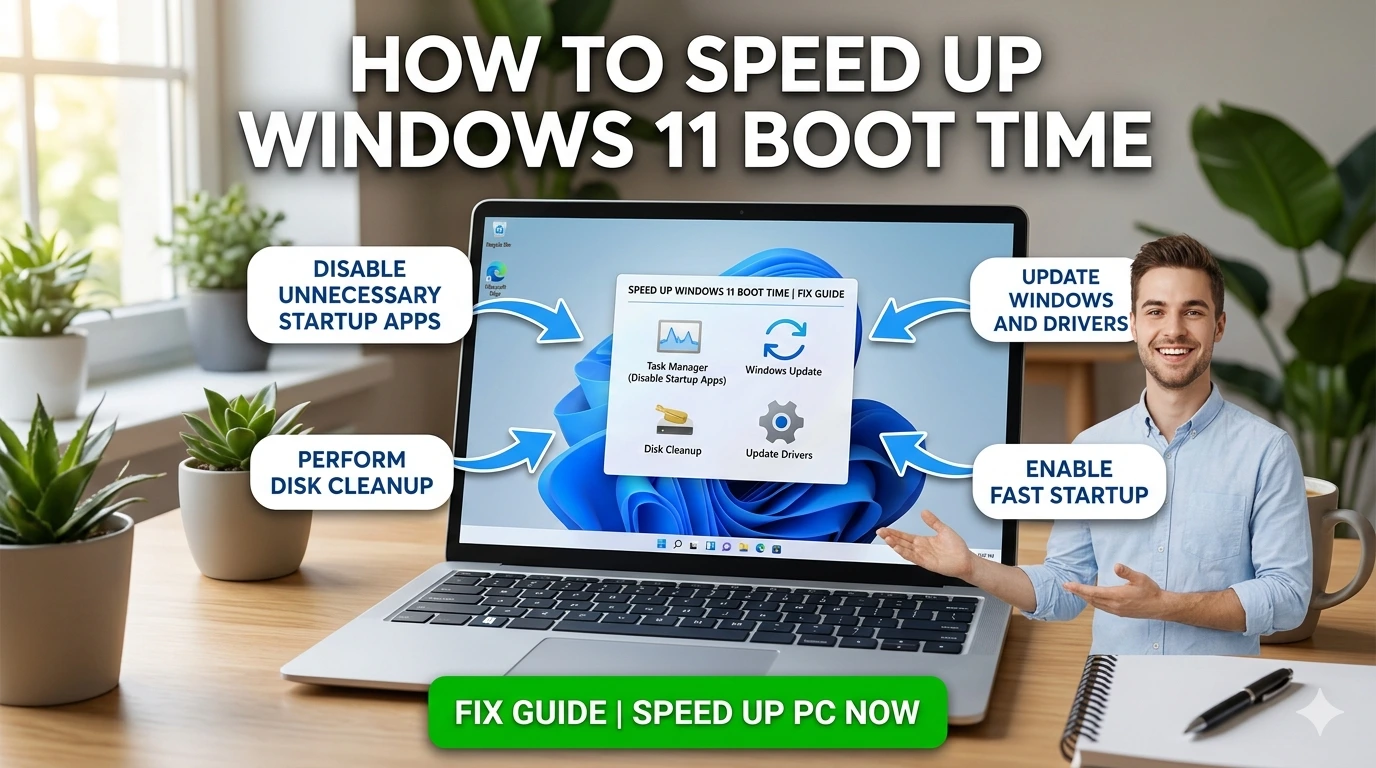
1. Enable Fast Startup
Windows 11 includes Fast Startup, which combines cold boot and hibernation for quicker launches.
Steps:
- Open Control Panel → Power Options → Choose what the power buttons do.
- Click Change settings that are currently unavailable.
- Enable Turn on fast startup (recommended).
2. Manage Startup Apps
Too many apps launching at boot slow down startup.
Steps:
- Press Ctrl + Shift + Esc to open Task Manager.
- Go to the Startup tab.
- Disable non‑essential apps (e.g., Spotify, Discord, OneDrive).
3. Disable Unnecessary Background Services
Windows services and third‑party utilities can delay boot.
Steps:
- Press Win + R, type
msconfig, and hit Enter. - Go to the Services tab.
- Check Hide all Microsoft services.
- Disable unnecessary third‑party services.
4. Optimize Power Settings
Default power plans may prioritize performance over efficiency.
Steps:
- Open Control Panel → Power Options.
- Select Balanced or create a custom plan.
- Limit maximum processor state to 90% for faster, cooler boots.
5. Update Drivers and Firmware
Outdated drivers can cause delays.
Steps:
- Use Device Manager to update drivers.
- Visit GPU/CPU manufacturer websites for the latest versions.
- Update BIOS/UEFI firmware from your laptop/PC vendor.
6. Switch to SSD or NVMe Storage
HDDs are the biggest bottleneck for boot speed.
Steps:
- Migrate Windows 11 to an SSD or NVMe drive.
- Use cloning tools (Macrium Reflect, Acronis) for seamless transfer.
- Set SSD as the primary boot device in BIOS.
7. Configure Windows Update Scheduling
Updates can trigger during boot.
Steps:
- Open Settings → Windows Update.
- Set Active Hours to avoid startup delays.
- Pause updates before critical work sessions.
8. Clean Temporary Files and System Clutter
System clutter slows down boot.
Steps:
- Use Storage Sense to clear temporary files.
- Run Disk Cleanup monthly.
- Remove unused apps and trialware.
9. Adjust Boot Order in BIOS/UEFI
Incorrect boot order adds delays.
Steps:
- Enter BIOS/UEFI (usually F2, F10, or DEL at startup).
- Set SSD/NVMe as the first boot device.
- Disable unused devices (DVD drives, legacy ports).
10. Configure Antivirus Settings
Heavy antivirus scans can delay startup.
Steps:
- Configure antivirus to avoid scanning at boot.
- Use lightweight options like Windows Security.
- Schedule scans during idle hours.
11. Reduce Visual Effects
Windows animations can slow startup responsiveness.
Steps:
- Open System Properties → Advanced → Performance Settings.
- Select Adjust for best performance.
- Keep essential effects like smooth fonts enabled.
12. Run System File Checks
Corrupted files can delay boot.
Steps:
- Run
sfc /scannowin Command Prompt. - Run
DISM /Online /Cleanup-Image /RestoreHealth.
Key Takeaway
These step‑by‑step fixes cover the essentials: enabling Fast Startup, managing startup apps, disabling unnecessary services, updating drivers, migrating to SSDs, and cleaning system clutter. Together, they ensure Windows 11 boots faster and more reliably.
Advanced Solutions
If the basic fixes don’t fully restore fast startup, advanced optimizations can help push your system further. These methods require more technical steps but can significantly improve boot speed and overall responsiveness.
1. BIOS/UEFI Tweaks
Your firmware settings play a major role in boot performance.
- Enable Fast Boot: Skips unnecessary hardware checks during startup.
- Set SSD/NVMe as Primary Boot Device: Ensures Windows loads from the fastest drive.
- Disable Legacy Devices: Turn off unused controllers (DVD drives, floppy, legacy ports).
- Enable AHCI Mode: Improves SSD efficiency compared to IDE mode.
2. Registry Edits for Faster UI
Windows registry can be fine‑tuned for quicker responsiveness.
- Reduce MenuShowDelay: Set value from 400ms to 100ms for faster UI loading.
- Disable ClearPageFileAtShutdown: Prevents Windows from wiping page file at shutdown, saving time at next boot.
- Optimize Prefetch Parameters: Adjust prefetch settings to improve startup caching.
(Always back up registry before editing.)
3. Group Policy Adjustments
Group Policy allows control over background services.
- Disable Telemetry Services: Reduces startup overhead.
- Delay Background Tasks: Configure non‑essential services to start after boot.
- Limit Scheduled Tasks: Prevent indexing or update checks during startup.
4. Hybrid Storage Configurations
Combining SSDs and HDDs can balance speed and capacity.
- Install Windows on SSD/NVMe: Ensures fast boot.
- Store Large Files on HDD: Keeps SSD free for system files.
- Use ReadyBoost (for HDD systems): USB flash drives can act as cache, improving boot speed slightly.
5. Overclocking Considerations
While overclocking is usually for performance, it can indirectly improve boot speed.
- Faster CPU Initialization: Reduces time spent loading processes.
- Stable RAM Overclocking: Improves memory access during startup.
(Only recommended for experienced users with proper cooling.)
6. Advanced Antivirus Configuration
Heavy antivirus suites often slow boot.
- Disable Boot‑Time Scans: Configure scans to run on demand.
- Use Lightweight Security: Windows Security is efficient and integrated.
- Whitelist System Files: Prevent unnecessary scanning of core Windows files.
7. Dual Boot Optimization
If you run multiple OSes, boot speed can suffer.
- Set Default OS: Configure Windows 11 as default in boot manager.
- Reduce Timeout: Lower boot menu delay from 30s to 5s.
- Use Modern Bootloader: Ensure UEFI boot manager is active instead of legacy BIOS.
Key Takeaway
Advanced solutions like BIOS/UEFI tweaks, registry edits, Group Policy adjustments, hybrid storage setups, and antivirus configuration push Windows 11 beyond basic optimization. These methods require careful configuration but deliver substantial gains in boot speed, making your system start faster and more reliably.
Prevention Tips
Optimizing boot speed isn’t just about applying fixes once—it’s about maintaining efficiency over time. Preventive practices ensure your Windows 11 system continues to boot quickly and avoids delays creeping back in.
1. Regular Driver and Windows Updates
- GPU/Chipset Drivers: Keep them current for stability and faster initialization.
- Windows Updates: Install promptly to avoid background update tasks during boot.
- Firmware Updates: BIOS/UEFI updates often include boot speed improvements.
2. Monitor Startup Programs
Apps tend to re‑enable themselves after updates.
- Audit Task Manager monthly.
- Disable non‑essential apps like cloud sync or chat tools.
- Keep only critical apps active at boot.
3. Maintain Storage Health
Efficient storage reduces delays.
- Keep SSDs below 80% capacity.
- Run Optimize Drives monthly.
- Use Storage Sense to clear temporary files automatically.
4. Protect Against Bloatware and Malware
Unwanted software can degrade boot speed.
- Run weekly scans with Windows Security.
- Uninstall trialware or manufacturer utilities you don’t use.
- Avoid installing unnecessary startup utilities.
5. Optimize Power Settings
Ensure your system stays in boot‑friendly mode.
- Verify Fast Startup remains enabled after updates.
- Recheck power plans periodically, as defaults may reset.
6. Schedule Maintenance
Consistency keeps boot speed stable.
- Run SFC and DISM scans quarterly.
- Audit startup programs every few months.
- Clear registry clutter with trusted tools.
7. Manage External Devices
Peripheral devices can slow boot.
- Disconnect unused USB drives or external HDDs.
- Disable legacy ports in BIOS if not needed.
- Keep only essential devices connected during startup.
8. Battery vs Plugged‑In Boot (Laptops)
- Booting on battery may be slower due to power‑saving limits.
- For fastest startup, boot while plugged in.
- Use conservation modes to balance battery health with performance.
Key Takeaway
Preventing boot delays in Windows 11 requires ongoing attention. By updating drivers, monitoring startup apps, maintaining storage health, and practicing good system hygiene, you can ensure your PC continues to boot quickly. Combined with regular maintenance and peripheral management, these practices keep your system responsive and efficient over time.
Comparisons
To appreciate how well Windows 11 manages boot speed, it helps to compare it with earlier versions of Windows and other operating systems. Each platform has its own strengths and weaknesses when it comes to startup performance.
Windows 7 vs. Windows 11
- Windows 7: Stable and lightweight, but lacked modern boot optimization features. Boot times were longer due to reliance on HDDs and limited background process control.
- Windows 11: Built for SSDs and NVMe drives, with Fast Startup, improved background task scheduling, and hybrid GPU support.
Key Difference: Windows 11 offers far more tools for faster booting, though it requires modern hardware to fully benefit.
Windows 8/8.1 vs. Windows 11
- Windows 8/8.1: Introduced Fast Startup and better resource management, but inconsistent driver support and a confusing interface limited adoption.
- Windows 11: Refines Fast Startup, adds Storage Sense, and integrates smoother driver updates.
Key Difference: Windows 11 balances usability and efficiency better, making boot optimization more accessible.
Windows 10 vs. Windows 11
- Windows 10: Strong gaming support but background updates often triggered during startup, slowing boot.
- Windows 11: Enhances Fast Startup, integrates Task Manager Startup Control, and improves background task scheduling.
Key Difference: Windows 11 reduces interruptions and offers finer control, resulting in faster and more consistent boot times.
Windows 11 vs. macOS
- macOS: Known for excellent battery and boot optimization, with seamless hardware/software integration. However, gaming support is limited.
- Windows 11: Supports a vast library of games, advanced GPUs, and features like DirectStorage.
Key Difference: macOS excels in efficiency, but Windows 11 provides broader compatibility and faster booting for gaming systems.
Windows 11 vs. Linux
- Linux: Lightweight distributions can deliver very fast boot times, but gaming relies on compatibility layers like Proton, which may add delays.
- Windows 11: Native support for most titles, plus Xbox Game Pass integration, with optimized boot processes.
Key Difference: Linux can be faster in minimal setups, but Windows 11 balances speed with gaming compatibility.
Why Comparisons Matter
By contrasting Windows 11 with earlier versions and other platforms, we see steady progress in boot speed optimization. Windows 11’s strengths lie in modern hardware support, refined Fast Startup, and better background process control. Its weaknesses stem from high‑power hardware demands, but overall it delivers the most balanced boot performance yet.
Key Takeaway
Windows 11 is the most boot‑aware version of Windows to date. Compared to its predecessors, it offers more control over startup apps, background processes, and power plans. Against macOS and Linux, it stands out for compatibility and breadth of gaming support, making it the best choice for users who want both performance and fast boot times.
FAQ
Even after applying fixes and advanced optimizations, users often have lingering questions about startup performance. Here are clear answers to the most common concerns.
1. Why does my boot speed slow down over time?
As you install more apps and services, many add themselves to startup. Combined with system clutter (temporary files, registry entries), this gradually increases boot time. Regular maintenance—disabling startup apps and cleaning system files—prevents slowdown.
2. Does Fast Startup affect system stability?
Fast Startup speeds up boot by partially hibernating the kernel. In rare cases, it can cause issues with dual‑boot systems or hardware drivers. If you experience problems, disable it; otherwise, it’s safe and recommended.
3. Should I disable antivirus at boot?
No. Security should remain active. Instead, configure antivirus to avoid heavy boot‑time scans. Lightweight options like Windows Security balance protection with efficiency.
4. How much faster is SSD boot compared to HDD?
On average, SSDs reduce boot time from 30–60 seconds (HDD) to 10–20 seconds. NVMe SSDs can boot Windows 11 in under 10 seconds, depending on hardware and configuration.
5. Can external devices slow down startup?
Yes. USB drives, external HDDs, and legacy devices can delay BIOS initialization. Disconnect non‑essential peripherals during boot for faster startup.
6. Does disabling startup apps affect performance?
No. Disabling non‑essential apps only prevents them from auto‑launching. You can still open them manually when needed. This reduces CPU/RAM load during boot.
7. Is boot speed different on battery vs plugged‑in?
Yes. Laptops may boot slower on battery due to power‑saving limits. For fastest startup, boot while plugged in.
8. Can registry cleaners improve boot speed?
Only slightly, and only if the registry is heavily cluttered. Use trusted tools or manual edits. Avoid aggressive cleaners, as they can cause instability.
9. How often should I run maintenance scans?
Run SFC/DISM scans quarterly, update drivers monthly, and audit startup apps every few weeks. Consistency keeps boot speed stable.
10. What’s the ultimate fix if boot speed is still poor?
If optimizations don’t help, the issue may be hardware. Options include:
- Upgrading to SSD/NVMe storage.
- Adding more RAM.
- Updating BIOS/UEFI firmware.
- Replacing an aging battery or motherboard.
Key Takeaway
Boot speed in Windows 11 depends on hardware, startup apps, background services, and system health. By applying fixes, configuring antivirus, maintaining storage, and practicing preventive habits, you can ensure consistently fast startup times.
Conclusion
A sluggish startup can make even the most powerful Windows 11 system feel inefficient. By systematically applying the fixes and advanced solutions outlined in this guide, you can transform your boot experience from frustratingly slow to consistently fast.
Summarizing the Fixes
We began with step‑by‑step solutions:
- Enabling Fast Startup.
- Managing startup apps and background services.
- Updating drivers and firmware.
- Migrating to SSD or NVMe storage.
- Cleaning temporary files and system clutter.
Then we explored advanced solutions:
- BIOS/UEFI tweaks like Fast Boot and AHCI mode.
- Registry edits for faster UI responsiveness.
- Group Policy adjustments to delay non‑essential services.
- Hybrid storage setups for balancing speed and capacity.
- Configuring antivirus to avoid heavy boot‑time scans.
Preventive Practices
Optimization isn’t a one‑time task. Preventive strategies ensure long‑term efficiency:
- Regular driver and Windows updates.
- Monitoring startup apps monthly.
- Maintaining SSD health with Storage Sense and optimization tools.
- Disconnecting non‑essential peripherals during boot.
- Running SFC/DISM scans quarterly to keep system files intact.
Comparisons and Context
Compared to earlier versions, Windows 11 is the most boot‑aware OS yet. It refines Fast Startup, integrates smoother driver updates, and improves background task scheduling. Against macOS and Linux, Windows 11 stands out for balancing speed with broad gaming and productivity support, making it the most versatile option for users who demand both performance and efficiency.
Final Thoughts
Maximizing boot speed in Windows 11 is about striking the right balance between convenience and system health. You don’t need to sacrifice stability or security to achieve faster startup—you just need to configure your system intelligently and maintain it consistently.
By applying the fixes, advanced solutions, and preventive practices outlined in this guide, you can ensure your Windows 11 system boots quickly, reliably, and stays optimized over time. Whether you’re gaming, creating content, or working professionally, these strategies unlock smoother workflows and save valuable minutes every day.