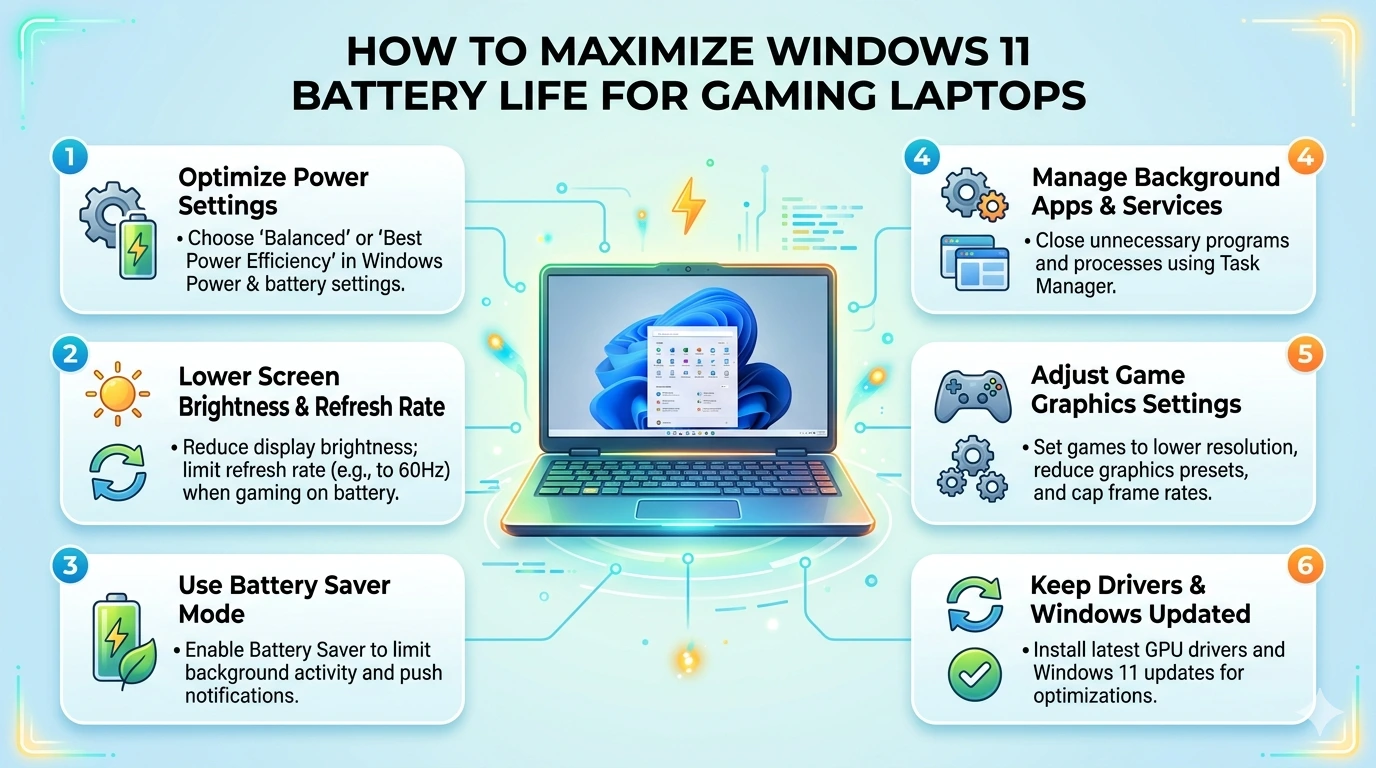
Gaming laptops are powerful machines, but their biggest limitation is battery life. Unlike desktops, laptops balance performance with portability, and gaming drains batteries faster than almost any other activity. Windows 11 offers several built‑in tools and settings to help extend battery life, but many gamers overlook them. By combining smart system tweaks with hardware awareness, you can enjoy longer sessions without constantly reaching for the charger.
Why Battery Life Matters for Gamers
- Portability: Gaming laptops are designed to be mobile, but poor battery life forces you to stay near outlets.
- Performance Balance: High FPS and smooth gameplay often come at the cost of power consumption.
- Longevity: Proper battery management extends the lifespan of your laptop’s battery cells.
Common Causes of Battery Drain
- High GPU/CPU Usage: Games push hardware to maximum power draw.
- Display Brightness: High refresh rate and brightness consume significant energy.
- Background Apps: Cloud sync, browsers, and update managers drain resources.
- Network Activity: Constant Wi‑Fi or Bluetooth connections increase power usage.
- Poor Power Settings: Default Windows plans don’t prioritize battery efficiency.
Windows 11 Features That Help
Microsoft designed Windows 11 with battery optimization in mind:
- Battery Saver Mode: Automatically reduces background activity and brightness.
- Power Plans: Customizable settings to balance performance and efficiency.
- Graphics Settings: Allows per‑app GPU selection (integrated vs. dedicated).
- Performance Monitoring: Xbox Game Bar and Task Manager help track usage.
Why Optimization Is Essential
Gaming laptops are powerful but not always efficient. Without optimization, you’ll face:
- Short play sessions before needing to recharge.
- Reduced battery lifespan due to constant high‑power draw.
- Inconsistent performance when the system throttles to save power.
By applying targeted tweaks, you can extend battery life without sacrificing too much performance.
What This Guide Covers
This tutorial will break down:
- Understanding Battery Drain Sources – CPU, GPU, display, and background processes.
- Step‑by‑Step Fixes – Practical solutions like adjusting power plans, lowering brightness, and managing GPU usage.
- Advanced Solutions – BIOS/UEFI tweaks, undervolting, and hybrid GPU configurations.
- Prevention Tips – How to maintain battery health over time.
- Comparisons – How Windows 11 battery management stacks up against earlier versions and other platforms.
- FAQ and Conclusion – Addressing common gamer concerns and wrapping up with actionable takeaways.
Setting the Stage
By the end of this guide, you’ll know how to configure Windows 11 and your laptop hardware to maximize battery life during gaming. Whether you’re traveling, playing unplugged, or simply trying to extend your battery’s lifespan, these strategies will help you strike the right balance between performance and efficiency.
Understanding Battery Drain Sources
To extend battery life while gaming on Windows 11, it’s important to understand what drains power the fastest. Gaming laptops balance high performance with portability, but several components and settings contribute to rapid battery consumption.
1. CPU and GPU Usage
- Cause: Games push processors to maximum power draw.
- Impact: High frame rates and complex graphics consume significant energy.
- Note: Dedicated GPUs (NVIDIA/AMD) use far more power than integrated graphics, especially at high resolutions and refresh rates.
2. Display Brightness and Refresh Rate
- Cause: Bright screens and high refresh rates (120Hz, 144Hz, 240Hz) demand more energy.
- Impact: Battery drains quickly when brightness is maxed out or refresh rate is set high.
- Tip: Lower brightness and refresh rate when unplugged to save power.
3. RAM and Storage Activity
- Cause: Games constantly load assets into RAM and stream data from SSDs.
- Impact: Heavy memory usage and storage reads increase power consumption.
- Tip: Keeping SSDs below 80% capacity and closing background apps reduces strain.
4. Background Processes
- Cause: Cloud sync, browsers, update managers, and chat apps run silently.
- Impact: These consume CPU cycles and drain battery even when minimized.
- Tip: Disable unnecessary background apps before gaming on battery.
5. Network Connectivity
- Cause: Constant Wi‑Fi or Bluetooth activity increases power draw.
- Impact: Online gaming drains battery faster than offline play.
- Tip: Use airplane mode for offline games or disable Bluetooth when not needed.
6. Power Settings
- Cause: Default Windows power plans prioritize performance over efficiency.
- Impact: CPU and GPU run at full potential, draining battery faster.
- Tip: Switch to Battery Saver Mode or create a custom power plan for unplugged gaming.
7. Cooling and Thermal Management
- Cause: High temperatures trigger fans to run at maximum speed.
- Impact: Fans consume power, and thermal throttling reduces efficiency.
- Tip: Keep vents clear, use cooling pads, and avoid gaming on soft surfaces.
8. Peripheral Devices
- Cause: External devices like USB controllers, headsets, and RGB keyboards draw power.
- Impact: Battery drains faster when multiple peripherals are connected.
- Tip: Disconnect non‑essential devices when gaming unplugged.
Key Takeaway
Battery drain in gaming laptops comes from multiple sources: CPU/GPU load, display settings, background processes, network activity, and cooling demands. Identifying which factors affect your system most is the first step toward applying targeted optimizations for longer unplugged gaming sessions.
How to Maximize Windows 11 Battery Life for Gaming Laptops – Step‑by‑Step Fixes
Now that we’ve identified the sources of battery drain, let’s move into practical solutions. These fixes are arranged from basic to advanced so you can apply them progressively until your gaming laptop delivers longer unplugged sessions without sacrificing too much performance.
1. Enable Battery Saver Mode
Windows 11 includes a built‑in Battery Saver that reduces background activity and lowers brightness.
Steps:
- Press Win + I → System → Power & battery.
- Toggle Battery Saver on when unplugged.
- Set it to activate automatically at a chosen percentage (e.g., 20%).
2. Adjust Power Plans
Default power plans often prioritize performance over efficiency.
Steps:
- Open Control Panel → Power Options.
- Select Balanced or create a custom plan.
- Limit maximum processor state to 80–90% when unplugged.
This reduces CPU power draw without major performance loss.
3. Manage GPU Usage
Dedicated GPUs consume far more power than integrated ones.
Steps:
- Go to Settings → System → Display → Graphics.
- Assign Integrated GPU for non‑gaming apps.
- Reserve Dedicated GPU only for games.
Hybrid GPU management extends battery life significantly.
4. Lower Display Brightness and Refresh Rate
The display is one of the biggest battery drains.
Steps:
- Reduce brightness to 50–70%.
- Lower refresh rate from 144Hz/240Hz to 60Hz when unplugged.
- Use adaptive brightness if available.
5. Disable Background Apps
Background processes silently consume resources.
Steps:
- Open Settings → Apps → Apps & features.
- Disable background permissions for non‑essential apps.
- Close browsers, cloud sync, and chat apps before gaming unplugged.
6. Optimize Storage and RAM Usage
- Keep SSDs below 80% capacity.
- Run Optimize Drives monthly.
- Close unused apps to free RAM.
Efficient storage and memory usage reduce unnecessary power draw.
7. Network Optimization
Wi‑Fi and Bluetooth increase battery drain.
Steps:
- Disable Bluetooth when not in use.
- Use airplane mode for offline games.
- Limit background downloads during gaming.
8. Cooling and Thermal Management
Fans consume power when running at maximum speed.
Steps:
- Keep vents clear and clean dust regularly.
- Use a cooling pad to reduce fan workload.
- Avoid gaming on soft surfaces that block airflow.
9. Peripheral Management
External devices draw power from the laptop.
Steps:
- Disconnect non‑essential peripherals (USB drives, RGB keyboards).
- Use wired controllers only when necessary.
- Prefer lightweight headsets with efficient drivers.
10. In‑Game Settings Adjustments
Game settings directly affect battery consumption.
- Lower resolution when unplugged.
- Reduce graphics quality (shadows, anti‑aliasing).
- Enable frame rate caps (e.g., 60 FPS).
Balancing visuals with efficiency extends playtime.
11. Schedule Updates and Scans
Windows updates and antivirus scans can trigger mid‑game.
Steps:
- Schedule updates outside gaming hours.
- Configure antivirus to avoid scanning during gameplay.
12. Use Performance Monitoring Tools
Track usage to identify battery drains.
- Use Xbox Game Bar or Task Manager.
- Monitor CPU/GPU usage and adjust settings accordingly.
Key Takeaway
These step‑by‑step fixes cover the essentials: enabling Battery Saver, adjusting power plans, managing GPU usage, lowering display settings, and disabling background apps. Together, they ensure Windows 11 gaming laptops deliver longer unplugged sessions while maintaining smooth performance.
Advanced Solutions
If the basic fixes don’t fully extend your unplugged gaming sessions, advanced optimizations can help push your laptop’s efficiency further. These methods require more technical steps but can significantly improve battery life while maintaining playable performance.
1. Undervolting the CPU and GPU
Undervolting reduces voltage supplied to processors without lowering performance.
- Benefits: Less heat, lower fan usage, and reduced power draw.
- Tools: Intel XTU, ThrottleStop, or AMD Ryzen Master.
- Tip: Apply small reductions and test stability with stress tests.
2. BIOS/UEFI Tweaks
Your firmware settings can improve efficiency.
- Enable Hybrid Graphics (switch between integrated and dedicated GPU).
- Activate Battery Conservation Mode if available.
- Disable unused controllers (legacy ports, unused SATA).
- Ensure AHCI Mode is enabled for SSD efficiency.
3. Hybrid GPU Configurations
Gaming laptops often include both integrated and dedicated GPUs.
- Steps:
- Assign integrated GPU for non‑gaming apps.
- Use dedicated GPU only for games.
- Impact: Saves battery when browsing, streaming, or working.
4. Advanced Cooling Strategies
Efficient cooling reduces fan workload and power draw.
- Clean vents and fans regularly.
- Use a cooling pad to lower temperatures.
- Apply high‑quality thermal paste for better heat transfer.
Lower temperatures mean fans run less aggressively, conserving battery.
5. Registry and Group Policy Tweaks
Fine‑tune Windows behavior for efficiency.
- Registry:
- Adjust
MenuShowDelayfor faster UI responsiveness. - Disable
ClearPageFileAtShutdownto avoid unnecessary power use.
- Adjust
- Group Policy:
- Limit background services.
- Disable scheduled tasks that run during gaming.
6. Advanced Display Management
- Lower refresh rate dynamically when unplugged.
- Use adaptive brightness to reduce power draw.
- Disable HDR unless necessary, as it increases GPU load.
7. Peripheral and Connectivity Optimization
- Disconnect non‑essential USB devices.
- Disable Bluetooth when not in use.
- Use airplane mode for offline gaming.
8. Battery Calibration and Health Maintenance
- Fully discharge and recharge battery every few months.
- Avoid keeping battery at 100% for long periods.
- Store laptop at 40–60% charge if unused for weeks.
Proper calibration ensures accurate battery reporting and longer lifespan.
Key Takeaway
Advanced solutions like undervolting, BIOS tweaks, hybrid GPU management, and cooling strategies push Windows 11 gaming laptops beyond basic optimization. These methods require careful configuration but deliver substantial gains in battery life, making unplugged gaming sessions longer and more enjoyable.
Prevention Tips
Optimizing battery life isn’t just about applying fixes once—it’s about maintaining efficiency over time. Preventive practices ensure your gaming laptop continues to deliver longer unplugged sessions without degrading battery health or performance.
1. Regular Driver and Windows Updates
- GPU Drivers: Keep them current for efficiency improvements.
- Windows Updates: Install promptly to avoid background interruptions.
- Peripheral Drivers: Update controllers, headsets, and keyboards to prevent hidden drains.
2. Monitor Background Processes
Apps can silently consume CPU and battery.
- Audit Task Manager monthly.
- Disable auto‑start for cloud sync and chat apps.
- Keep only essential apps active during gaming.
3. Maintain Storage Health
Efficient storage reduces unnecessary power draw.
- Keep SSDs below 80% capacity.
- Run Optimize Drives monthly.
- Store games on NVMe SSDs for DirectStorage benefits.
4. Protect Against Malware and Bloatware
Unwanted software can degrade both performance and battery life.
- Run weekly scans with Windows Security or Malwarebytes.
- Uninstall trialware or manufacturer utilities you don’t use.
- Avoid mods or tools from unverified sources.
5. Optimize Power Settings
Ensure your system stays in battery‑friendly mode.
- Verify Balanced or Battery Saver is active when unplugged.
- Recheck after major updates, as defaults may reset.
6. Schedule Maintenance
Consistency keeps performance stable.
- Run SFC and DISM scans quarterly.
- Clear temporary files with Storage Sense.
- Audit startup programs every few months.
7. Network Hygiene
Wi‑Fi and Bluetooth can drain battery unnecessarily.
- Disable Bluetooth when not needed.
- Restart your router periodically for stable connections.
- Limit background downloads during gaming.
8. Battery Health Practices
- Avoid keeping battery at 100% for long periods.
- Store laptop at 40–60% charge if unused for weeks.
- Calibrate battery every few months (full discharge/recharge).
Key Takeaway
Preventing battery drain in Windows 11 gaming laptops requires ongoing attention. By updating drivers, monitoring background apps, maintaining storage health, and practicing good battery habits, you can ensure your system remains efficient. Combined with regular maintenance and network hygiene, these practices extend both battery life and overall laptop longevity.
Comparisons
To understand how well Windows 11 manages battery life for gaming laptops, it helps to compare it with earlier versions of Windows and other operating systems. Each platform has its own approach to balancing performance and efficiency.
Windows 7 vs. Windows 11
- Windows 7: Lightweight and stable, but lacked modern battery optimization features. Gaming drained batteries quickly due to weaker power management and reliance on HDDs.
- Windows 11: Designed for SSDs and modern GPUs, with Battery Saver Mode, hybrid GPU support, and better background process control.
Key Difference: Windows 11 offers far more tools to extend battery life, though it requires modern hardware to fully benefit.
Windows 8/8.1 vs. Windows 11
- Windows 8/8.1: Introduced Fast Startup and improved resource management, but its interface and inconsistent driver support limited adoption.
- Windows 11: Refines power management with customizable power plans and per‑app GPU selection.
Key Difference: Windows 11 balances usability and efficiency better, making battery optimization more accessible.
Windows 10 vs. Windows 11
- Windows 10: Strong gaming support but background updates often triggered during sessions, draining battery.
- Windows 11: Enhances Battery Saver, integrates Graphics Settings for hybrid GPU control, and improves background task scheduling.
Key Difference: Windows 11 reduces interruptions and offers finer control over GPU usage, extending battery life compared to Windows 10.
Windows 11 vs. macOS
- macOS: Known for excellent battery optimization and smooth UI, but limited in gaming due to fewer supported titles and weaker GPU options.
- Windows 11: Supports a vast library of games, advanced GPUs, and features like DirectStorage.
Key Difference: macOS excels in efficiency, but Windows 11 provides broader gaming compatibility while still offering strong battery management.
Windows 11 vs. Linux
- Linux: Lightweight distributions can deliver long battery life, but gaming relies on compatibility layers like Proton, which may increase power usage.
- Windows 11: Native support for most titles, plus Xbox Game Pass integration, with optimized GPU switching.
Key Difference: Linux can be efficient, but Windows 11 offers smoother native gaming with balanced battery management.
Why Comparisons Matter
By contrasting Windows 11 with earlier versions and other platforms, we see that battery life has steadily improved thanks to better resource management and hybrid GPU support. Windows 11’s strengths lie in modern gaming features combined with efficiency tools, while its weaknesses stem from high‑power hardware demands.
Key Takeaway
Windows 11 is the most battery‑aware version yet for gaming laptops. Compared to its predecessors, it offers more control over GPU usage, background processes, and power plans. Against macOS and Linux, it stands out for compatibility and breadth of gaming support, making it the best choice for gamers who want both performance and extended battery life.
FAQ
Even after applying fixes and advanced optimizations, gamers often have lingering questions about battery life in Windows 11 laptops. Here are clear answers to the most common concerns.
1. Does Battery Saver Mode reduce gaming performance?
Yes, slightly. Battery Saver lowers brightness and limits background activity, which can reduce FPS in demanding games. It’s best used for casual or offline play when unplugged.
2. Should I always game on battery?
No. Gaming on battery drains cells quickly and generates heat, shortening lifespan. For long sessions, plug in your charger. Use battery gaming only when portability is essential.
3. How much battery life can undervolting save?
Undervolting typically reduces power draw by 10–20%, depending on hardware. This translates to an extra 30–60 minutes of unplugged gaming, while also lowering heat and fan noise.
4. Does lowering refresh rate really help?
Yes. Dropping from 144Hz to 60Hz can save significant power, especially on high‑end displays. Combine this with reduced brightness for maximum efficiency.
5. Can hybrid GPU switching extend battery life?
Absolutely. Using the integrated GPU for non‑gaming tasks (browsing, streaming) saves power. Reserve the dedicated GPU only for games to extend unplugged sessions.
6. Should I disable Wi‑Fi or Bluetooth when gaming offline?
Yes. Both consume power even when idle. Disabling them during offline play can add 20–30 minutes of battery life.
7. How often should I calibrate my battery?
Every 2–3 months. Fully discharge and recharge once to keep reporting accurate. This helps Windows 11 estimate remaining battery more reliably.
8. Does keeping my laptop plugged in damage the battery?
Modern laptops manage charging intelligently, so staying plugged in isn’t harmful. However, keeping the battery at 100% constantly may reduce long‑term health. Use conservation modes if available.
9. Can cooling pads really save battery?
Indirectly, yes. Lower temperatures reduce fan workload, which consumes less power. Cooler systems also prevent throttling, keeping performance efficient.
10. What’s the ultimate fix if battery life is still poor?
If optimizations don’t help, the issue may be hardware. Options include:
- Replacing an aging battery.
- Switching to a laptop with larger battery capacity.
- Using external battery packs designed for laptops.
Key Takeaway
Maximizing battery life in Windows 11 gaming laptops requires balancing performance with efficiency. Strategies like undervolting, hybrid GPU switching, lowering refresh rates, and disabling background processes can extend unplugged sessions. Preventive habits—calibration, updates, and cooling—ensure battery health remains strong over time.
Conclusion
Gaming laptops are powerful but energy‑hungry machines. Windows 11 provides a strong foundation for balancing performance and efficiency, but true battery optimization requires a combination of system tweaks, hardware awareness, and preventive habits.
Summarizing the Fixes
We began with step‑by‑step solutions:
- Enabling Battery Saver Mode and adjusting power plans.
- Managing GPU usage by switching between integrated and dedicated graphics.
- Lowering display brightness and refresh rate.
- Disabling background apps and unnecessary startup programs.
- Optimizing storage and RAM usage.
- Scheduling updates and antivirus scans outside gaming hours.
Then we explored advanced solutions:
- Undervolting CPU/GPU for reduced heat and power draw.
- BIOS/UEFI tweaks like enabling hybrid graphics and battery conservation modes.
- Advanced cooling strategies to minimize fan workload.
- Registry and Group Policy adjustments for leaner system behavior.
- Battery calibration and health maintenance for long‑term efficiency.
Preventive Practices
Optimization isn’t a one‑time task—it requires ongoing attention. Preventive strategies include:
- Regular driver and Windows updates.
- Monitoring background processes.
- Maintaining SSD health and storage capacity.
- Practicing battery health habits (avoiding constant 100% charge, calibrating periodically).
- Keeping networks stable and minimizing unnecessary connectivity.
These habits ensure your laptop remains efficient over time.
Comparisons and Context
Compared to earlier versions, Windows 11 is the most battery‑aware OS yet. It refines power management tools, integrates hybrid GPU control, and improves background task scheduling. Against macOS and Linux, Windows 11 stands out for its balance of gaming compatibility and battery optimization, making it the most versatile choice for gamers who value both performance and portability.
Final Thoughts
Maximizing battery life in Windows 11 gaming laptops is about striking the right balance. You don’t need to sacrifice enjoyable gameplay to extend unplugged sessions—you just need to configure your system intelligently and maintain it consistently.
By applying the fixes, advanced solutions, and preventive practices outlined in this guide, you can transform your gaming laptop into a more efficient machine. Whether you’re traveling, gaming on the go, or simply trying to preserve battery health, these strategies ensure longer sessions and a healthier battery lifespan.
With the right setup, your laptop won’t just run games—it will deliver smooth, immersive experiences while lasting longer away from the charger.