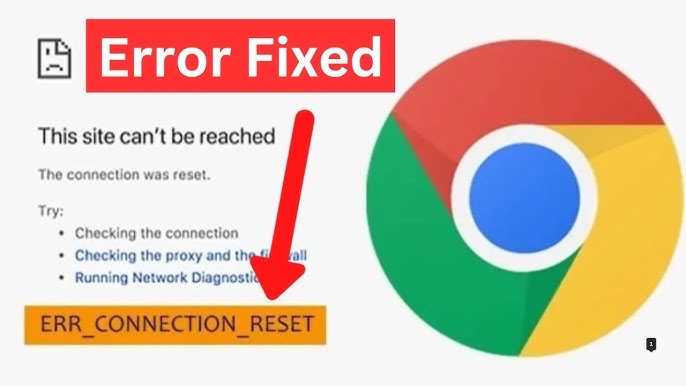
The ERR_CONNECTION_RESET error is one of the most common and frustrating issues users encounter while browsing the internet. It can appear suddenly, preventing access to websites and disrupting productivity. Whether you’re using Chrome, Edge, or another browser, this error indicates that the connection between your device and the server was unexpectedly closed.
In this comprehensive guide, we’ll explore what the ERR_CONNECTION_RESET error means, its causes, and step-by-step solutions to fix it effectively.
What Is ERR_CONNECTION_RESET Error?
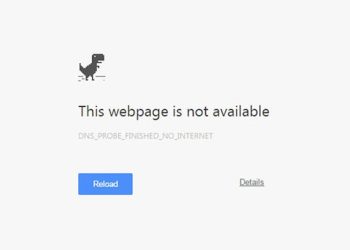
The ERR_CONNECTION_RESET error occurs when a web browser fails to establish a stable connection with a website server. Instead of loading the page, the connection is forcibly terminated or “reset.”
This can happen due to network issues, browser settings, firewall restrictions, or even server-side problems.
Why Does ERR_CONNECTION_RESET Happen?
Understanding the causes is essential for resolving the issue.
1. Unstable Internet Connection
A weak or interrupted connection can cause the request to fail.
2. Browser Cache and Cookies
Corrupted cache files may interfere with connections.
3. Firewall or Antivirus Blocking
Security software may block certain websites or connections.
4. VPN or Proxy Issues
Misconfigured VPNs or proxies can reset connections.
5. Incorrect Network Settings
TCP/IP or DNS misconfigurations can lead to errors.
6. Server-Side Problems
Sometimes, the issue lies with the website itself.
How to Fix ERR_CONNECTION_RESET Error
Below are proven troubleshooting methods to resolve the issue.
1. Check Your Internet Connection
Start with the basics.
- Restart your router
- Switch between Wi-Fi and mobile data
- Test other websites
If other sites also fail, the problem is likely your connection.
2. Restart Your Device
A simple reboot can clear temporary system glitches.
- Restart your computer or smartphone
- Reopen your browser
- Try accessing the website again
3. Clear Browser Cache and Cookies
Corrupted cache data often causes connection issues.
Steps (Chrome):
- Open Settings
- Go to Privacy and Security
- Click “Clear browsing data”
- Select cache and cookies
- Confirm
After clearing, restart the browser.
4. Disable VPN or Proxy
VPNs and proxies can interfere with connections.
Steps:
- Turn off your VPN
- Disable proxy settings in your system
- Reload the page
If the site loads, the VPN was the cause.
5. Reset TCP/IP Settings
Resetting network configurations can fix deeper issues.
Windows Command Prompt:
netsh winsock reset
netsh int ip reset
ipconfig /release
ipconfig /renew
ipconfig /flushdns
Restart your computer after running these commands.
6. Flush DNS Cache
DNS issues can cause connection resets.
Mac Terminal:
sudo dscacheutil -flushcache; sudo killall -HUP mDNSResponder
This clears outdated DNS records.
7. Disable Antivirus or Firewall Temporarily
Sometimes security software blocks connections.
- Turn off antivirus temporarily
- Disable firewall
- Test the website
Remember to re-enable protection after testing.
8. Check LAN Settings
Incorrect LAN settings can cause problems.
Steps:
- Open Internet Options
- Go to Connections → LAN settings
- Uncheck “Use a proxy server”
- Apply changes
9. Change DNS Server
Switching to a public DNS can improve connectivity.
Popular DNS servers:
- Google DNS: 8.8.8.8 / 8.8.4.4
- Cloudflare DNS: 1.1.1.1
Update your network settings and retry.
10. Disable AppEx Networks (Advanced Fix)
Some users report success with this Chrome-specific fix.
Steps:
- Open Chrome
- Go to
chrome://flags/ - Search for “AppEx Networks”
- Disable it
Restart Chrome afterward.
Fix ERR_CONNECTION_RESET on Mobile Devices
Android
- Clear browser cache
- Reset network settings
- Disable VPN
iPhone
- Toggle Airplane mode
- Reset network settings
- Update iOS
Advanced Troubleshooting
If basic fixes fail, try these advanced methods.
Check Hosts File
Your hosts file may block certain websites.
Location:
- Windows:
C:\Windows\System32\drivers\etc\hosts - Mac:
/etc/hosts
Remove suspicious entries and save.
Update Network Drivers
Outdated drivers can cause connectivity issues.
- Open Device Manager
- Update network adapter
- Restart your system
Use Another Browser
Test the website in a different browser.
- If it works, the issue is browser-specific
- Reinstall your main browser if needed
Preventing ERR_CONNECTION_RESET Error
Prevention ensures smoother browsing.
Maintain Stable Internet
Use reliable connections and quality routers.
Keep Software Updated
Update your browser, OS, and drivers regularly.
Avoid Suspicious Extensions
Remove unknown browser extensions.
Use Trusted Security Tools
Ensure your antivirus is reputable and properly configured.
When the Problem Is Not Yours
Sometimes, the issue is on the server side.
Signs of Server Issues:
- Website doesn’t load on any device
- Others report the same problem
- Temporary outages
In such cases, wait for the website to fix the issue.
Real-World Example
Imagine you’re trying to access a website for work, but it suddenly stops loading with the ERR_CONNECTION_RESET error. After clearing your browser cache and disabling your VPN, the site loads instantly.
This scenario shows how simple fixes can resolve the issue quickly.
Frequently Asked Questions
Is ERR_CONNECTION_RESET a virus?
No, it’s a network-related error, not malware.
Can this error be permanent?
No, it’s usually temporary and fixable.
Does resetting network settings help?
Yes, it often resolves deeper configuration issues.
Conclusion
The ERR_CONNECTION_RESET error can be disruptive, but it is usually easy to fix with the right approach. From checking your internet connection to resetting network settings and clearing cache, there are multiple effective solutions available.
By following this complete guide, you can quickly identify the cause and restore your internet connection. Regular maintenance, proper configuration, and updated software will help prevent this error from occurring in the future.
With these steps, you’ll enjoy a smoother and more reliable browsing experience without interruptions.