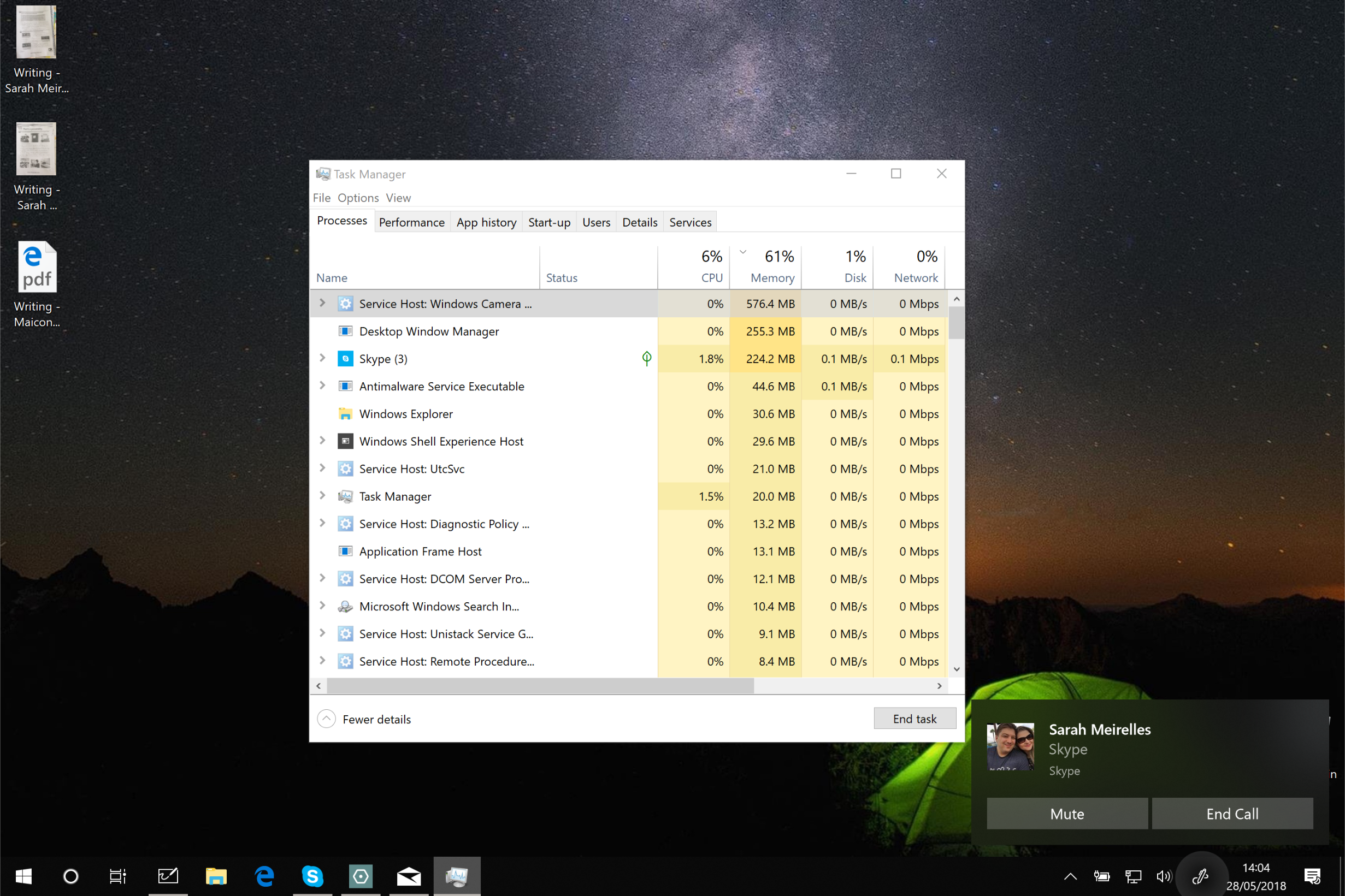
If you’ve ever checked Task Manager on your Windows computer while using your webcam, you may have noticed a process called Camera Frame Server running in the background. For many users, this raises questions: What exactly is it? Why is it running? And does it affect your system performance?
Understanding the Camera Frame Server is essential, especially if you rely on your webcam for video calls, streaming, or recording. In this comprehensive guide, we’ll break down everything you need to know about this important Windows component—how it works, why it exists, and how to troubleshoot common issues.
What Is a Camera Frame Server?
The Camera Frame Server is a Windows system service that manages how multiple applications access your camera simultaneously. Instead of allowing each app to directly interact with the webcam hardware, Windows uses this service as a middle layer.
Key Purpose:
- Enables multiple apps to use the camera at the same time
- Improves compatibility across applications
- Reduces conflicts between software accessing the camera
Without this service, only one app could use your camera at a time.
Why the Camera Frame Server Exists
Before Windows introduced this feature, webcam access was limited. If one app was using the camera, another app couldn’t access it.
The Camera Frame Server solves this limitation by:
- Capturing video frames from the camera
- Distributing them to multiple applications
- Ensuring smooth and stable performance
This is particularly useful for:
- Video conferencing
- Streaming software
- Recording tools
How Camera Frame Server Works
The process works behind the scenes and involves several steps:
- Your webcam captures video input
- The Camera Frame Server receives the data
- It processes and manages the frames
- It distributes the frames to requesting apps
This allows apps like video conferencing tools and recording software to access the same camera feed simultaneously.
Where You Can Find It
You can locate the Camera Frame Server in Task Manager.
Steps:
- Press Ctrl + Shift + Esc
- Go to the Processes tab
- Look for Camera Frame Server
It usually appears when your camera is in use.
Is Camera Frame Server Safe?
Yes, the Camera Frame Server is a legitimate Windows process.
Key Points:
- It is developed by Microsoft
- It runs as part of the Windows operating system
- It does not pose a security risk
However, if you notice unusual behavior (like high CPU usage), it may indicate an issue.
When Does It Run?
The Camera Frame Server activates when:
- You open a video conferencing app
- You use the Camera app
- Any software accesses your webcam
It typically stops when the camera is no longer in use.
Benefits of Camera Frame Server
1. Multi-App Camera Access
Allows multiple apps to use the camera simultaneously.
2. Improved Stability
Reduces crashes caused by hardware conflicts.
3. Better Compatibility
Works across various applications and devices.
4. Efficient Resource Management
Optimizes how camera data is processed and shared.
Common Issues with Camera Frame Server
Although useful, users sometimes encounter problems.
1. High CPU Usage
The process may consume excessive system resources.
2. Camera Not Working
Apps may fail to access the camera properly.
3. Freezing or Lag
Video feed may stutter or freeze.
4. Conflicts with Apps
Some apps may not work well with the frame server.
How to Fix Camera Frame Server Issues
If you’re experiencing problems, try these solutions.
Fix 1: Restart the Camera Service
Restarting the service can resolve temporary glitches.
Steps:
- Open Task Manager
- Find Camera Frame Server
- End the task
- Restart your camera app
The service will restart automatically.
Fix 2: Update Camera Drivers
Outdated drivers can cause compatibility issues.
Steps:
- Open Device Manager
- Expand Cameras
- Right-click your webcam
- Select Update driver
Install the latest drivers available.
Fix 3: Disable Camera Frame Server (Advanced)
If the service causes issues, you can disable it.
Steps:
- Press Windows + R
- Type
regedit - Navigate to:
HKEY_LOCAL_MACHINE\SOFTWARE\Microsoft\Windows Media Foundation\Platform - Create a DWORD: EnableFrameServerMode
- Set value to 0
Restart your computer.
Note: Disabling this may prevent multiple apps from using the camera simultaneously.
Fix 4: Check App Permissions
Ensure apps have permission to access the camera.
Steps:
- Open Settings
- Go to Privacy & Security > Camera
- Enable camera access for apps
Fix 5: Close Conflicting Apps
Too many apps accessing the camera can cause issues.
- Close unused applications
- Restart your camera app
Fix 6: Update Windows
System updates often fix bugs.
Steps:
- Open Settings
- Go to Windows Update
- Install updates
Fix 7: Reinstall Camera Drivers
If updating doesn’t help:
Steps:
- Open Device Manager
- Uninstall your camera device
- Restart your computer
Windows will reinstall the driver automatically.
Camera Frame Server vs Direct Camera Access
| Feature | Frame Server Enabled | Direct Access |
|---|---|---|
| Multi-app support | Yes | No |
| Stability | High | Lower |
| Compatibility | Better | Limited |
| Performance | Optimized | Depends on app |
Should You Disable Camera Frame Server?
In most cases, you should not disable it.
Disable Only If:
- You experience consistent issues
- Specific apps require direct access
- You understand the risks
Otherwise, it’s best to keep it enabled.
Tips to Optimize Camera Performance
- Close unused apps
- Use updated drivers
- Ensure good lighting for better quality
- Avoid running heavy background tasks
Security Considerations
Although safe, always ensure:
- No unknown apps access your camera
- Permissions are properly managed
- Antivirus software is active
Why This Feature Matters
The Camera Frame Server plays a crucial role in modern computing by:
- Supporting multitasking
- Enhancing user experience
- Enabling advanced workflows
Without it, camera usage would be far more limited.
Future of Camera Management in Windows
Microsoft continues to improve camera functionality with:
- Better privacy controls
- Enhanced performance
- Improved compatibility
The Camera Frame Server will likely evolve with these advancements.
Conclusion
The Camera Frame Server is a vital Windows component that enables multiple applications to access your webcam simultaneously. It enhances compatibility, improves stability, and ensures smooth performance across various apps.
While it may occasionally cause issues like high CPU usage or camera glitches, these problems are usually easy to fix with basic troubleshooting steps.
Understanding how the Camera Frame Server works empowers you to manage your system more effectively and resolve camera-related problems with confidence.
Whether you’re attending virtual meetings, streaming content, or recording videos, this feature plays an essential role in delivering a seamless experience on Windows.