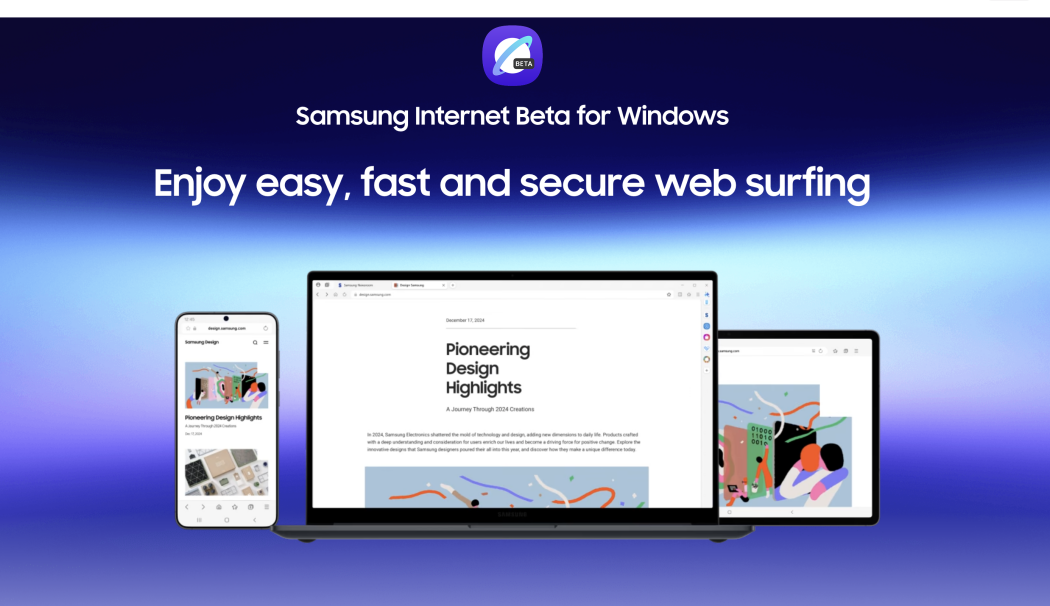
Web browsers are essential tools in today’s digital world, and while many users rely on popular options like Chrome or Edge, another powerful contender is gaining attention—Samsung Browser Windows. Originally designed for mobile devices, Samsung Internet has expanded its reach, offering a seamless browsing experience on desktop platforms as well.
In this comprehensive guide, we’ll explore everything you need to know about Samsung Browser on Windows, including its features, installation process, benefits, and how it compares to other browsers.
What Is Samsung Browser?
Samsung Browser, officially known as Samsung Internet, is a web browser developed by Samsung. It was initially built for Samsung Galaxy smartphones but has since evolved to support additional platforms, including Windows.
Key Characteristics
- Fast and secure browsing
- Privacy-focused features
- Clean and user-friendly interface
- Cross-device synchronization
Is Samsung Browser Available on Windows?
Yes, Samsung Internet is now available for Windows, allowing users to enjoy a consistent browsing experience across devices.
Supported Systems
- Windows 10
- Windows 11
This expansion helps users stay connected across mobile and desktop environments.
Why Use Samsung Browser on Windows?
1. Seamless Device Integration
Sync bookmarks, history, and tabs between your phone and PC.
2. Strong Privacy Features
Built-in tracking protection enhances security.
3. Smooth Performance
Optimized for speed and efficiency.
4. Unique Tools
Includes features not commonly found in other browsers.
Key Features of Samsung Browser Windows
Privacy Dashboard
Samsung Internet emphasizes user privacy.
- Trackers blocked automatically
- Clear browsing data easily
- Secure browsing mode
Ad Blocker Support
Supports third-party content blockers.
- Faster page loading
- Cleaner browsing experience
Dark Mode
Reduces eye strain during nighttime use.
Video Assistant
Enhances video playback with controls and optimization.
Extensions Support
Limited but growing extension ecosystem.
Cross-Device Sync
Log in with your Samsung account to sync:
- Bookmarks
- Open tabs
- Saved pages
How to Install Samsung Browser on Windows
Step-by-Step Guide
- Open Microsoft Store
- Search for “Samsung Internet”
- Click Install
- Launch the browser
Alternative Method
Download directly from Samsung’s official website if available.
Setting Up Samsung Browser
After installation:
Sign In
Use your Samsung account to enable syncing.
Customize Settings
- Enable dark mode
- Set default search engine
- Adjust privacy settings
Comparing Samsung Browser with Other Browsers
Samsung Browser vs Google Chrome
| Feature | Samsung Browser | Chrome |
|---|---|---|
| Privacy | Strong | Moderate |
| Extensions | Limited | Extensive |
| Performance | Smooth | Fast |
Samsung Browser vs Microsoft Edge
| Feature | Samsung Browser | Edge |
|---|---|---|
| Integration | Samsung devices | Windows ecosystem |
| Features | Unique tools | Broad compatibility |
Benefits of Using Samsung Browser Windows
Consistency
Same experience across devices.
Security
Advanced privacy tools protect users.
Performance
Efficient resource usage.
Limitations to Consider
Limited Extensions
Not as extensive as Chrome.
Smaller User Base
Less community support.
Compatibility
Some features are optimized for Samsung devices.
Tips for Optimizing Your Experience
Enable Ad Blockers
Improve speed and reduce clutter.
Use Sync Features
Access data across devices.
Update Regularly
Ensure latest features and security patches.
Security and Privacy Features
Samsung Browser prioritizes user safety.
Smart Anti-Tracking
Prevents websites from tracking activity.
Secure Browsing Mode
Protects sensitive information.
Data Management
Control cookies and permissions easily.
Use Cases for Samsung Browser
Everyday Browsing
Fast and reliable for daily tasks.
Media Consumption
Optimized video playback.
Productivity
Sync tools enhance workflow.
Real-World Example
Imagine browsing on your Samsung phone and then switching to your Windows PC. With Samsung Browser, your tabs and bookmarks sync instantly, allowing you to continue seamlessly.
Troubleshooting Common Issues
Browser Not Installing
- Check Windows version
- Update Microsoft Store
Sync Not Working
- Verify Samsung account login
- Check internet connection
Slow Performance
- Clear cache
- Disable unnecessary extensions
Future of Samsung Browser on Windows
Samsung continues to expand its ecosystem.
Expected Improvements
- More extensions
- Enhanced performance
- Deeper integration with devices
Frequently Asked Questions
Is Samsung Browser free?
Yes, it is completely free.
Can I use it without a Samsung device?
Yes, but some features may be limited.
Is it better than Chrome?
It depends on your preferences and needs.
Why Samsung Browser Is Gaining Popularity
- Strong privacy focus
- Cross-device functionality
- Unique features
Conclusion
Samsung Browser Windows is a powerful and versatile option for users seeking a secure and seamless browsing experience. With its strong privacy features, smooth performance, and cross-device integration, it stands out as a compelling alternative to mainstream browsers.
While it may not yet match the extension ecosystem of Chrome or Edge, its unique features and growing support make it worth considering—especially for Samsung device users.
By understanding its capabilities and optimizing its settings, you can enjoy a fast, secure, and efficient browsing experience on Windows.