

Google Chrome is one of the most popular web browsers in the world, and it offers a range of features that make browsing the internet easier and more convenient. One of these features is geolocation, which allows websites to access your location and provide you with more relevant content and services. However, not everyone wants to share their location with websites, and some people may be concerned about the potential risks of sharing their location online. In this article, we will show you how to prevent Chrome from requesting geolocation and protect your online privacy.
Why Prevent Chrome from Requesting Geolocation?
There are several reasons why you might want to prevent Chrome from requesting geolocation. Here are a few:
- Privacy: By preventing websites from accessing your location, you can protect your privacy and prevent them from tracking your movements.
- Security: If you’re concerned about the potential risks of sharing your location online, preventing Chrome from requesting geolocation can help to reduce these risks.
- Battery Life: Geolocation services can drain your device’s battery, so preventing Chrome from requesting geolocation can help to extend your battery life.
How to Prevent Chrome from Requesting Geolocation
Preventing Chrome from requesting geolocation is a relatively simple process. Here are the steps:
- Open Chrome Settings: To start, open the Chrome browser and click on the three vertical dots in the top right corner of the window. Then, click on “Settings” from the drop-down menu.
- Click on “Privacy and Security”: In the Settings page, click on “Privacy and security” from the left-hand menu.
- Click on “Site Settings”: In the Privacy and security page, click on “Site Settings” under the “Permissions” section.
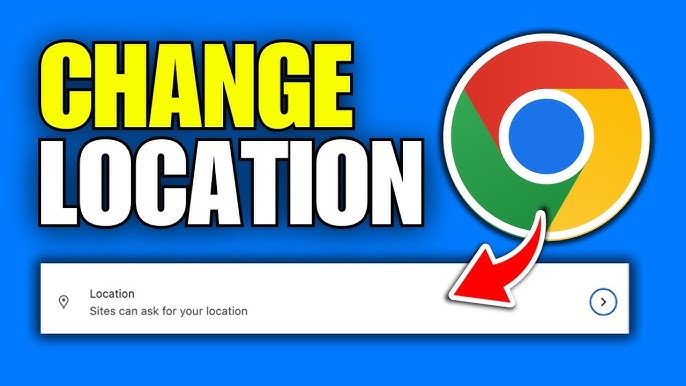
- Click on “Location”: In the Site Settings page, click on “Location” to access the location settings.
- Block Sites from Asking for Location: To prevent websites from requesting your location, toggle the switch next to “Ask before accessing” to the off position.
Alternative Method
Alternatively, you can also prevent Chrome from requesting geolocation by using the “Don’t allow sites to access your location” option. To do this, follow these steps:
- Open Chrome Settings: Open the Chrome browser and click on the three vertical dots in the top right corner of the window. Then, click on “Settings” from the drop-down menu.
- Click on “Privacy and Security”: In the Settings page, click on “Privacy and security” from the left-hand menu.
- Click on “Site Settings”: In the Privacy and security page, click on “Site Settings” under the “Permissions” section.
- Click on “Location”: In the Site Settings page, click on “Location” to access the location settings.
- Select “Don’t allow sites to access your location”: Select the “Don’t allow sites to access your location” option to prevent websites from requesting your location.
Tips for Protecting Your Online Privacy
In addition to preventing Chrome from requesting geolocation, there are several other steps you can take to protect your online privacy. Here are a few tips:
- Use a VPN: A virtual private network (VPN) can help to protect your online privacy by encrypting your internet traffic and hiding your IP address.
- Use a Private Browsing Mode: Chrome’s private browsing mode, known as Incognito mode, can help to protect your online privacy by deleting your browsing history and cookies when you close the browser.
- Be Careful What You Share Online: Be mindful of what you share online, including your location, contact information, and other personal details.
Conclusion
Preventing Chrome from requesting geolocation is a simple process that can help to protect your online privacy and security. By following the steps outlined in this article, you can prevent websites from accessing your location and reduce the risks associated with sharing your location online. Additionally, by taking other steps to protect your online privacy, such as using a VPN and being careful what you share online, you can help to ensure that your online activities remain private and secure.