Fonts play a crucial role in design, branding, and everyday computer use. Whether you’re creating documents, designing graphics, or customizing your system, knowing how to install fonts Windows can significantly enhance your workflow.
Fortunately, installing fonts on Windows is a simple process—but there are multiple methods, and understanding them ensures you can handle any situation. In this comprehensive guide, we’ll walk you through everything you need to know, from basic installation to advanced troubleshooting.
What Are Fonts in Windows?
Fonts are digital typefaces used to display text on your computer. Windows comes with a variety of default fonts, but you can install additional ones to expand your creative options.
Common Font Formats
- .TTF (TrueType Font)
- .OTF (OpenType Font)
- .FON (Legacy Windows fonts)
Why Install New Fonts?
Installing custom fonts can improve both functionality and creativity.
Benefits
- Enhance design projects
- Match brand identity
- Improve document presentation
- Personalize your system
Where to Download Fonts Safely
Before installing fonts, ensure you download them from trusted sources.
Recommended Sources
Always scan files for malware before installing.
Method 1: Install Fonts via Right-Click (Easiest Way)
This is the quickest method for most users.
Steps:
- Download the font file
- Extract it if it’s in a ZIP folder
- Right-click the font file
- Click Install
For Multiple Users
Choose Install for all users if needed.
Method 2: Install Fonts via Drag and Drop
You can also install fonts manually.
Steps:
- Open the Fonts folder:
- Press
Windows + R - Type
fonts
- Press
- Drag and drop the font file into the folder
Windows will automatically install it.
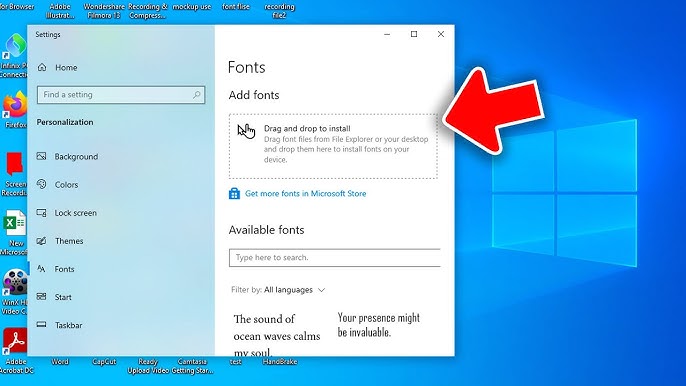
Method 3: Install Fonts via Settings (Windows 10/11)
Modern Windows versions offer a built-in interface.
Steps:
- Open Settings
- Go to Personalization → Fonts
- Drag and drop the font file into the window
This method also lets you preview fonts.
Method 4: Install Fonts via Control Panel
For older systems or advanced users:
Steps:
- Open Control Panel
- Go to Appearance and Personalization
- Click Fonts
- Drag and drop font files
How to Install Fonts for All Users
If multiple accounts use the computer:
Steps:
- Right-click the font file
- Select Install for all users
- Enter admin credentials
This makes the font available system-wide.
How to Verify Font Installation
After installing, confirm the font is available.
Steps:
- Open a program like Word or Photoshop
- Check the font list
- Search for your installed font
How to Uninstall Fonts
Removing fonts is just as important.
Steps:
- Open Fonts folder
- Select the font
- Click Delete
Avoid deleting system fonts.
Troubleshooting Font Installation Issues
Sometimes fonts may not install properly.
Problem 1: Font Not Showing
Solution:
- Restart the application
- Restart your computer
Problem 2: Font File Corrupted
Solution:
- Download the font again
- Use a different source
Problem 3: Permission Denied
Solution:
- Run as administrator
- Use “Install for all users”
Problem 4: Duplicate Fonts
Solution:
- Remove duplicates from Fonts folder
Advanced Font Management Tips
Organize Fonts
- Use folders for different categories
- Keep only necessary fonts installed
Use Font Managers
Tools like NexusFont or FontBase help manage large collections.
Preview Before Installing
Double-click the font file to preview it.
Installing Fonts for Design Software
Some programs require additional steps.
Adobe Photoshop / Illustrator
- Restart the program after installation
- Fonts will appear automatically
Microsoft Word
- Fonts appear in the dropdown list after installation
Security Considerations
Fonts can carry risks if downloaded from untrusted sources.
Safety Tips
- Use antivirus software
- Avoid suspicious websites
- Scan files before opening
Best Practices for Using Fonts
Limit Installed Fonts
Too many fonts can slow down your system.
Use Readable Fonts
Choose fonts that are easy to read for documents.
Match Fonts to Purpose
- Serif for formal documents
- Sans-serif for modern designs
Real-World Example
Imagine you’re designing a logo for a client. The default fonts don’t match the brand’s style, so you download a custom font, install it in seconds, and instantly elevate your design.
This shows how powerful and simple font installation can be.
Frequently Asked Questions
Can I install multiple fonts at once?
Yes, select multiple files and install them together.
Are fonts free?
Many are free, but some require a license.
Do I need to restart Windows after installing fonts?
Usually no, but some apps may require restarting.
Common Mistakes to Avoid
Installing Too Many Fonts
Can slow down performance.
Ignoring Licensing
Some fonts are not free for commercial use.
Skipping File Extraction
ZIP files must be extracted before installation.
Future of Fonts in Windows
Windows continues to improve font management with:
- Better previews
- Cloud font integration
- Enhanced customization
Conclusion
Learning how to install fonts Windows is an essential skill for anyone looking to enhance their digital experience. Whether you’re a designer, student, or casual user, installing fonts allows you to customize your system and improve your work.
With multiple installation methods available—from simple right-click installs to advanced management—you can easily handle any font-related task. By following best practices and troubleshooting tips, you’ll ensure a smooth and efficient experience every time.
Take control of your typography today and unlock endless creative possibilities with custom fonts on Windows.