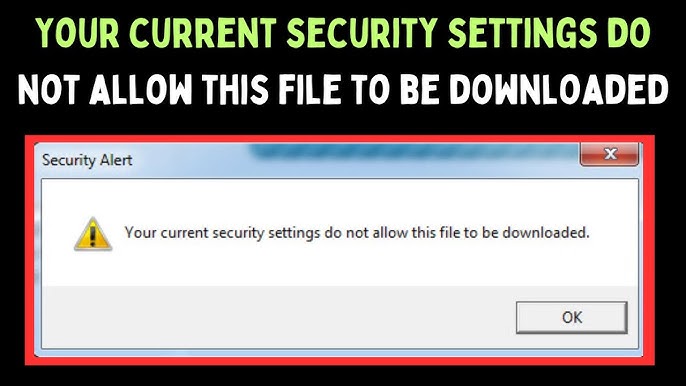
If you’ve ever tried downloading a file in Internet Explorer and encountered the message “Your current security settings do not allow this file to be downloaded,” you’re not alone. This error can be frustrating, especially when you urgently need a file for work or personal use.
The issue is typically caused by restrictive security settings within Internet Explorer. While these settings are designed to protect your system, they can sometimes be overly strict and block legitimate downloads.
In this guide, you’ll learn the easiest and most effective way to fix this error and regain full control over your downloads.
What Causes This Error?
This error message appears when Internet Explorer’s security configuration prevents file downloads. It’s commonly triggered by:
- Disabled file download settings
- High security levels in browser zones
- Group policy restrictions
- Corrupted browser configuration
- Outdated browser settings after Windows updates
Although the intention is to protect your system from harmful downloads, these settings can block safe files as well.
The Easiest Fix (Recommended Method)
The quickest way to resolve this issue is by enabling file downloads directly from Internet Explorer’s security settings.
Step 1: Open Internet Options
- Launch Internet Explorer
- Click on the gear icon (top-right corner)
- Select Internet Options
Step 2: Go to the Security Tab
Inside the Internet Options window:
- Click on the Security tab
- Select the Internet zone
Step 3: Customize Security Level
- Click on Custom level…
- Scroll down to the Downloads section
- Find File download
- Select Enable
This step ensures that Internet Explorer allows files to be downloaded without restriction.
Step 4: Apply Changes
- Click OK
- Confirm any warning prompts
- Click Apply, then OK again
Step 5: Restart Internet Explorer
Close and reopen the browser to apply the changes. After restarting, try downloading the file again—the error should be gone.
Alternative Method: Reset Internet Explorer Settings
If the issue persists, resetting Internet Explorer can restore all settings to their default configuration.
Steps to Reset:
- Open Internet Options
- Go to the Advanced tab
- Click Reset…
- Check Delete personal settings (optional)
- Click Reset
After the reset is complete, restart your browser and test the download again.
Adjusting Security Zones for Better Control
Internet Explorer uses different security zones such as Internet, Local Intranet, Trusted Sites, and Restricted Sites. Sometimes, downloads are blocked because the site falls under a restrictive zone.
Add a Website to Trusted Sites
- Open Internet Options
- Go to the Security tab
- Select Trusted Sites
- Click Sites
- Enter the website URL
- Click Add
Adding a trusted source allows downloads without lowering overall security.
Check Group Policy Settings (Advanced Users)
In some cases, especially on work or shared computers, system administrators may restrict downloads through Group Policy.
Steps:
- Press Windows + R
- Type
gpedit.mscand press Enter - Navigate to:
User Configuration → Administrative Templates → Windows Components → Internet Explorer → Internet Control Panel → Security Page - Look for policies related to file downloads
- Ensure they are set to Not Configured or Disabled
Disable Enhanced Security Configuration (Server Systems)
If you’re using a Windows Server environment, Internet Explorer Enhanced Security Configuration (ESC) might be blocking downloads.
To Disable ESC:
- Open Server Manager
- Click Local Server
- Find IE Enhanced Security Configuration
- Turn it Off
This will allow downloads without strict limitations.
Clear Browser Cache and Temporary Files
Sometimes, corrupted cache files can interfere with browser functionality.
Steps:
- Open Internet Options
- Under the General tab, find Browsing history
- Click Delete…
- Select temporary files and cache
- Click Delete
Restart the browser afterward.
Important Security Considerations
While enabling downloads solves the problem, it’s important to remain cautious. Lowering security settings can expose your system to risks.
Best Practices:
- Only download files from trusted websites
- Keep antivirus software active and updated
- Avoid downloading unknown file types
- Regularly scan your system for malware
Balancing usability and security is key.
Why This Method Works
The root cause of the error is restricted download permissions. By enabling file downloads and adjusting security settings, you’re directly removing the limitation that prevents files from being saved.
Unlike complicated fixes involving registry edits, this method is:
- Simple and beginner-friendly
- Quick to implement
- Highly effective
- Safe when done correctly
Troubleshooting Tips
If you still encounter issues, consider the following:
- Ensure your Windows system is fully updated
- Try running Internet Explorer as Administrator
- Check if third-party security software is blocking downloads
- Test downloads in another browser to confirm the issue
Final Thoughts
The “Your current security settings do not allow this file to be downloaded” error in Internet Explorer can be annoying, but it’s easy to fix once you know where to look.
By simply enabling file downloads in the browser’s security settings or resetting configurations, you can quickly restore full functionality. These steps ensure that you can download files without unnecessary restrictions while still maintaining a reasonable level of security.
With the right balance of settings and caution, you can enjoy a smooth and hassle-free browsing experience—even on older browsers like Internet Explorer.
By following this guide, you’ll be able to fix the issue in minutes and download as many files as you need without interruption.