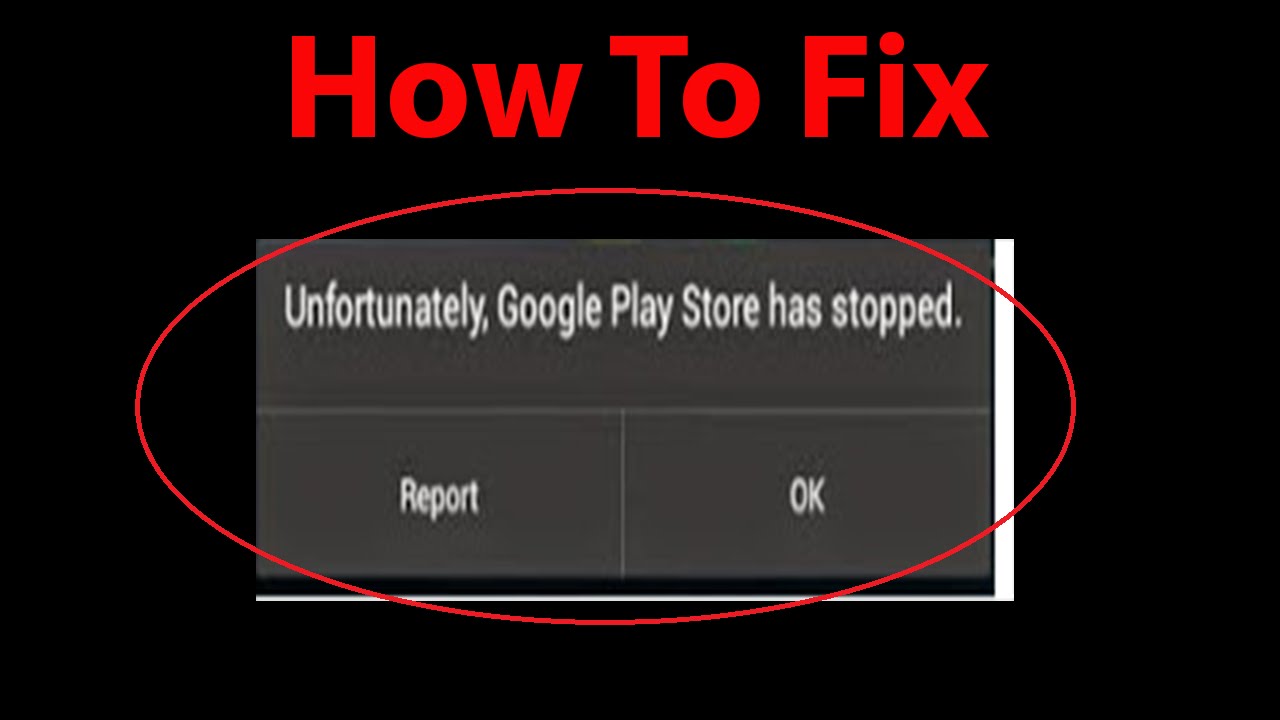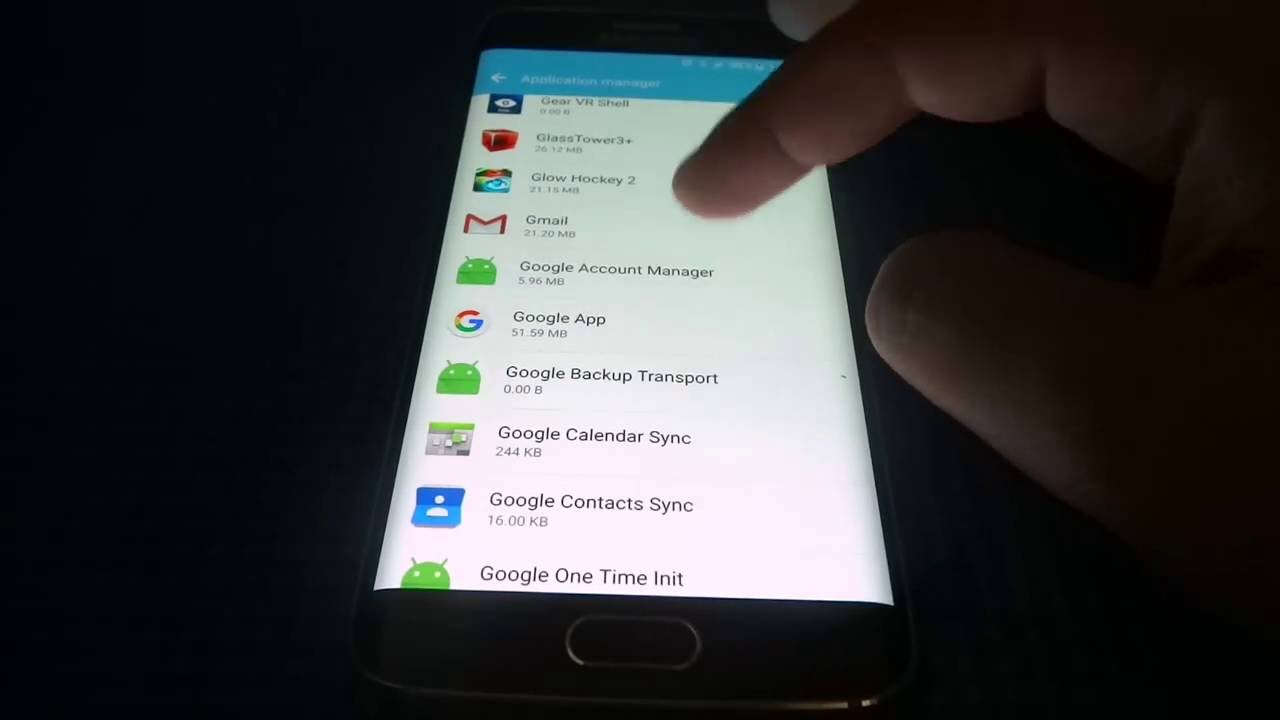
If you’re using an older Samsung Android device, you’ve likely encountered the frustrating message: “Unfortunately, TouchWiz has stopped” or “Unfortunately, TouchWiz Home has stopped.” These errors can disrupt your experience, freeze your home screen, or even make your device temporarily unusable.
Fortunately, these issues are common and can be fixed with a few simple steps. In this guide, you’ll learn what causes these errors and the easiest ways to resolve them.
What Is TouchWiz?
TouchWiz is Samsung’s custom user interface layered on top of Android. It controls the home screen, app drawer, widgets, and overall user experience.
Although newer Samsung devices now use One UI, many older devices still rely on TouchWiz. Because of its complexity, it can sometimes crash or become unstable.
Common TouchWiz Error Messages
There are two main variations of this issue:
- “Unfortunately, TouchWiz Home has stopped”
- “Unfortunately, TouchWiz has stopped”
Both errors indicate that the system launcher (home interface) has crashed.
What Causes TouchWiz Errors?
Several factors can trigger these errors:
- Corrupted cache or data
- Conflicting apps or widgets
- Outdated system software
- Insufficient RAM or storage
- Faulty system updates
Understanding the cause helps you apply the right fix.
The Easiest Fix (Recommended Method)
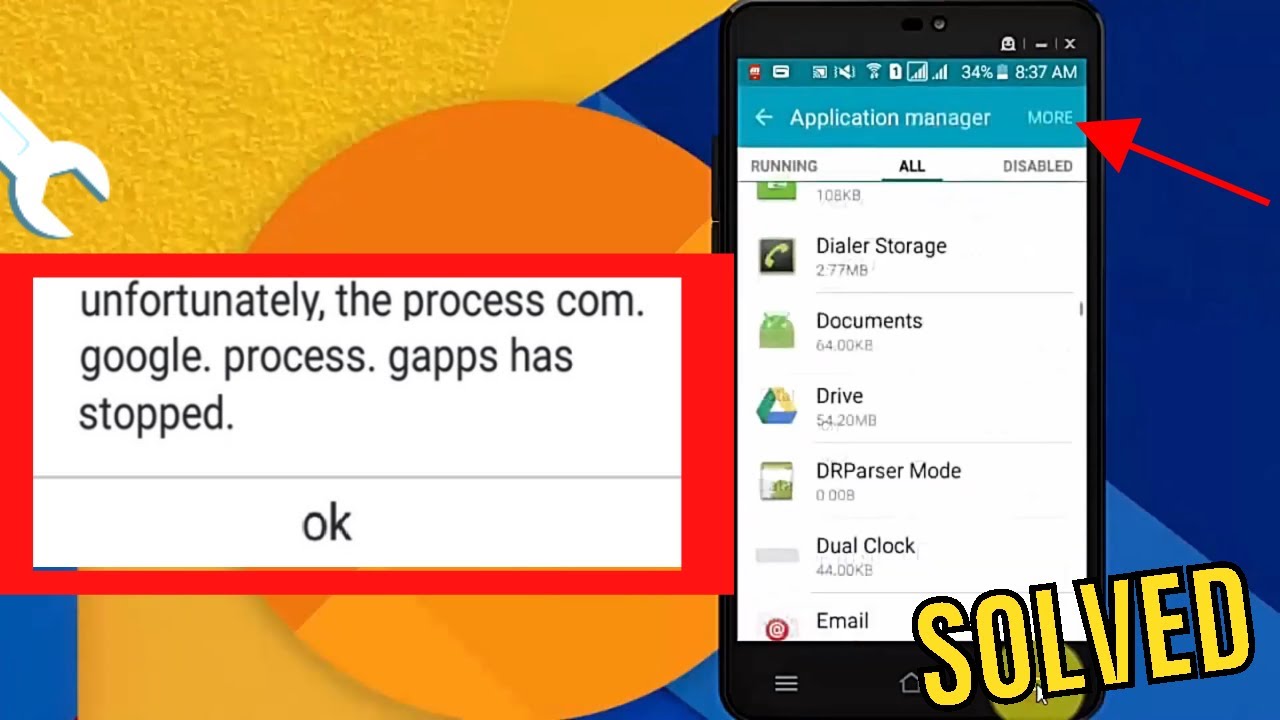
The simplest and most effective solution is to clear the cache and data of the TouchWiz Home app.
Step 1: Open Settings
- Go to your device’s Settings
- Tap Apps or Application Manager
Step 2: Locate TouchWiz
- Swipe to the All Apps tab
- Find TouchWiz Home
Step 3: Clear Cache and Data
- Tap Storage
- Select Clear Cache
- Then tap Clear Data
This removes temporary files that may be causing the crash.
Step 4: Restart Your Device
Restart your phone to apply the changes. Once rebooted, the error should be resolved.
Alternative Fixes
If the problem persists, try the following additional methods.
1. Remove Problematic Widgets
Widgets can sometimes conflict with TouchWiz.
- Long-press the home screen
- Remove recently added widgets
- Restart your device
2. Update Your Device
Software updates often fix bugs and improve stability.
- Go to Settings → Software Update
- Tap Download and Install
Keeping your system updated can prevent recurring errors.
3. Clear System Cache (Recovery Mode)
This method removes system-level temporary files.
Steps:
- Turn off your device
- Press and hold Volume Up + Home + Power
- Release buttons when the logo appears
- Select Wipe Cache Partition
- Reboot your device
4. Disable or Uninstall Problem Apps
Some third-party apps may conflict with TouchWiz.
- Identify recently installed apps
- Uninstall suspicious or unnecessary apps
- Restart your device
5. Use a Different Launcher
If TouchWiz continues to crash, switching to another launcher can be a quick workaround.
Popular alternatives include:
- Nova Launcher
- Microsoft Launcher
These apps replace the default home screen and bypass TouchWiz entirely.
6. Perform a Factory Reset (Last Resort)
If all else fails, a factory reset can fix deep system issues.
Steps:
- Go to Settings → General Management
- Tap Reset → Factory Data Reset
- Confirm and proceed
Warning: This will erase all data, so back up your files first.
Tips to Prevent TouchWiz Errors
To avoid encountering these issues again, follow these best practices:
- Keep your device storage clean
- Avoid installing too many widgets
- Regularly clear app cache
- Update apps and system software
- Use trusted applications only
Why These Fixes Work
TouchWiz errors are typically caused by corrupted temporary files or resource overload. Clearing cache and data removes problematic files, while updates and resets restore system stability.
Unlike complex troubleshooting methods, these solutions are:
- Easy to follow
- Safe for most users
- Highly effective
- Quick to implement
When to Consider Upgrading
If your device frequently encounters TouchWiz errors despite trying all fixes, it may be a sign that the hardware or software is outdated.
Upgrading to a newer Samsung device with One UI can provide:
- Better performance
- Improved stability
- Enhanced security
- Modern features
Final Thoughts
The “Unfortunately, TouchWiz has stopped” error can be annoying, but it’s usually easy to fix. In most cases, clearing the app’s cache and data resolves the issue immediately.
By following the steps in this guide, you can restore your device’s functionality and enjoy a smoother Android experience. If problems persist, alternative solutions like switching launchers or performing a factory reset can help.
With proper maintenance and updates, you can prevent these errors and keep your device running efficiently for longer.