

Windows Security is one of the most important components of modern Windows systems. It acts as the central dashboard that monitors antivirus protection, firewall status, device security, and other critical safety features. However, sometimes users discover that the Security Center is missing, disabled, or not working properly.
When this happens, Windows cannot accurately report the protection status of your system. As a result, the Windows Security app may display incomplete information or fail to show whether your computer is protected. This situation can create confusion and may expose your system to potential risks if protection tools are not functioning properly.
This guide explains why Security Center disappears or becomes disabled, what problems it can cause, and step-by-step solutions to restore it in Windows 11. By following these instructions, you can restore the service and ensure your computer properly reports its security status again.
What Is Windows Security Center?
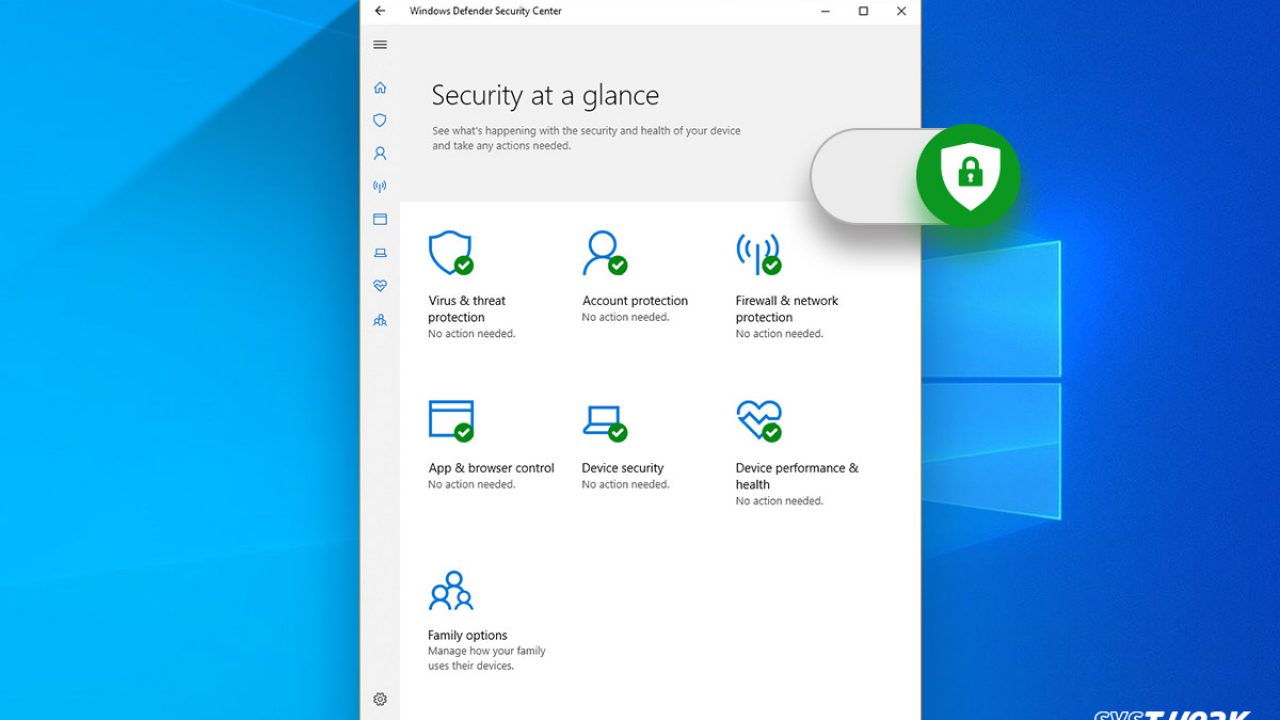
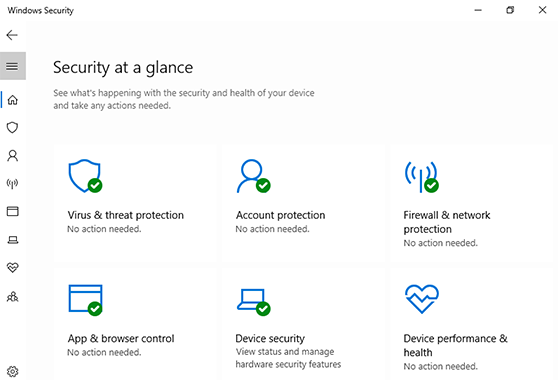
Security Center is a background service responsible for monitoring and reporting security settings on a Windows system. It checks several components and provides alerts when something is wrong.
The Security Center monitors:
- Antivirus protection
- Firewall status
- Account protection
- Device security
- App and browser control
- Family safety features
Instead of manually checking each security tool, Security Center acts as a central monitoring system that keeps track of all protections.
If Security Center stops working, the Windows Security app may display messages like:
- “Security Center service is turned off”
- “Unable to retrieve security status”
- Missing security sections
- Blank Windows Security dashboard
Signs That Security Center Is Disabled or Missing
If the Security Center service is not running, several symptoms may appear on your PC.
1. Windows Security Shows No Protection Status
You might open the Windows Security dashboard and see empty sections or warnings stating that protection status cannot be determined.
2. Security Notifications Stop Appearing
Normally, Windows alerts you when:
- Antivirus is turned off
- Firewall is disabled
- Threat protection needs attention
If Security Center is disabled, these alerts may not appear.
3. Windows Security App Fails to Open
Some users experience the Windows Security app closing immediately or refusing to load.
4. Security Center Service Missing from Services List
In rare cases, the service itself may disappear from the Windows Services panel.
5. System Displays Security Errors
You may encounter error messages related to security monitoring or system protection.
Why Security Center Gets Disabled
There are several reasons the Security Center service may become disabled or missing.
1. Disabled Service Settings
The most common cause is simply that the service has been manually disabled.
This can happen if:
- A user disables it in Services
- A third-party tool changes system settings
- A system optimization program modifies services
2. Third-Party Antivirus Conflicts
Some antivirus programs disable certain Windows monitoring services when installed.
This can temporarily disable Security Center reporting.
3. Windows System File Corruption
Corrupted system files can prevent essential services from running properly.
This often occurs after:
- Improper shutdowns
- Malware infections
- Interrupted Windows updates
4. Malware or Security Threats
Certain types of malware attempt to disable security monitoring tools to hide their activity.
If Security Center disappears unexpectedly, a malware scan is recommended.
5. Windows Update Problems
A failed update may disrupt system services and cause the Security Center to malfunction.
How Security Center Affects System Protection
Some users believe that if Security Center stops working, their antivirus stops working too. This is not always true.
Security Center does not directly provide protection. Instead, it monitors and reports protection tools.
However, if Security Center fails:
- You may not know if antivirus protection is active
- Security warnings may not appear
- Firewall status may not be reported
For this reason, restoring Security Center is important even if protection tools continue to function.
Method 1: Restart the Security Center Service
The first solution is to manually restart the service.
Steps
- Press Windows + R to open Run.
- Type services.msc and press Enter.
- Scroll down and find Security Center.
- Double-click the service.
- Set Startup type to Automatic (Delayed Start).
- Click Start if the service is stopped.
- Click Apply and OK.
Restart your computer and check if the Windows Security dashboard works properly.
Method 2: Enable Security Center Using Command Prompt
If the service cannot be started normally, you can enable it using command commands.
Steps
- Open Command Prompt as Administrator.
- Enter the following command:
sc config wscsvc start= delayed-auto
- Press Enter.
Then start the service:
net start wscsvc
Restart your computer and check the Windows Security app again.
Method 3: Run System File Checker
Corrupted Windows files can break system services.
The System File Checker (SFC) scans and repairs damaged files automatically.
Steps
- Open Command Prompt as Administrator.
- Run this command:
sfc /scannow
- Wait for the scan to complete.
- Restart your computer.
If corrupted files were causing the issue, this should restore normal operation.
Method 4: Use DISM to Repair Windows Image
If SFC cannot fix the problem, the Deployment Image Servicing and Management tool (DISM) can repair deeper system issues.
Steps
Open Command Prompt as Administrator and run the following commands one by one:
DISM /Online /Cleanup-Image /CheckHealth
DISM /Online /Cleanup-Image /ScanHealth
DISM /Online /Cleanup-Image /RestoreHealth
After the repair finishes, restart the system.
This process can restore system components related to Security Center.
Method 5: Check Windows Security App Reset
Sometimes the issue is caused by the Windows Security application itself rather than the service.
Resetting the app can fix glitches.
Steps
- Open Settings.
- Go to Apps.
- Click Installed Apps.
- Search for Windows Security.
- Click Advanced Options.
- Select Reset.
After resetting, reopen the Windows Security dashboard.
Method 6: Scan for Malware
If malware disables the Security Center service, fixing the service alone may not solve the problem.
Run a full system scan using:
- Built-in Windows protection
- Trusted antivirus software
- Offline malware scanners
Removing threats can restore normal security monitoring.
Method 7: Check Group Policy Settings
In some cases, system administrators or system policies disable Security Center.
Steps
- Press Windows + R.
- Type:
gpedit.msc
- Navigate to:
Computer Configuration → Administrative Templates → Windows Components → Security Center
Check policies that disable monitoring and set them to Not Configured.
Restart your computer afterward.
Method 8: Verify Registry Settings
Incorrect registry settings can prevent Security Center from starting.
Steps
- Press Windows + R.
- Type regedit.
- Navigate to:
HKEY_LOCAL_MACHINE\SYSTEM\CurrentControlSet\Services\wscsvc
- Find the Start value.
The correct values are:
- 2 – Automatic
- 3 – Manual
- 4 – Disabled
Set the value to 2.
Restart the computer.
(Always back up the registry before making changes.)
Method 9: Reinstall Windows Security Components
If Windows Security itself becomes corrupted, reinstalling system components may fix the issue.
Open PowerShell as Administrator and run:
Get-AppxPackage Microsoft.SecHealthUI -AllUsers | Reset-AppxPackage
Restart your system after the command completes.
Method 10: Perform a Windows Repair Installation
If none of the above solutions work, the final option is performing a Windows repair install.
This process reinstalls Windows system files without deleting your files or applications.
Steps generally include:
- Download the latest Windows installation media.
- Run the setup file.
- Choose Keep personal files and apps.
After installation finishes, Security Center should be restored.
Tips to Prevent Security Center Problems
Once the issue is resolved, follow these tips to prevent it from happening again.
Keep Windows Updated
Updates often fix service bugs and security issues.
Enable automatic updates whenever possible.
Avoid Disabling Core Services
System optimization tools sometimes disable services to improve performance.
Avoid disabling important Windows services manually.
Use Trusted Security Software
Low-quality antivirus programs may interfere with Windows components.
Choose reliable security tools that integrate properly with Windows.
Run Regular Malware Scans
Malware can disable monitoring services.
Running regular scans helps detect problems early.
Maintain System Health
Use tools like disk cleanup and system diagnostics to maintain system stability.
Frequently Asked Questions
Is Security Center Required for Windows Security?
Yes, it is essential for monitoring system protection and displaying security alerts.
Does disabling Security Center disable antivirus?
No. Antivirus programs may still run, but Windows will not be able to report their status properly.
Why did Security Center disappear after installing antivirus?
Some antivirus programs temporarily disable monitoring services while integrating with the system.
Can malware disable Security Center?
Yes. Some malicious programs attempt to disable monitoring services to avoid detection.
Final Thoughts
The Security Center service plays a critical role in monitoring your system’s protection status. When it becomes disabled, missing, or corrupted, Windows cannot accurately display security information in the Windows Security dashboard.
Fortunately, most cases can be resolved using simple troubleshooting steps such as:
- Restarting the Security Center service
- Repairing system files
- Resetting the Windows Security app
- Scanning for malware
- Fixing registry or policy settings
If the issue persists, deeper system repair methods like DISM scans or Windows repair installation can restore the missing components.
By following the solutions in this guide, you can restore Security Center functionality and ensure your Windows system properly reports its protection status again, helping keep your device safe and secure.