In today’s digital world, having a centralized account to access multiple services is essential. A Microsoft account is one of the most widely used digital identities, allowing users to connect seamlessly with a variety of services such as email, cloud storage, gaming, and productivity tools. Whether you want to use Outlook, OneDrive, Microsoft Office, or Xbox, creating a Microsoft account is the first step.
This comprehensive guide will walk you through everything you need to know about creating a Microsoft account, including its benefits, step-by-step instructions, security tips, and troubleshooting common issues.
What Is a Microsoft Account?
A Microsoft account is a free account that provides access to Microsoft services and devices. It acts as a single sign-on system, meaning you only need one username and password to access multiple platforms.
With a Microsoft account, you can:
- Send and receive emails via Outlook
- Store files using OneDrive
- Use Microsoft Office online tools
- Access the Microsoft Store
- Play games on Xbox
- Sync settings across Windows devices
It simplifies your digital experience by keeping everything connected under one login.
Benefits of Having a Microsoft Account
Before creating your account, it’s helpful to understand why it’s important.
1. Access to Multiple Services
One account gives you access to various Microsoft tools like Word, Excel, PowerPoint, Skype, and Teams.
2. Cloud Storage with OneDrive
You get free cloud storage to save photos, documents, and videos securely.
3. Sync Across Devices
Your settings, files, and preferences sync across Windows PCs, tablets, and smartphones.
4. Enhanced Security
Microsoft offers advanced security features like two-step verification and account recovery options.
5. Gaming and Entertainment
With a Microsoft account, you can access Xbox services, purchase games, and connect with friends.
Requirements to Create a Microsoft Account
Before you start, make sure you have the following:
- A stable internet connection
- A device (PC, laptop, tablet, or smartphone)
- A valid phone number or alternate email (for verification)
- A strong password
Step-by-Step Guide to Create a Microsoft Account
Follow these simple steps to create your account.
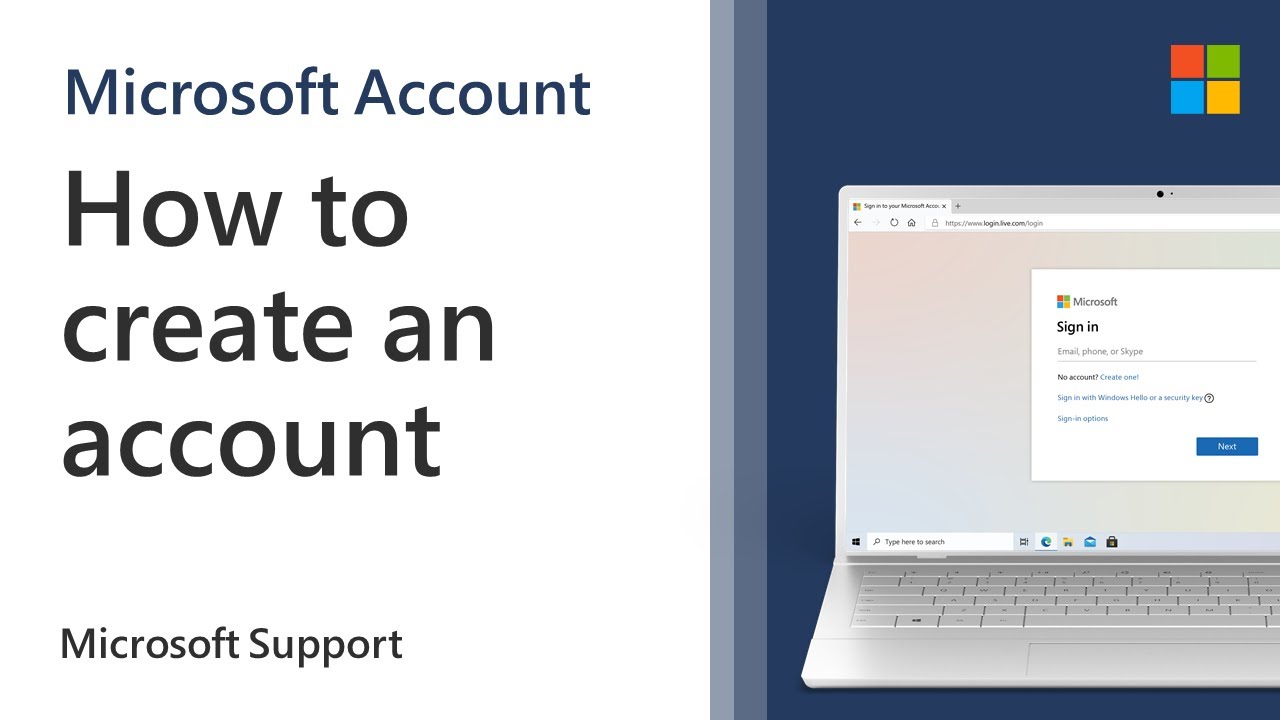
Step 1: Go to the Microsoft Sign-Up Page
Open your web browser and visit the official Microsoft sign-up page. Look for the “Create account” option.
Step 2: Enter Your Email Address
You have two options:
- Use an existing email (Gmail, Yahoo, etc.)
- Create a new Outlook email address
If you choose to create a new one, select a unique username.
Step 3: Create a Strong Password
Choose a password that includes:
- At least 8 characters
- A mix of uppercase and lowercase letters
- Numbers and symbols
Avoid using easily guessable information like your name or birthdate.
Step 4: Enter Personal Information
Fill in basic details such as:
- First and last name
- Country/region
- Date of birth
Make sure the information is accurate, as it may be used for account recovery.
Step 5: Verify Your Identity
Microsoft will send a verification code to your email or phone number. Enter the code to confirm your identity.
Step 6: Complete the CAPTCHA
To ensure you’re not a robot, complete a simple CAPTCHA challenge.
Step 7: Finalize Your Account
Once verified, your Microsoft account is ready to use. You can now log in and explore Microsoft services.
How to Set Up Your Microsoft Account
After creating your account, it’s important to configure it properly.
Add Security Information
Go to your account settings and add:
- Recovery email
- Phone number
- Security questions
Enable Two-Step Verification
This adds an extra layer of protection by requiring a second form of authentication.
Customize Your Profile
Upload a profile picture and update your personal information.
Using Your Microsoft Account
Once your account is ready, you can start using it across various services.
Email with Outlook
Access your inbox, send emails, and manage contacts.
Cloud Storage with OneDrive
Upload files and access them from anywhere.
Microsoft Office Online
Create and edit documents, spreadsheets, and presentations.
Windows Login
Use your Microsoft account to log into your Windows device and sync settings.
Tips for Keeping Your Microsoft Account Secure
Security is crucial when managing your digital identity.
Use a Strong Password
Avoid reusing passwords across multiple accounts.
Enable Two-Factor Authentication
This protects your account even if your password is compromised.
Monitor Account Activity
Regularly check for suspicious login attempts.
Update Recovery Information
Ensure your recovery email and phone number are up to date.
Common Issues and How to Fix Them
Sometimes users encounter problems when creating or using a Microsoft account.
Issue 1: Email Already in Use
Try logging in instead or use a different email address.
Issue 2: Verification Code Not Received
Check your spam folder or request a new code.
Issue 3: Weak Password Error
Make sure your password meets Microsoft’s requirements.
Issue 4: Account Locked
Follow the account recovery process to regain access.
Creating a Microsoft Account on Mobile Devices
You can also create an account using your smartphone.
On Android or iOS:
- Open a browser or Microsoft app
- Tap “Create account”
- Follow the same steps as on desktop
- Verify your identity
This process is quick and mobile-friendly.
Why You Should Use a Microsoft Account
A Microsoft account is more than just an email login—it’s a gateway to productivity, communication, and entertainment.
Whether you’re a student, professional, or gamer, having a Microsoft account helps you stay organized and connected.
Frequently Asked Questions
Is a Microsoft account free?
Yes, creating and using a Microsoft account is completely free.
Can I have multiple Microsoft accounts?
Yes, but it’s best to manage them carefully to avoid confusion.
Do I need a Microsoft account for Windows 10 or 11?
While not mandatory, it’s highly recommended for full functionality.
Can I use Gmail for a Microsoft account?
Yes, you can use any valid email address.
Conclusion
Creating a Microsoft account is a simple yet powerful step toward managing your digital life. With access to a wide range of services, enhanced security features, and seamless integration across devices, it’s an essential tool for anyone using modern technology.
By following this step-by-step guide, you can easily set up your account and start enjoying everything Microsoft has to offer. Don’t forget to secure your account with strong passwords and two-factor authentication to keep your information safe.
Start today and unlock a world of possibilities with your Microsoft account.