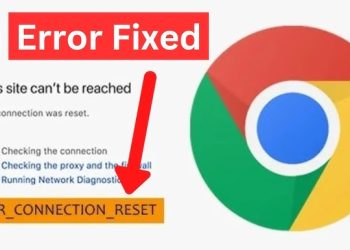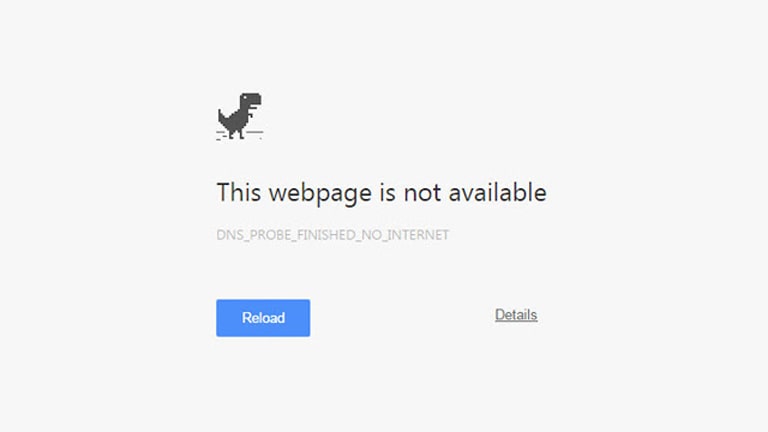
The DNS_PROBE_FINISHED_NO_INTERNET error is a common issue that can suddenly disrupt your browsing experience. It usually appears in browsers like Chrome when your device is unable to connect to the internet due to DNS-related problems.
If you’ve encountered this error, don’t worry—it’s typically easy to fix with the right approach. In this comprehensive guide, we’ll explain what this error means, why it happens, and how to resolve it step by step.
What Is DNS_PROBE_FINISHED_NO_INTERNET?
The DNS_PROBE_FINISHED_NO_INTERNET error indicates that your browser cannot resolve domain names into IP addresses because there is no internet connectivity or DNS response available.
DNS (Domain Name System) acts like a phonebook for the internet. When it fails, your device cannot locate websites, even if your connection appears active.
Common Causes of DNS_PROBE_FINISHED_NO_INTERNET
Understanding the root causes can help you fix the problem quickly.
1. No Internet Connection
Your device may not be connected to the internet at all.
2. Router or Modem Issues
Network hardware may be malfunctioning or misconfigured.
3. DNS Server Problems
Your DNS server may be down or unresponsive.
4. Incorrect Network Settings
Improper configurations can block DNS queries.
5. Firewall or Antivirus Interference
Security tools may block internet access.
6. Outdated Network Drivers
Drivers may cause compatibility issues.
How to Fix DNS_PROBE_FINISHED_NO_INTERNET Error
Below are effective solutions to resolve the issue.
1. Check Your Internet Connection
Start with basic troubleshooting.
- Ensure Wi-Fi is connected
- Restart your router
- Try another device
If no devices can connect, the issue is likely your network.
2. Restart Your Router and Modem
Power cycling your network devices can fix many issues.
Steps:
- Turn off router and modem
- Wait 30 seconds
- Turn them back on
This refreshes your network connection.
3. Restart Your Device
A simple restart can resolve temporary glitches.
- Reboot your computer or smartphone
- Reconnect to the network
4. Flush DNS Cache
Clearing DNS cache removes outdated records.
Windows Command Prompt:
ipconfig /flushdns
Mac Terminal:
sudo dscacheutil -flushcache; sudo killall -HUP mDNSResponder
5. Release and Renew IP Address
This refreshes your network configuration.
ipconfig /release
ipconfig /renew
6. Change DNS Server
Switching to a public DNS often resolves the issue.
Recommended DNS servers:
- Google DNS: 8.8.8.8 / 8.8.4.4
- Cloudflare DNS: 1.1.1.1
Update your network settings and test again.
7. Disable VPN or Proxy
VPNs and proxies can block DNS resolution.
- Turn off VPN
- Disable proxy settings
- Restart browser
8. Reset Network Settings
Resetting network settings can fix deeper issues.
Windows:
- Go to Network & Internet settings
- Select Network reset
Mac:
- Remove and re-add Wi-Fi connection
9. Disable Firewall or Antivirus Temporarily
Security software may block internet access.
- Turn off antivirus temporarily
- Disable firewall
- Test connection
Re-enable protection afterward.
10. Update Network Drivers
Outdated drivers can cause connectivity issues.
Steps:
- Open Device Manager
- Update network adapter
- Restart your system
Fix DNS_PROBE_FINISHED_NO_INTERNET on Mobile
Android
- Toggle Airplane mode
- Reset network settings
- Clear browser cache
iPhone
- Restart device
- Reset network settings
- Update iOS
Advanced Troubleshooting
If the problem persists, try these advanced solutions.
Reset TCP/IP Stack
netsh int ip reset
netsh winsock reset
Restart your device after running commands.
Check Hosts File
Incorrect entries can block websites.
- Open hosts file
- Remove suspicious entries
- Save changes
Use Safe Mode with Networking
Boot your system in safe mode to identify conflicts.
How to Prevent DNS Errors
Prevention ensures a smoother experience.
Use Reliable DNS Servers
Switch to trusted providers like Google or Cloudflare.
Keep Software Updated
Regular updates fix bugs and improve stability.
Avoid Suspicious Apps
Untrusted apps may alter network settings.
Monitor Network Health
Check router and connection regularly.
When the Issue Is External
Sometimes the error is not on your end.
Signs:
- Other users report the same issue
- Website is down globally
- ISP outage
In such cases, wait until the issue is resolved.
Real-World Scenario
Imagine trying to access a website for work, but your browser shows DNS_PROBE_FINISHED_NO_INTERNET. After restarting your router and switching DNS servers, the connection is restored instantly.
This highlights how simple fixes can solve complex-looking problems.
Frequently Asked Questions
Is this error serious?
No, it’s usually temporary and fixable.
Does changing DNS help?
Yes, it often resolves connectivity issues.
Can malware cause this error?
In rare cases, yes—run a security scan if needed.
Conclusion
The DNS_PROBE_FINISHED_NO_INTERNET error can interrupt your browsing, but it is usually easy to fix. By checking your connection, restarting devices, flushing DNS cache, and updating settings, you can quickly restore internet access.
Following the steps in this guide will help you identify the root cause and apply the right solution. Regular maintenance and proper network configuration will also prevent this error from occurring in the future.
With these strategies, you can enjoy a stable and uninterrupted internet experience.