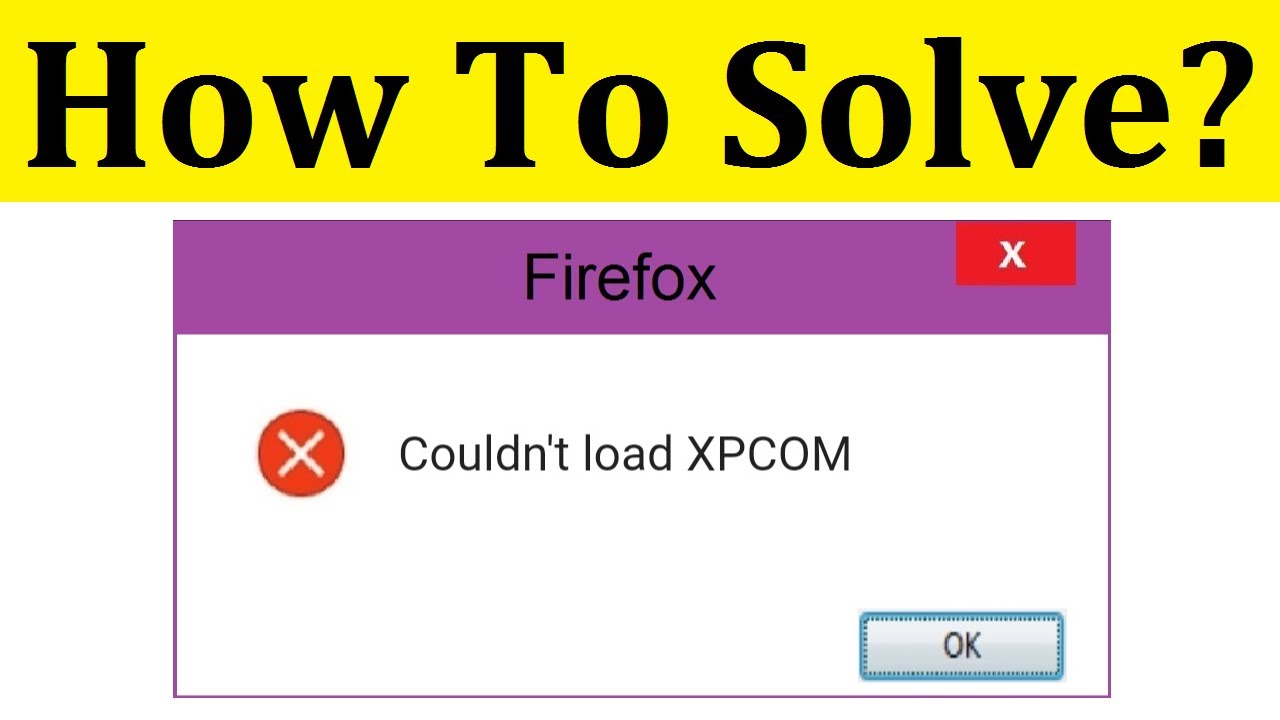
The “Couldn’t load XPCOM” error is a frustrating issue that commonly appears when launching applications like Mozilla Firefox or Thunderbird. This problem is especially frequent after a Windows update, leaving users unable to open their browser or access important data.
While there are many complicated solutions floating around the internet, the truth is that fixing this issue doesn’t have to be difficult. In this guide, you’ll learn the simplest and most effective method to resolve the “Couldn’t load XPCOM” error quickly and safely.
What Is the “Couldn’t Load XPCOM” Error?
XPCOM (Cross Platform Component Object Model) is a core framework used by Mozilla-based applications. It allows different parts of the software to communicate with each other.
When you see this error, it usually means that essential files required to run the application are either corrupted, missing, or incompatible with your current system.
Why Does This Error Occur?
The most common cause of this error is a recent Windows update. Updates can sometimes:
- Replace or remove important system files
- Conflict with existing application files
- Corrupt software installations
- Change permissions or registry settings
Other possible causes include:
- Incomplete software updates
- Antivirus interference
- Damaged user profiles
- Disk errors or bad sectors
The Easiest Fix (Recommended Method)
The simplest and most reliable way to fix the “Couldn’t load XPCOM” error is to completely reinstall the affected application.
This method works because it replaces all corrupted or incompatible files with fresh ones, eliminating the root cause of the issue.
Step 1: Uninstall the Application
- Press Windows + R to open the Run dialog
- Type
appwiz.cpland press Enter - Locate the affected application (e.g., Firefox or Thunderbird)
- Right-click it and select Uninstall
- Follow the on-screen instructions
Step 2: Remove Leftover Files
Even after uninstalling, some files may remain and continue causing issues.
- Press Windows + R again
- Type
%appdata%and press Enter - Locate and delete the folder related to the application (e.g., Mozilla)
- Repeat the process for
%localappdata%
Note: This step ensures no corrupted files are left behind.
Step 3: Restart Your Computer
Restarting helps clear temporary files and resets system processes that may be interfering with the application.
Step 4: Download the Latest Version
Always download the latest version of the application from its official website. This ensures compatibility with your updated Windows system.
Step 5: Reinstall the Application
- Run the installer you downloaded
- Follow the installation steps
- Launch the application after installation
In most cases, the error will be completely resolved at this point.
Alternative Fixes (If the Error Persists)
Although the reinstall method works for most users, you can try the following additional fixes if needed.
1. Run System File Checker (SFC)
This tool scans and repairs corrupted system files.
Steps:
- Open Command Prompt as Administrator
- Type:
sfc /scannow - Press Enter and wait for the process to complete
2. Check Disk for Errors
Disk errors can also trigger XPCOM issues.
- Open Command Prompt as Administrator
- Type:
chkdsk /f /r - Restart your computer if prompted
3. Disable Antivirus Temporarily
Some antivirus programs may block application components.
- Disable your antivirus temporarily
- Try launching the application again
- Re-enable antivirus after testing
4. Create a New User Profile
A corrupted user profile can cause application errors.
- Open Settings → Accounts
- Create a new user account
- Log in with the new account
- Try launching the application
Tips to Prevent This Error in the Future
To avoid encountering this issue again, follow these best practices:
- Keep your applications updated regularly
- Avoid interrupting installations or updates
- Use trusted antivirus software
- Perform routine system maintenance
- Back up important data frequently
Why This Method Works Best
Many online guides suggest complex fixes like editing the Windows registry or modifying system files. While these methods can work, they are risky and often unnecessary.
Reinstalling the application is:
- Simple and beginner-friendly
- Safe and low-risk
- Highly effective
- Time-efficient
It directly addresses the root cause instead of treating symptoms.
Final Thoughts
The “Couldn’t load XPCOM” error may seem intimidating at first, but it’s usually easy to fix with the right approach. In most cases, a clean reinstall of the affected application resolves the issue completely.
By following the steps outlined in this guide, you can quickly restore your software and get back to work without unnecessary complications.
If the problem persists even after trying all methods, consider checking for deeper system issues or seeking professional technical support.
By keeping your system clean and updated, you can minimize the chances of encountering this error again in the future.