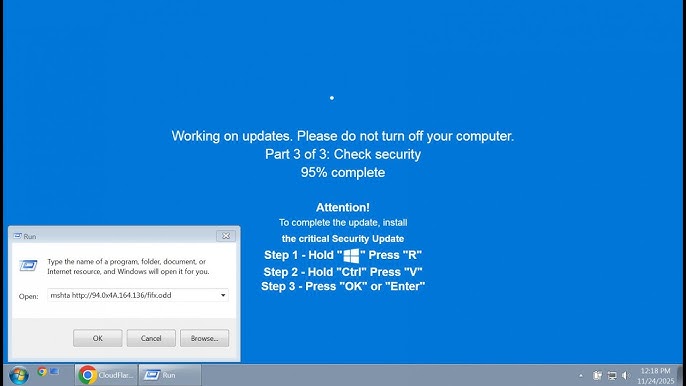
The fake Windows update screen is a surprisingly popular concept on the internet. At first glance, it looks identical to a real Windows update interface—complete with progress bars, percentages, and familiar system messages. However, it’s not actually updating anything.
These simulated screens are often used for pranks, presentations, or demonstrations. While they may seem harmless, it’s important to understand how they work, their potential risks, and how to use them responsibly.
In this comprehensive guide, we’ll explore everything you need to know about fake Windows update screens—from their purpose to how to create one safely.
What Is a Fake Windows Update Screen?
A fake Windows update screen is a simulated interface designed to mimic the appearance of a real Windows update process. It typically includes:
- A progress bar
- Update percentage indicators
- System messages like “Working on updates”
- A fullscreen display
Unlike real updates, these screens do not modify your system or install software.
Why Do People Use Fake Windows Update Screens?
There are several reasons why people use these simulations.
1. Pranks and Humor
One of the most common uses is harmless pranking.
2. Demonstrations
IT professionals may use them for training or presentations.
3. Screen Protection
Some use it to prevent others from using their computer temporarily.
4. Content Creation
Used in videos or social media for entertainment.
How Fake Windows Update Screens Work
Fake update screens are typically web-based or app-based simulations.
Web-Based Tools
- Run in a browser
- Fullscreen mode for realism
- No installation required
Software Applications
- Installed locally
- May offer more customization
Popular Fake Update Screen Features
These simulations often include:
- Realistic progress animations
- Random percentage increments
- Keyboard and mouse lock (optional)
- Fullscreen display
How to Create a Fake Windows Update Screen
If you want to create one, follow these steps responsibly.
Method 1: Using Online Tools
This is the easiest method.
Steps:
- Search for a fake update screen website
- Open the page
- Enter fullscreen mode (F11)
- Leave it running
Method 2: Using Custom Scripts
For advanced users:
- Use HTML/CSS/JavaScript
- Design a realistic interface
- Add animations for progress
This method allows full customization.
Method 3: Using Third-Party Software
Some applications simulate update screens.
- Install the program
- Launch it
- Enable fullscreen mode
Is It Safe to Use Fake Update Screens?
Generally, yes—but with precautions.
Safe Uses
- Educational demonstrations
- Harmless pranks among friends
- Content creation
Unsafe Uses
- Deceiving users maliciously
- Blocking access without permission
- Using untrusted software
Risks of Fake Windows Update Screens
While mostly harmless, there are risks.
1. Misuse for Deception
Some may use fake screens to trick users.
2. Malware Risks
Downloading tools from untrusted sources can introduce malware.
3. Loss of Productivity
Users may believe their system is actually updating.
4. Ethical Concerns
Using fake screens without consent can cause frustration or confusion.
How to Detect a Fake Windows Update Screen
Knowing how to identify a fake screen is important.
Signs It’s Fake
- No system activity (fan, disk usage)
- Mouse or keyboard still responsive
- Runs in a browser tab
- No restart required
Differences Between Real and Fake Updates
| Feature | Real Update | Fake Update |
|---|---|---|
| System Changes | Yes | No |
| Requires Restart | Often | No |
| Runs Outside Browser | Yes | Often No |
| Affects Performance | Yes | No |
Best Practices for Responsible Use
Use Transparently
Inform users if used in professional settings.
Avoid Harm
Do not cause panic or confusion.
Use Trusted Sources
Only use reliable tools.
Educational Uses of Fake Update Screens
These simulations can be valuable in:
IT Training
Demonstrating system behavior.
Cybersecurity Awareness
Teaching users to identify fake interfaces.
Classroom Settings
Explaining operating system processes.
Fake Update Screens in Pop Culture
They have become a meme in online communities.
Common Scenarios
- Office pranks
- Gaming streams
- YouTube videos
Real-World Example
Imagine leaving your computer unlocked in an office. A colleague opens a fake update screen, making it appear as if your system is updating. While harmless, it highlights the importance of locking your device.
How to Exit a Fake Update Screen
If you encounter one:
- Press Alt + Tab
- Press Esc
- Exit fullscreen (F11)
- Close the browser
Preventing Misuse
Lock Your Computer
Use Windows + L when stepping away.
Avoid Unknown Downloads
Stick to trusted websites.
Educate Users
Awareness reduces confusion.
Frequently Asked Questions
Are fake update screens illegal?
Not inherently, but misuse can be problematic.
Can they harm my computer?
Not if they are simple simulations from trusted sources.
Do they install anything?
No, unless you download unsafe software.
Future of Simulation Tools
As technology advances, simulations will become more realistic.
Possible Developments
- More interactive interfaces
- AI-driven simulations
- Enhanced realism
Conclusion
The fake Windows update screen is a fascinating blend of humor, technology, and creativity. While it can be used for harmless fun or educational purposes, it’s important to use it responsibly and understand the potential risks.
By knowing how these simulations work and how to detect them, you can avoid confusion and ensure safe usage. Whether you’re creating one for a prank or learning about system interfaces, always prioritize transparency and security.
Used wisely, fake update screens can be both entertaining and informative—but like any tool, they should be handled with care.