

Your computer’s performance and reliability depend heavily on its overall system health. Over time, PCs can slow down due to software conflicts, insufficient storage, malware threats, outdated drivers, or hardware issues. Fortunately, modern Windows systems provide several built-in tools that allow users to check the health and performance of their computers without installing third-party software.
Tools such as PC Health Check, Windows Security, and Performance Monitor help evaluate system performance, storage status, battery condition, and overall device health.
This guide explains how to use these Windows utilities effectively to monitor your computer’s condition and maintain optimal performance.
Why Checking PC Health Is Important
Computers experience gradual wear and software clutter over time. Without regular monitoring, issues may go unnoticed until they cause serious performance problems.
Checking your PC’s health helps you:
- Detect system slowdowns early
- Identify storage issues
- Monitor battery health
- Check security protection
- Analyze system resource usage
- Prevent crashes or hardware failure
Regular monitoring ensures that your computer remains stable, secure, and efficient.
Built-In Windows Tools for Checking PC Health
Windows includes several powerful utilities designed to diagnose and monitor system health.
The most commonly used tools include:
- PC Health Check
- Windows Security
- Performance Monitor
- Task Manager
- Reliability Monitor
- Storage settings and disk tools
Each tool focuses on different aspects of system health.
Using PC Health Check to Evaluate System Status
One of the simplest tools for checking system health is PC Health Check.
This utility was introduced by Microsoft to help users evaluate whether their device meets the requirements for Windows updates and to provide a quick overview of device health.
Key Features of PC Health Check
PC Health Check provides information about:
- System compatibility
- Device performance
- Battery capacity
- Storage usage
- Windows update status
- Backup settings
It offers a quick summary of your computer’s condition.
How to Use PC Health Check
Follow these steps to analyze your PC health.
Step 1: Open the Tool
- Click the Start menu.
- Search for PC Health Check.
- Open the application.
Step 2: Run a Health Check
Inside the dashboard, select Check Now.
The program scans the system and displays information about:
- System readiness
- Hardware requirements
- Performance status
Step 3: Review Results
The tool provides recommendations if issues are detected.
For example:
- Storage nearly full
- Backup disabled
- Battery health declining
Addressing these warnings helps maintain optimal performance.
Checking Security Status With Windows Security
Security plays a major role in system health. A computer infected with malware or missing security updates can experience severe performance problems.
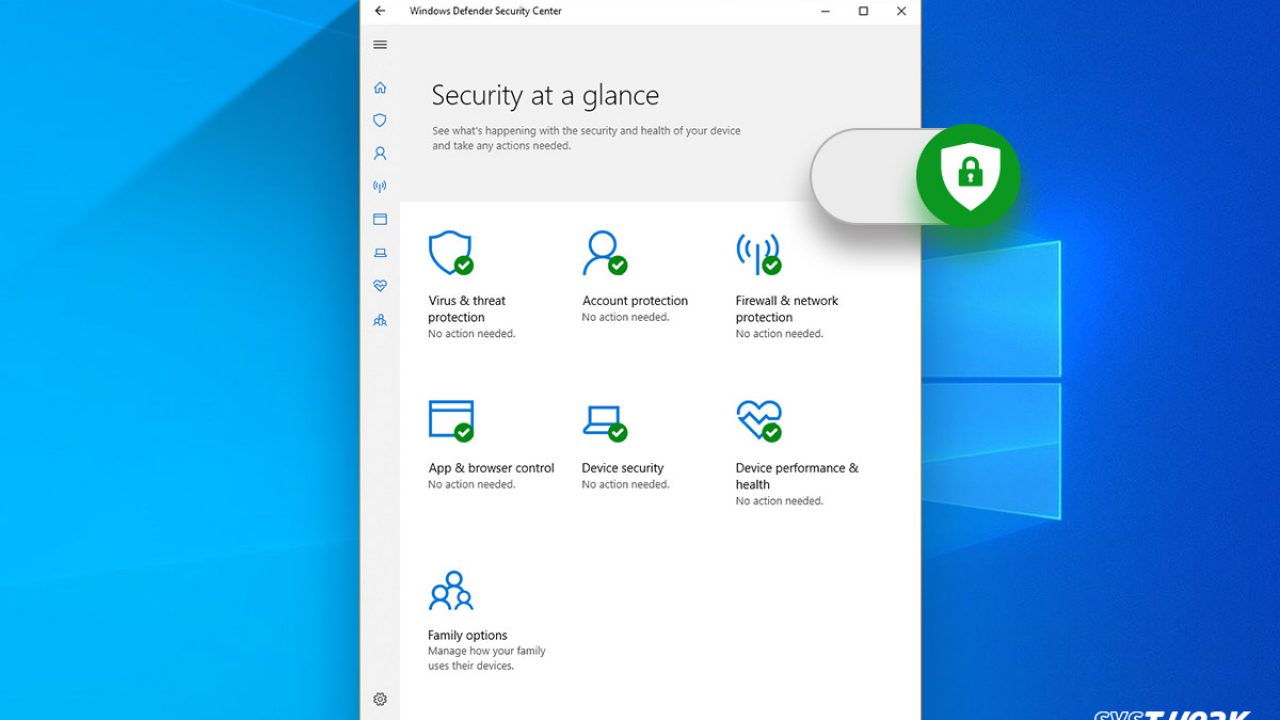
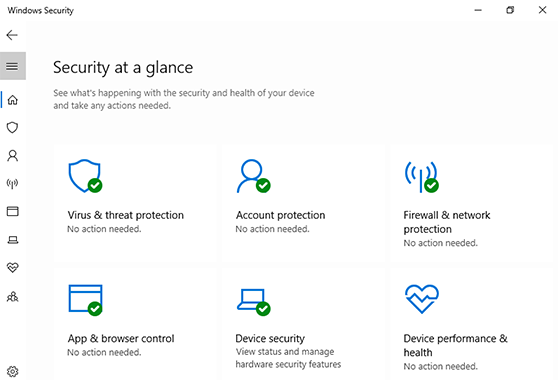
The Windows Security dashboard allows users to monitor protection status.
Key Areas Monitored by Windows Security
Windows Security tracks several important protections.
Virus and Threat Protection
This section shows:
- Antivirus status
- Recent scan results
- Threat history
It ensures that your system is protected from malware.
Firewall and Network Protection
The firewall protects your computer from unauthorized network access.
Users can confirm that:
- Firewall protection is enabled
- Network connections are secure
Device Security
This section checks hardware-based protections such as:
- Secure Boot
- Core isolation
- TPM security
These features prevent low-level system attacks.
Account Protection
Account protection monitors:
- Login security
- Windows Hello settings
- Microsoft account protection
How to Check Security Health
To check system protection:
- Open Settings.
- Select Privacy & Security.
- Click Windows Security.
- Open Windows Security Dashboard.
Review each category and address any warnings displayed.
Monitoring Performance With Performance Monitor
For advanced diagnostics, Windows includes Performance Monitor.
This powerful utility allows users to track system performance in real time.
What Performance Monitor Tracks
Performance Monitor records detailed metrics such as:
- CPU usage
- Memory consumption
- Disk activity
- Network traffic
- System processes
These statistics help identify performance bottlenecks.
How to Open Performance Monitor
To access Performance Monitor:
- Press Windows + R.
- Type:
perfmon
- Press Enter.
The tool opens with several monitoring options.
Understanding Performance Monitor Graphs
Performance Monitor displays real-time graphs that track system activity.
Key metrics include:
Processor Usage
Shows how much of the CPU is currently being used.
High usage may indicate:
- Background applications
- Malware
- Resource-heavy programs
Memory Usage
Tracks RAM consumption.
If memory usage is consistently high, the system may require:
- More RAM
- Closing background applications
Disk Activity
Disk monitoring helps detect:
- Slow drives
- Excessive disk usage
- Background indexing processes
Network Activity
Shows how much bandwidth is being used.
This helps detect programs using excessive internet resources.
Using Task Manager for Quick Performance Checks
For quick diagnostics, Task Manager is often the easiest tool.
Task Manager allows users to quickly view system resource usage.
To open it:
Press Ctrl + Shift + Esc.
The Performance tab displays:
- CPU usage
- Memory usage
- Disk activity
- GPU performance
This tool is ideal for identifying programs slowing down your system.
Checking System Reliability With Reliability Monitor
Another helpful diagnostic tool is Reliability Monitor.
It tracks system stability over time.
To open Reliability Monitor:
- Search for Reliability Monitor in the Start menu.
- Select View reliability history.
What Reliability Monitor Shows
Reliability Monitor tracks:
- System crashes
- Application failures
- Windows updates
- driver errors
Each day receives a stability score from 1 to 10.
Higher scores indicate a stable system.
If the score drops, reviewing the error list can reveal the cause.
Checking Storage Health
Storage problems can significantly slow down a computer.
Windows provides several tools to monitor disk health.
Viewing Storage Usage
To check storage usage:
- Open Settings.
- Go to System.
- Click Storage.
The Storage page shows how disk space is used.
Categories include:
- Apps
- Temporary files
- System files
- Documents
- Videos
Removing unnecessary files can improve system performance.
Running Disk Error Checking
Disk errors may cause slow performance or file corruption.
To scan your drive:
- Open File Explorer.
- Right-click the system drive.
- Select Properties.
- Open the Tools tab.
- Click Check.
Windows will scan and repair disk issues.
Checking Battery Health on Laptops
Laptop users should also monitor battery health.
Windows can generate a battery report.
To create one:
- Open Command Prompt as Administrator.
- Run the command:
powercfg /batteryreport
A detailed battery report will be saved on your system.
The report includes:
- Battery capacity
- Charge cycles
- Usage history
This helps determine whether the battery needs replacement.
Checking Windows Update Status
Keeping Windows updated is essential for system health.
To check updates:
- Open Settings.
- Go to Windows Update.
- Click Check for Updates.
Updates often fix performance issues and security vulnerabilities.
Signs Your PC Health Needs Attention
Several warning signs indicate system health problems.
These include:
- Slow startup times
- Frequent application crashes
- Overheating
- Constant high CPU usage
- Low storage space
- Unexpected restarts
If these symptoms appear, using the diagnostic tools mentioned above can help identify the cause.
Tips for Maintaining Good PC Health
Monitoring tools are useful, but preventive maintenance is equally important.
Here are several ways to keep your system healthy.
Keep Software Updated
Outdated software can cause performance issues and security vulnerabilities.
Regularly update:
- Windows
- Device drivers
- Applications
Manage Startup Programs
Too many startup programs slow down boot times.
To manage them:
- Open Task Manager.
- Select the Startup tab.
- Disable unnecessary programs.
Clean Temporary Files
Temporary files accumulate over time and consume storage.
Use Disk Cleanup or Storage settings to remove them.
Run Regular Virus Scans
Malware can slow down systems and compromise security.
Use Windows Security to run regular scans.
Monitor System Temperature
Overheating can reduce system lifespan.
Ensure proper ventilation and clean dust from cooling fans.
Upgrade Hardware When Necessary
If performance remains slow even after optimization, hardware upgrades may help.
Common upgrades include:
- Adding more RAM
- Upgrading to an SSD
- Replacing an aging battery
Advantages of Using Built-In Windows Tools
Many users install third-party diagnostic software, but built-in Windows tools provide several advantages.
No Extra Installation
All tools come pre-installed with Windows.
Trusted by the Operating System
They integrate directly with system components.
Accurate System Data
Because they access internal performance counters, they provide reliable diagnostics.
Free to Use
No additional cost is required.
When to Use Third-Party Tools
Although built-in tools are powerful, advanced users sometimes prefer specialized monitoring software for:
- Hardware temperature monitoring
- Detailed GPU analysis
- Network diagnostics
However, for most users, Windows utilities are more than sufficient.
The Future of PC Health Monitoring in Windows
Modern Windows versions continue improving system monitoring features.
New updates are focusing on:
- AI-powered performance diagnostics
- Automated maintenance
- Cloud-based device monitoring
- Advanced security analysis
These improvements aim to make system health monitoring easier for everyday users.
Conclusion
Maintaining good system health is essential for a fast, secure, and reliable computer. Fortunately, Windows includes powerful built-in utilities that allow users to monitor their devices without installing additional software.
Tools such as PC Health Check, Windows Security, and Performance Monitor provide detailed insights into performance, security, storage, and battery status.
By regularly checking these tools and following good maintenance practices, users can detect problems early and keep their computers running smoothly for years.
Taking a few minutes to monitor your PC’s health can prevent serious issues and ensure your system continues to perform at its best.