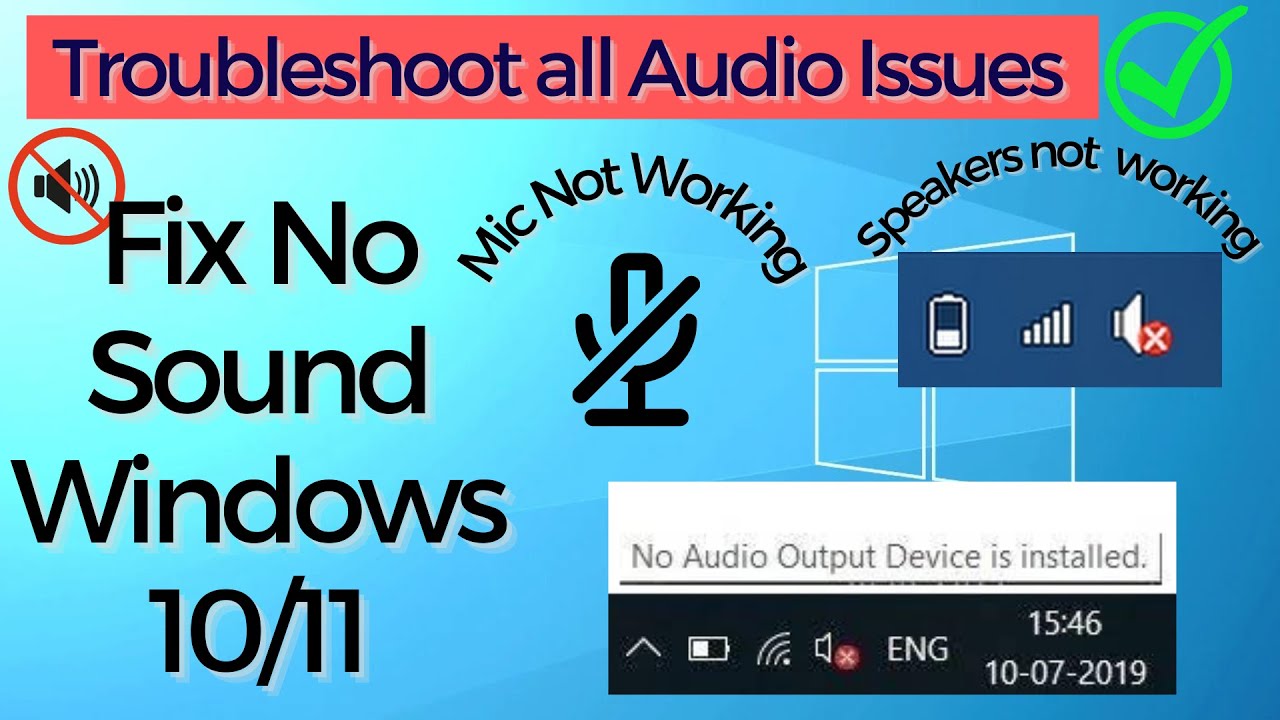
Sound is an essential part of your computing experience, whether you’re watching videos, attending meetings, or listening to music. But when your audio suddenly stops working, it can be frustrating. The audio not working Windows 10 issue is a common problem faced by many users.
Whether you have no sound at all, distorted audio, or issues with headphones, this guide will help you fix it quickly.
Signs of Audio Problems
- No sound from speakers or headphones
- Audio device not detected
- Sound is distorted or too low
- Volume icon shows error
Common Causes of Audio Issues
1. Muted or Low Volume
Simple but often overlooked.
2. Incorrect Playback Device
Wrong output device selected.
3. Outdated or Corrupted Drivers
Audio drivers may malfunction.
4. Disabled Audio Services
Required services may not be running.
5. Hardware Issues
Faulty speakers or headphones.
6. Windows Update Bugs
Updates may cause compatibility issues.
Quick Fixes to Try First
Check Volume Settings
Ensure volume is not muted.
Restart Your Computer
Fixes temporary glitches.
Check Headphone Connection
Ensure proper connection.
Method 1: Select Correct Playback Device
Steps:
- Right-click volume icon
- Click Open Sound settings
- Choose correct output device
Method 2: Run Audio Troubleshooter
Steps:
- Open Settings
- Go to System → Sound
- Click Troubleshoot
- Follow instructions
Method 3: Update Audio Drivers
Steps:
- Press Windows + X
- Open Device Manager
- Expand Sound, video and game controllers
- Update driver
Method 4: Reinstall Audio Drivers
Steps:
- Open Device Manager
- Right-click audio device
- Click Uninstall device
- Restart PC
Method 5: Restart Audio Services
Steps:
- Press Windows + R
- Type
services.msc - Restart:
- Windows Audio
- Windows Audio Endpoint Builder
Method 6: Disable Audio Enhancements
Steps:
- Open Sound settings
- Click Device properties
- Disable enhancements
Method 7: Check Audio Format
Steps:
- Open Sound settings
- Go to Advanced tab
- Change default format
Method 8: Update Windows
Steps:
- Open Settings
- Go to Windows Update
- Install updates
Method 9: Check Hardware Connections
- Test different headphones or speakers
- Check audio ports
Method 10: Set Audio Device as Default
Steps:
- Open Control Panel
- Go to Sound
- Set device as default
Advanced Troubleshooting
Use External Sound Card
- Test if internal hardware is faulty
Check BIOS Settings
- Ensure audio is enabled
Preventing Audio Issues
Keep Drivers Updated
Ensures smooth performance.
Avoid Untrusted Software
Prevents conflicts.
Maintain Hardware
Check cables and devices regularly.
Install Updates
Fix bugs and improve compatibility.
Common Mistakes to Avoid
Ignoring Simple Settings
Volume or device selection is often the issue.
Using Wrong Drivers
Incorrect drivers cause problems.
Skipping Updates
Outdated system can break audio.
Real-World Example
Imagine watching a video and suddenly there’s no sound. After selecting the correct playback device and restarting audio services, the sound returns instantly.
Frequently Asked Questions
Why is my audio not working?
Usually due to driver or settings issues.
Can drivers fix sound problems?
Yes, updating drivers often resolves issues.
Is it a hardware problem?
Sometimes, but often it’s software-related.
Conclusion
The audio not working Windows 10 issue can disrupt your experience, but it’s usually easy to fix. By checking settings, updating drivers, and troubleshooting system services, you can restore sound quickly.
Regular maintenance and proper configuration will help prevent audio issues and ensure a smooth multimedia experience.