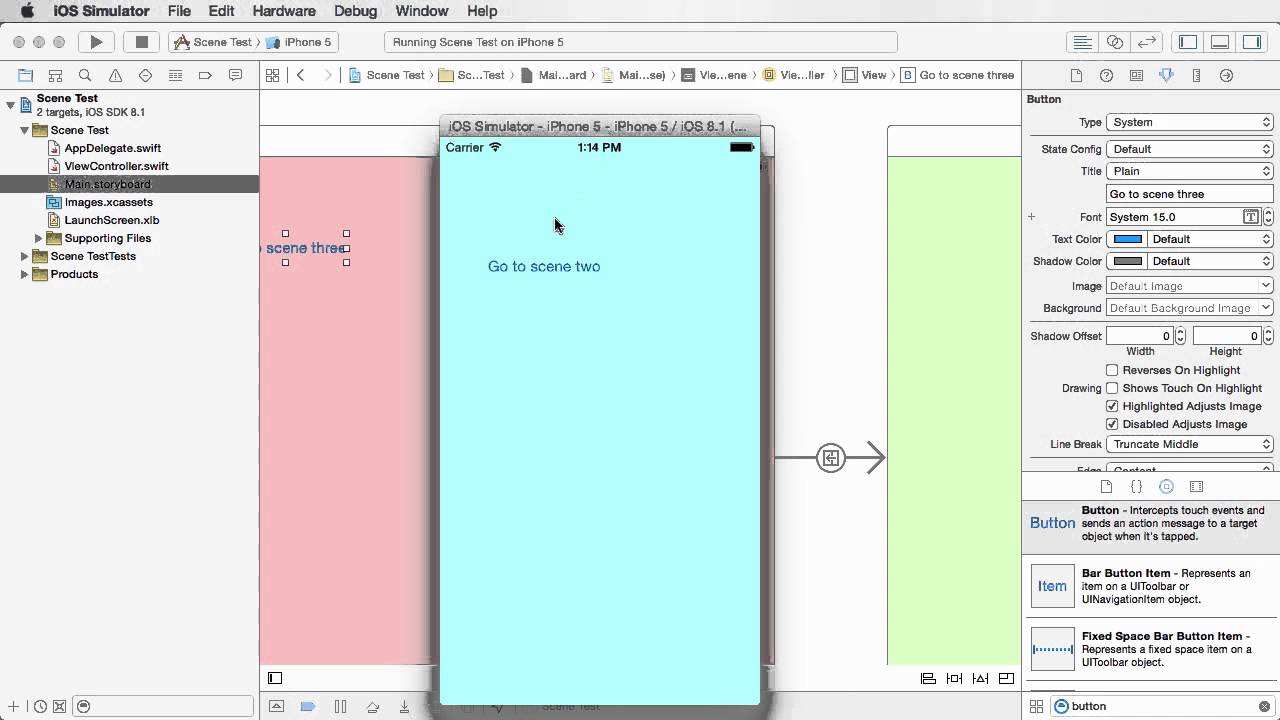
Storyboard is one of the most powerful tools available to iOS developers for designing user interfaces visually. Whether you’re building your first app or refining a complex production-level application, understanding how to use storyboards effectively can significantly improve both your workflow and your app’s usability.
In this comprehensive guide, we will explore what storyboards are, why they matter, how to use them, and best practices for creating scalable and maintainable iOS applications.
What is a Storyboard in iOS Development?
A storyboard is a visual representation of your app’s user interface and navigation flow. It allows developers to design screens (view controllers) and define transitions (segues) between them without writing extensive UI code.
Instead of constructing interfaces programmatically, storyboards enable drag-and-drop design using Interface Builder in Xcode. This approach accelerates development and makes it easier to visualize the entire app structure at a glance.
Why Use Storyboards?
Storyboards provide several advantages, especially for beginners and teams:
1. Visual UI Design
You can see your interface as you build it. This reduces guesswork and makes layout adjustments intuitive.
2. Faster Development
Dragging UI components like buttons, labels, and images is faster than coding everything manually.
3. Built-in Navigation
Storyboards make it easy to define transitions between screens using segues.
4. Collaboration
Designers and developers can work together more effectively since the UI is visually represented.
Key Components of a Storyboard
To master storyboard-based development, you need to understand its core elements.
View Controllers
Each screen in your app is represented by a view controller. These act as containers for your UI elements and logic.
UI Elements
Common elements include:
- UILabel
- UIButton
- UIImageView
- UITextField
- UITableView
These components are dragged from the Object Library into your view controller.
Segues
Segues define transitions between view controllers. Types include:
- Show (push)
- Present modally
- Custom
Auto Layout
Auto Layout ensures your UI adapts to different screen sizes and orientations. It uses constraints to define relationships between UI elements.
Getting Started with Storyboards
Step 1: Create a New Project
Open Xcode and create a new iOS project. By default, it includes a Main.storyboard file.
Step 2: Explore Interface Builder
Click on Main.storyboard to open the visual editor. You will see:
- Canvas (design area)
- Object Library (UI components)
- Inspector Panel (properties and settings)
Step 3: Add UI Elements
Drag a button and label onto the screen. Resize and position them as needed.
Step 4: Add Constraints
Use Auto Layout to ensure proper positioning across devices. For example:
- Center horizontally
- Add top spacing
- Set width and height
Step 5: Connect Code
Open the Assistant Editor and connect UI elements to your Swift code using IBOutlet and IBAction.
Understanding Segues
Segues are essential for navigation between screens.
Creating a Segue
- Control-drag from one view controller to another
- Choose a segue type (e.g., “Show”)
Passing Data Between Screens
Override the prepare(for:sender:) method in your view controller:
override func prepare(for segue: UIStoryboardSegue, sender: Any?) {
    if segue.identifier == "showDetail" {
        let destination = segue.destination as! DetailViewController
        destination.data = "Hello World"
    }
}
Using Identifiers
Always assign identifiers to segues to manage them efficiently in code.
Auto Layout Deep Dive
Auto Layout is critical for responsive design.
Constraints Basics
Constraints define:
- Position (top, bottom, leading, trailing)
- Size (width, height)
- Alignment
Common Constraint Types
- Equal spacing
- Aspect ratio
- Center alignment
Debugging Constraints
Xcode provides warnings for ambiguous or conflicting constraints. Resolve them early to avoid layout issues.
Storyboards vs Programmatic UI
While storyboards are powerful, it’s important to understand their alternatives.
Storyboards Advantages
- Visual design
- Rapid prototyping
- Easy navigation setup
Storyboards Disadvantages
- Merge conflicts in teams
- Harder to manage large apps
- Less flexible for dynamic UI
Programmatic UI Advantages
- Better scalability
- Easier version control
- More flexibility
Best Practice
Many developers use a hybrid approach:
- Storyboards for simple flows
- Code for complex or dynamic layouts
Best Practices for Using Storyboards
1. Keep Storyboards Small
Avoid putting your entire app in one storyboard. Instead:
- Use multiple storyboards
- Break features into modules
2. Use Storyboard References
Storyboard references allow you to split large storyboards into smaller ones while maintaining navigation.
3. Name Everything Clearly
Use meaningful names for:
- View controllers
- Segues
- Outlets
4. Avoid Massive View Controllers
Follow the MVC pattern and keep logic separate from UI.
5. Use Auto Layout Properly
Never rely on fixed frames. Always use constraints for adaptability.
Common Mistakes to Avoid
Overusing Storyboards
Large storyboards become difficult to maintain and prone to conflicts.
Ignoring Auto Layout
Skipping constraints leads to broken layouts on different devices.
Hardcoding Values
Avoid fixed sizes and positions. Use relative constraints instead.
Poor Naming Conventions
Unclear identifiers make debugging harder.
Advanced Storyboard Techniques
Custom View Controllers
Create reusable components by subclassing UIViewController.
Container Views
Embed child view controllers within parent views for modular design.
Dynamic Table Views
Use prototype cells to design reusable table layouts.
Animations
You can combine storyboards with UIKit animations for smooth transitions.
When NOT to Use Storyboards
Storyboards may not be ideal in certain scenarios:
- Large team projects with frequent merges
- Highly dynamic UIs
- Apps requiring complex animations
- Projects using SwiftUI
In these cases, programmatic UI or SwiftUI might be better choices.
Storyboards and SwiftUI
SwiftUI is Apple’s modern UI framework, but storyboards are still widely used.
Storyboards
- Mature and stable
- Works with UIKit
- Visual editing
SwiftUI
- Declarative syntax
- Real-time previews
- Better for modern apps
Choosing Between Them
If you’re maintaining legacy apps, storyboards are essential. For new projects, consider SwiftUI.
Real-World Example
Imagine building a login app:
- Login Screen
- Username field
- Password field
- Login button
- Home Screen
- Welcome label
- Navigation menu
Using storyboards:
- Create two view controllers
- Add UI elements visually
- Connect them with a segue
- Pass user data during transition
This approach allows rapid development with minimal code.
Tips for SEO and Performance
Even though storyboards are UI tools, they impact user experience, which affects app performance.
Optimize UI Loading
- Avoid heavy views in a single controller
- Lazy load data when possible
Improve User Experience
- Ensure consistent layout
- Use responsive design
Maintain Clean Architecture
- Separate UI from business logic
- Use design patterns like MVC or MVVM
Conclusion
Storyboard for iOS development remains a valuable skill for developers at all levels. It simplifies UI design, accelerates development, and provides a clear visual structure for your application.
While newer technologies like SwiftUI are gaining popularity, storyboards continue to play a crucial role in many real-world projects. By mastering storyboards, Auto Layout, and navigation, you can build robust and user-friendly iOS applications efficiently.
Whether you’re a beginner or an experienced developer, understanding how to use storyboards effectively will enhance your productivity and improve the quality of your apps.