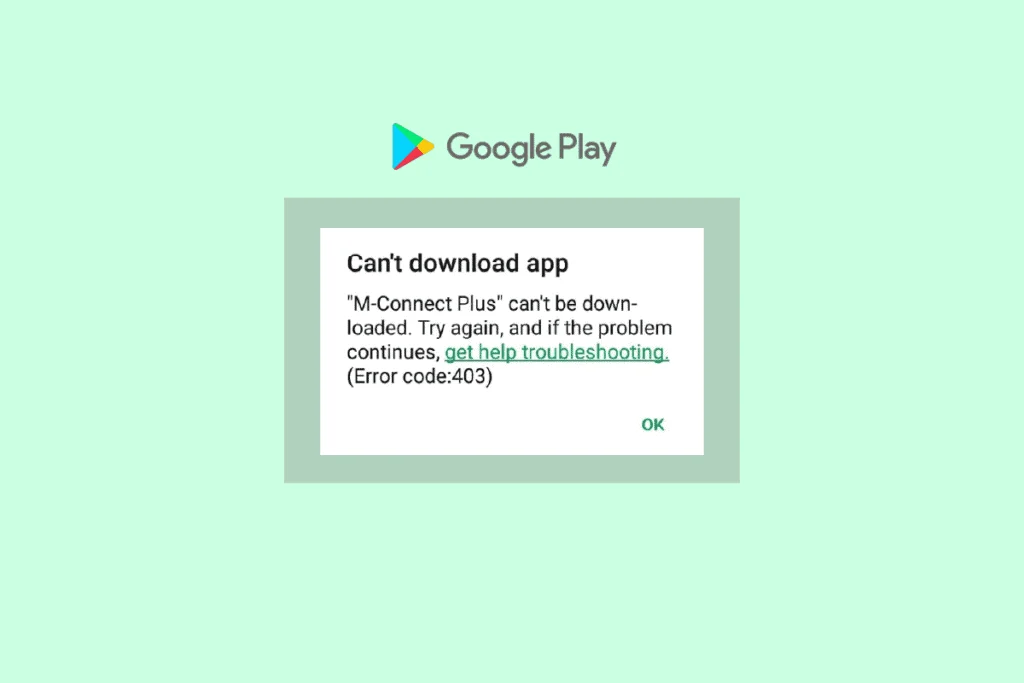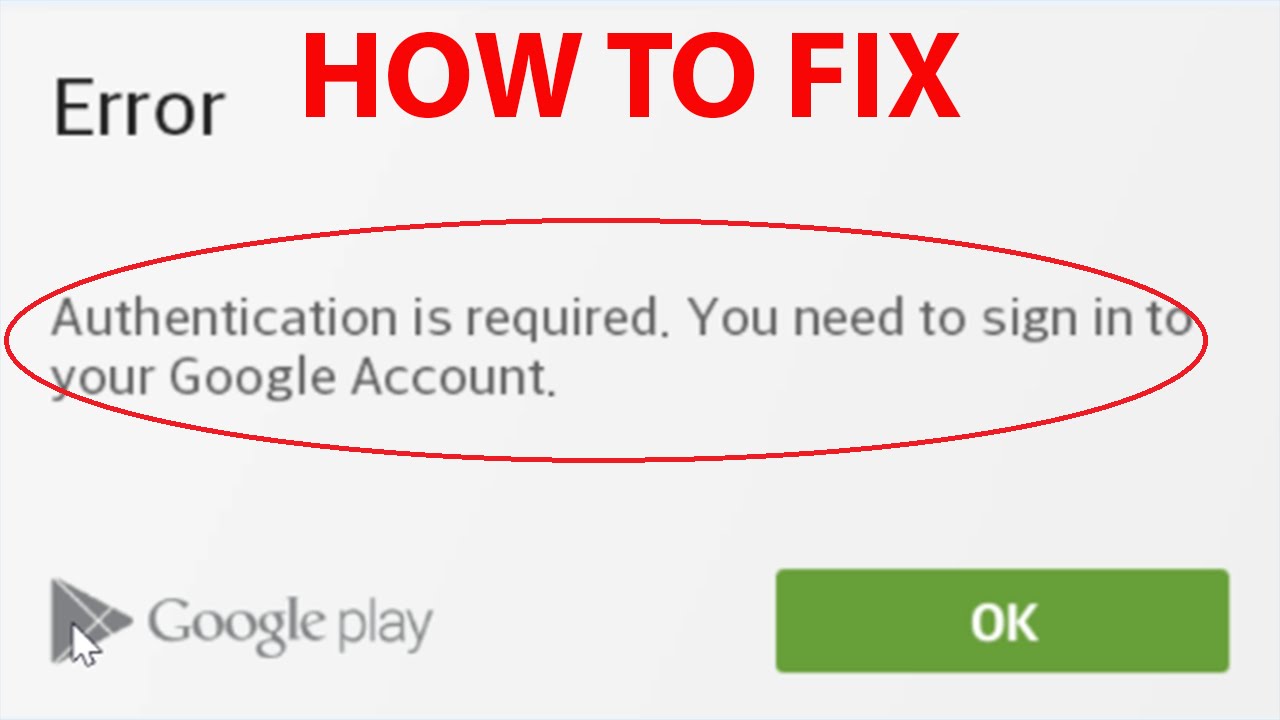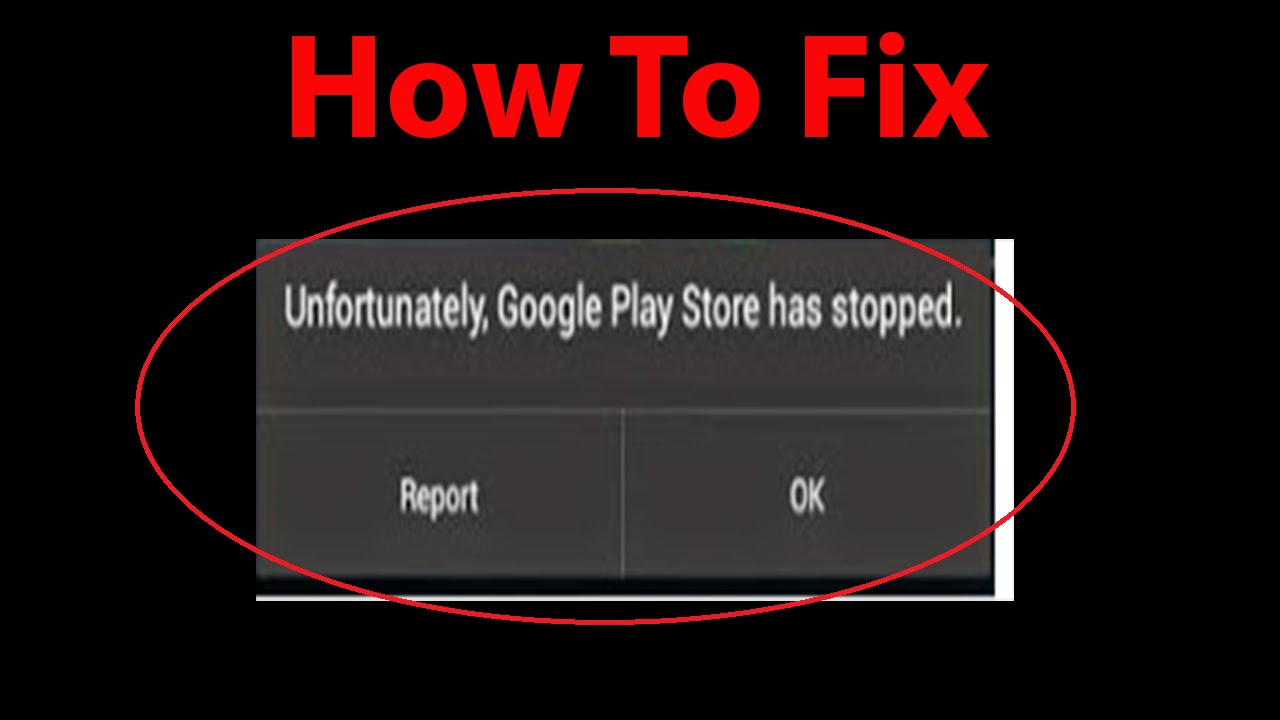
Few things are more frustrating for Android users than seeing the message: “Unfortunately, Google Play Store has stopped.” This error can appear suddenly, preventing you from downloading, updating, or even opening apps. Since the Play Store is essential for managing applications, this issue can disrupt your entire mobile experience.
The good news? This problem is usually easy to fix.
In this complete guide, we’ll break down why this error occurs, what it means, and how to fix it step by step using proven methods. Whether you’re a beginner or an advanced user, you’ll find everything you need here.
What Causes “Google Play Store Has Stopped” Error?
Most Play Store issues are related to cache and data conflicts. Google stores temporary data locally to speed up performance and reduce server load. However, when this data becomes outdated or corrupted, it can lead to errors.
Common Causes Include:
- Corrupted cache or app data
- Out-of-sync device and Google servers
- Outdated Play Store or Google Play Services
- Low storage space
- Poor internet connection
- Conflicts after system updates
- Incorrect date and time settings
- Third-party apps interfering with system processes
When your device tries to access outdated cached data while the server has newer information, synchronization errors occur—leading to crashes.
Before You Start: Basic Checks
Before jumping into advanced fixes, perform these simple checks:
1. Restart Your Device
A quick reboot can resolve temporary glitches.
2. Check Storage Space
Ensure you have at least 1–2 GB of free space.
3. Verify Internet Connection
Switch between Wi-Fi and mobile data to test stability.
4. Update Apps
Make sure both Google Play Store and Google Play Services are updated.
If the issue persists, move on to the solutions below.
Method 1: Clear Google Play Store Cache
Cache corruption is the #1 cause of this error.
Steps:
- Open Settings
- Go to Apps or Application Manager
- Select Google Play Store
- Tap Storage
- Click Clear Cache
Restart your device and check if the issue is resolved.
Method 2: Clear Data for Play Store
If clearing cache doesn’t work, clear app data.
Steps:
- Go to Settings > Apps > Google Play Store
- Tap Storage
- Click Clear Data
This will reset Play Store settings but won’t delete apps.
Method 3: Clear Google Play Services Cache
Google Play Services plays a crucial role in app functionality.
Steps:
- Go to Settings > Apps
- Select Google Play Services
- Tap Storage
- Click Clear Cache
Method 4: Force Stop the Play Store
Sometimes the app just needs a reset.
Steps:
- Go to Settings > Apps > Google Play Store
- Tap Force Stop
- Reopen the app
Method 5: Check Date and Time Settings
Incorrect time settings can break server communication.
Steps:
- Go to Settings > Date & Time
- Enable Automatic date & time
- Enable Automatic time zone
Restart your device.
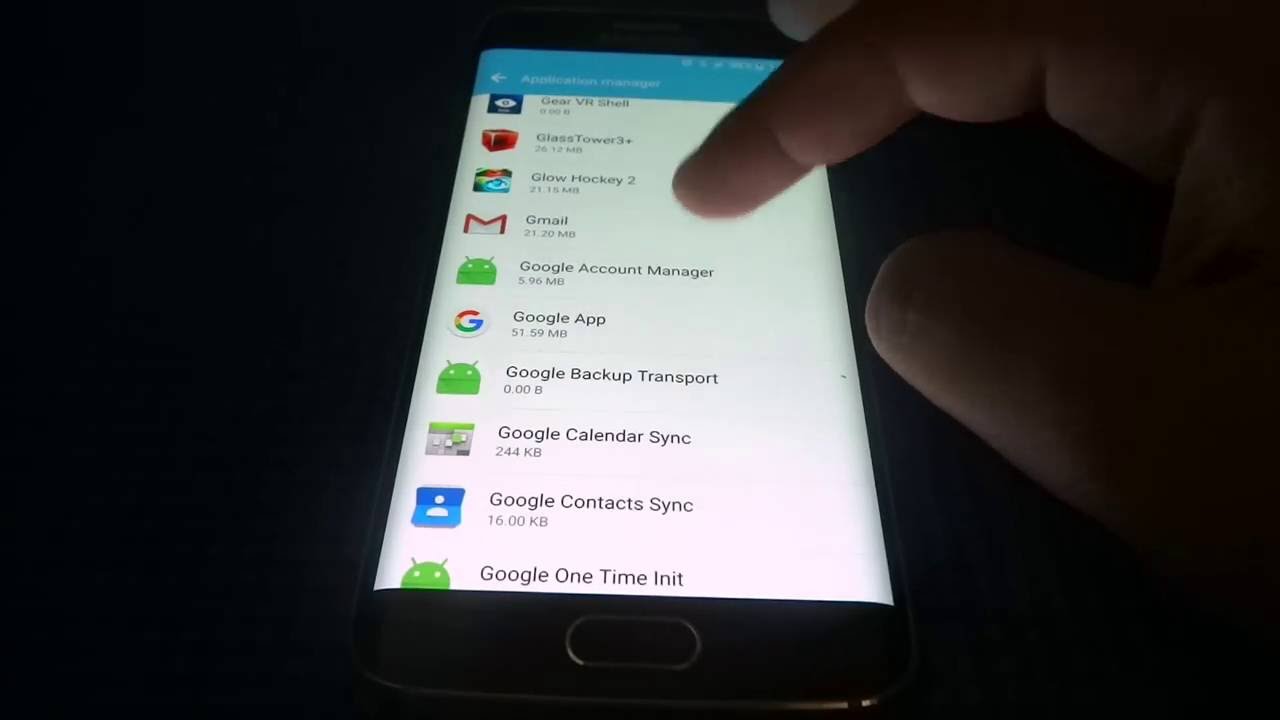
Method 6: Remove and Re-Add Google Account
Account sync issues can cause crashes.
Steps:
- Go to Settings > Accounts
- Select your Google account
- Tap Remove Account
- Restart your device
- Add the account again
Method 7: Uninstall Play Store Updates
Sometimes updates introduce bugs.
Steps:
- Go to Settings > Apps > Google Play Store
- Tap the three-dot menu
- Select Uninstall updates
- Restart your device
The Play Store will update automatically later.
Method 8: Update Google Play Services
Outdated services can cause compatibility issues.
Steps:
- Open Play Store
- Search for Google Play Services
- Tap Update
Method 9: Reset App Preferences
This resets all app settings without deleting data.
Steps:
- Go to Settings > Apps
- Tap the three-dot menu
- Select Reset app preferences
Method 10: Check for System Updates
System bugs may cause Play Store crashes.
Steps:
- Go to Settings > System > Software Update
- Tap Check for updates
- Install available updates
Method 11: Boot into Safe Mode
Safe Mode disables third-party apps.
Steps:
- Press and hold the power button
- Tap and hold Power Off
- Select Safe Mode
If the Play Store works in Safe Mode, a third-party app is causing the issue.
Method 12: Remove Suspicious Apps
Some apps (especially adware) interfere with Google services.
Signs of Problematic Apps:
- Excessive ads
- Unknown installations
- Background activity spikes
Steps:
- Go to Settings > Apps
- Uninstall suspicious apps
Method 13: Clear Cache Partition (Advanced)
This clears system-level cache.
Steps:
- Turn off your device
- Boot into recovery mode
- Select Wipe Cache Partition
- Restart
Method 14: Factory Reset (Last Resort)
If nothing works, reset your device.
Steps:
- Backup your data
- Go to Settings > System > Reset
- Tap Factory Data Reset
This restores your device to default settings.
Why Cache Causes This Problem
Google uses cache to:
- Speed up app loading
- Reduce server requests
- Improve performance
However, when cached data becomes outdated, your device may try to access invalid information, causing crashes.
How to Prevent This Error in the Future
1. Regularly Clear Cache
Avoid buildup of corrupted data.
2. Keep Apps Updated
Always use the latest versions.
3. Avoid Untrusted Apps
Download only from the Play Store.
4. Maintain Storage Space
Low storage can cause app failures.
5. Use Stable Internet
Avoid unstable connections during updates.
Common Mistakes to Avoid
- Ignoring system updates
- Using outdated apps
- Installing APKs from unknown sources
- Not restarting after updates
When to Seek Professional Help
If the issue persists after all fixes:
- Visit a service center
- Contact device support
- Check for hardware issues
Final Thoughts
The “Unfortunately, Google Play Store has stopped” error is common but rarely serious. In most cases, it’s caused by cache conflicts, outdated data, or sync issues between your device and Google servers.
By following the step-by-step solutions in this guide, you can quickly restore your Play Store and get back to downloading and updating apps without interruption.
Start with simple fixes like clearing cache and restarting your device, then move to advanced solutions if needed. With proper maintenance and smart usage habits, you can prevent this issue from recurring.
If none of the methods work for you, don’t hesitate to seek help or share your experience—sometimes a unique situation requires a tailored solution.
Your Android device should work for you, not against you—and fixing this error is a big step toward a smoother experience.