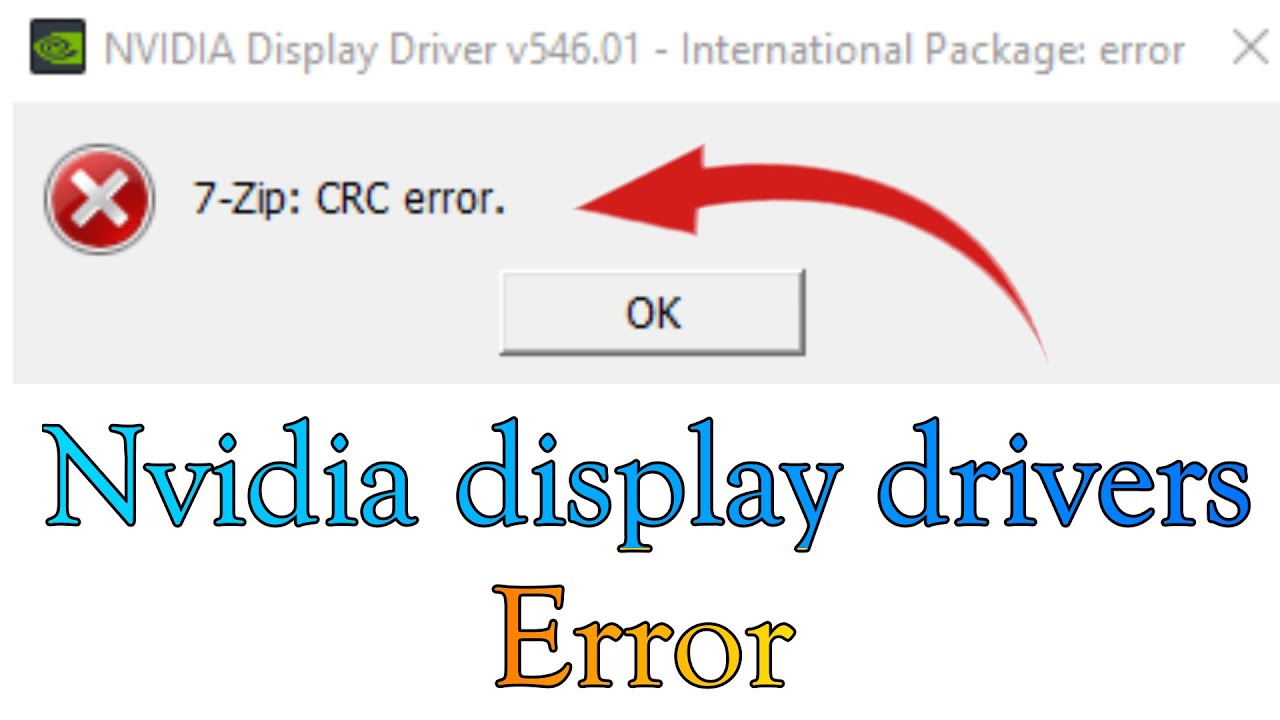
When installing or extracting NVIDIA display drivers, encountering a “CRC error” (Cyclic Redundancy Check) in 7-Zip can be frustrating. This error typically appears when the integrity of the extracted file fails verification, often due to a corrupted or incomplete download. As a result, the extraction process stops, preventing the driver installation from completing.
If left unresolved, this issue can keep your GPU running on outdated or generic drivers, impacting performance, stability, and compatibility with modern applications.
In this comprehensive guide, we’ll explain what causes the NVIDIA CRC error in 7-Zip and provide step-by-step solutions to fix it on Windows.
What Is a CRC Error?
A Cyclic Redundancy Check (CRC) is a method used to verify the integrity of files. When you download or extract a file, the system checks whether the data matches the expected value.
If a CRC error occurs:
- The file is corrupted
- The download is incomplete
- Data has been altered during transfer
This prevents extraction tools like 7-Zip from completing the process.
Why NVIDIA Driver CRC Errors Occur
There are several reasons why this issue happens.
1. Incomplete Download
The most common cause is an interrupted or partial download.
2. Corrupted Archive File
If the file is damaged during download, extraction will fail.
3. Browser or Download Manager Issues
Some browsers may incorrectly handle large files.
4. Disk Errors
Bad sectors or storage issues can corrupt files.
5. Antivirus Interference
Security software may modify or block parts of the file.
6. Unstable Internet Connection
Network interruptions can lead to incomplete downloads.
Symptoms of the Problem
You may notice:
- “CRC failed” error in 7-Zip
- Extraction stops midway
- Missing or incomplete files
- NVIDIA installer fails to launch
These signs confirm a file integrity issue.
Solution 1: Re-download the NVIDIA Driver
The simplest and most effective fix is to download the file again.
Steps:
- Delete the corrupted file
- Visit the official NVIDIA website
- Download the driver again
- Avoid pausing or interrupting the download
Tips:
- Use a stable internet connection
- Avoid using unreliable download sources
Solution 2: Use a Different Browser
Sometimes the browser is the problem.
Try:
- Switching from Chrome to Edge or Firefox
- Clearing browser cache before downloading
Different browsers handle large files differently.
Solution 3: Verify File Integrity
NVIDIA often provides checksum values.
Steps:
- Compare the downloaded file’s checksum with the official one
- Use tools like PowerShell or checksum utilities
If values don’t match, the file is corrupted.
Solution 4: Disable Antivirus Temporarily
Antivirus software may interfere with extraction.
Steps:
- Disable antivirus temporarily
- Extract the file again
- Re-enable antivirus after installation
Make sure to only download files from trusted sources.
Solution 5: Use Another Extraction Tool
If 7-Zip fails, try a different tool.
Alternatives:
- WinRAR
- Built-in Windows extractor
Sometimes extraction tools handle files differently.
Solution 6: Check Your Storage Drive
Disk errors can corrupt files.
Run Disk Check:
- Open Command Prompt as Administrator
- Run:
chkdsk /f /r - Restart your PC
This scans and repairs disk issues.
Solution 7: Use NVIDIA Installer Directly
Instead of extracting manually, run the installer directly.
Steps:
- Double-click the downloaded file
- Let the installer extract files automatically
This often bypasses extraction errors.
Solution 8: Download Using NVIDIA GeForce Experience
NVIDIA’s official software can handle downloads safely.
Steps:
- Install GeForce Experience
- Log in
- Download drivers through the app
This reduces the risk of corrupted files.
Solution 9: Check Available Disk Space
Insufficient storage can cause incomplete extraction.
Ensure:
- Enough free space (at least 2–3 GB)
- Temporary files can be created
Solution 10: Use a Download Manager
A download manager can improve reliability.
Benefits:
- Resume interrupted downloads
- Ensure file completeness
- Better error handling
Solution 11: Extract to a Different Folder
Sometimes the extraction path causes issues.
Steps:
- Create a new folder (e.g., C:\NVIDIA)
- Extract files there
Avoid long or complex folder paths.
Solution 12: Update 7-Zip
Outdated versions may not handle newer archives properly.
Steps:
- Visit official 7-Zip website
- Download latest version
- Install and retry extraction
Solution 13: Check RAM Stability
Faulty RAM can corrupt files during extraction.
Signs:
- Frequent extraction errors
- System crashes
Solution:
- Run Windows Memory Diagnostic
- Replace faulty RAM if necessary
Solution 14: Disable Background Applications
Heavy system load can interrupt extraction.
Steps:
- Close unnecessary programs
- Restart your PC
- Retry extraction
Solution 15: Use Safe Mode
Safe Mode minimizes interference.
Steps:
- Restart PC into Safe Mode
- Extract or install driver
- Restart normally
Preventing CRC Errors in the Future
To avoid this issue:
- Always download from official sources
- Use stable internet connections
- Keep your system updated
- Regularly check disk health
- Avoid interrupting downloads
Why Fixing This Issue Is Important
Failing to install NVIDIA drivers can result in:
- Poor gaming performance
- Reduced graphics quality
- Compatibility issues with apps
- System instability
Keeping your GPU drivers updated ensures optimal performance.
Quick Troubleshooting Checklist
If you’re in a hurry:
- Re-download the file
- Use a different browser
- Disable antivirus
- Check disk health
- Update 7-Zip
These steps resolve most CRC errors.
Conclusion
A CRC error in 7-Zip while extracting NVIDIA drivers is usually caused by a corrupted or incomplete file. While it may seem like a serious issue, it’s often easy to fix with the right approach.
By re-downloading the file, verifying its integrity, and ensuring your system is functioning properly, you can quickly resolve the problem and proceed with driver installation.
Understanding the causes and solutions not only helps you fix the issue now but also prevents similar problems in the future—keeping your system running smoothly and your GPU performing at its best.