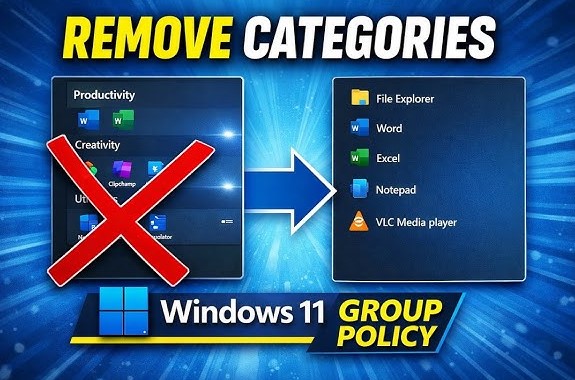
Microsoft introduced a redesigned Start Menu in Windows 11, offering a cleaner and more modern interface compared to previous versions. While many users appreciate the new layout, others find certain elements unnecessary or distracting.
One such feature is the “All Category” section, which groups apps into categories and expands the size of the Start Menu. Along with the Recommended section, it can make the interface feel cluttered, especially for users who prefer a minimal and streamlined experience.
If you want to simplify your Start Menu, you can hide or disable the All Category section using advanced methods like the Windows Registry, Group Policy Editor, or Command Prompt (CMD).
This guide will walk you through each method step by step.
What Is the All Category Section in Windows 11?
The All Category section in the Start Menu organizes installed apps into grouped categories such as:
- Productivity
- Utilities
- Entertainment
- System tools
Instead of displaying a simple alphabetical list, Windows groups apps into categories for easier navigation.
While this can be helpful for some users, others may prefer:
- A smaller Start Menu
- A simpler app list
- Less visual clutter
Why Hide the All Category Section?
There are several reasons users choose to hide this feature.
Cleaner Interface
Removing the category section reduces visual clutter.
Faster Navigation
Some users prefer the classic alphabetical app list instead of grouped categories.
More Compact Start Menu
The category layout increases the size of the Start Menu, which may not be ideal for smaller screens.
Personal Preference
Many users simply prefer a minimal design with fewer distractions.
Method 1: Hide All Category Section Using Registry Editor
The Windows Registry allows users to modify system settings at a deeper level.
⚠️ Before making changes, it is recommended to back up your registry.
Steps
- Press Win + R to open the Run dialog.
- Type regedit and press Enter.
- Navigate to the following path:
HKEY_CURRENT_USER\Software\Microsoft\Windows\CurrentVersion\Explorer\Advanced
- Right-click in the right pane and select New → DWORD (32-bit) Value.
- Name it:
StartMenuCategories
- Double-click the value and set it to:
0 = Disable All Category section
1 = Enable All Category section
- Click OK and restart your PC.
After restarting, the All Category section should be hidden.
Method 2: Use Group Policy Editor
The Group Policy Editor is available in Pro and Enterprise editions of Windows.
This tool allows administrators to control system features without directly editing the registry.
Steps
- Press Win + R.
- Type gpedit.msc and press Enter.
- Navigate to: User Configuration > Administrative Templates > Start Menu and Taskbar
- Look for a policy related to Start Menu layout or categories.
- Double-click the policy.
- Set it to Disabled or Enabled depending on the configuration required.
- Click Apply and OK.
Restart your computer to apply the changes.
Method 3: Use Command Prompt (CMD)
If you prefer a quicker approach, you can use Command Prompt to modify the registry directly.
Steps
- Open Command Prompt as Administrator.
- Enter the following command:
reg add HKCU\Software\Microsoft\Windows\CurrentVersion\Explorer\Advanced /v StartMenuCategories /t REG_DWORD /d 0 /f
- Press Enter.
- Restart your PC.
This command disables the All Category section.
To enable it again, change the value from 0 to 1.
Restart Windows Explorer Instead of Rebooting
Instead of restarting your entire system, you can restart Windows Explorer to apply changes faster.
Steps
- Press Ctrl + Shift + Esc to open Task Manager.
- Find Windows Explorer.
- Right-click it and select Restart.
This refreshes the Start Menu instantly.
Can You Customize the Start Menu Further?
Yes, Windows 11 offers several customization options.
You can:
- Hide the Recommended section
- Pin or unpin apps
- Adjust Start Menu alignment
- Change themes and colors
These settings allow you to tailor the interface to your preferences.
Important Notes Before Making Changes
Before modifying system settings, keep these points in mind:
Backup Your System
Create a restore point before making registry or policy changes.
Use Trusted Methods
Only apply changes from reliable sources.
Check Windows Version
Some features and policies may vary depending on your Windows edition.
Troubleshooting
If the All Category section does not disappear after applying changes, try the following:
- Restart your PC
- Restart Windows Explorer
- Double-check registry values
- Ensure Group Policy settings are applied correctly
Sometimes changes may not take effect immediately.
Benefits of a Minimal Start Menu
After removing unnecessary sections, users often experience:
- Faster navigation
- Improved focus
- Cleaner desktop environment
- Better usability on smaller screens
A simplified Start Menu can make everyday tasks more efficient.
Conclusion
The redesigned Start Menu in Windows 11 introduces new features like the All Category section, but not everyone finds it useful. For users who prefer a simpler and more compact interface, hiding this section can significantly improve usability.
By using methods such as the Windows Registry, Group Policy Editor, or Command Prompt, you can easily disable the All Category section and customize your Start Menu according to your preferences.
With a cleaner layout and fewer distractions, you can enjoy a more efficient and streamlined Windows experience.