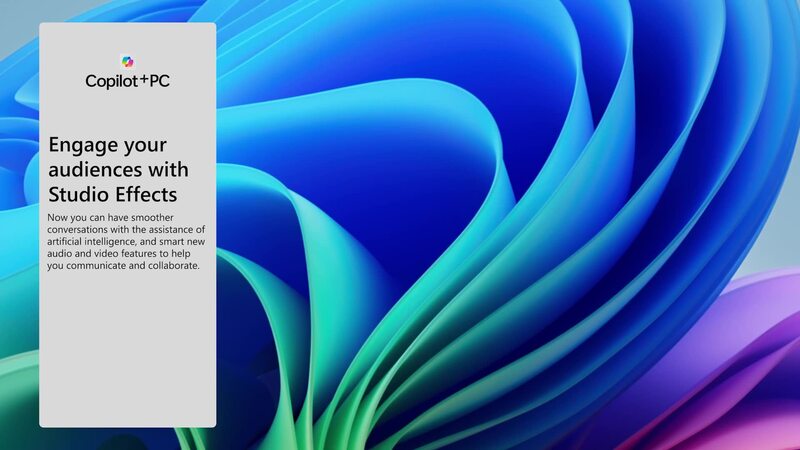
With the rise of remote work, online meetings, and virtual collaboration, having clear audio and professional-looking video has become more important than ever. To address this need, Microsoft introduced Windows Studio Effects, a set of AI-powered enhancements designed to improve video calls and recordings.
Available in Windows 11 (version 22H2 and later), these features leverage advanced hardware like a Neural Processing Unit (NPU) to deliver real-time improvements to both video and audio. Whether you’re attending meetings, recording content, or streaming online, Windows Studio Effects can significantly enhance your presentation.
In this guide, we’ll explore what Windows Studio Effects are, how they work, and how to use them effectively.
What Are Windows Studio Effects?
Windows Studio Effects are built-in AI tools that enhance your camera and microphone experience during video calls.
These effects are deeply integrated into Windows and work across supported apps like:
- Microsoft Teams
- Zoom
- Google Meet
- Other video conferencing platforms
Instead of relying on each app to provide enhancements, Windows handles these improvements at the system level.
Why Windows Studio Effects Matter
In professional and personal communication, presentation matters.
Windows Studio Effects help by:
- Improving video clarity
- Enhancing audio quality
- Protecting privacy
- Creating a more professional appearance
These features are especially useful for:
- Remote workers
- Students attending online classes
- Content creators
- Business professionals
Key Features of Windows Studio Effects
Windows Studio Effects include several powerful AI-driven tools.
1. Background Blur
Background Blur uses AI to separate you from your surroundings and blur the background.
Benefits
- Protects your privacy
- Removes distractions
- Keeps focus on you
Unlike traditional blur effects, AI ensures accurate edge detection, making the result look more natural.
2. Eye Contact
Eye Contact adjusts your gaze so it appears as though you are looking directly into the camera—even if you’re reading notes or looking at the screen.
Benefits
- Improves engagement
- Creates a more natural conversation
- Enhances professional presence
This feature is particularly useful during presentations and meetings.
3. Auto Framing
Auto Framing keeps you centered in the frame as you move.
How It Works
The camera automatically adjusts the zoom and position to follow your movement.
Benefits
- Ideal for presenters
- Great for active speakers
- Maintains focus without manual adjustments
4. Voice Focus
Voice Focus reduces background noise and enhances your voice clarity.
Benefits
- Eliminates unwanted sounds
- Improves call quality
- Ideal for noisy environments
This feature is especially useful when working from home or public spaces.
5. Creative Filters
Creative Filters allow you to apply visual effects to your video feed.
Examples
- Color enhancements
- Stylized effects
- Lighting adjustments
These filters can make your video more engaging and visually appealing.
How Windows Studio Effects Work
Windows Studio Effects rely on a Neural Processing Unit (NPU), a specialized processor designed for AI tasks.
Why NPU Matters
Unlike CPUs or GPUs, NPUs are optimized for:
- Real-time AI processing
- Low power consumption
- Efficient performance
This allows Windows Studio Effects to run smoothly without slowing down your system.
System Requirements
To use Windows Studio Effects, your system must meet certain requirements:
Operating System
- Windows 11 version 22H2 or later
Hardware
- Device with built-in NPU (commonly found in newer AI-powered PCs)
- Compatible webcam and microphone
Not all Windows PCs support these features due to hardware limitations.
How to Enable Windows Studio Effects
You can enable these features directly through Windows settings.
Steps
- Open Settings.
- Go to Bluetooth & devices.
- Select Camera.
- Choose your camera device.
- Enable desired Studio Effects.
Alternatively, some features can be accessed from:
- Quick Settings panel
- Video call apps like Microsoft Teams
Using Studio Effects in Video Calls
Once enabled, Windows Studio Effects automatically apply to supported apps.
For example, when using Microsoft Teams:
- Background blur appears instantly
- Voice focus improves audio clarity
- Eye contact enhances engagement
No additional setup is required within the app.
Advantages of Windows Studio Effects
These AI-powered tools offer several advantages.
System-Level Integration
Effects work across multiple apps without needing separate configurations.
Real-Time Processing
Enhancements are applied instantly during calls.
Improved Privacy
Background blur helps hide personal surroundings.
Professional Appearance
Users appear more polished in meetings and recordings.
Limitations to Consider
While Windows Studio Effects are powerful, there are some limitations.
Hardware Dependency
Not all PCs support NPUs, limiting availability.
Battery Usage
Although optimized, AI processing may still impact battery life.
Limited Customization
Some users may prefer more advanced manual controls.
Tips for Best Results
To get the most out of Windows Studio Effects, follow these tips:
Use Good Lighting
Proper lighting improves AI detection and video quality.
Position Your Camera Correctly
Keep your camera at eye level for natural framing.
Use a Quality Microphone
Voice Focus works best with a decent microphone.
Keep Drivers Updated
Ensure your system and camera drivers are up to date.
Future of AI in Windows
Windows Studio Effects represent a growing trend of integrating AI directly into operating systems.
Microsoft continues to invest in AI features that:
- Improve productivity
- Enhance communication
- Simplify user experiences
As hardware evolves, future updates may include even more advanced capabilities.
Conclusion
Windows Studio Effects in Windows 11 bring powerful AI-driven enhancements to everyday video calls and recordings. With features like Background Blur, Eye Contact, Auto Framing, Voice Focus, and Creative Filters, users can significantly improve their virtual presence.
By leveraging dedicated hardware like NPUs, these effects run efficiently and seamlessly across supported apps such as Microsoft Teams.
Whether you’re working remotely, attending online classes, or creating content, Windows Studio Effects provide a smarter, more polished communication experience—making your video calls clearer, more engaging, and more professional.