

The Windows Camera Frame Server (internally known as FrameServer) is a critical system service introduced in Windows 10 (version 1607) and significantly enhanced in Windows 11. It serves as a sophisticated intermediary—or proxy—between your physical camera hardware and the applications that want to use it.
What Does the Windows Camera Frame Server Do?
In older versions of Windows, hardware drivers were typically “exclusive.” If one app (like Skype) was using your webcam, another app (like the Windows Camera app) would be blocked. The FrameServer service solves this by virtualizing the video stream.
- Multi-App Access: It allows multiple clients to access video frames from a single camera device simultaneously.
- System Security: It facilitates secure camera access for Windows Hello facial recognition without interfering with user apps.
- Performance Management: It handles the publication and storage of modern Camera Profiles (V2), ensuring media types are filtered efficiently.
How to Enable Multi-App Camera Support
With the latest Windows 11 (version 24H2) updates, users can finally use one webcam across several apps (e.g., Zoom and OBS at the same time) natively.
- Open the Windows Settings app.
- Navigate to Bluetooth & devices > Cameras.
- Select your connected webcam.
- Under Advanced camera settings, click Edit.
- Toggle Allow multiple apps to use the camera at the same time to On.
Troubleshooting Common Issues
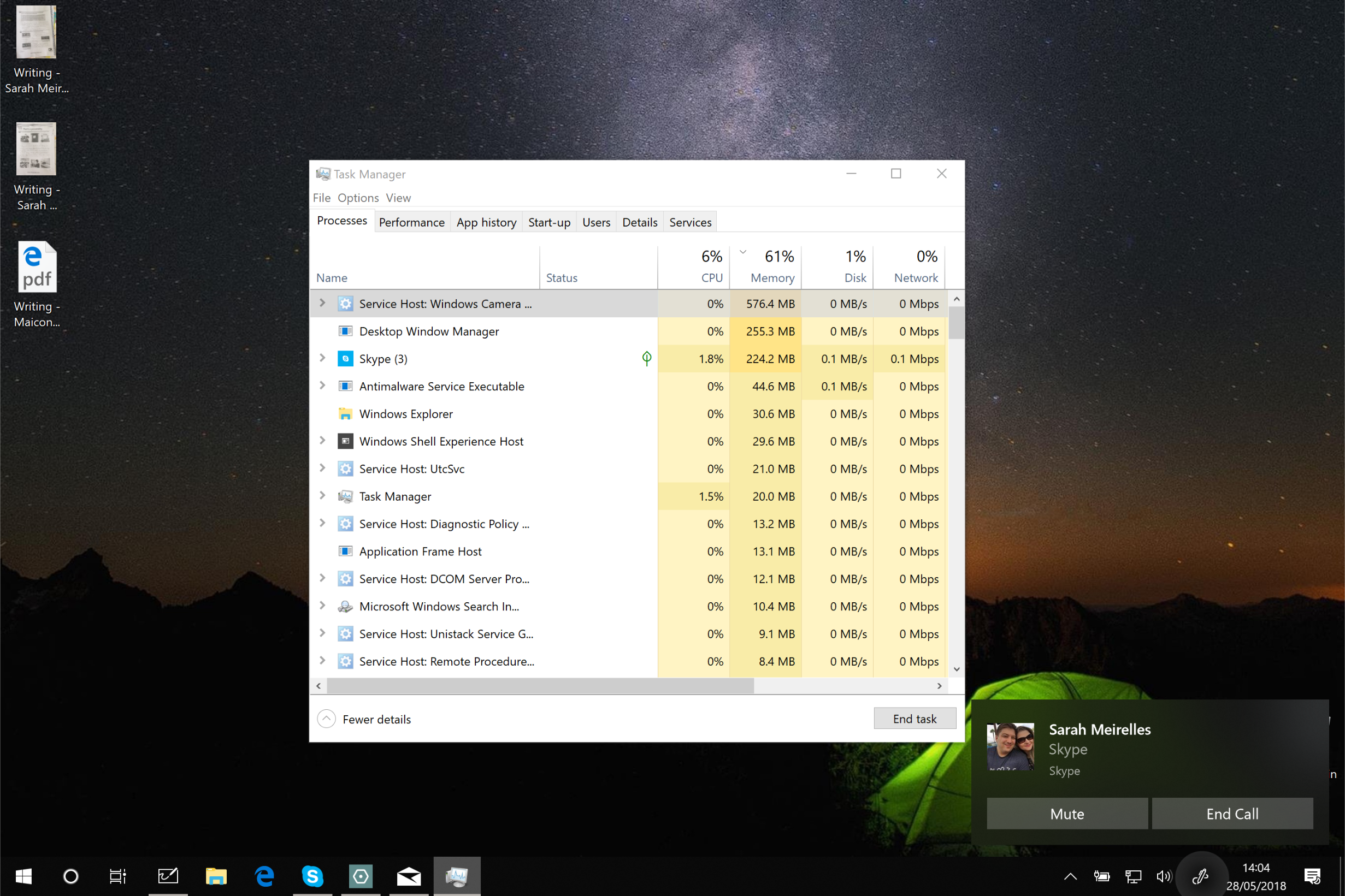
While essential, the FrameServer can sometimes cause issues like high memory usage or system lag.
1. High CPU or Memory Usage
This often occurs on devices like the Microsoft Surface or when using the Xbox Game Bar.
- The Fix: Disable the Game Bar via Settings > Gaming > Xbox Game Bar. If the leak persists, try a Clean Boot to identify conflicting background apps.
2. Service “Stopped” or Camera Not Found
If your camera works in some apps but not others, the service might be set to the wrong startup type.
- The Fix: Press Win + R, type services.msc, and find Windows Camera Frame Server. Ensure the Startup Type is set to Manual (Trigger Start).
3. Error 0xA00F4244 (NoCamerasAreAttached)
This usually points to a driver conflict or a physical privacy switch.
- The Fix: Check for a physical camera shutter or a function key (like F8) that disables the camera. If the hardware is active, use the Windows Device Manager to update your Imaging Devices drivers.
Technical Architecture for Developers
For developers, FrameServer operates as a svchost.exe process using the FrameServer.dll file. It supports both AV Stream miniport drivers (kernel mode) and Custom Media Sources (user mode via COM DLLs). By setting the MF_DEVICESTREAM_FRAMESERVER_SHARED attribute to 1, developers can explicitly mark streams as shareable by the Frame Server.