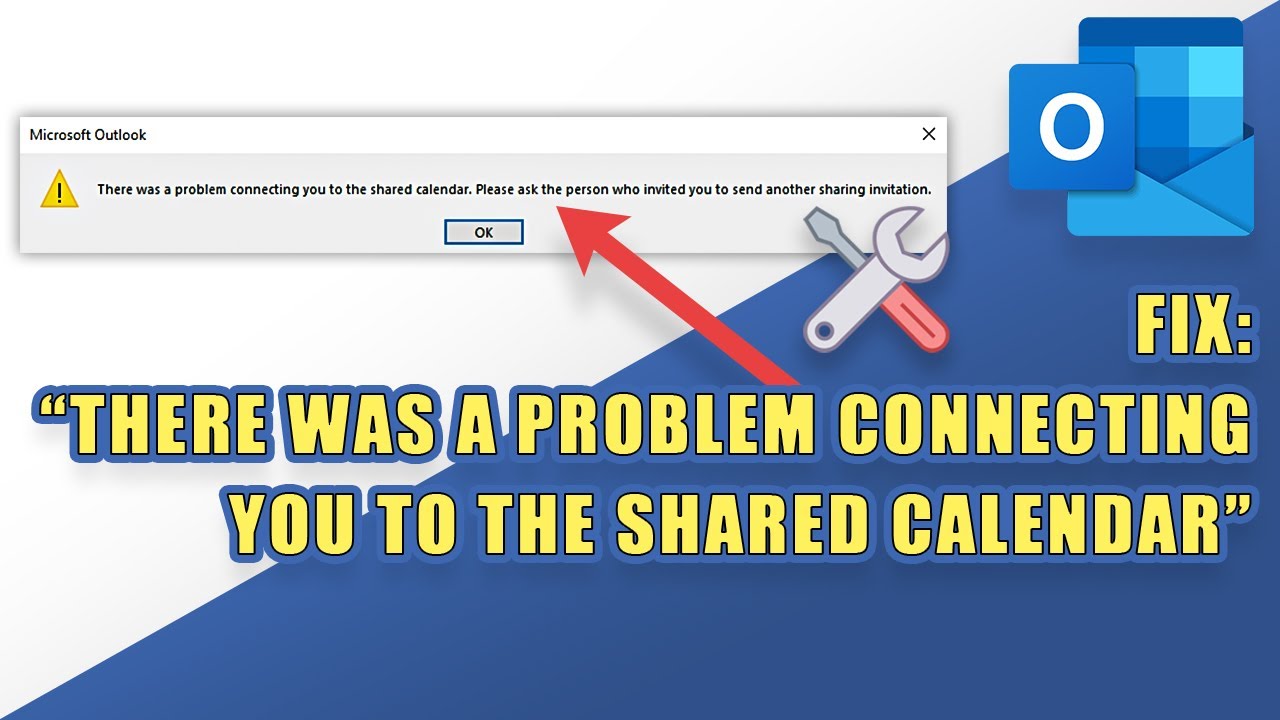
Microsoft Outlook is widely used for managing emails, meetings, and calendars—especially in professional environments. One of its most valuable features is calendar sharing, which allows teams and individuals to coordinate schedules efficiently. However, when Outlook calendar sharing stops working, it can disrupt productivity and create confusion.
If you’re wondering why Outlook calendar sharing is not working, you’re not alone. This issue can arise due to multiple reasons, ranging from simple permission errors to complex server-side restrictions. In this detailed guide, we’ll explore all possible causes and provide step-by-step solutions to help you fix the problem quickly.
Understanding Outlook Calendar Sharing
Before troubleshooting, it’s important to understand how Outlook calendar sharing works.
Outlook allows users to:
- Share calendars with specific individuals
- Set permission levels (view, edit, delegate)
- Share internally (within organization) or externally
Calendar sharing depends heavily on account type, permissions, and server configurations. If any of these elements are misconfigured, sharing may fail.
Common Signs That Sharing Is Not Working
You may encounter one or more of the following issues:
- Error message when sharing calendar
- Recipients cannot access the calendar
- Shared calendar not updating
- Calendar invite not sent
- Permissions not saving
These symptoms help identify where the problem lies.
Top Reasons Why Outlook Calendar Sharing Fails
Let’s explore the most common causes.
1. Incorrect Permissions
One of the primary reasons for sharing failure is incorrect permission settings.
If users don’t have proper access rights, Outlook won’t allow sharing.
2. Invalid or External Email Addresses
Sharing may fail if:
- Email address is incorrect
- Recipient account is inactive
- External sharing is restricted
3. Organization Policies
In business environments, administrators often restrict calendar sharing.
Policies may:
- Block external sharing
- Limit sharing to specific users
- Restrict editing permissions
4. Outlook Cache Issues
Corrupted cache files can interfere with calendar functionality.
5. Outdated Outlook Version
Older versions may not support modern sharing features properly.
6. Exchange Server Problems
If you’re using Microsoft Exchange, server issues may prevent sharing.
7. Internet Connectivity Problems
Poor or unstable internet can interrupt sharing requests.
Fix 1: Check Recipient Email Addresses
Start with the basics.
Steps:
- Verify all email addresses
- Remove incorrect entries
- Add recipients one at a time
This helps isolate problematic contacts.
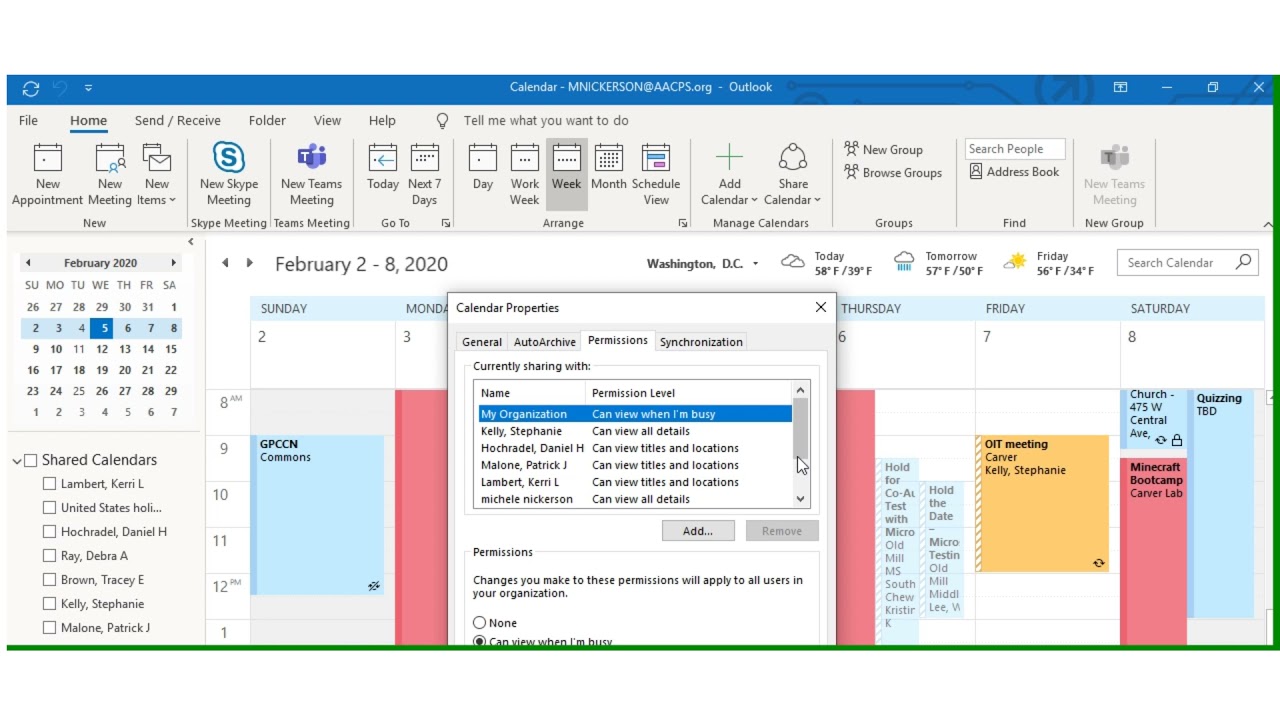
Fix 2: Adjust Calendar Permissions
Make sure your permissions are set correctly.
Steps:
- Open Outlook
- Go to Calendar
- Right-click your calendar
- Select Sharing Permissions
- Assign appropriate access levels
Common permission levels include:
- Can view
- Can edit
- Delegate
Fix 3: Remove and Re-share Calendar
Resetting sharing settings can resolve hidden issues.
Steps:
- Remove all shared users
- Save changes
- Restart Outlook
- Share the calendar again
This clears previous configuration errors.
Fix 4: Enable External Sharing
If you’re trying to share outside your organization, this must be enabled.
For Admins:
- Open Microsoft 365 Admin Center
- Go to Settings > Org Settings
- Enable external calendar sharing
If you’re not an admin, contact your IT team.
Fix 5: Use Outlook Web Version
Sometimes the desktop app is the issue.
Steps:
- Open Outlook in your browser
- Log in
- Try sharing the calendar
If it works, the problem is likely with the desktop client.
Fix 6: Clear Outlook Cache
Cache issues can disrupt functionality.
Steps:
- Close Outlook
- Press Windows + R
- Type:
%localappdata%\Microsoft\Outlook - Delete cache files (avoid deleting PST/OST)
- Restart Outlook
Fix 7: Update Outlook
Keeping Outlook updated ensures compatibility.
Steps:
- Open Outlook
- Go to File > Office Account
- Click Update Options > Update Now
Updates fix bugs and improve features.
Fix 8: Check Exchange Sharing Policies
In corporate environments, policies control sharing.
Steps:
- Access Exchange Admin Center
- Review sharing policies
- Ensure calendar sharing is allowed
Incorrect policies are a major cause of failure.
Fix 9: Disable Add-ins
Add-ins can interfere with Outlook functions.
Steps:
- Go to File > Options > Add-ins
- Disable unnecessary add-ins
- Restart Outlook
Test sharing again afterward.
Fix 10: Repair Outlook
Corrupted installations can cause issues.
Steps:
- Open Control Panel
- Go to Programs and Features
- Select Microsoft Office
- Click Change
- Choose Quick Repair or Online Repair
Fix 11: Check Account Type
Not all accounts support full sharing features.
Supported Accounts:
- Microsoft 365
- Exchange
- Outlook.com
Limited accounts may restrict sharing options.
Fix 12: Verify Internet Connection
Ensure stable connectivity.
Tips:
- Restart router
- Disable VPN
- Try another network
Fix 13: Test with Another User
This helps identify whether the issue is user-specific.
- If sharing works → problem is with recipient
- If it fails → issue is with your settings
Fix 14: Reset Outlook Profile
A corrupted profile may cause sharing issues.
Steps:
- Open Control Panel
- Go to Mail
- Click Show Profiles
- Create a new profile
- Set it as default
Fix 15: Check Windows 11 Settings
System settings can affect Outlook.
- Ensure Windows is updated
- Verify date and time
- Check system permissions
Best Practices for Smooth Calendar Sharing
To avoid future issues:
- Use correct permissions
- Keep Outlook updated
- Regularly review sharing settings
- Avoid sharing with invalid emails
- Coordinate with IT for policies
When to Contact IT Support
If you’re in a corporate environment and still facing issues:
- Policies may be managed centrally
- You may lack necessary permissions
- Server-side configurations may need adjustment
IT support can resolve these quickly.
Why Calendar Sharing Matters
Calendar sharing is essential for:
- Team collaboration
- Meeting coordination
- Project management
When it fails, communication breaks down and productivity suffers.
Troubleshooting Checklist
Here’s a quick summary:
- Check email addresses
- Verify permissions
- Enable external sharing
- Clear cache
- Update Outlook
- Review policies
Following this checklist resolves most issues.
Conclusion
Outlook calendar sharing not working can be frustrating, but it’s usually caused by manageable issues such as incorrect permissions, policy restrictions, or outdated software.
By carefully following the troubleshooting steps outlined in this guide, you can identify the root cause and restore calendar sharing functionality quickly. Whether you’re an individual user or part of an organization, understanding how Outlook sharing works will help you avoid future problems.
Take control of your Outlook calendar today and ensure seamless collaboration with colleagues, clients, and teams.